

Draft email campaigns with Sender MCP
TL;DR: To draft email campaigns with Sender MCP, tell your AI assistant in Claude, ChatGPT or Cursor what to send and to whom. It creates a draft campaign with the subject, preview text, sender and audience, and can design the email. The assistant can’t send or schedule it. You open the draft in Sender, check it and send it yourself.
Where to find it: In your AI assistant, with the Sender connector enabled. Drafts appear under Email campaigns.
Important: The from address must be on a verified sending domain. Ask the assistant “Which of my domains are ready to send?” before you start. See set up SPF, DKIM and DMARC.
How an AI email campaign draft works
You brief the assistant in natural language, as you would brief an AI email writer. It works in two parts. First it creates the campaign with its settings: subject line, sender and audience. Then it writes the body, as a designed email, HTML or a simple text email.
Because it reads your account, the draft can build on real results. Ask it to look at your best campaigns first, and it uses their subject lines, structure and click data as a starting point.
The result is an ordinary draft campaign. Nothing reaches a subscriber until a person sends or schedules it in Sender.
What goes into a draft
| Setting | What the assistant can set |
| Subject line | Yes, at least 4 characters |
| Preview text (preheader) | Yes |
| Campaign name | Yes. If you give none, the subject is used |
| Sender name and from address | Yes, on a verified domain |
| Audience | Groups, segments or all subscribers |
| Content | Simple text email, HTML or a drag & drop design |
| Auto follow-up | A resend to non-openers with its own subject line |
| Google Analytics tracking | Yes |
| Send or schedule | No. You do this in Sender |
The auto follow-up can go out 12 hours after the campaign, or 1, 2, 3, 4, 5, 6 or 7 days after it.
Draft a campaign from a prompt
- Say what the email is for. “Draft a campaign announcing our winter sale to the Customers group. 20% off until Sunday. One button to the sale page.”
- Pick the format. Ask for a designed email, or for a short text email that reads like a personal note.
- Review the reply. The assistant shows the subject, audience and a summary of the content, with any warnings.
- Open the draft in Sender. Go to Email campaigns, open the draft and preview it on desktop and mobile.
- Send a test, then send or schedule. See preview and send a test email.
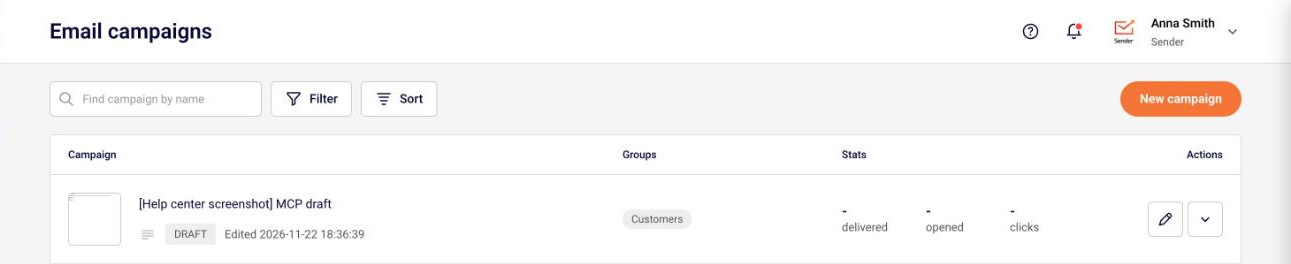
To confirm it worked, check that the campaign shows the status DRAFT in your campaign list.
What to put in the prompt
A short brief gets a better first draft than a single line. Cover these points:
- Goal: what the reader should do, such as buy, read or reply.
- Audience: the group or segment by name.
- Offer and deadline: the discount, the date and the link.
- Tone: for example “friendly and short” or “formal”.
- Format: designed email, HTML or simple text.
- Sender: the name and address to send from.
For example: “Draft a designed campaign to my VIP segment. Goal: early access to the spring collection. Tone: warm, under 120 words. One button to https://acmestore.com/spring. Send from Anna at hello@acmestore.com.”
Three ways the assistant can write the email
Drag & drop design
The assistant builds a designed email from blocks: headings, text, buttons, images, logo, dividers, spacers, menus, social icons and timers. Blocks can stack or sit side by side in columns. You can keep editing the result in the drag-and-drop email editor, the drag & drop builder.
By default the design uses your brand colors, fonts and button styles from your brand assets. Those references stay live, so the email follows later brand changes. Ask for a specific color or font to override one.
Images come from links you give, your image library or stock photos. If none fits, the builder shows a placeholder and the assistant tells you.
A design can go to three places: a draft campaign, an email step in a workflow, or a reusable email template in your gallery. Ask to preview a design first if you want to see it before anything is saved.
HTML email
Use this when you have your own code. The assistant stores the full HTML as the campaign body, up to 2 MB.
Simple text email
A short message with paragraphs and links, like a plain text email written by hand. Sender wraps it into a complete email when it is sent.
Personalization and unsubscribe links
Personalization uses Liquid, such as {{ firstname }}. If the content has old {$firstname} tags, the assistant gets a warning, because they would reach subscribers as plain text. Sender adds an unsubscribe footer to HTML emails that don’t include {{ unsubscribe_link }}.
Designs made in the editor are protected
The assistant can read a campaign you designed in the drag & drop editor, but it can’t change it by accident. Replacing that content needs an explicit overwrite, and the old design is then gone for good. If you only want new copy, ask the assistant for the text and paste it into the editor yourself.
Learn from campaigns you already sent
Ask “How did my last campaign perform?” The assistant reads the campaign report: emails sent, opens, clicks, unsubscribes, spam complaints, soft and hard bounces, and the most clicked links. With a connected store, it also sees the number of purchases.
Use that before you write the next one. “Compare my last five campaigns and draft the next newsletter in the style of the best one” gives the assistant facts to work from.
If the draft isn’t right
- The assistant says the from address is not allowed. The domain isn’t verified. Ask which domains are ready to send and pick an address on one.
- The email shows
{$firstname}as text. It uses old merge tags. Ask the assistant to rewrite them in Liquid. - The design has grey placeholder images. No image matched. Give a public image link or name a folder in your image library.
- The assistant refuses to change the content. The campaign was sent, or it holds a design from the editor. Only drafts can change, and designs need your explicit overwrite.
Sender MCP campaign FAQs
No. There is no tool for sending or scheduling. A person does that in Sender.
No. Only drafts can be changed. It can read sent campaigns and their reports.
No. SMS campaigns are created in the app. The assistant can write SMS steps inside workflows.
Yes. An account can create 50 drag & drop designs per day through the MCP server. Previews don’t count.
What to read next
Choose who gets the email first: create segments with Sender MCP. Before you send, run through the pre-send checklist for email campaigns. To turn a one-off email into a series, build automations with Sender MCP. For more requests to try, see Sender MCP prompts.