

Pre-send checklist for email campaigns
This guide covers what to verify across each stage of the email campaign workflow before sending in Sender.
Where to find this feature
In the Sender dashboard, go to Email campaigns → select a campaign → follow the Settings > Design > Recipients > Review and send workflow at the top of the page.
What to check before sending
Step 1 — Verify campaign settings
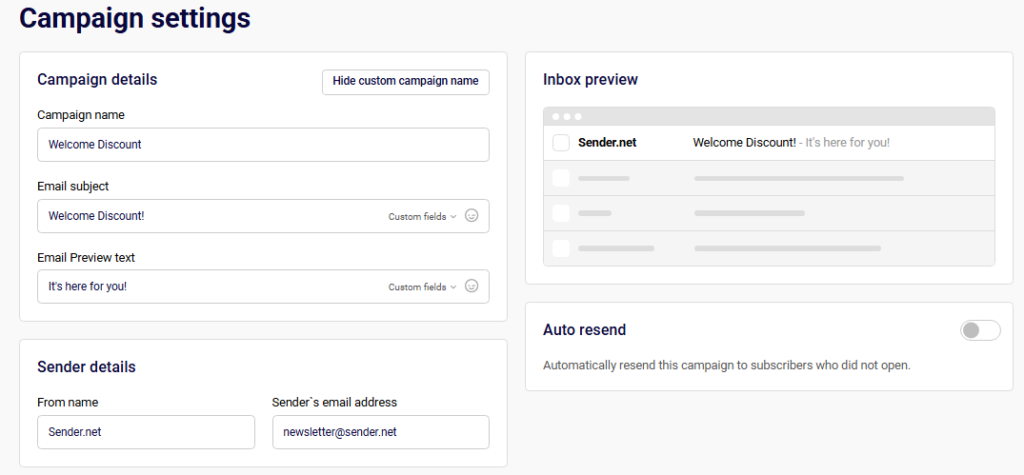
On the Campaign settings page, check that Campaign name and Email subject are accurate and finalized. Make sure you have added Email Preview text — the line subscribers see next to the subject in their inbox. Use the Inbox preview panel on the right to confirm how the sender name, subject, and preview text appear together.
Under Sender details, confirm the From name and Sender’s email address are correct. If you want to automatically re-send to subscribers who do not open, toggle Auto resend on before proceeding.
Step 2 — Review email design and send a test
On the Email campaign design page, click the preview icon (eye) in the editor toolbar to open the visual preview. This displays your email in both desktop and mobile views side by side. Check that the layout renders correctly on both. Toggle Dark mode preview to verify readability in dark-mode email clients.
Note the Email size indicator in the top-left corner of the preview — a green bar means the file size is within acceptable limits. Click Send test email in the toolbar, enter a recipient address, and click Send to deliver a test copy to your inbox. On the Design page, use View plain text version to confirm the fallback plain text is readable.

Step 3 — Confirm recipients
On the Recipients page, check that the correct subscriber groups are selected and that the total under Selected recipients matches your intended audience. If the count shows 0 or a warning such as “You don’t have any active subscribers” appears, resolve this before continuing. The Save and continue button remains disabled until at least one recipient is selected.
Step 4 — Review and send
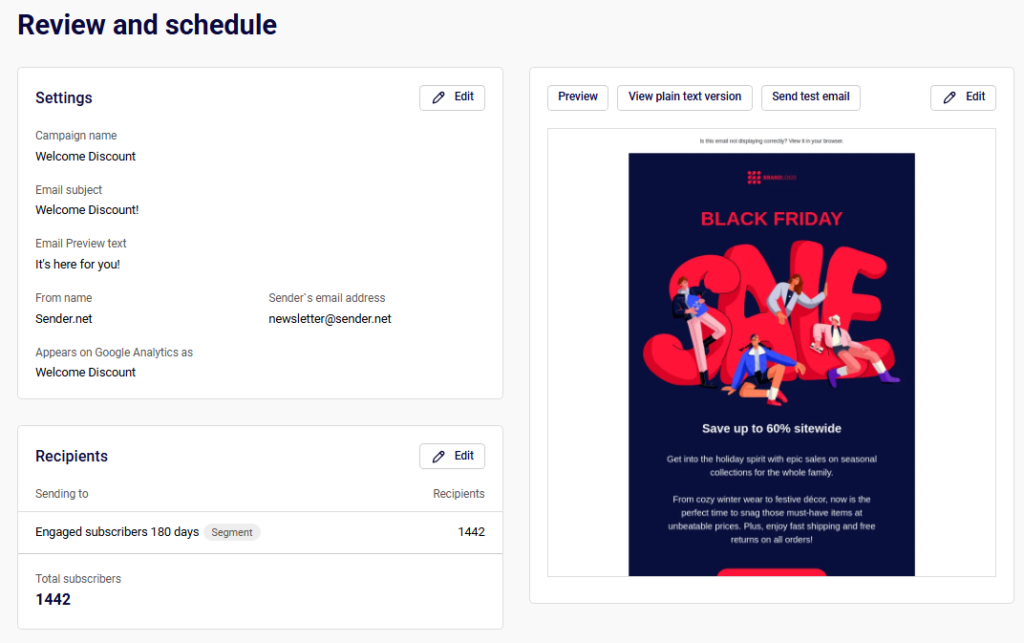
On the Review and send page, verify all campaign details one final time — subject line, preview text, sender information, design, and recipient count. Confirm everything is correct, then send or schedule the campaign.
What happens after you save
After sending, the campaign appears in Email campaigns with a status of SENT and a timestamp. Stats for delivered, opened, and clicks become available in the Campaign overview report. You can access the report by clicking the chart icon next to the campaign. The overview displays total emails sent, total delivered, open rate, unique clicks, hard bounced, soft bounced, unsubscribed, and spam reports.
Common issues
Send test email not arriving — Check that the recipient address is correct and look in spam or junk folders. Sending to your own Sender account address may cause delivery issues.
Preview looks different from the test email — The in-app preview is an approximation. Always confirm rendering through an actual test send in the email client you want to verify.
Save and continue is greyed out on Recipients — At least one subscriber group with active subscribers must be selected before you can proceed.
Email size indicator shows a long bar — Large emails may be clipped by inbox providers. Reduce image sizes or remove unnecessary content blocks to bring the size down.
FAQs
Can I preview my email in dark mode?
Yes. Open the preview in the editor by clicking the eye icon, then enable the Dark mode preview toggle in the top-right corner.
How do I check the plain text version?
On the Design step, click View plain text version above the email preview.
Can I save my campaign as a PDF before sending?
Yes. From the Email campaigns list, click the dropdown arrow next to a campaign and select Save as PDF.
Does the Inbox preview show the exact appearance in all email clients?
No. The Inbox preview on the Settings page shows an approximation of how the subject, sender name, and preview text appear. Use Send test email for exact rendering in a specific client.