

Previewing and testing emails
This guide shows how to preview and test your email campaign before sending it to subscribers in Sender.
Where to find this feature
In the Sender dashboard, go to: Email campaigns → select a campaign → Design
Preview and testing tools are available across the Settings and Design stages of the campaign workflow.
What to check before sending
Step 1 — Review the inbox preview
On the Settings page, check the Inbox preview panel on the right side. It shows how your email will appear in a recipient’s inbox, including the From name, Email subject, and Email Preview text.
Make sure the subject line is not truncated and the preview text reads clearly alongside it. If the preview text is missing, add it in the Email Preview text field below the subject line.
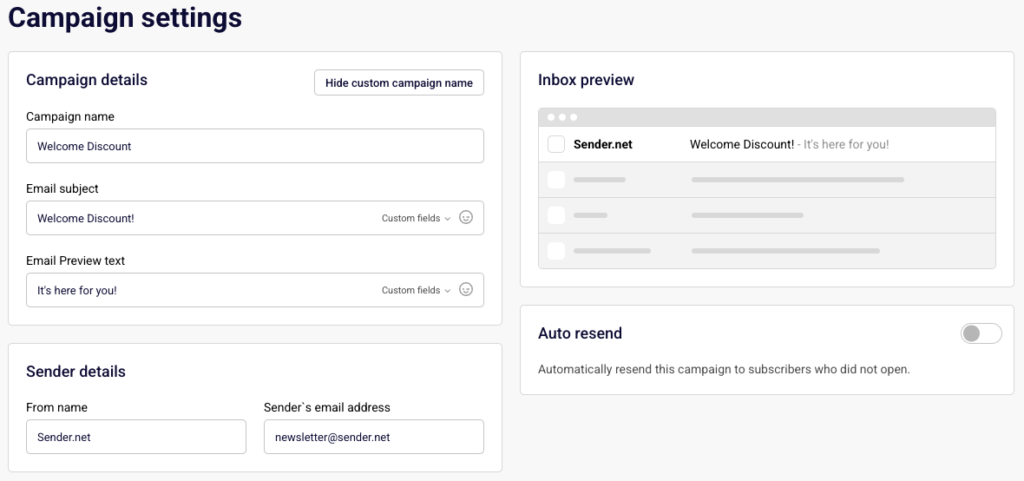
Step 2 — Preview your design on desktop and mobile
In the email builder, click the preview icon (eye icon) in the top toolbar. This opens a side-by-side view showing how your email renders on desktop (left) and mobile (right).
Check that your layout, images, and text display correctly on both screen sizes. The Email size indicator at the top left shows the approximate file size of your email with a color-coded bar — green means the size is within recommended limits.

Step 3 — Check the dark mode rendering
While in preview mode, toggle Dark mode preview in the top right corner. This simulates how your email appears when a recipient uses dark mode in their email client.
Make sure text remains legible, images don’t blend into the dark background, and button colors still stand out. Toggle it off to return to the standard preview.

Step 4 — Send a test email
Click Send test email — available both in the email builder toolbar and on the Design page. A dialog appears asking where you want the test email to be sent. Enter your email address and click Send.
Check the test email in your own inbox. Verify that links work, images load, personalization tags (custom fields) render correctly, and the unsubscribe link is functional.

Step 5 — Verify the plain text version
On the Design page, click View plain text version. This opens an overlay showing the plain text fallback of your email — what recipients see if their email client does not support HTML.
Check that the content is readable, links are visible as full URLs, and no broken merge tags appear.

What happens after you save
After saving, the campaign remains in Draft status under Email campaigns until you complete the Recipients and Review and send stages. You can return to preview and test again at any time by reopening the campaign.
Common issues
Inbox preview text not showing → The Email Preview text field on the Settings page is empty. Add preview text to control what appears after the subject line.
Dark mode preview looks broken → Some background colors or images may not adapt automatically. Adjust your design to use transparent backgrounds or test with contrasting text colors.
Test email not arriving → Check your spam or junk folder. Make sure the email address entered in the Send test email dialog is correct and can receive mail from your sender domain.
Email size indicator shows red or yellow → Your email file is large, which can cause clipping in some inboxes (especially Gmail). Remove unnecessary images or reduce image file sizes.
Plain text version shows broken tags → Custom field tags like merge fields may appear as raw code in the plain text view. This is expected in preview — they resolve when the email is actually sent.
FAQs
Can I send a test email to multiple addresses?
Yes. Enter multiple email addresses in the Send test email dialog, separated by commas.
Does the test email show real subscriber data?
No. Custom fields and personalization tags display placeholder values in test emails, not actual subscriber data.
Can I preview without saving first?
Yes. The preview icon in the email builder shows your current design in real time without requiring a save.
Where do I find the preview icon in the email builder?
It is the eye icon in the top toolbar, between the redo button and the Send test email button.
Does dark mode preview reflect all email clients?
No. It provides an approximation. Actual rendering varies across email clients like Gmail, Outlook, and Apple Mail.