

How to Set Up SPF, DKIM, and DMARC for Your Sending Domain
This guide explains how to configure SPF, DKIM, and DMARC authentication records for your sending domain in Sender. Completing all three ensures mailbox providers can verify emails sent through your account.
Prerequisites
- An active Sender account
- A domain you own or manage (e.g.,
yourdomain.com) - Access to your domain’s DNS settings through your domain registrar or DNS provider
- A working email address on the domain you want to authenticate (used to verify domain ownership)
Where to Find This Setting
In the Sender dashboard, go to: Account settings → Domains
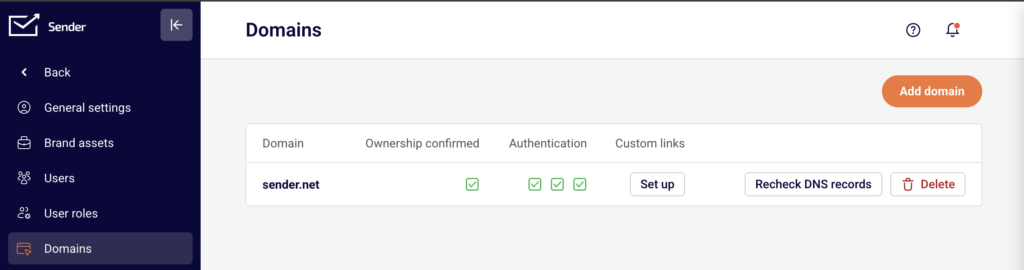
On this page, you will see a table listing your sending domains. Each domain row shows four columns: Domain, Ownership confirmed, Authentication, and Custom links. The Authentication column displays three status indicators — one each for SPF, DKIM, and DMARC. A green checkmark means the record is verified. An Add domain button appears in the top-right corner, and each domain row includes a Recheck DNS records button.
Steps to Set Up SPF, DKIM, and DMARC
Step 1 — Add your domain and verify ownership
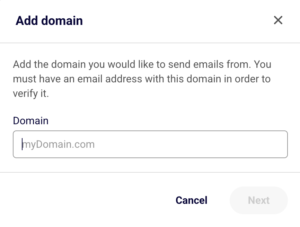
Click Add domain in the top-right corner of the Domains page. In the dialog that appears, enter your domain name (e.g., yourdomain.com) in the Domain field and click Next.
On the following screen, enter an email address associated with that domain in the Email field and click Verify ownership. Sender will send a verification email to that address. Open the email and click the verification link to confirm domain ownership. Once verified, a green checkmark appears in the Ownership confirmed column.
Step 2 — Add DNS records to your domain
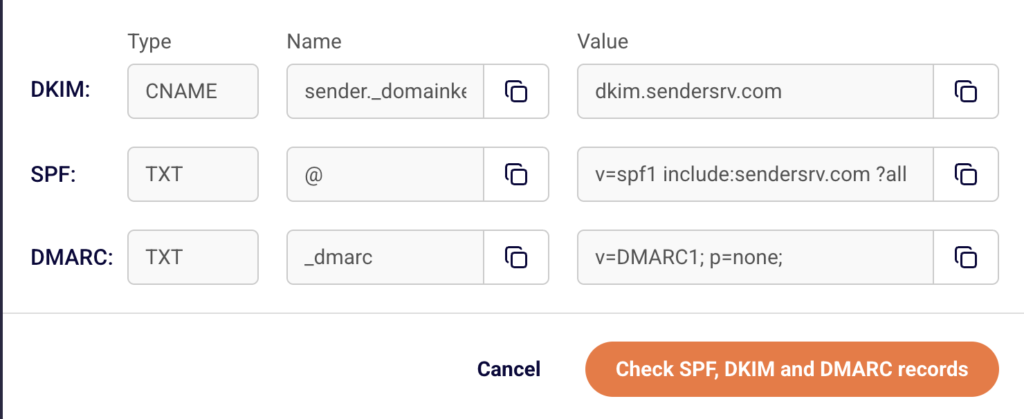
After ownership is verified, click the domain row to open the DNS records dialog titled Authenticate your SPF, DKIM and DMARC records. Sender displays three records you need to add at your DNS provider. Each record shows a Type, Name, and Value.
DKIM record:
Type: CNAME
Name/Host: sender._domainkey
Value: dkim.sendersrv.com
TTL: 3600
SPF record:
Type: TXT
Name/Host: @
Value: v=spf1 include:sendersrv.com ?all
TTL: 3600
DMARC record:
Type: TXT
Name/Host: _dmarc
Value: v=DMARC1; p=none;
TTL: 300
Log in to your DNS provider and create each record using the values above. Exact steps vary by provider — if you are unsure how to add DNS records, contact your domain registrar’s support team with these values.
Note: If your domain already has an existing SPF TXT record, do not create a second one. Instead, merge the Sender include into your existing record by adding include:sendersrv.com before the all mechanism. A domain must have only one SPF TXT record to pass validation.
Step 3 — Verify your DNS records in Sender
Return to the DNS records dialog in Sender and click Check SPF, DKIM and DMARC records. Sender will query your domain’s DNS to verify that all three records are correctly configured.
If verification succeeds, the dialog closes and three green checkmarks appear in the Authentication column on the Domains page. If one or more records fail, review the values at your DNS provider, correct any mismatches, and click Recheck DNS records to try again. DNS changes can take up to 24–48 hours to propagate, though most complete within minutes.
How to Verify
Go to Account settings → Domains and locate your domain in the table. The Authentication column should display three green checkmarks — one each for SPF, DKIM, and DMARC. If any checkmark is missing or shows a warning, click Recheck DNS records to re-query your DNS. DNS propagation typically completes within minutes but can take up to 24–48 hours depending on your DNS provider and TTL (time-to-live) settings. If records still fail after 48 hours, verify the exact values at your DNS provider match those shown in Sender.
How It Works
SPF (Sender Policy Framework) — SPF is a TXT DNS record that specifies which mail servers are authorized to send email on behalf of your domain. When a receiving server gets an email from your domain, it checks the SPF record to confirm the sending server’s IP address is permitted. Adding include:sendersrv.com authorizes Sender’s servers to send on your behalf.
DKIM (DomainKeys Identified Mail) — DKIM adds a cryptographic signature to outgoing emails using a public-private key pair. The CNAME record you add at sender._domainkey points to Sender’s DKIM key. Receiving servers retrieve this public key from DNS and use it to verify that the message was not altered in transit and was authorized by the domain owner.
DMARC (Domain-based Message Authentication, Reporting and Conformance) — DMARC builds on SPF and DKIM by telling receiving servers what to do when an email fails authentication. The p=none; policy in the default Sender record instructs receivers to deliver messages even if they fail checks, while still generating reports. You can later strengthen this to p=quarantine; or p=reject; as you gain confidence in your authentication setup.
Common Issues
SPF record not verifying → Your domain may already have an existing SPF TXT record. DNS allows only one SPF record per domain. Merge Sender’s include:sendersrv.com into your existing SPF record rather than creating a second one.
DKIM record not verifying → The CNAME record may have been created with an incorrect name or value. Confirm the name is exactly sender._domainkey (some DNS providers automatically append your domain, so you may not need to include the full sender._domainkey.yourdomain.com). The value must point to dkim.sendersrv.com.
DMARC record not verifying → Ensure the TXT record is created with the name _dmarc (not _dmarc.yourdomain.com if your provider appends the domain automatically). The value must begin with v=DMARC1; — this tag is case-sensitive.
DNS changes not appearing after several hours → DNS propagation depends on the TTL value set on your records and your DNS provider’s infrastructure. Wait up to 48 hours, then click Recheck DNS records in Sender. If records still fail, use a third-party DNS lookup tool to confirm the records are publicly visible.
Warning icon instead of a green checkmark → A warning indicates the DNS record exists but may be misconfigured or contain an incorrect value. Compare the record value shown in Sender’s DNS setup dialog with what is configured at your DNS provider. Correct any mismatches and click Recheck DNS records.
FAQs
How long does DNS verification take?
Most DNS changes propagate within minutes to a few hours. In some cases, propagation can take up to 24–48 hours depending on your DNS provider and TTL settings. Click Recheck DNS records in Sender after waiting to verify.
Do I need all three — SPF, DKIM, and DMARC?
Yes. All three authentication protocols work together to verify your identity as a sender. SPF validates which servers can send on your behalf, DKIM ensures message integrity, and DMARC tells receiving servers what to do with unauthenticated messages. All three should show green checkmarks in the Authentication column.
Can I use Sender with a free email address like Gmail or Yahoo?
Using a free email address as your sender address is not recommended. Most mailbox providers enforce strict DMARC policies on free email domains, which will cause your emails to fail authentication and land in spam or be rejected.
What happens if I change my DNS records after verification?
If you modify or remove the DNS records Sender relies on, authentication will fail. Mailbox providers may begin rejecting or spam-filtering your emails. Go to Account settings → Domains and click Recheck DNS records to confirm your records are still valid.
My domain shows a warning instead of a green checkmark. What does this mean?
A warning indicates that the DNS record exists but may be misconfigured or incomplete. Review the record value shown in Sender and compare it to what is configured in your DNS provider. Correct any mismatches and click Recheck DNS records.
What does the p=none DMARC policy mean?
The p=none policy instructs receiving mail servers to take no enforcement action on emails that fail SPF or DKIM checks. It is a monitoring-only policy that allows you to receive DMARC reports without affecting delivery. Once you confirm all legitimate email passes authentication, you can update the policy to p=quarantine or p=reject for stronger protection.
My DNS provider only allows one TXT record for SPF. What should I do?
DNS requires exactly one SPF TXT record per domain. If you already have an existing SPF record, add include:sendersrv.com to it rather than creating a separate record. For example, if your existing record is v=spf1 include:otherprovider.com ~all, update it to v=spf1 include:otherprovider.com include:sendersrv.com ~all. Contact your DNS provider if you need help merging records.