

Import contacts from CSV/Excel
Quickly add multiple contacts to your Sender account by uploading CSV or Excel files.
Supported File Types
- CSV (.csv)
- Excel (.xlsx)
- TXT (.txt)
Maximum file size: 64MB
How to Import
- Go to your subscribers section
- Click on “Import from a file”
- Drag and drop your file or click “Import file”
- Wait for the upload to complete
- Your contacts will be added to your account
Proper File Structure
Your import file must include:
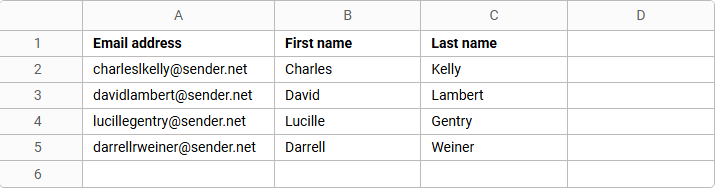
- Headers in the first row – Email address, First name, Last name
- One subscriber per row – Each contact on a separate line
- Data in separate columns – Each field in its own column
Example Structure
Using Templates
Not sure how to format your file? Download our ready-made templates:
- Download Excel template – For .xlsx files
- Download CSV template – For .csv files
Simply fill in your contact information following the template format.
Best Practices
- Clean your data – Remove empty rows and duplicate entries before importing
- Check email formats – Ensure all email addresses are valid
- Use standard headers – Stick to “Email address”, “First name”, “Last name”
- Add custom fields – Include additional columns for phone numbers or other data
- Save in the correct format – Make sure your file is saved as .csv or .xlsx
File Size Limitations
If your file exceeds 64MB:
- Split your contacts into multiple smaller files
- Remove unnecessary columns
- Import in batches
That’s it!
If you got stuck on a specific task or can’t find a way to execute a particular job, contact our support team via LiveChat or support@sender.net – we’re here to help 24/7.