

Understand segments page
Learn about the Segments page in Sender and how to navigate its features for creating and managing contact segments.
What is the Segments Page?
The Segments page is your central hub for creating, viewing, and managing all your contact segments. It allows you to build dynamic filtered lists based on specific criteria like engagement, behavior, demographics, and custom attributes.
Accessing the Segments Page
To access the Segments page:
- Click on Subscribers in the left navigation menu
- Select Segments from the submenu
- You’ll see your segments overview
The Segments Page Interface
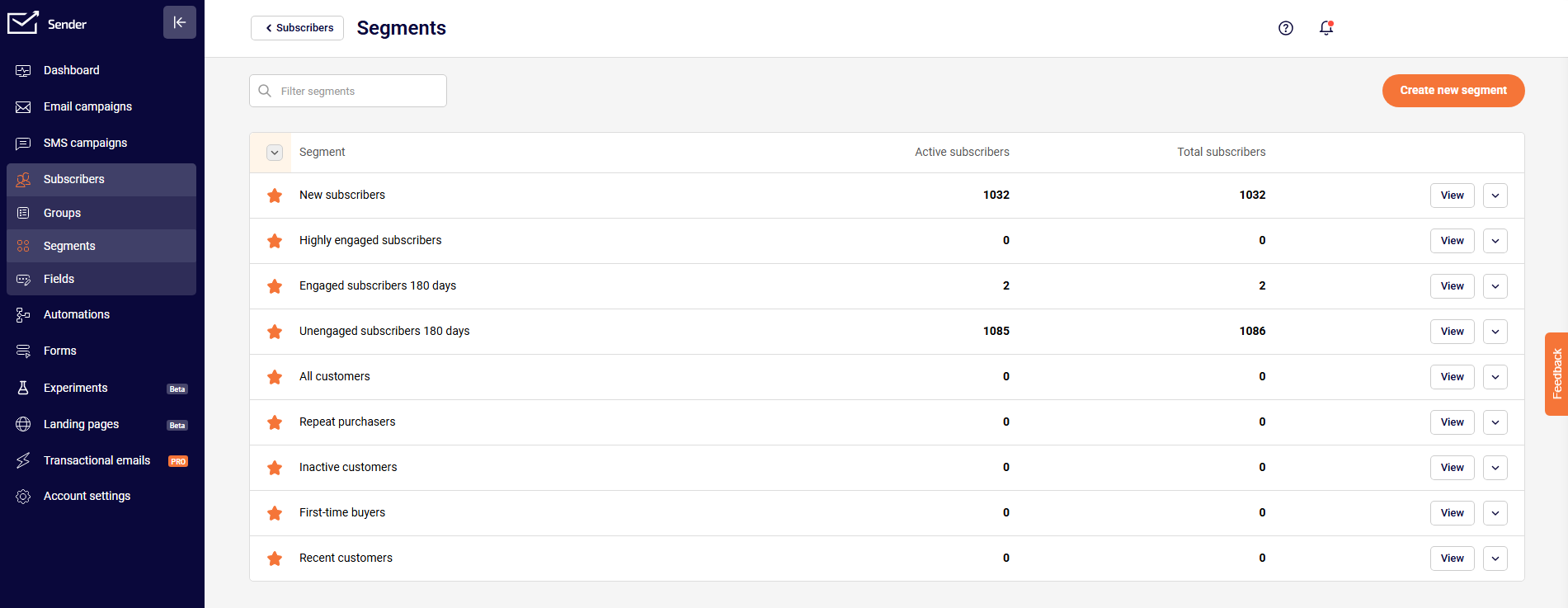
Main Components of the Segments Page
Page Header
At the top of the page, you’ll find:
- Back to Subscribers button – Returns you to the main subscribers list
- Segments title – Confirms you’re on the segments page
- Help icon – Access documentation and support
- Notifications – View system notifications
- Account menu – Access your account settings
Search and Filter Bar
Located below the header:
- Filter segments search box – Quickly find specific segments by name
- Search through your existing segments to locate the one you need
Create New Segment Button
On the right side of the page:
- “Create new segment” button – Click to start building a new segment
- Opens the segment creation interface with advanced filtering options
Segments List
The main area displays all your existing segments:
- Segment names and descriptions
- Contact count for each segment
- Creation date and last modified information
- Quick access to edit or view each segment
Creating a New Segment
When you click “Create new segment”, you’ll access:
Advanced Filter Interface
The filtering system where you can:
- Select condition categories (Subscription Status, Subscriber Details, Campaign Activity, etc.)
- Choose specific conditions within each category
- Set parameters for each condition
- Add multiple conditions using “Add condition”
- Create alternative condition sets using “Add another set of conditions”
Filter Preview
As you build your segment:
- View the number of contacts matching your criteria in real-time
- See a preview of contacts who meet the conditions
- Verify your segment before saving
Segment Actions
After creating your segment:
- Save the segment with a descriptive name
- Edit segment conditions at any time
- Delete segments you no longer need
Navigation Tips
Finding Segments Quickly
Use the filter search box to locate segments by:
- Segment name
- Keywords in the description
- Partial name matches
Organizing Your Segments
Keep your segments page organized by:
- Using clear, descriptive names
- Including dates or version numbers when relevant
- Archiving or deleting unused segments
- Grouping similar segments with consistent naming conventions
That’s it!
If you got stuck on a specific task or can’t find a way to execute a particular job, contact our support team via LiveChat or support@sender.net – we’re here to help 24/7.