

Campaign analytics explained
This guide explains how to find, navigate, and understand campaign performance data across the reporting interfaces in Sender’s dashboard.
Where to find this report
Campaign analytics in Sender are spread across several locations rather than a single reporting page. The primary entry points are:
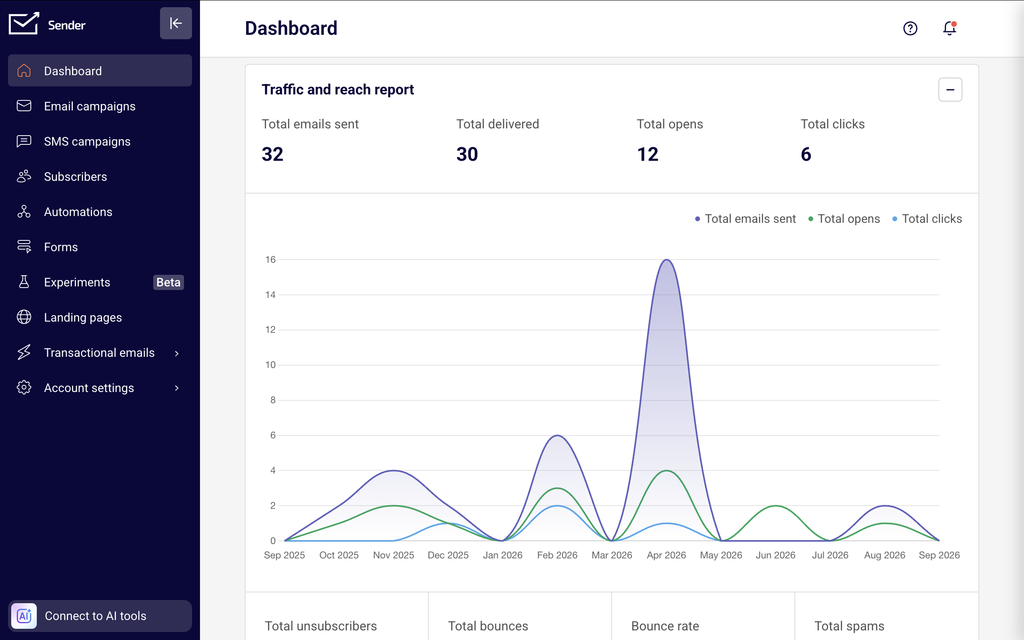
In the Sender dashboard, go to Dashboard in the left sidebar to see your account-level performance summary. This page displays the Traffic and reach report with summary metric cards, a time-series chart, and secondary metric cards for bounces, unsubscribes, and spam. Below that, the Subscribers growth section tracks audience changes over time, followed by a Marketing calendar.
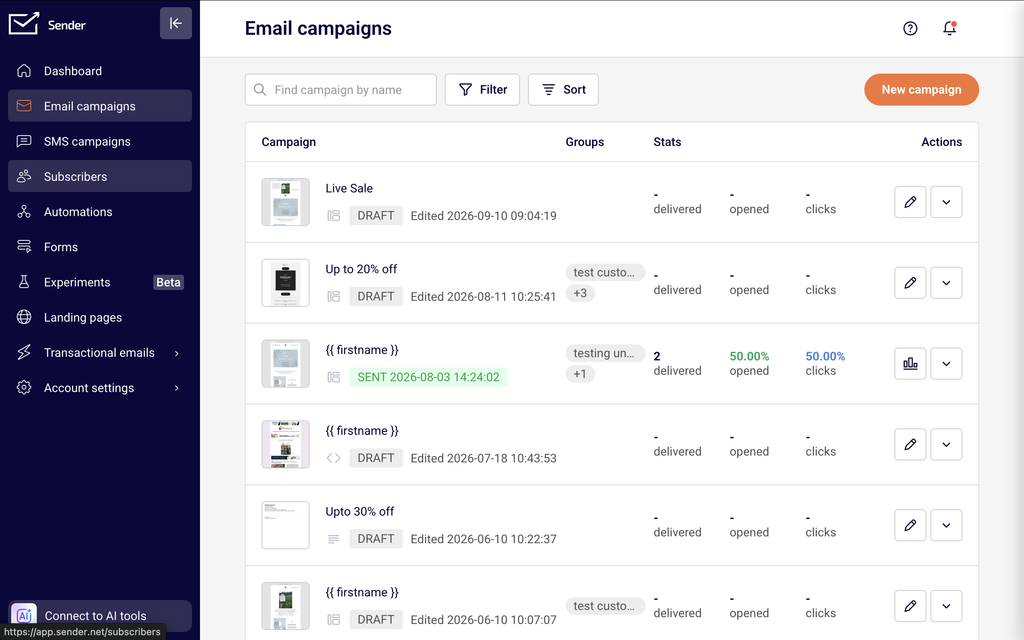
To view individual campaign reports, go to Email campaigns in the left sidebar. The campaign list shows each campaign with its Stats columns — delivered, opened, and clicks. Click the report icon on any sent campaign to open its full Campaign overview report.
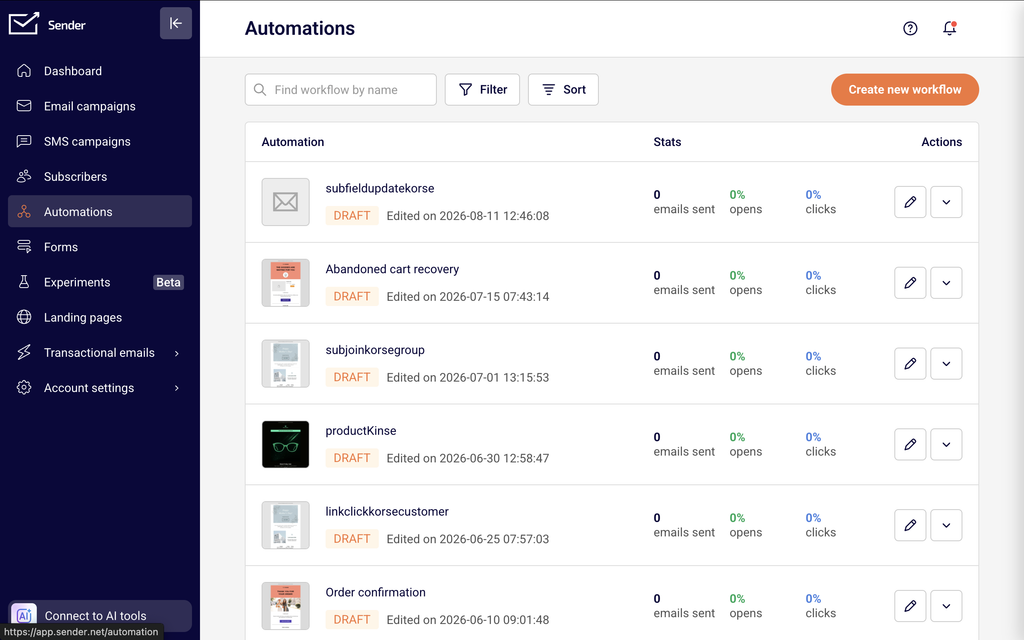
For automation performance, go to Automations in the left sidebar. The automation list displays aggregated stats (emails sent, opens, clicks) for each workflow.
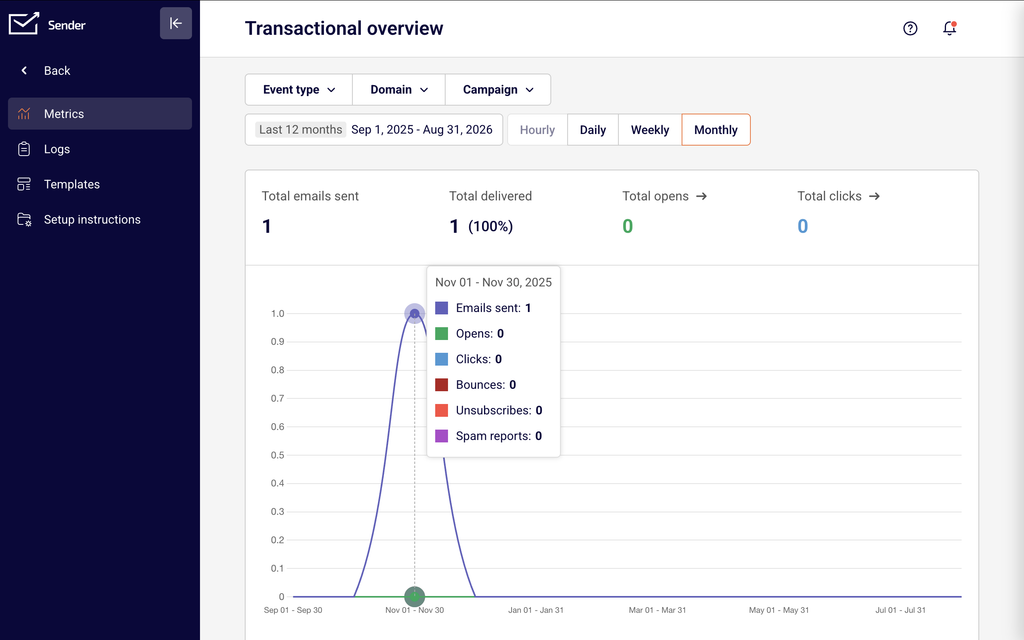
For transactional email metrics, go to Transactional emails in the left sidebar. The Transactional overview page provides summary cards, a time-series chart, and filter controls for event type, domain, and campaign.
Steps to navigate campaign analytics
Step 1 — Open the Dashboard overview
Click Dashboard in the left sidebar. At the top of the page, the Traffic and reach report panel displays summary cards for Total emails sent, Total delivered, Total opens, and Total clicks.
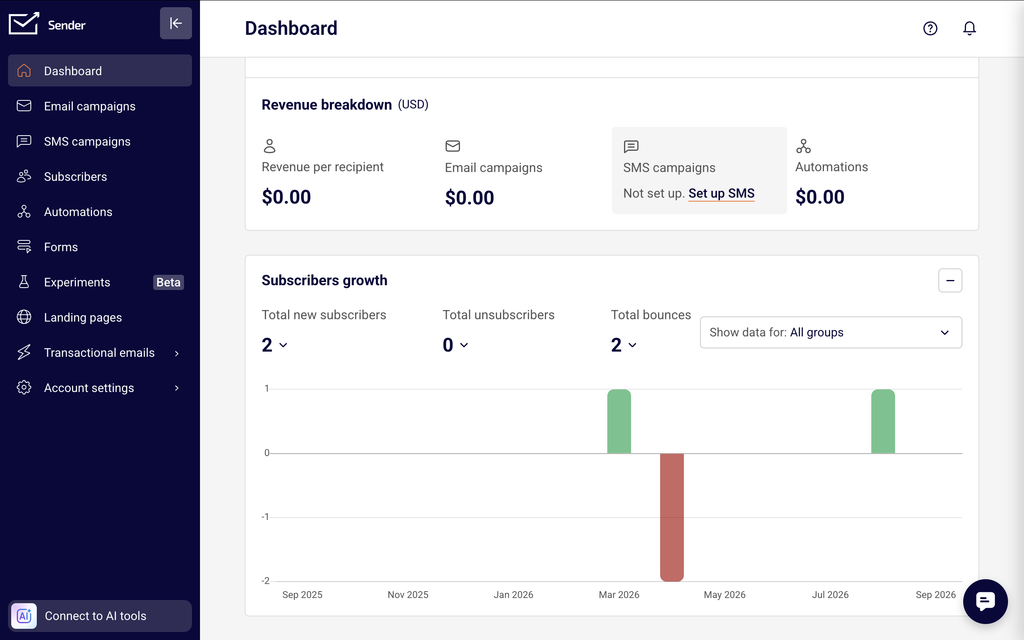
Below the cards, a time-series chart plots these three metrics over the selected date range. A second row of cards shows Total unsubscribers, Total bounces, Bounce rate, Total spams, Unsubscribe rate, Hard bounce rate, Soft bounce rate, and Average spam rate.
Step 2 — Adjust the date range and dashboard panels
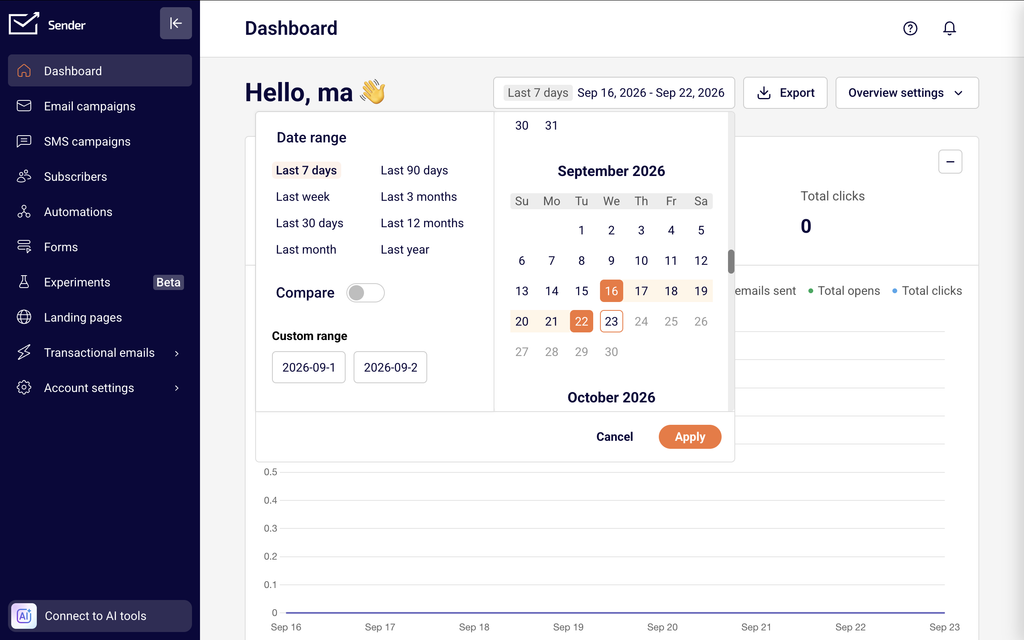
Click the date range picker in the top-right corner of the Dashboard page. Select a preset range such as Last 7 days, Last 30 days, Last 3 months, or Last year, or enter a custom date range using the Custom range fields. Toggle the Compare switch to compare the current period against a previous one.
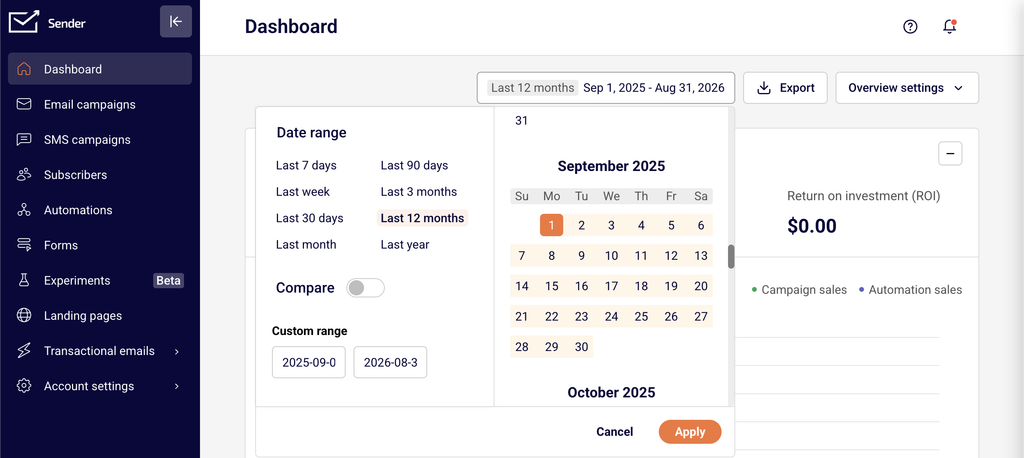
Click Apply to update all dashboard panels. Use the Overview settings dropdown next to the date picker to show, hide, or reorder panels like Traffic and reach report, Subscribers growth, and Marketing calendar.
Step 3 — Open an individual campaign report
Click Email campaigns in the left sidebar. Use the search bar to find a campaign by name, or click Filter to narrow the list by status — All, Draft, Scheduled, Sending, or Sent. Locate a sent campaign and click its report icon in the Actions column to open the Campaign overview page.
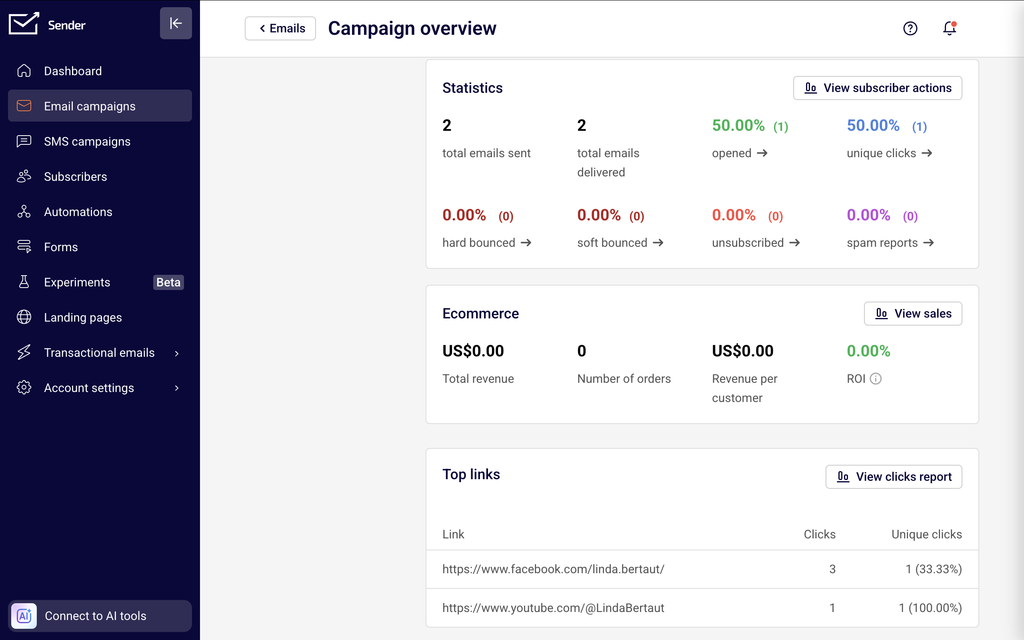
The Statistics section at the top displays cards for total emails sent, total emails delivered, opened, unique clicks, hard bounced, soft bounced, unsubscribed, and spam reports.
Step 4 — Explore campaign report tabs
On the Campaign overview page, use the left-side navigation panel to switch between report views. Overview shows the email settings, statistics cards, an Ecommerce section (with Total revenue, Number of orders, Revenue per customer, and ROI), and Opens and clicks by day and Opens and clicks by hour charts.
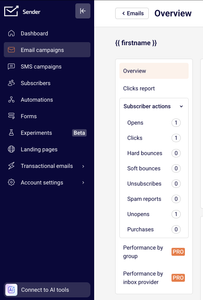
Clicks report displays a visual click map of your email. Subscriber actions expands to show filterable lists broken down by Opens, Clicks, Hard bounces, Soft bounces, Unsubscribes, Spam reports, Unopens, and Purchases, each with a count.
Step 5 — Review automation workflow stats
Click Automations in the left sidebar. The automation list shows each workflow with Stats columns for emails sent, opens, and clicks.
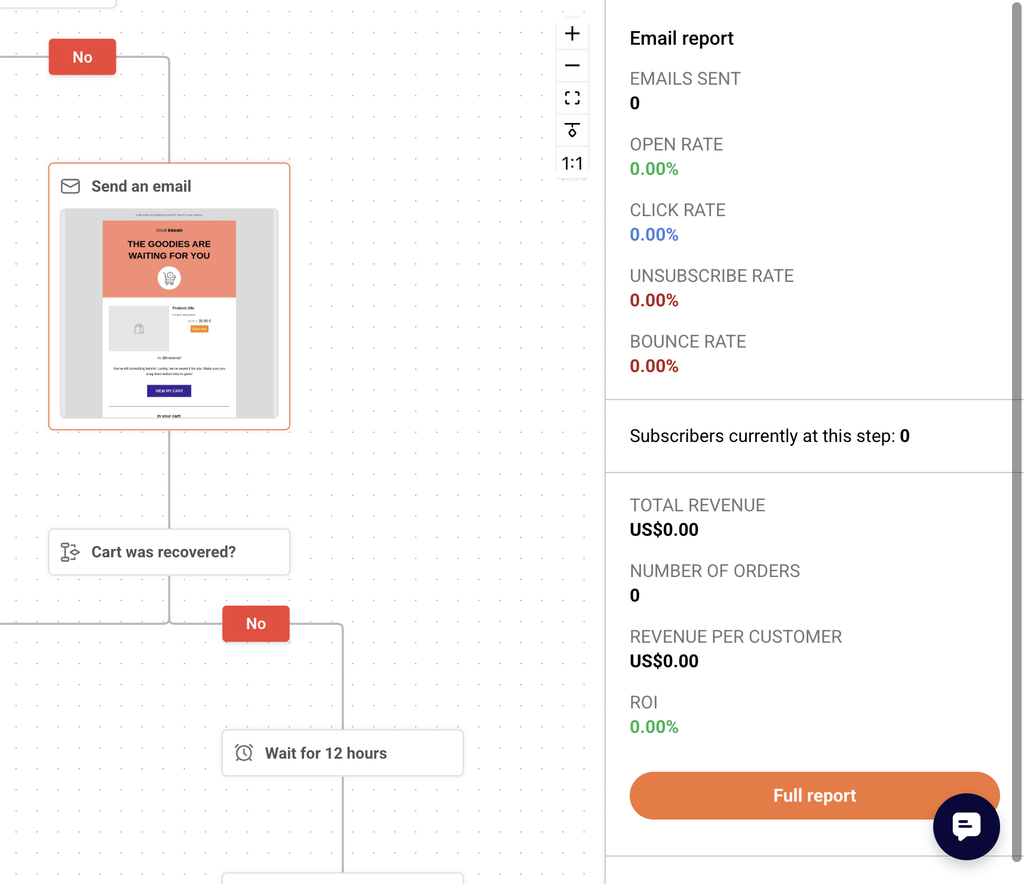
Click the edit icon on any workflow to open the automation builder, where each Send an email step in the workflow can be clicked to view its individual performance data in the right-side panel. Active workflows display step-level metrics including sends, opens, clicks, bounces, and unsubscribes.
Step 6 — Navigate transactional email metrics
Click Transactional emails in the left sidebar. The Transactional overview page opens, showing summary cards for Total emails sent, Total delivered, Total opens, and Total clicks, a time-series chart, and secondary cards for Unsubscribes, Hard bounces, Soft bounces, and Spam reports.
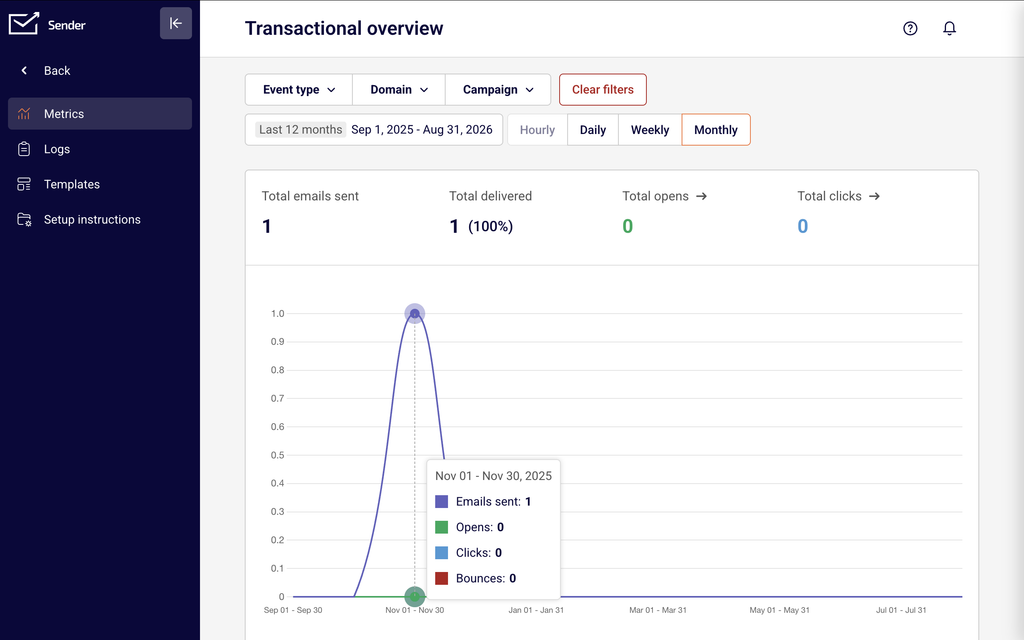
Use the Event type dropdown to filter the chart by specific events such as Emails sent, Opens, Clicks, Bounces, Unsubscribes, or Spam reports. Filter further by Domain or Campaign, and switch granularity between Hourly, Daily, Weekly, and Monthly.
Step 7 — View the transactional events log
In the Transactional emails section, click Logs in the left sidebar to open the Latest events log. This page displays a table with columns for Event, Recipient, Subject, Template, and Date / time.
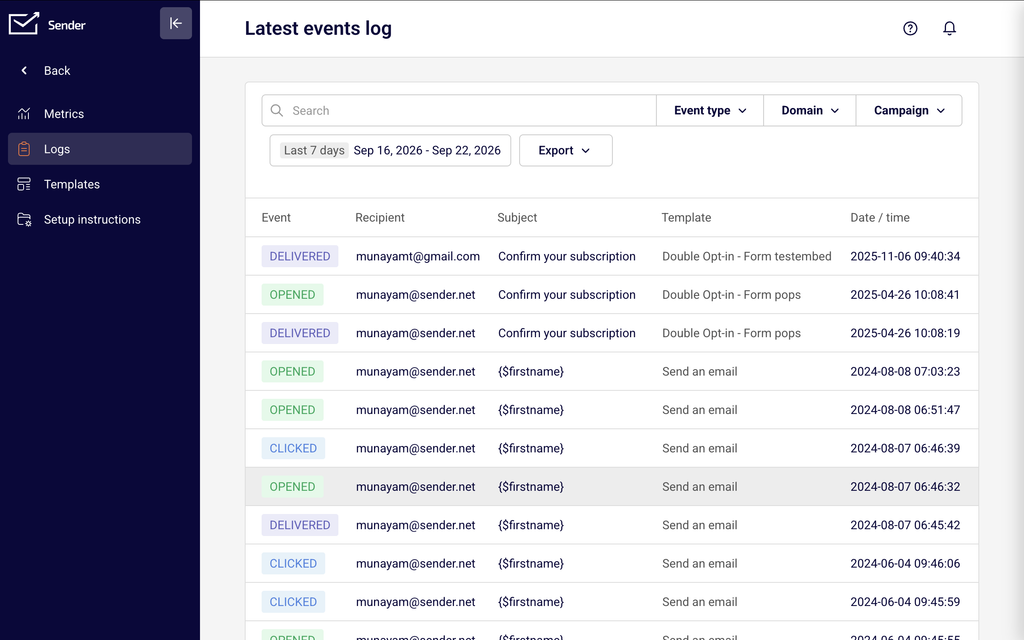
Use the search bar to find events by recipient or subject, and filter by Event type, Domain, or Campaign. Adjust the date range picker to narrow results to a specific time period.
Step 8 — Export dashboard data
On the Dashboard page, click the Export button in the top-right area, next to the date range picker. This exports the dashboard metrics for the currently selected date range.

On individual campaign reports, use the Print report button in the top-right corner of the Campaign overview page to generate a printable version of the report.
Metrics explained
Total emails sent — The total number of emails dispatched from your account during the selected period. This counts every send attempt, regardless of whether the email was delivered, bounced, or deferred.
Total delivered — The number of emails that were successfully accepted by the recipient’s mail server. This does not guarantee the email reached the inbox — it may have been routed to spam.
Total opens — The number of times recipients opened your email, tracked via an embedded tracking pixel. A single recipient opening the same email multiple times may increment this count.
Total clicks — The total number of times links in your email were clicked. This includes all clicks, so one recipient clicking the same link twice counts as two clicks.
Unique clicks — The number of individual recipients who clicked at least one link in the email. Each recipient is counted only once regardless of how many links they clicked or how many times.
Opened (rate) — The percentage of delivered emails that were opened at least once. Calculated as opens divided by total delivered, displayed as a percentage.
Hard bounced (rate) — The percentage of sent emails that permanently failed delivery, typically because the recipient address does not exist or the domain is invalid. Persistent high hard bounce rates can harm sender reputation.
Soft bounced (rate) — The percentage of sent emails that temporarily failed delivery due to issues like a full mailbox or a temporarily unavailable server. Soft bounces may succeed on a retry.
Unsubscribed (rate) — The percentage of delivered emails where the recipient clicked the unsubscribe link. Calculated as unsubscribes divided by total delivered.
Spam reports — The number of recipients who marked your email as spam. Even small numbers here are worth monitoring, as spam complaints directly affect sender reputation.
Bounce rate — The combined percentage of hard and soft bounces relative to total emails sent. Displayed on the Dashboard overview as an aggregate metric across all campaigns in the date range.
Average spam rate — The average percentage of spam complaints across all campaigns in the selected period. Displayed on the Dashboard page.
Report tips
Use status filters on the campaign list — Click Filter on the Email campaigns page and select Sent to show only campaigns with performance data, hiding drafts and scheduled sends from the list.
Compare periods on the Dashboard — Toggle the Compare switch in the date range picker to see how current metrics perform against a previous period. This helps identify trends without manually noting earlier numbers.
Check the clicks report for link engagement — On any sent campaign’s report, switch to the Clicks report tab to see a visual click map of your email, showing which links received the most attention.
Use the Subscriber actions breakdown — Expand the Subscriber actions section in a campaign report to see exactly which recipients opened, clicked, bounced, unsubscribed, or reported spam. This is useful for list hygiene and segmentation.
Adjust transactional chart granularity — On the Transactional overview page, switch between Hourly, Daily, Weekly, and Monthly views to match the level of detail you need for your analysis.
Common issues
Campaign shows dashes instead of stats → The campaign is still in Draft, Scheduled, or Sending status. Stats only populate after emails have been sent and recipient interactions are recorded. Wait until the campaign status changes to Sent.
Open rate appears unusually low → Open tracking relies on a tracking pixel embedded in the email. If a recipient’s email client blocks images by default, the open is not recorded. Actual opens may be higher than reported.
Dashboard metrics do not match the campaign report → The Dashboard shows aggregated metrics across all campaigns within the selected date range, while a campaign report shows data for that single campaign only. Verify that the Dashboard date range includes the campaign’s send date.
Transactional overview shows no data → Check that the date range is set to a period when transactional emails were sent. Also verify that the Event type, Domain, and Campaign filters are not excluding the data you expect to see.
Ecommerce section is blank on the campaign report → The Ecommerce data requires a connected store integration. If no ecommerce integration is installed, the Total revenue, Number of orders, Revenue per customer, and ROI fields remain empty.
FAQs
How often are report metrics updated?
Most metrics update in near real-time. Refresh the page to see the latest data. Some aggregated metrics on the Dashboard overview may have a short delay.
Can I export my report data?
Yes. On the Dashboard, click the Export button in the top-right area to download metrics for the selected date range. On individual campaign reports, use the Print report button to generate a printable version of the campaign’s performance data.
Why does my open rate seem low?
Open tracking relies on a tracking pixel embedded in the email. If a recipient’s email client blocks images by default, the open is not recorded. This means actual opens may be higher than reported.
What is the difference between the Dashboard and individual campaign reports?
The Dashboard provides an account-level summary of recent performance across all sending channels for the selected date range. Individual campaign reports, accessed through the Email campaigns list, show detailed metrics, click maps, subscriber action breakdowns, and engagement charts for a single campaign.
Can I see reports for a single automation email?
Yes. Go to Automations, open the workflow, and click on any Send an email step. The right-side panel displays that step’s individual performance metrics, including sends, opens, clicks, bounces, and unsubscribes.
How do I filter transactional email reports by event type?
On the Transactional overview page, click the Event type dropdown at the top of the page. Check or uncheck the event types you want to include — Emails sent, Opens, Clicks, Bounces, Unsubscribes, and Spam reports — to update the chart and summary cards accordingly.
Can I see which subscribers performed specific actions on a campaign?
Yes. Open a sent campaign’s Campaign overview report and expand the Subscriber actions section in the left navigation. Select a specific action such as Opens, Clicks, or Unsubscribes to view the list of subscribers who performed that action.