

View reports in Sender
Ecommerce sales reports
This feature gets enabled when:
- You have a paid Sender account;
- You have an integration with one of our supported ecommerce platforms

Form reports
Click “Forms” on the main dashboard to access the list of forms.
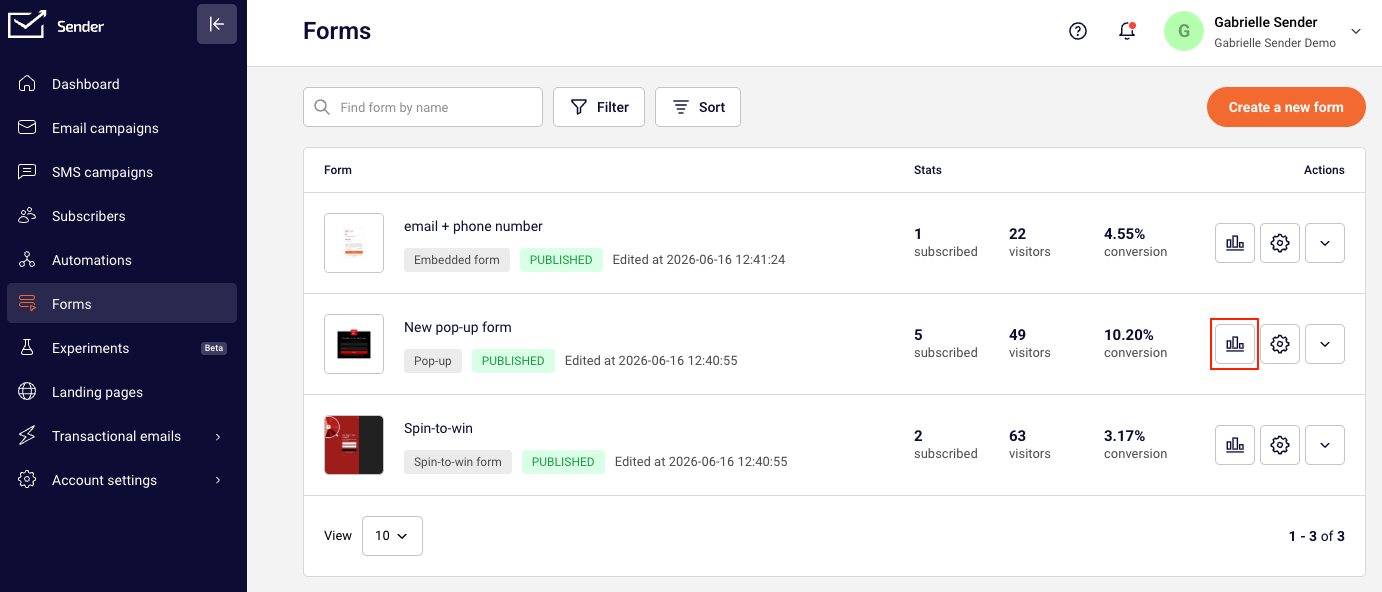
Click on the “Overview” and you will see your form preview as well as the activity summary of the past two weeks.
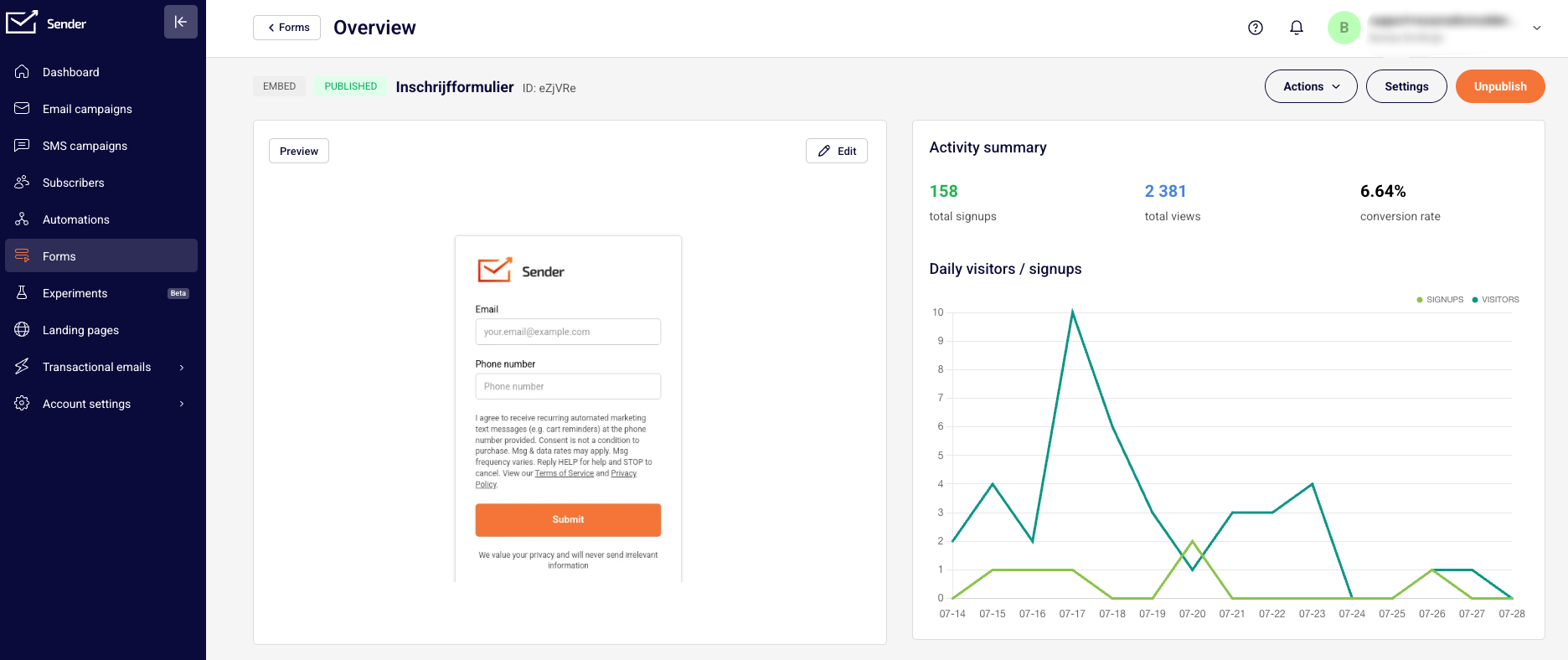
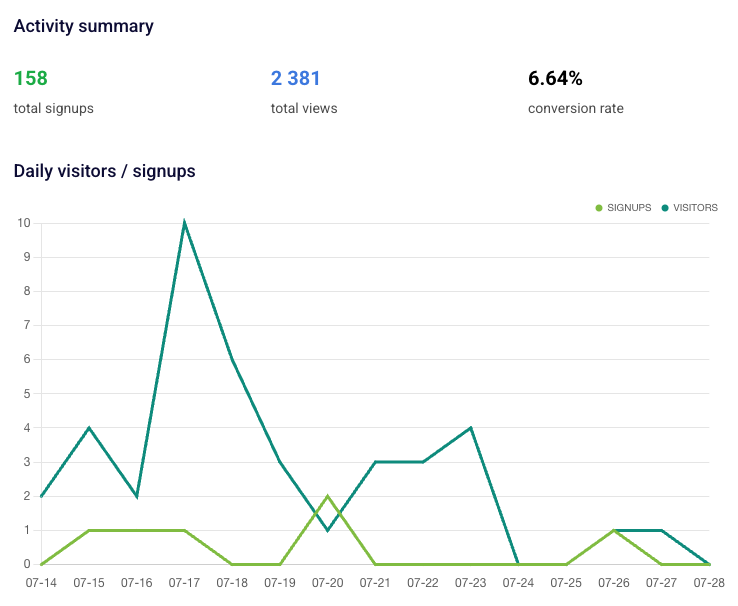
The graph shows total views, sign ups and the converstion rate of the subscription form.
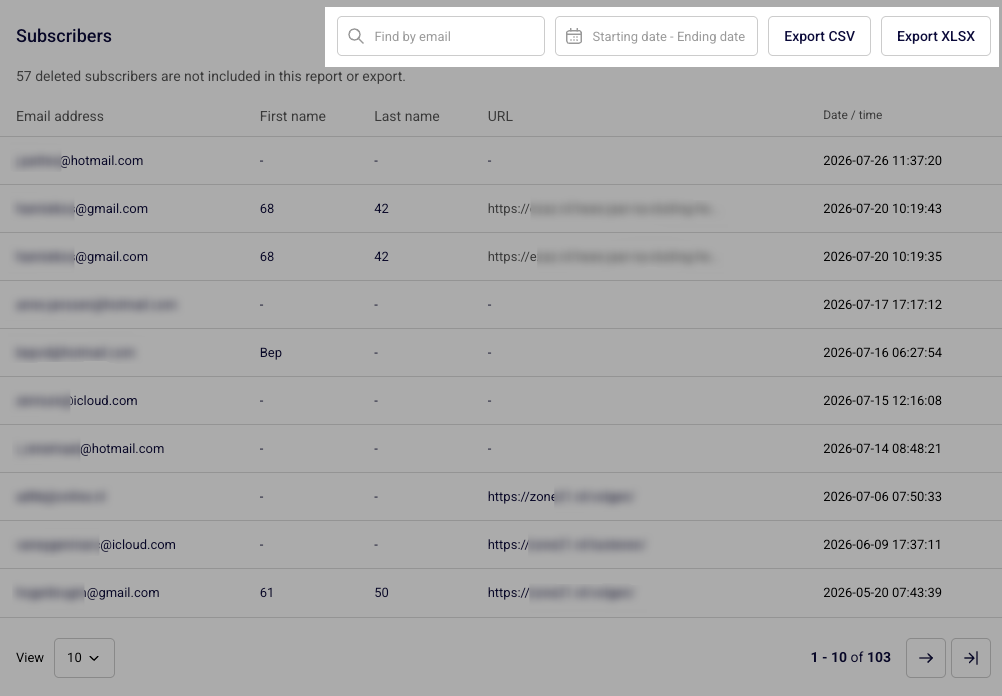
At the bottom you will find a full list of email addresses, names and URLs of subscribers that subscribed using this form. Please note that deleted subscribers will be excluded from the report.
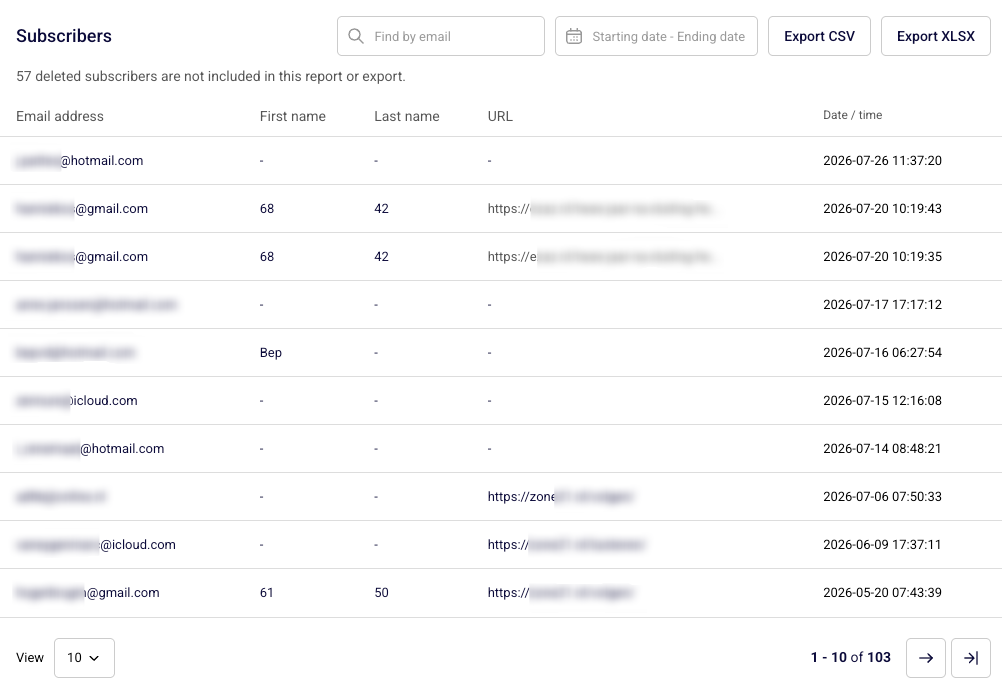
The report can be exported to CSV and XLSX files and filtered by email address or by a selected date or date interval.
Automation reports
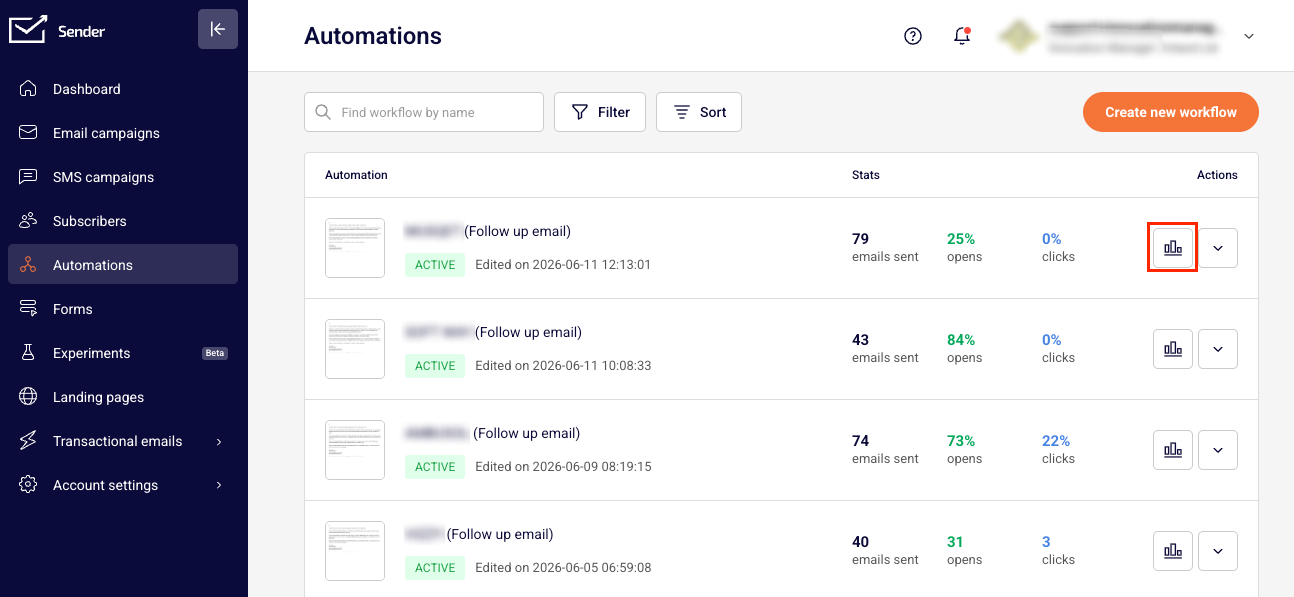
Click “Automations” on the main dashboard to access the list of workflows and click the “View report” icon next to the automation in question.
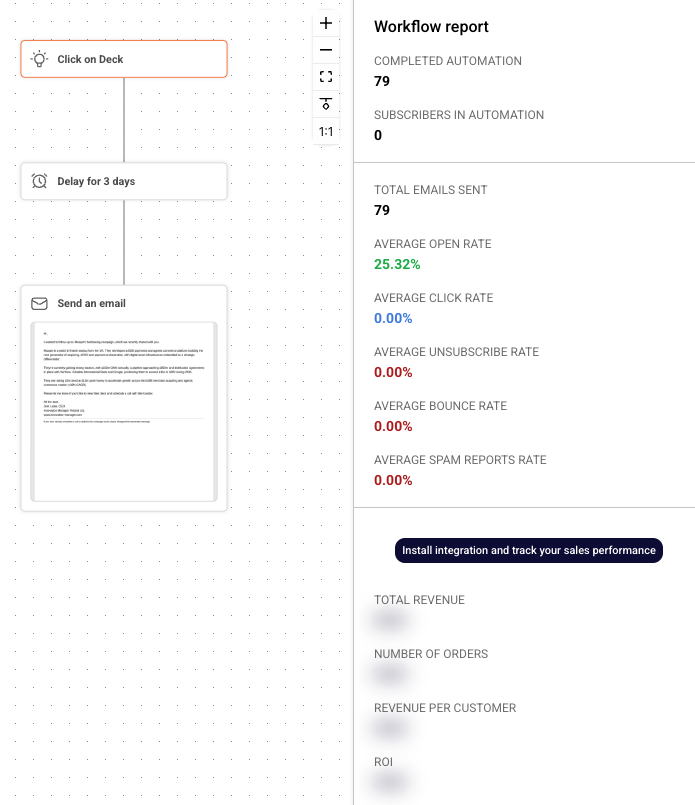
To see the overall workflow performance, click on the trigger of the automation, which will always be the first step of the workflow.
The overall report will show you how many subscribers completed the automation, how many are still within the workflow steps; it will also show the total emails sent and the average statistics for all email campaigns in that specific automation workflow.
If you have a professional plan and an integration with one of our supported ecommerce stores, you will see your sales performance from this automation too.
Lastly, you will see the full list of subscribers that have finished this automation sequence.
To view the performance report of a particular step, click on the step in the map.
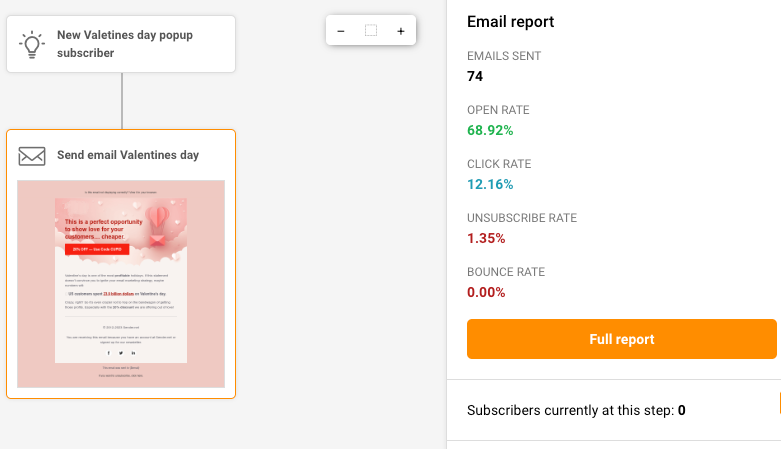
Next, hit the “Full Report” button on the dashboard to the right to generate detailed stats on what happened here.
Email campaign reports
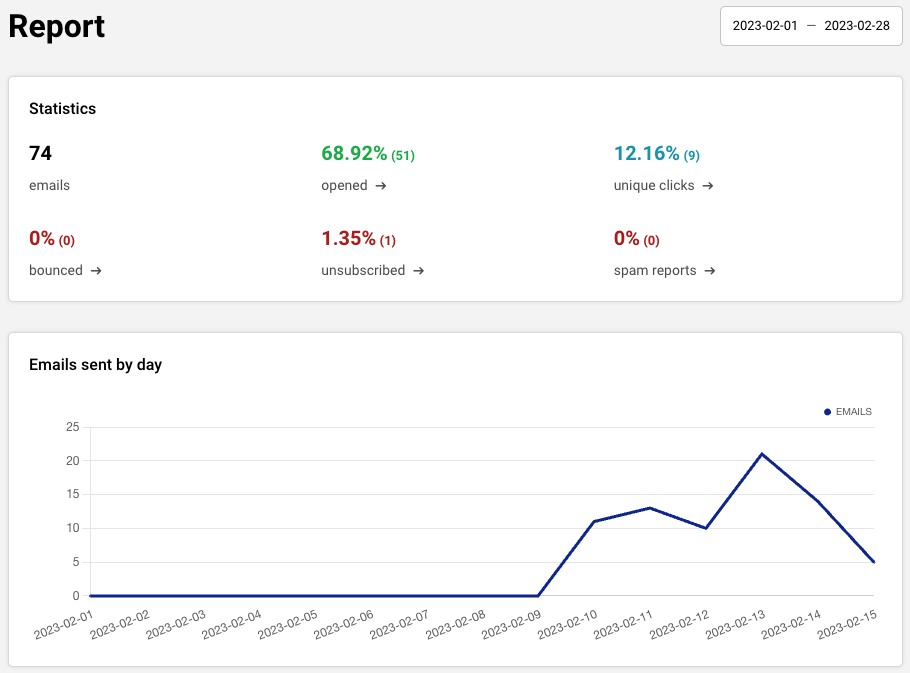
Immediately after the campaign has been sent, the system begins tracking and analyzing data, such as clicks, opens, bounces, and unique clicks.
The reports are updated every few minutes, so rest assured you get the very best of LIVE data to view and work with at all times.
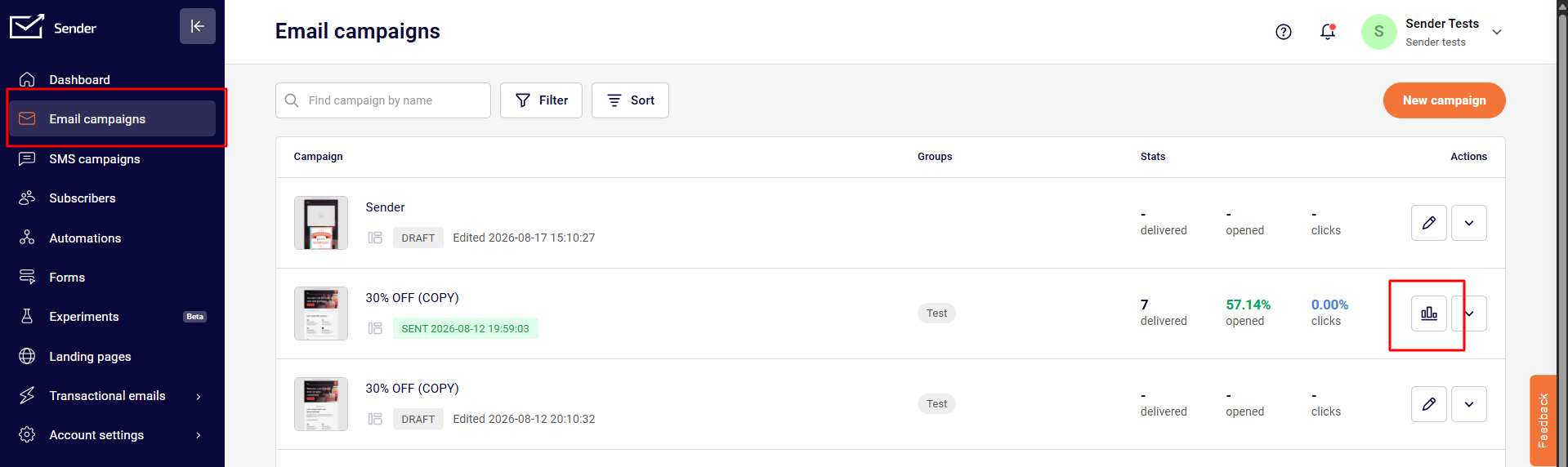
Click “Email campaigns” -> In the campaign section, click “View report” to access the newsletters report.
The “Overview” section provides a convenient summary of your campaign’s key statistics. It covers:
- Total emails sent — This is the total number of emails that were attempted to be sent;
- Total emails delivered — This is the total number of emails actually delivered to the recipient email servers. Usually, unless there is a technical issue, this number should be the same as the total emails sent;
- Opened — The number of emails opened by recipients. This is calculated by taking into account the total emails delivered (not accounting for hard or soft bounces);
- Unique clicks — This shows you the number of unique clicks received on your campaign. If someone has clicked on a single link multiple times, Sender will count it as a single click only;
- Hard-bounced — These are the incorrect or non-existent email addresses that could not be delivered to and hence should be cleaned from your list;
- Soft-bounced — These are email addresses that could not be delivered to temporarily for technical reasons. Delivery will be attempted at least thrice before marking unreachable inboxes as hard bounces;
- Unsubscribed — Subscribers who have chosen to opt out of your email campaigns for some reason;
- Spam complaints (recipient’s reported spam) — These are contacts who have found your email marketing approach (for example, frequency) or content (for example, too aggressive or salesy) spammy and have reported you to their inbox provider such as Google, Yahoo, etc.
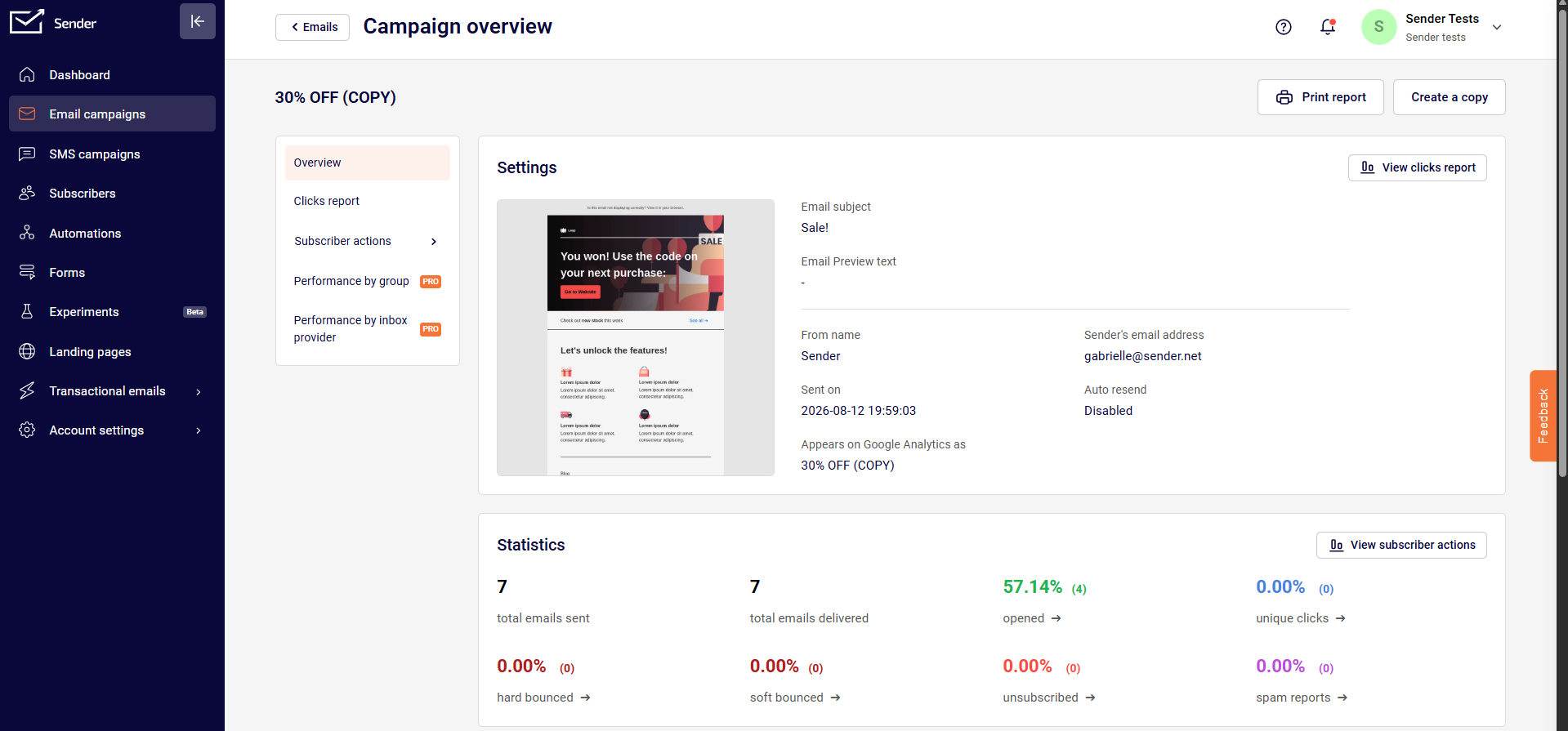
Each of the above summary counters is clickable. Click to view comprehensive statistics about that category.
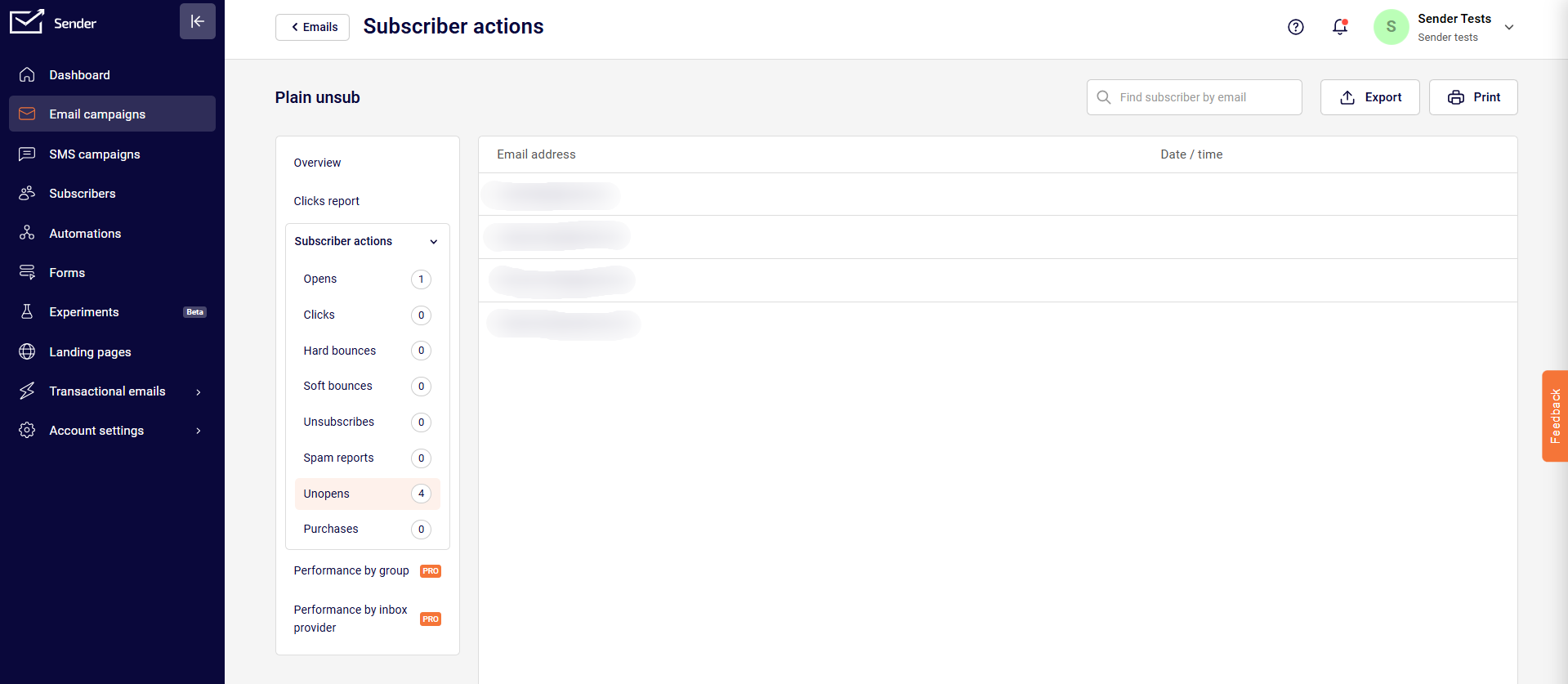
Clicking “View Subscriber Actions” takes you to a screen that shows the breakdown by subscriber action taken. For example, by Opens, Clicks etc. Now you can tell which email addresses opened your email, which ones hard bounced, and who opted out or marked you as spam.
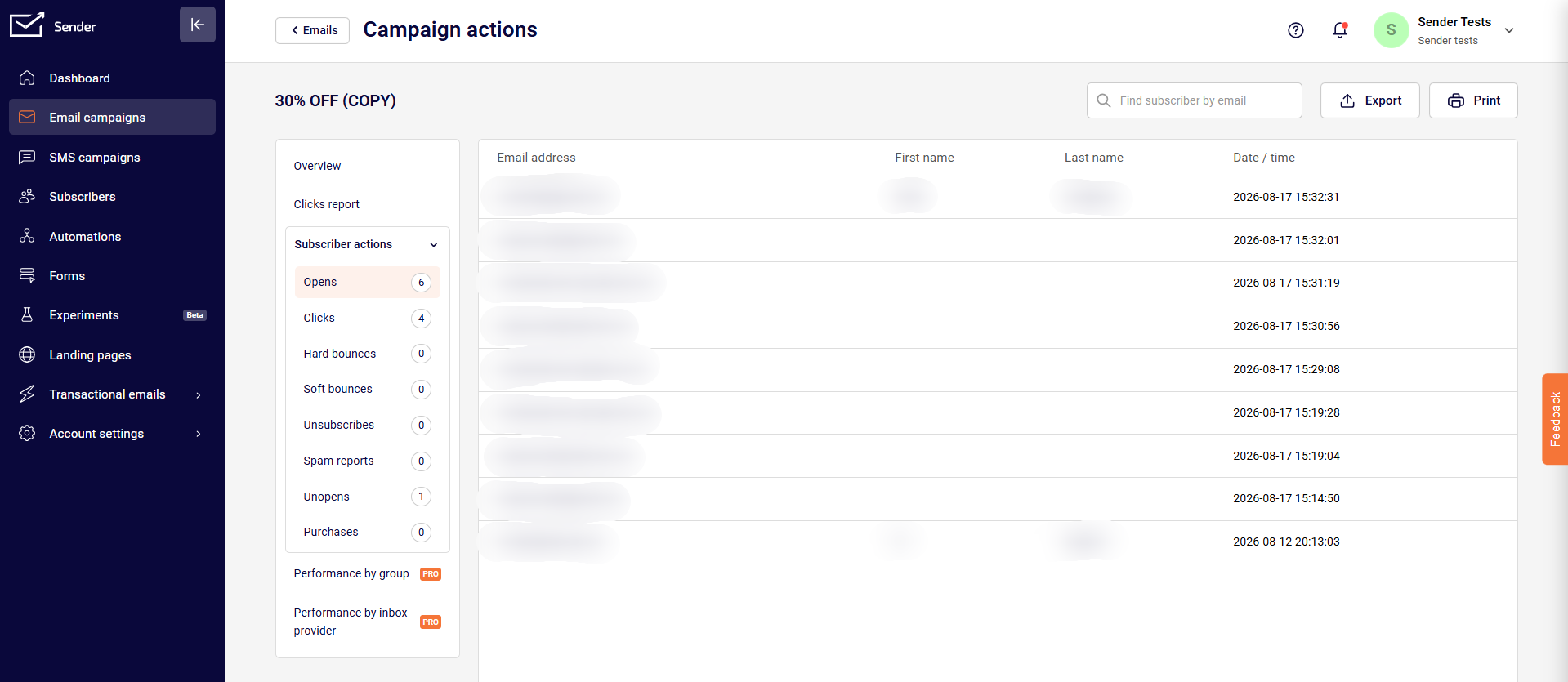
One interesting use case is that clicking the “Unopened” tab lets you see the subscribers who have not opened your campaign.
Top links report: Sender tracks the performance of your links used in a particular campaign and presents this to you as shown below. It can be found by scrolling down in the overview section.
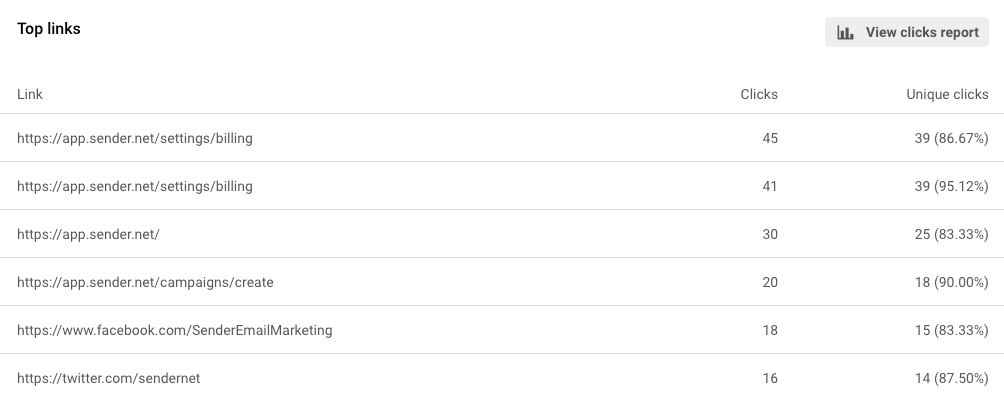
Clicks represent the total number of clicks received for that link, while unique clicks are the number of unique subscribers who clicked.
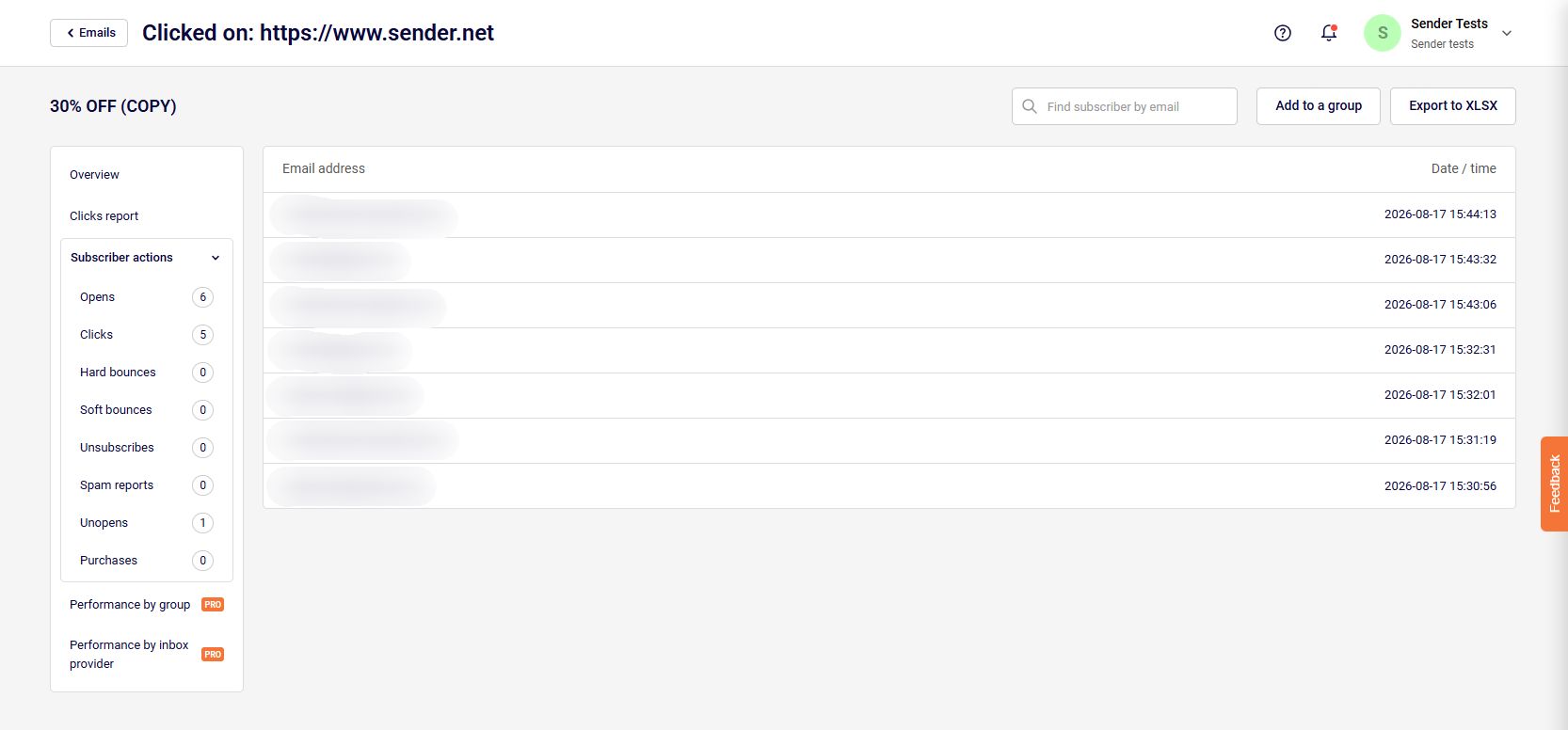
Clicking on any of the links above will take you to the list of recipients who actually clicked on the link. You can also export or print the list. Furthermore, you can assign these recipients to a group by clicking the “Add group” button.
Operating system, Platform and Browser report:
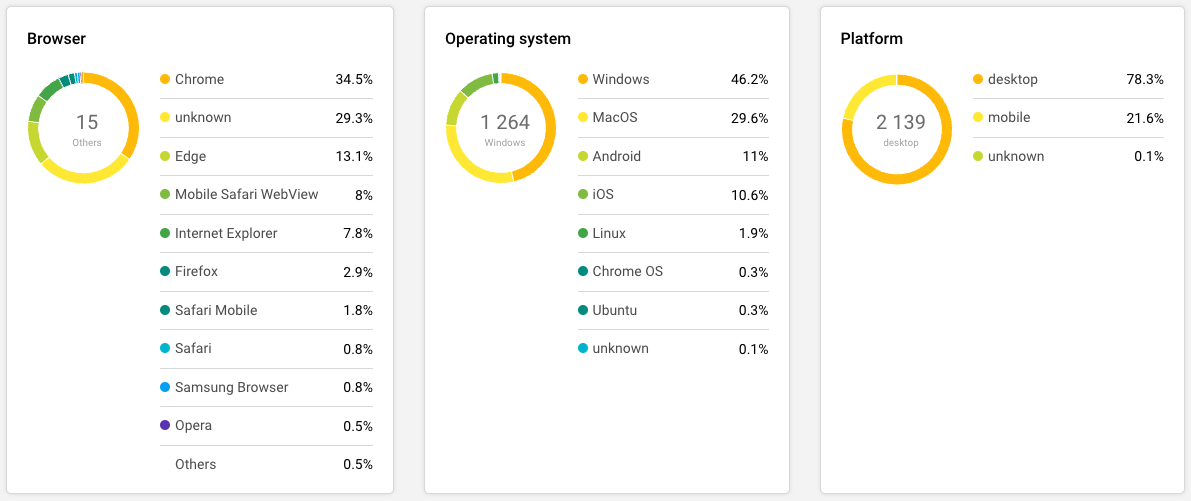
This report shows you the breakdown of your email campaign performance by the technology at the subscriber end e.g. the device, browser and operating systems being used to open the email.
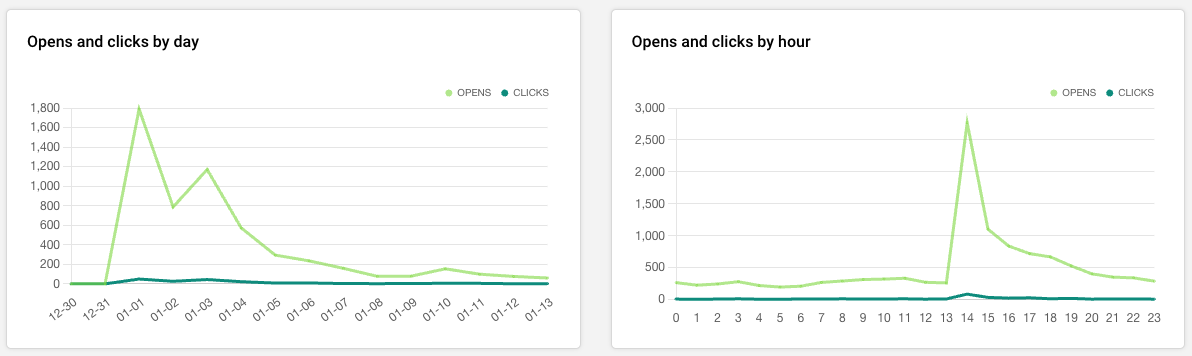
Visual graphs: Scroll some more down and you will see a graphical representation of the opens and clicks for this campaign by hour and by day.
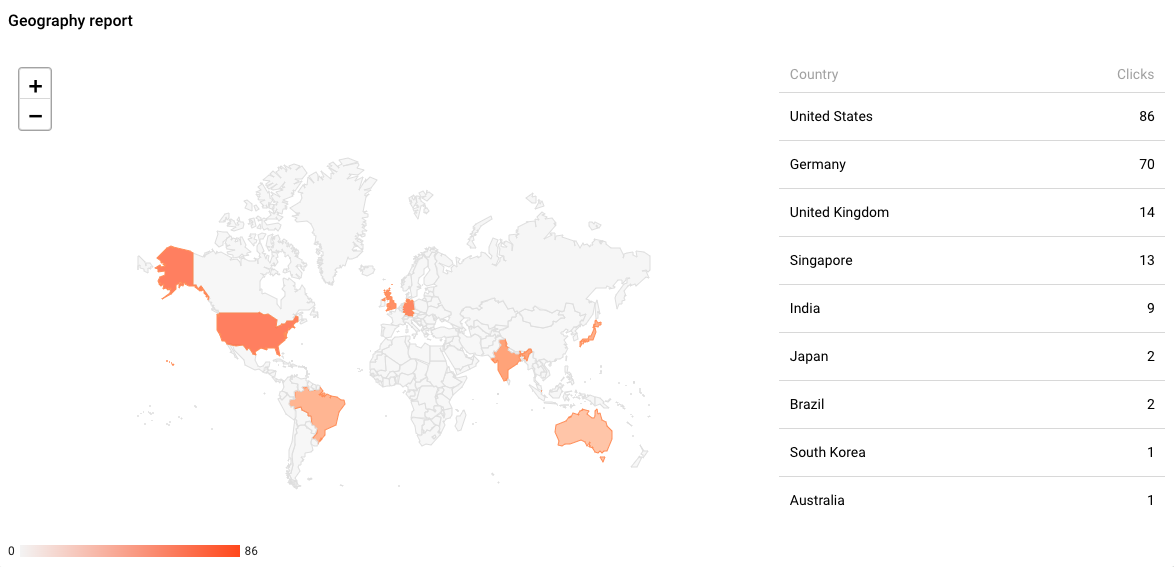
Breakdown by geo-location: The report towards the bottom of the page shows the breakdown of your subscribers list by their email providers’ servers location.
SMS campaign reports
Click “SMS Campaigns” and then hit the “View report” next to the SMS campaign whose performance you would like to view.
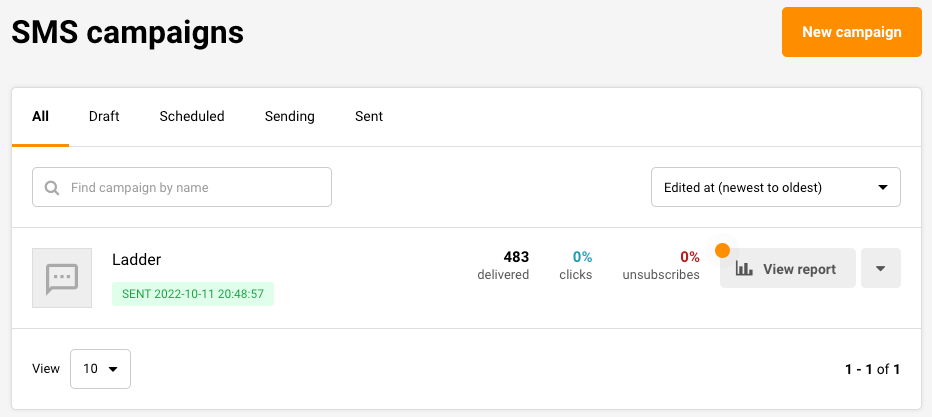
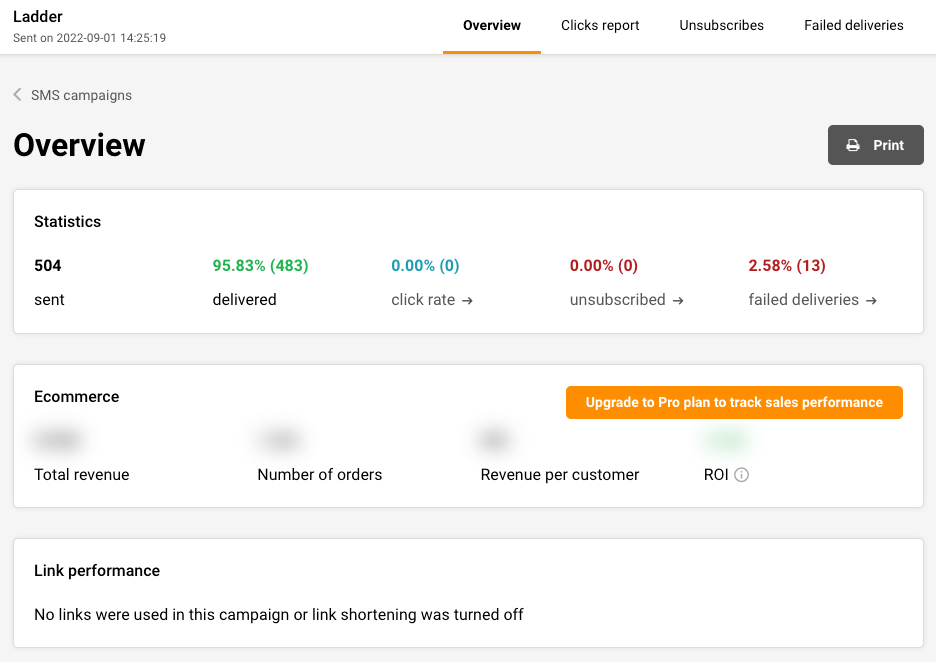
Below in the overview section, you will find the following data counters:
- Sent — Total number of text messages sent;(the amount of sent SMS campaigns);
- Delivered — The number of text messages successfully delivered in this campaign;
- Click rate — Percentage of recipients who clicked the link in your SMS;
- Unsubscribed — Those who chose to opt out of your SMS campaigns;
- Failed deliveries — These are the number of SMS recipients who could not be reached, either because of incorrect mobile numbers, the subscribers being out of range, or some other technical issues.
If you got stuck on a specific task or can’t find a way to execute a particular job, contact our support team via LiveChat or support@sender.net – we’re here to help 24/7.