

View click report
Click report section
The click report shows newsletter click activity – heatmap. You can see where subscribers clicked the most. Newsletter links are tracked and recorded in the report section – from here, you will be able to gather the required data and execute desired actions.
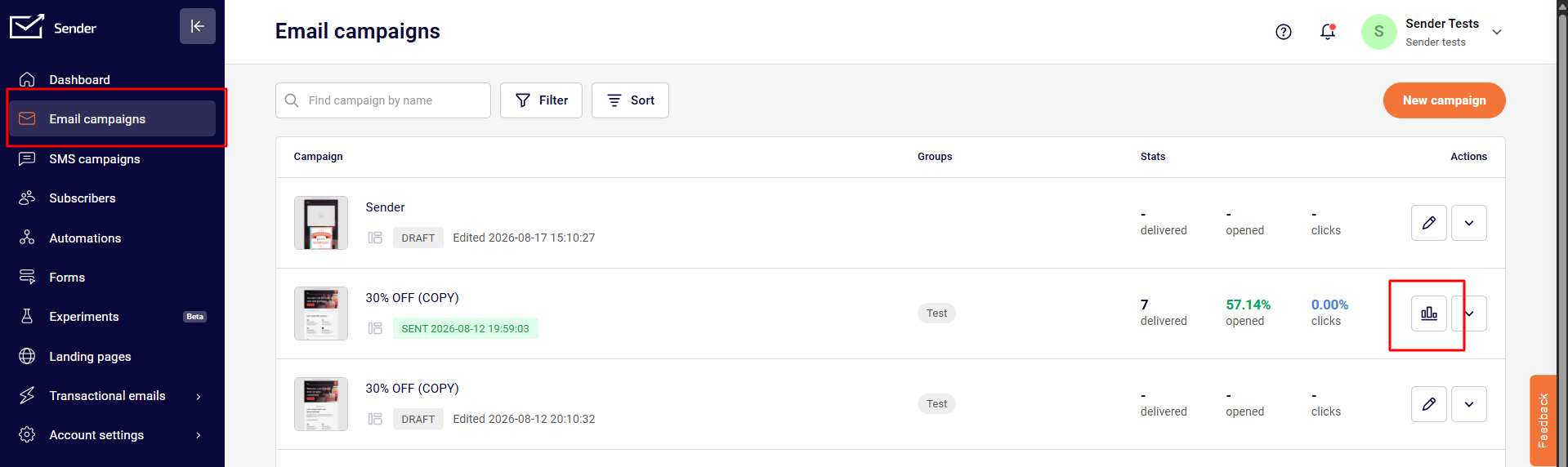
Let’s start by opening the dashboard and clicking Email campaigns > View Reports.
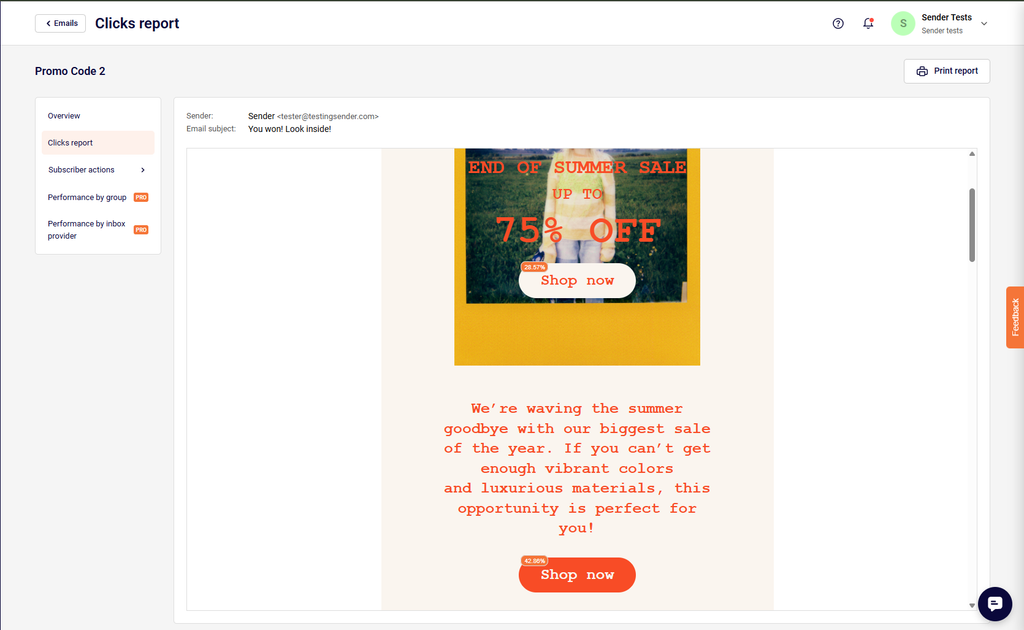
When a report section is opened, click on “Click report” to open a report. Next, you will see the body of the newsletter and small percent tags next to the links.
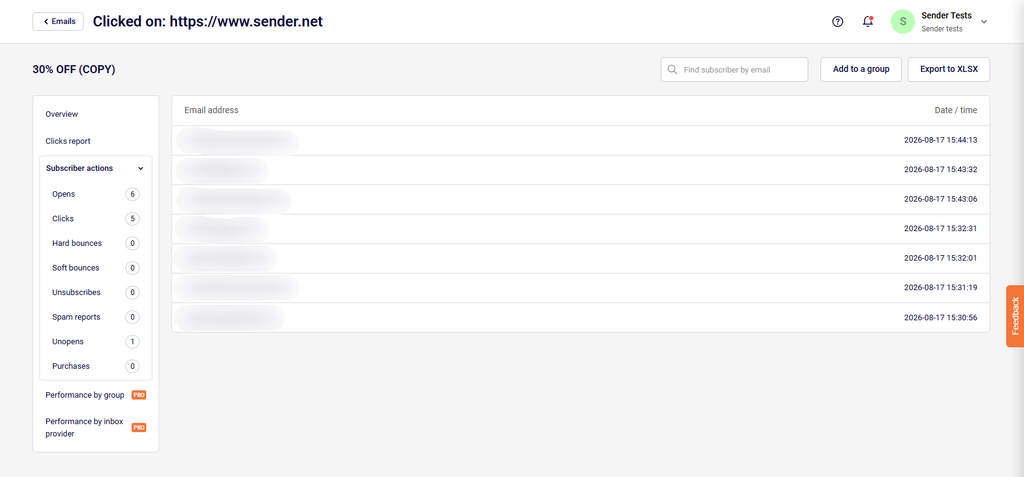
When you click the percent tag, a new tab opens. Here you will find subscribers who clicked on the link. By clicking an individual recipient, you can access their records, including prior actions (received campaigns, opened, clicked). Furthermore, you can assign these recipients to a group by clicking the “Add group” button.
If you got stuck on a specific task or can’t find a way to execute a particular job, contact our support team via LiveChat or support@sender.net – we’re here to help 24/7.