

SMS character limits and message segmentation
This guide explains how SMS character limits and message segmentation work in Sender, and how they affect your campaigns and credit usage.
Where to Find This Feature
In the Sender dashboard, go to: SMS campaigns
Click New campaign to open the Campaign settings page. The Message text section displays a character counter below the text area in the format X/160 - 1 SMS. This counter updates in real time as you type and reflects the current encoding mode, character count, segment limit, and total number of SMS segments your message will use.
Steps to Understand and Manage SMS Character Limits
Step 1 — Check the character counter while composing your message
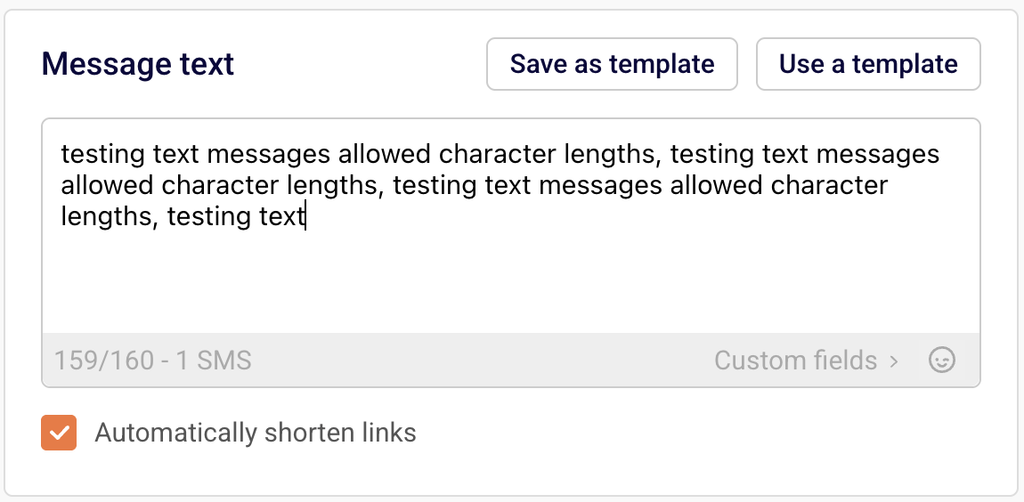
In the Message text field, begin typing your SMS content. The counter below the text area displays your current character count, the per-segment limit, and the number of SMS segments.
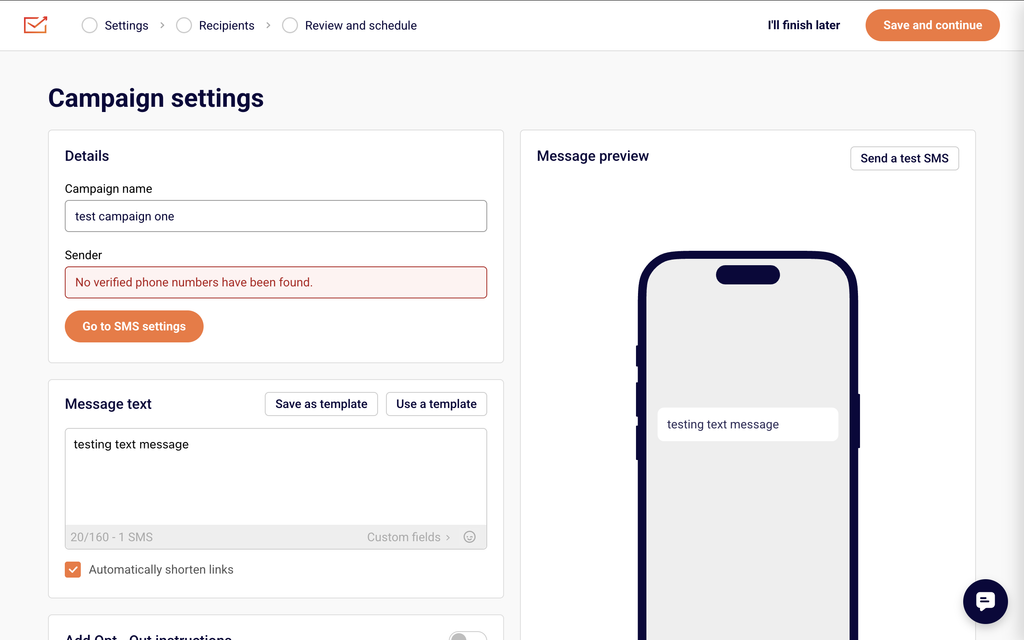
For standard text, it shows a format like 24/160 - 1 SMS. If your message stays within 160 characters using GSM-7 encoding (standard letters, numbers, and common punctuation), it sends as a single SMS segment and uses one credit.
Step 2 — Monitor how the counter changes for longer messages
When your message exceeds 160 characters, the counter automatically adjusts to show multi-segment values.
For example, it may display 82/153 - 2 SMS. The per-segment limit drops from 160 to 153 because 7 characters in each segment are reserved for concatenation headers that allow the recipient’s device to reassemble the full message. Each additional segment of up to 153 characters adds one more SMS credit to the total cost of that message.
Step 3 — Watch for Unicode encoding when using emojis or special characters
If you add an emoji from the emoji picker (the smiley icon beside Custom fields) or type special characters outside the GSM-7 character set, the encoding switches to Unicode. The counter changes to reflect the reduced limit — for example, 23/70 - 1 SMS. A single Unicode SMS segment supports only 70 characters. If a Unicode message exceeds 70 characters, it splits into segments of 67 characters each (3 characters per segment are used for concatenation headers).
Step 4 — Account for opt-out text and organisation name in your character count
Enabling Add Opt – Out instructions appends “Reply STOP to optout” to your message, and enabling Insert your organisation name prepends your brand name before the message content. Both options add characters that count toward the segment limit. The character counter updates automatically when you toggle either option. Check the counter after enabling these settings to confirm your message still fits within your intended number of segments.
Step 5 — Preview and test before sending
The Message preview panel on the right side of the Campaign settings page shows how your message appears on a device, including any appended opt-out text or prepended organisation name. Click Send a test SMS to deliver the message to a phone number and verify its content, length, and segmentation before sending to your full audience.
Message Writing Guide
GSM-7 character limit — A single SMS segment supports up to 160 characters when using standard GSM-7 encoding. GSM-7 includes Latin letters, digits, and common punctuation. Stay within this set to maximize the characters available per segment.
Multi-segment messages (GSM-7) — Messages longer than 160 characters split into segments of 153 characters each. The remaining 7 characters per segment are used for concatenation headers so the recipient’s phone can reassemble the full message in order.
Unicode encoding — Using emojis, accented characters outside GSM-7, or characters from non-Latin scripts switches the message to Unicode encoding. A single Unicode segment holds 70 characters. Multi-segment Unicode messages use 67 characters per segment, with 3 characters reserved for concatenation headers.
Personalization variables — Click Custom fields below the Message text area to insert variables like {{ firstname }}, {{ lastname }}, or {{ email }}. The variable tag itself (e.g., {{ firstname }}) counts toward the character limit at its full tag length, but the actual characters used at send time depend on each subscriber’s data.
Opt-out text — Enabling Add Opt – Out instructions appends unsubscribe text to every message. This text counts toward your character and segment totals, so factor it into your message length when composing.
Organisation name — Enabling Insert your organisation name prepends your brand name before the message body. These additional characters also count toward the segment limit shown in the counter.
Link shortening — The Automatically shorten links checkbox (enabled by default) replaces full URLs with shortened versions. Shortened links use fewer characters, which helps keep your message within a single segment.
Campaign Management Actions
Edit a draft campaign — From the SMS campaign list, click the edit icon (pencil) next to a draft campaign to reopen it in the Campaign settings editor. You can modify the message text, recipients, and scheduling before sending.
Duplicate a campaign — Open the actions menu (dropdown arrow) next to a campaign and select Duplicate. A copy is created in Draft status with the same content and settings, ready to edit and send as a new campaign.
Delete a campaign — Open the actions menu next to a campaign and select Delete. This removes the campaign from your list. Deleted campaigns cannot be recovered.
Save as draft — Click I’ll finish later at any point during the campaign creation workflow to save your progress and return to it later. The campaign appears in the SMS campaign list with a Draft status.
Campaign Tips
Keep messages under 160 characters — Staying within the single-segment GSM-7 limit of 160 characters uses only one SMS credit per recipient and avoids segmentation.
Avoid emojis when character count matters — A single emoji switches the entire message to Unicode encoding, reducing the limit from 160 to 70 characters per segment. Remove emojis if you need more space for text content.
Test personalization variables — Variable tags like {{ firstname }} may expand to different lengths for each subscriber. Use Send a test SMS to verify the message reads correctly and does not split unexpectedly when real subscriber data replaces the tags.
Factor in opt-out and organisation text — If you enable Add Opt – Out instructions or Insert your organisation name, check the updated character counter before finalizing. These additions may push your message into an additional segment.
Use templates for recurring messages — Click Save as template after writing a message you plan to reuse. When creating a new campaign, click Use a template to load a saved message and avoid rewriting content from scratch.
Common Issues
Message splits into more segments than expected → This typically happens when emojis or special characters trigger Unicode encoding, which reduces the per-segment limit from 160 to 70 characters. Remove non-GSM-7 characters and check the counter to confirm the encoding returns to X/160.
Character counter shows a higher number than the visible text → Enabled toggles for Add Opt – Out instructions or Insert your organisation name add hidden characters that count toward the total. Disable these toggles temporarily to see the count for your message text alone.
Personalization variables increase segment count → Variable tags like {{ firstname }} occupy a fixed number of characters in the editor, but the actual subscriber data inserted at send time may be longer. If a subscriber’s first name is 15 characters, it replaces the tag and may push the message into an additional segment. Write shorter messages to leave room for variable expansion.
Message preview does not match expected output → The Message preview panel reflects your current message text, opt-out instructions, and organisation name in real time. If the preview looks incorrect, verify that the correct toggles are enabled and that no unintended characters were pasted into the Message text field.
FAQs
How many characters can an SMS message contain?
A single SMS segment supports 160 characters using standard GSM-7 encoding. If your message exceeds 160 characters, it is split into multiple segments of 153 characters each (7 characters per segment are used for concatenation headers). Using emojis or special characters switches to Unicode encoding, which reduces the limit to 70 characters per single segment or 67 characters per segment in multi-segment messages.
How does the character counter work in Sender?
The counter below the Message text field displays the format characters/limit - segments SMS. For a standard message, it shows values like 24/160 - 1 SMS. When the message exceeds the single-segment limit, it updates to reflect the multi-segment per-segment limit, such as 82/153 - 2 SMS. If Unicode characters are detected, the limit adjusts to X/70 for a single segment.
Can I personalize SMS messages with subscriber data?
Yes. Click Custom fields below the Message text area to open the field selector. Choose from available fields such as First name, Last name, Email, Phone number, or Birthday. Sender inserts the variable tag (e.g., {{ firstname }}) into your message and replaces it with the subscriber’s actual data at send time.
Does opt-out text count toward my character limit?
Yes. Enabling Add Opt – Out instructions appends text such as “Reply STOP to optout” to your message. These characters are included in the counter and count toward your segment total. Check the counter after enabling this toggle to verify your message still fits within the intended number of segments.
How are SMS credits charged for multi-segment messages?
Each SMS segment counts as one credit. A message under 160 characters (GSM-7) uses one credit. A message that splits into two segments uses two credits per recipient. Unicode messages use more credits because the lower character limit per segment means more segments are needed to deliver the same amount of text.
Can I duplicate an existing SMS campaign?
Yes. From the SMS campaign list, open the actions menu (dropdown arrow) next to the campaign and select Duplicate. A copy is created in Draft status with the same content and settings, ready to edit and send.