

Delivery tracking
This guide explains how to access, read, and interpret SMS delivery reports in Sender to understand how your messages are reaching recipients.
Where to Find This Report
The SMS delivery report is available on a per-campaign basis from the SMS campaigns section of your Sender account.
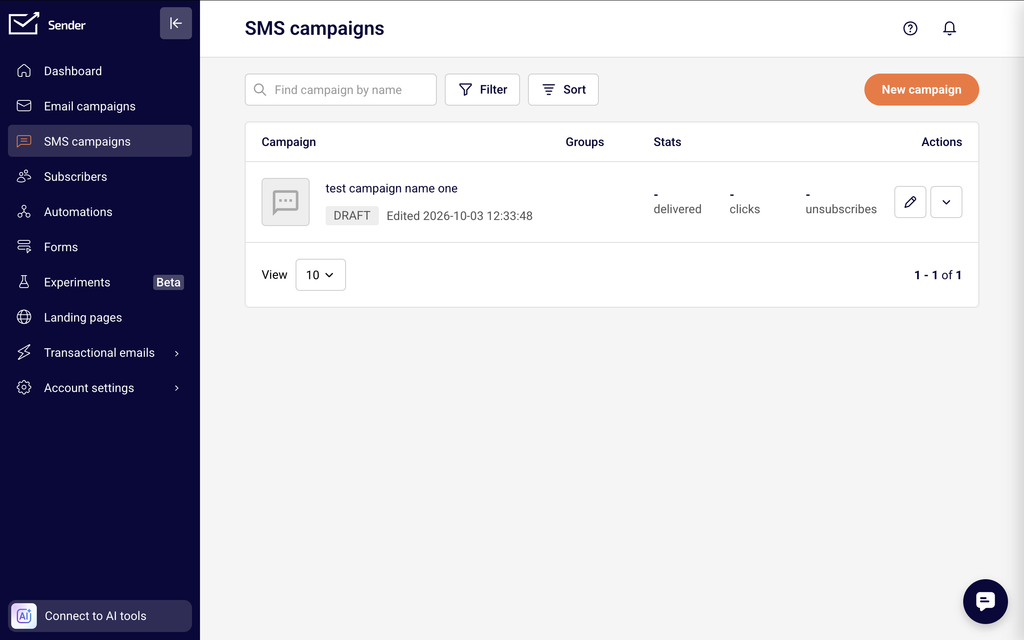
Click SMS campaigns in the left sidebar to open the campaign list. Use the Sent tab at the top of the list to filter for campaigns that have already been dispatched. Each sent campaign row displays summary metrics including delivered, clicks, and unsubscribes alongside a View report button.
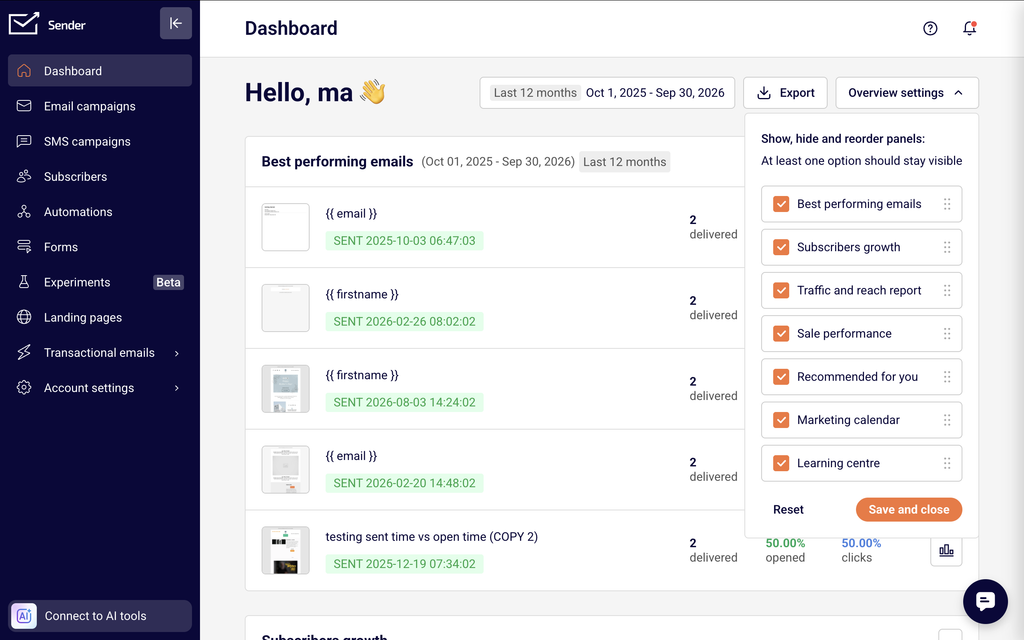
You can also access campaign-level delivery data from the Dashboard by scrolling to the Best performing emails section or navigating to your Marketing calendar, where sent SMS campaigns are listed by date. Clicking a sent SMS campaign from either location opens its full report.
Steps to Track SMS Delivery
Step 1 — Open the SMS campaign list
Click SMS campaigns in the left sidebar. At the top of the campaign list, click the Sent tab to show only campaigns that have been dispatched. Each row displays the campaign name, the sent date, and summary stats for delivered, clicks, and unsubscribes. Use the Find campaign by name search field to locate a specific campaign, or use the Sort by dropdown to reorder campaigns by date.
Step 2 — Open the campaign delivery report
Locate the campaign you want to review and click View report on its row. This opens the campaign report page. The Overview tab is displayed by default and shows a Statistics section at the top with five key counters: sent, delivered, click rate, unsubscribed, and failed deliveries. Each counter displays both a percentage and a raw count. Below the statistics, the Link performance section shows click data for any tracked links in the message.
Step 3 — Review delivery details and sub-reports
Click the arrow icon next to any metric counter in the Statistics section to drill into the details for that specific status. Use the report tabs — Overview, Clicks report, Unsubscribes, and Failed deliveries — to switch between different views of the campaign data. To save or share the report, click Print in the top-right corner of the Overview tab, or use Export where available to download the recipient list for a specific status.
SMS Metrics Explained
Sent — The total number of SMS messages dispatched for the campaign. This count reflects messages submitted for delivery, regardless of whether they were successfully received by the recipient’s carrier.
Delivered — The number of messages confirmed as accepted by the recipient’s carrier. Displayed as both a raw count and a percentage of total sent. A delivered status means the carrier accepted the message, though final handset delivery depends on the recipient’s device and network conditions.
Click rate — The percentage of delivered messages where the recipient clicked a tracked link. This metric only appears when the campaign contains a shortened or tracked link. If link shortening was turned off or no links were included, this value will show as 0.00% or the Link performance section will note that no links were tracked.
Unsubscribed — The number of recipients who opted out after receiving the message, shown as a count and a percentage. This includes recipients who used the opt-out link or replied with an unsubscribe keyword such as STOP.
Failed deliveries — The number of messages that could not be delivered, shown as a count and a percentage. Click the arrow next to this counter or switch to the Failed deliveries tab for a detailed list of recipients who were not reached and the associated error information.
Delivery Statuses
Delivered — The message was accepted by the recipient’s carrier. This is the standard successful outcome. Note that carrier-level delivery confirmation means the message reached the carrier network, but final delivery to the handset may depend on the recipient’s device being powered on and in range.
Failed — The message was not delivered. Common causes include invalid or deactivated phone numbers, carrier-level blocks, numbers in unsupported countries, or network errors. Review the Failed deliveries tab to see which recipients were affected and investigate the cause.
Sending — The message is currently being transmitted. This is a transitional status visible on the campaign list while the campaign is actively dispatching. All messages should resolve to either Delivered or Failed once sending completes.
Scheduled — The campaign is queued for future delivery at the date and time configured during campaign setup. Messages in this status have not yet been sent.
Draft — The campaign has been created but not yet sent or scheduled. No delivery data exists for campaigns in this status.
How to Identify Performance Issues
High failed delivery rate — If the failed deliveries percentage is significantly above zero, open the Failed deliveries tab to review the affected recipients. A spike in failures often points to outdated or invalid phone numbers in your subscriber list, sending to numbers in countries not supported by your sender ID, or carrier-level filtering.
Rising unsubscribe rate — If the unsubscribed count increases across consecutive campaigns, check the Unsubscribes tab for patterns. A rising opt-out rate may indicate message frequency is too high, content is not relevant to the audience, or opt-out instructions are triggering more responses than expected.
Low or zero click rate — If the click rate shows 0.00% on a campaign that contains a link, first confirm that Automatically shorten links was enabled during campaign creation. If link shortening was turned off, clicks will not be tracked. If shortening was on and the click rate is still low, the link may not be prominent or compelling enough in the message body.
Delivered count lower than sent count — A gap between sent and delivered means some messages were not accepted by the carrier. This can result from invalid numbers, carrier congestion, or temporary network issues. Filter by Failed deliveries to review the specific recipients and error details.
Consistent failures to a specific carrier or region — If failures cluster around recipients on a particular carrier or in a particular country, the issue may be related to sender ID registration, carrier filtering policies, or unsupported destinations. Carrier-level delivery reporting has inherent limitations, and not all carriers provide granular rejection reasons.
Report Tips
Filter by status tab first — Use the Sent tab on the campaign list to isolate completed campaigns before opening a report. This avoids confusion with draft or scheduled campaigns that have no delivery data.
Check failed deliveries after every send — Open the Failed deliveries tab immediately after a campaign finishes sending to catch issues while the data is fresh. Early detection helps you clean your subscriber list before the next campaign.
Use Print for offline review — Click Print on the Overview tab to generate a printable version of the report. This is useful for sharing delivery data with team members who do not have access to Sender.
Compare campaigns over time — Open reports for multiple campaigns in sequence and note trends in delivered percentage, click rate, and unsubscribed counts. Consistent changes across campaigns indicate list-level or content-level patterns.
Export recipient data for deeper analysis — Where available, use the Export option on sub-report tabs like Failed deliveries or Unsubscribes to download the affected recipient lists. You can then analyze this data in external tools such as Excel or Google Sheets.
Common Issues
View report button is not visible → The campaign has not been sent yet. Only campaigns with a Sent status display the View report button. Draft, scheduled, and sending campaigns do not have reports.
Click rate shows 0.00% even though the message has a link → Link shortening was not enabled for the campaign. The Automatically shorten links toggle must be active during campaign creation for Sender to track clicks. If it was off, the Link performance section will note that no links were tracked.
Delivered count is zero → All messages failed delivery. Open the Failed deliveries tab to review error details. Common causes include an unverified sender ID, all recipients having invalid numbers, or a carrier-level block on the sender.
Report data appears incomplete or delayed → Carrier delivery confirmations can take varying amounts of time depending on the recipient’s network. Refresh the report page after a few minutes. Some carriers do not return delivery confirmations at all, which may result in messages remaining in an indeterminate state.
Unsubscribed count does not match expectations → The unsubscribed count reflects opt-outs attributed to the specific campaign. Recipients who unsubscribed before the campaign was sent or through other channels will not appear in this count.
FAQs
How often are SMS report metrics updated?
SMS delivery metrics typically update within minutes of sending. Refresh the report page to see the latest data. Some carrier delivery confirmations may take longer depending on the recipient’s network.
What does a “failed” delivery status mean?
A failed status means the message was not delivered to the recipient. Common causes include invalid phone numbers, carrier blocks, numbers that have been deactivated, or the recipient’s phone being unreachable at the time of sending.
Does Sender track link clicks in SMS messages?
Yes. If your SMS contains a tracked link and the Automatically shorten links toggle was enabled during campaign creation, Sender records when a recipient clicks it. The Click rate metric shows the percentage of delivered messages where a link was clicked.
How do I know how many SMS credits a campaign used?
Check the sent counter on the campaign report Overview tab. Each SMS segment counts as one credit. Messages exceeding 160 characters (GSM-7) or 70 characters (Unicode) are split into multiple segments, each consuming one credit.
Can I export my SMS report data?
Yes. Use the Export option available on sub-report tabs such as Failed deliveries and Unsubscribes to download recipient lists. You can also use Print on the Overview tab to generate a printable version of the full report.
Why is my SMS delivery rate lower than expected?
High failure rates may indicate invalid or outdated phone numbers in your list, carrier-level blocks, or sending to numbers in unsupported countries. Open the Failed deliveries tab to identify which recipients were not reached, then clean your subscriber list accordingly.