

SMS quiet hours and sending time restrictions
This guide walks you through how to understand SMS quiet hours, comply with sending time restrictions, and use Sender’s scheduling tools to send SMS campaigns at appropriate times.
Where to Find This Feature
In the Sender dashboard, go to: SMS campaigns
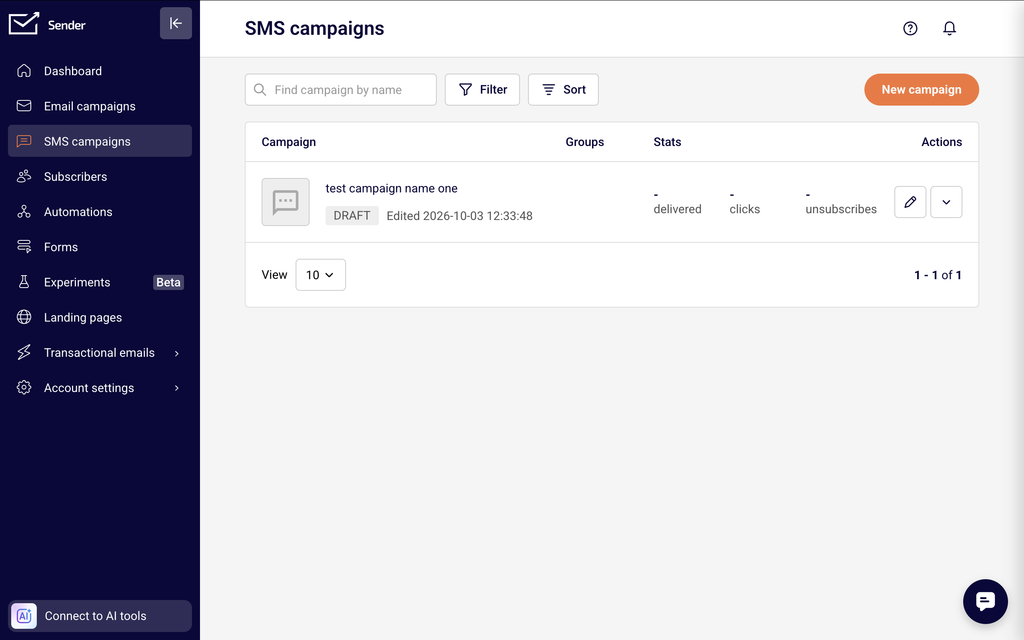
You will see the SMS campaign library, which contains your drafted, scheduled, sending, and sent campaigns. The New campaign button at the top lets you create a new SMS campaign. Sending time settings are configured during the final step of campaign creation, called Review and schedule, where you choose when your campaign is sent.
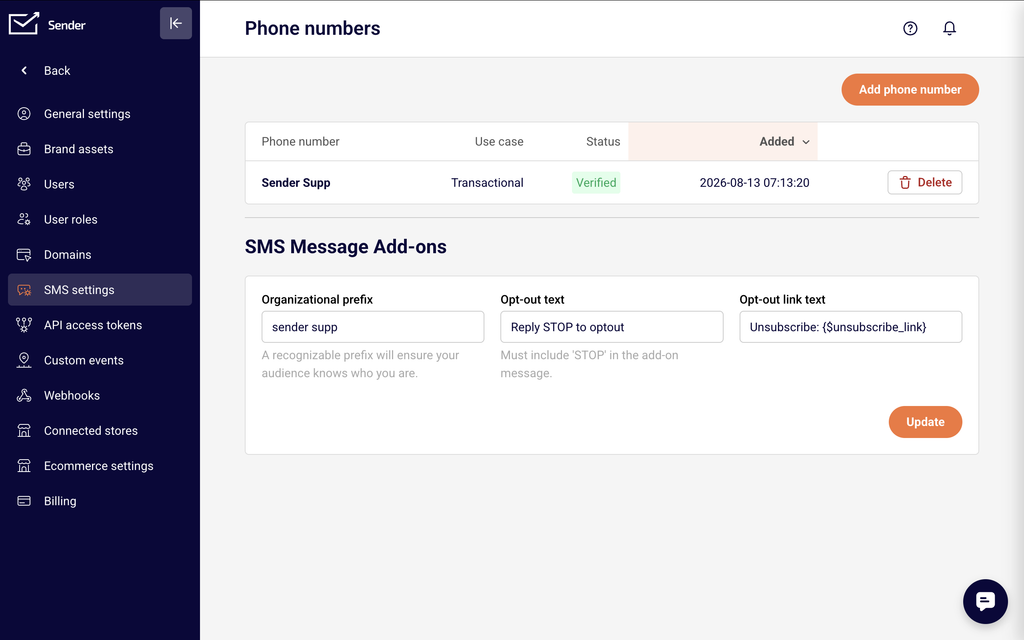
To manage your sender phone numbers and SMS message add-ons, go to: Account settings → SMS settings
Steps to Configure SMS Sending Times and Respect Quiet Hours
Step 1 — Understand SMS Quiet Hours
Quiet hours are time windows during which sending marketing SMS messages is restricted or prohibited. Under the TCPA (Telephone Consumer Protection Act, a US federal regulation governing telemarketing communications), businesses cannot text customers before 8:00 AM or after 9:00 PM in the recipient’s local time zone. Similar restrictions may apply in other jurisdictions under regulations like the GDPR or local carrier rules. Scheduling your SMS campaigns outside of these restricted windows helps you stay compliant and reduces the risk of complaints, opt-outs, and potential fines.
Step 2 — Create Your SMS Campaign Content
In the Sender dashboard, click SMS campaigns in the left sidebar, then click New campaign.
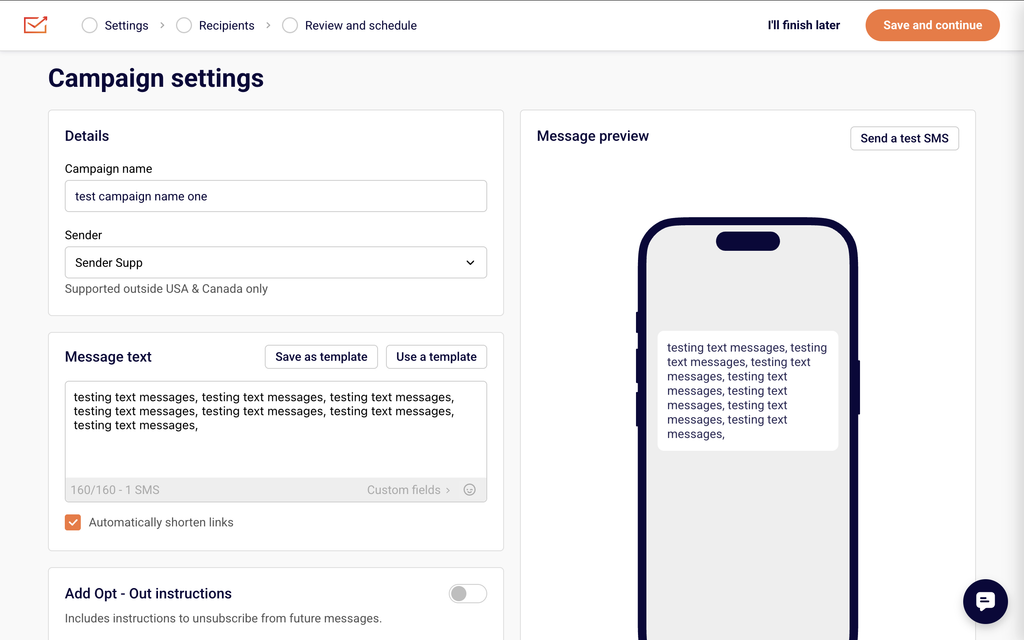
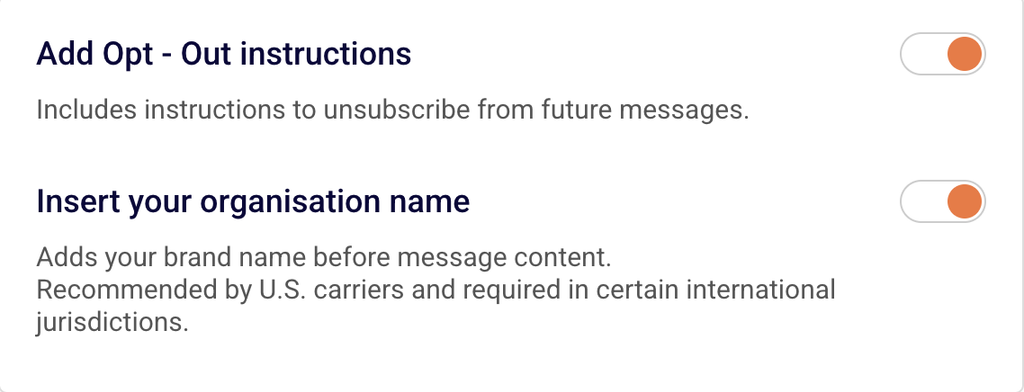
On the Campaign settings page, enter a Campaign name, select a verified phone number from the Sender dropdown, and write your message in the Message text field. Enable the Add Opt-Out instructions toggle to include unsubscribe instructions. Enable Insert your organisation name to prepend your brand name to the message, which is recommended by U.S. carriers.
Click Save and continue to proceed to the Recipients step, select your subscriber groups or segments, and then click Save and continue again to reach the final step.
Step 3 — Schedule Your Campaign for a Compliant Sending Time
On the Review and schedule step (labeled Confirm and send), you will see a summary of your campaign settings, subscriber count, estimated cost, and a message preview. To send at a specific time that respects quiet hours, click Schedule to send.
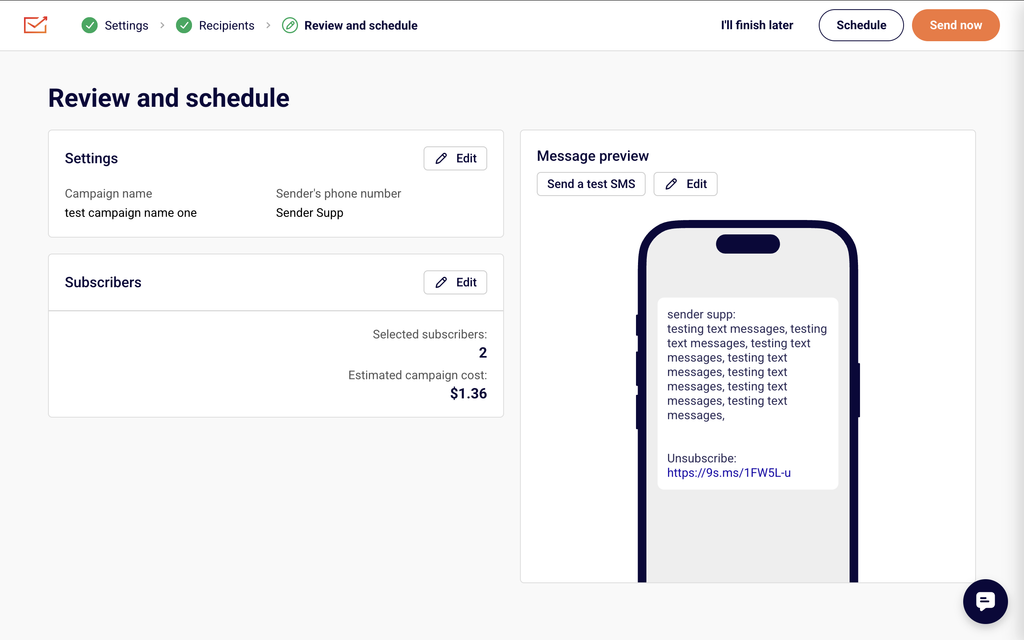
A Schedule campaign dialog will appear with a calendar date picker and a Select time field. Choose a date and set the time to fall within the compliant sending window — between 8:00 AM and 9:00 PM in your recipients’ local time zone. Click Schedule to confirm. Your scheduled campaign will appear in the SMS campaign list with the scheduled delivery date and time.
Step 4 — Verify Your Scheduled Time Before Sending
Before finalizing, review the scheduled date and time displayed in the campaign summary. Confirm that the sending time accounts for time zone differences if your subscribers are in multiple regions. If you need to send immediately and it is within the compliant window, you can click Send now instead. You can also click Send a test SMS from the message preview panel to verify the message content and delivery before launching the full campaign.
SMS Compliance Requirements
TCPA (Telephone Consumer Protection Act) — Applies to businesses sending SMS to recipients in the United States. The TCPA generally prohibits sending marketing text messages before 8:00 AM or after 9:00 PM in the recipient’s local time zone. Sender’s scheduling tools allow you to set a specific delivery time to help you stay within these windows.
GDPR (General Data Protection Regulation) — Applies to businesses sending SMS to recipients in the European Union and European Economic Area. While the GDPR does not specify exact sending hours, it requires that marketing communications be sent only with explicit consent and in a manner that respects the recipient’s rights. Some EU member states have additional rules restricting commercial messaging during certain hours or on certain days.
Carrier-Level Restrictions — Mobile carriers in various countries may impose their own rules on when and how marketing SMS can be delivered. These can include restrictions on sending times, content filtering, and throughput limits. Violating carrier policies can result in message blocking or sender ID suspension. Check Sender’s SMS documentation or contact support for details about restrictions in your target countries.
Sender’s SMS Policies — Sender requires that all SMS campaigns include opt-out instructions and recommends including your organization name in every message. Sender also requires a verified phone number or registered sender ID before you can send campaigns. These policies complement regulatory requirements and help protect your sending reputation.
Always consult a legal professional for jurisdiction-specific advice on SMS sending time restrictions and compliance obligations.
What Happens Next
After scheduling your campaign, it will appear in the SMS campaigns list with a Scheduled status and the delivery date and time displayed alongside it.
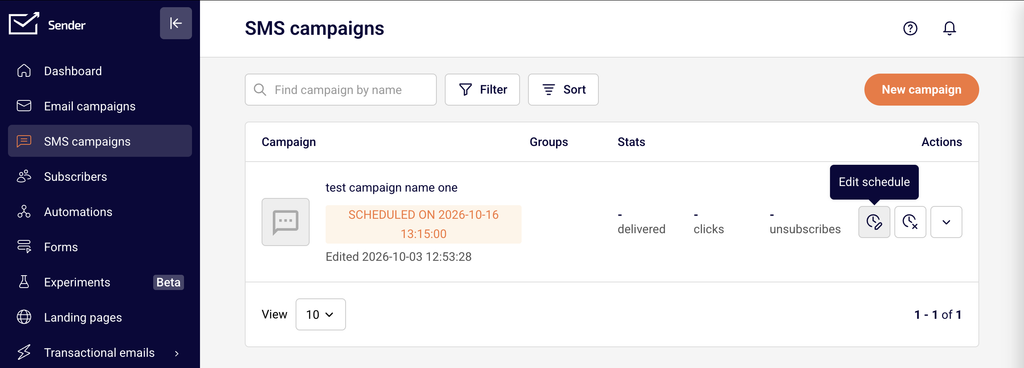
You can return to SMS campaigns at any time to view, edit, or cancel scheduled campaigns before they are sent.
To verify everything is working correctly, use the Send a test SMS option on the Review and schedule step to send a test message to your own phone number before launching the campaign.
Your scheduled SMS campaigns will also be visible in campaign reports after delivery, where you can track delivery status, failed messages, and other performance metrics.
Common Issues
SMS sent outside compliant hours → This happens when the scheduled time does not account for time zone differences between your account’s time zone and your recipients’ local time zones. Review your account time zone under Account settings → General settings → Time zone, and adjust your scheduled delivery time to ensure it falls within 8:00 AM–9:00 PM for all recipient regions.
Campaign shows “No verified phone numbers have been found” → This occurs when no sender phone number has been verified or approved. Go to Account settings → SMS settings to check your phone number status. If your phone number shows In Progress, wait for verification to complete before creating a campaign.
Scheduled campaign not sending at the expected time → This can happen if the time zone set in your Sender account does not match your intended delivery time zone. Confirm the time zone under Account settings → General settings and recalculate the schedule if your recipients are in a different region.
Recipients report receiving messages at inconvenient times → This typically occurs when your subscriber list spans multiple time zones and you schedule a single send time. Consider segmenting your audience by region and scheduling separate campaigns for each time zone to ensure all messages arrive within compliant hours.
FAQs
What are SMS quiet hours?
Quiet hours are time periods during which sending marketing SMS messages is restricted or prohibited by regulations. In the United States, the TCPA generally requires that marketing texts not be sent before 8:00 AM or after 9:00 PM in the recipient’s local time zone. Other countries and carriers may have their own restrictions. Consult a legal professional for guidance specific to your jurisdiction.
Does Sender automatically block SMS during quiet hours?
Sender provides scheduling tools that let you control exactly when your campaign is sent. It is your responsibility to schedule campaigns at times that comply with applicable regulations. Use the Schedule to send feature on the Review and schedule step to set a delivery time within the compliant window for your audience.
How do I schedule an SMS campaign in Sender?
During campaign creation, complete the Settings and Recipients steps, then on the Review and schedule step, click Schedule to send. Select a date and time using the calendar and time picker in the Schedule campaign dialog, then click Schedule to confirm.
What time zone does Sender use for scheduling?
Sender uses the time zone configured in your account settings. You can check or update this under Account settings → General settings → Time zone. Make sure this setting aligns with the time zone you intend for your campaign delivery.
What should I do if my subscribers are in multiple time zones?
Segment your subscriber list by geographic region or time zone. Create separate campaigns for each segment and schedule each one to arrive within the compliant sending window for that region. This ensures all recipients receive your message during appropriate hours.
Can I send an SMS campaign immediately instead of scheduling it?
Yes. On the Review and schedule step, click Send now to deliver the campaign immediately. Before doing so, confirm that the current time falls within the compliant sending window for your recipients’ time zones.
Are there sending time restrictions outside the United States?
Yes. Many countries have their own regulations governing when commercial SMS messages may be sent. Some EU member states, for example, restrict marketing messages during evenings, weekends, or public holidays. Carrier-level rules may also apply. Check Sender’s SMS documentation or contact support for specific country restrictions, and consult a legal professional for compliance guidance.