

Available integrations overview
This guide provides an overview of all available integrations in Sender, organized by category and integration type, so you can identify the right connection for syncing subscribers, automating workflows, capturing leads, and extending your email marketing across third-party platforms.
Prerequisites
- An active Sender account.
- An account on the third-party platform you want to integrate with.
- An API access token from Sender (required for API-based and third-party integrations).
- Admin or owner-level access on the third-party platform, depending on the integration.
Where to Find This Setting
Sender integrations are accessed from two locations depending on the integration type.
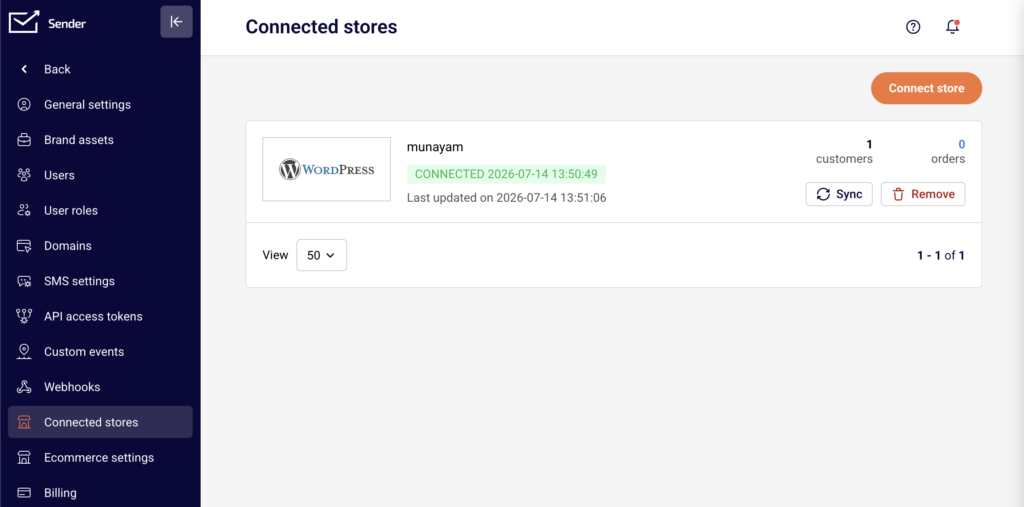
For ecommerce store connections, go to Account settings → Connected stores in the Sender dashboard. Click Connect store to begin linking a supported ecommerce platform.
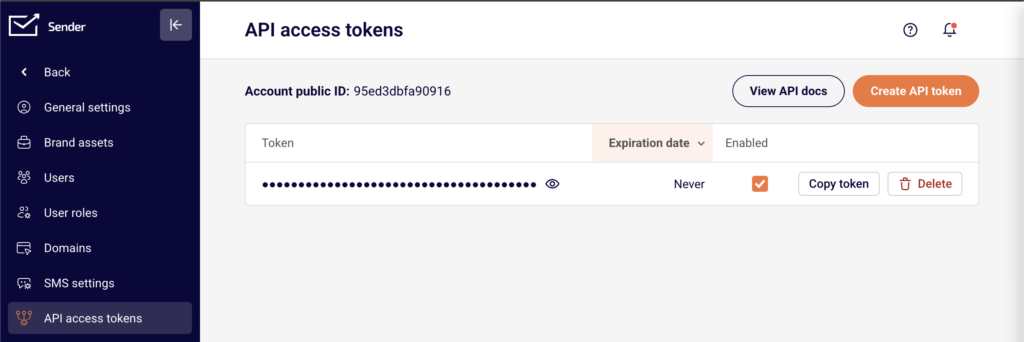
For API-based integrations and third-party connections, go to Account settings → API access tokens to generate the API access token required by external platforms. Webhook-based integrations are managed under Account settings → Webhooks.
A full directory of supported integrations is available at https://www.sender.net/integrations/, where you can browse and filter by category and integration type.
Steps to Browse and Connect an Integration
Step 1 — Identify the integration type
Sender organizes integrations into three types. Native integration means a built-in, direct connection configured within Sender or via a dedicated plugin. Automatic import enables one-click contact migration from another email marketing provider into Sender. Third-party integrations connect Sender to external platforms using your API access token or through the third-party platform’s own configuration interface.
Step 2 — Choose the integration category
Browse integrations by category to find the platform that matches your use case. The available categories are Ecommerce platforms, Content management, Workflow automation, Email builders, Leads capture, Tracking & analytics, Translations, and Email marketing providers. Select a category from the sidebar on the integrations directory page to filter the list.
Step 3 — Review ecommerce platform integrations
The Ecommerce platforms category includes native integrations with Shopify, WooCommerce, PrestaShop, Jumpseller, and Drupal. These connect your online store to Sender for syncing customer data, sending automated product recommendations, abandoned cart reminders, and order-based follow-ups. Access these through Account settings → Connected stores in the Sender dashboard.
Step 4 — Review content management integrations
The Content management category includes a native integration with WordPress. The Sender plugin lets you capture leads directly from your website, sync subscriber lists, and manage campaigns. Install the plugin from the WordPress plugin directory and authenticate using your API access token.
Step 5 — Review workflow automation integrations
The Workflow automation category includes Zapier, OttoKit, Make, Pabbly, Pipedream, Integrately, and ZohoFlow. These platforms connect Sender to thousands of other apps through automated workflows. Configure these integrations within each third-party platform by selecting Sender as a connected app and authenticating with your API access token.
Step 6 — Review email builder integrations
The Email builders category includes Stripo.email. This integration lets you design fully customized email templates using Stripo’s editor and export them directly into Sender for use in campaigns. Configure the connection within Stripo by selecting Sender as the export destination.
Step 7 — Review leads capture integrations
The Leads capture category includes Pagefly, Leadsnotify, Brave, Zotabox, Hellobar, and forms.app. These tools capture visitor information through landing pages, pop-ups, contact forms, and floating bars, then push new subscribers directly into your Sender subscriber groups.
Step 8 — Review tracking and analytics integrations
The Tracking & analytics category includes Google Tag Manager (GTM). This integration lets you deploy Sender tracking on your website to monitor user behavior, optimize email performance, and implement event-based triggers without modifying your site’s code directly.
Step 9 — Review translation integrations
The Translations category includes Crowdin. This integration enables you to translate your email content into multiple languages through Crowdin’s localization platform, feeding translated content back into your Sender campaigns for international audiences.
Step 10 — Review email marketing provider integrations
The Email marketing providers category includes Mailchimp and GetResponse. These are automatic import integrations that let you migrate your existing contacts from these platforms into Sender in just a few minutes, with no manual steps required. All contacts transfer automatically into one place.
How to Verify the Integration
After connecting any integration, verify it is working by performing a test action on the third-party platform, such as adding a subscriber or triggering a workflow. In the Sender dashboard, go to Subscribers to confirm that new contacts appear in the correct Subscriber group. For ecommerce integrations, check Account settings → Connected stores to confirm the store shows a connected status. A successful integration displays the connected platform’s name and status in the relevant settings page.
What Syncs Between Platforms
Ecommerce data (Shopify, WooCommerce, PrestaShop, Jumpseller, Drupal) — Customer information, purchase history, and order data sync from your connected store into Sender. This data enables automated campaigns such as abandoned cart reminders and product recommendations.
Subscriber data (Workflow automation and leads capture tools) — New subscriber details captured through third-party forms, landing pages, or automation workflows sync into Sender subscriber groups. The direction is typically one-way, from the third-party platform into Sender.
Contact migration (Mailchimp, GetResponse) — Existing contacts import automatically from the source email marketing provider into Sender. This is a one-time bulk transfer that moves all contacts without manual steps.
Email templates (Stripo.email) — Completed email designs export from Stripo directly into Sender for use in campaigns. The sync direction is one-way, from Stripo into Sender.
Tracking events (Google Tag Manager) — Website visitor behavior data flows from your site through GTM into Sender, enabling event-based triggers and performance optimization for your email campaigns.
Integration Tips
Generate your API access token first — Most third-party integrations require an API access token. Go to Account settings → API access tokens and click Create API token before starting any integration setup.
Use one integration per purpose — Avoid connecting multiple integrations that serve the same function, such as two different leads capture tools pushing to the same subscriber group, to prevent duplicate subscribers.
Check integration type before setup — Native integrations are configured within Sender or via a dedicated plugin. Third-party integrations are configured within the external platform. Knowing the type determines where you start the setup process.
Test with a single record first — Before relying on any integration for live campaigns, send a test subscriber or trigger a test event to confirm data flows correctly between platforms.
Keep API tokens secure — Treat your API access token like a password. Do not share it publicly or include it in client-side code. Revoke and regenerate tokens if you suspect unauthorized access.
Common Issues
Integration not appearing in Connected stores → This page only shows ecommerce store connections (Shopify, WooCommerce, PrestaShop, Jumpseller, Drupal). Workflow automation and third-party integrations are configured within the external platform using your API access token.
No data syncing after connection → Verify that your API access token has not been revoked. Go to Account settings → API access tokens and confirm the token is active. Re-authenticate the integration in the third-party platform if needed.
Duplicate subscribers appearing → Multiple integrations or forms pushing to the same subscriber group can create duplicates. Review your connected integrations and ensure only one source feeds into each group, or use Sender’s deduplication based on email address.
Third-party platform interface looks different → External platforms update their interfaces independently. If the steps described in an integration guide do not match exactly, look for equivalent settings in the platform’s current layout or check their help documentation.
Automatic import not transferring all contacts → Mailchimp and GetResponse imports transfer all contacts from the connected account. If some contacts are missing, verify that they are active subscribers in the source platform and not on a suppression or unsubscribe list.
FAQs
Where do I find my Sender API access token?
Go to Account settings → API access tokens in the Sender dashboard. Click Create API token if you don’t have one yet. Copy the token and paste it into the third-party platform’s authentication field.
Does the integration sync existing subscribers or only new ones?
This depends on the specific integration. Automatic import integrations (Mailchimp, GetResponse) sync all existing contacts on first connection. Most workflow automation and leads capture integrations only sync new subscribers going forward. Check the integration’s settings for sync scope options.
Can I connect Sender to multiple third-party platforms at the same time?
Yes. Each integration operates independently. You can connect Sender to WordPress, Shopify, Zapier, and other platforms simultaneously without conflicts.
What happens if I disconnect the integration?
Disconnecting stops future data sync between the platforms. Subscribers and data already synced to Sender remain in your account and are not deleted.
The integration stopped syncing data. What should I check?
Verify that your API access token has not been revoked or expired. Check that the integration is still enabled and properly configured in the third-party platform. Re-authenticate if the platform requires it.
How many integrations does Sender support?
Sender currently supports 24 integrations across eight categories: Ecommerce platforms, Content management, Workflow automation, Email builders, Leads capture, Tracking & analytics, Translations, and Email marketing providers. New integrations are added regularly.
Are integrations available on all Sender plans?
Integration availability may vary by plan. Check your current plan details under Account settings → Billing or visit the Sender pricing page for specifics.
Note: Third-party platform interfaces may change over time. The steps and settings described in this article reflect the current state at the time of writing and may vary slightly in the future.