

Webhooks explained
This guide explains how to configure webhooks in Sender so you can receive real-time HTTP notifications when subscriber, group, campaign, and bounce events occur in your account.
Prerequisites
- An active Sender account
- A publicly accessible HTTPS endpoint that can receive POST requests
- Access to Account settings → Webhooks in the Sender dashboard
- Server-side code capable of parsing JSON payloads and validating signatures
Where to Find This Setting
In the Sender dashboard, go to: Account settings → Webhooks
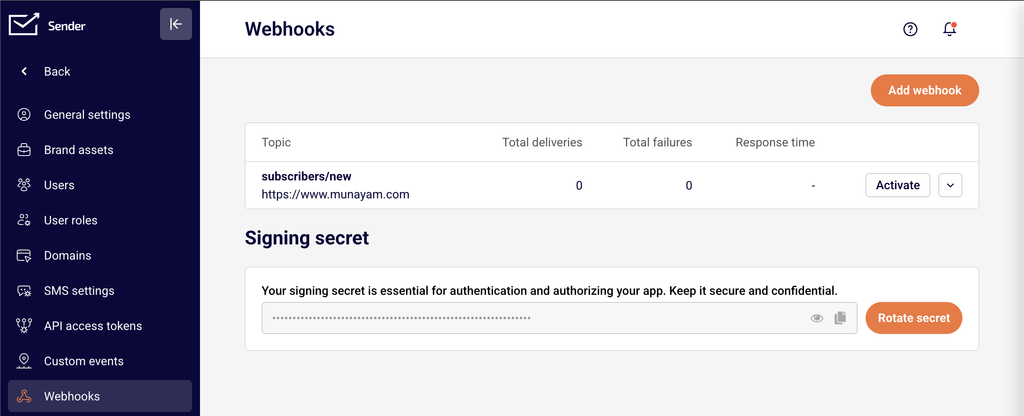
On this page you will see a table listing all existing webhooks with the columns Topic, Total deliveries, Total failures, and Response time. An Add webhook button is located in the top-right corner. Below the webhook table, the Signing secret section displays your masked secret with options to reveal, copy, or rotate it.
Steps to Configure a Webhook
Step 1 — Open the Webhooks page
In the left sidebar, click Account settings to expand the submenu, then click Webhooks. You will see the webhooks table and the Signing secret section. If you have no webhooks yet, the table will be empty.
Step 2 — Add a new webhook
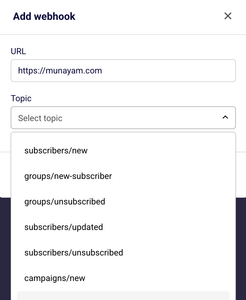
Click the Add webhook button in the top-right corner. A dialog titled Add webhook will appear with two fields: URL and Topic.
Step 3 — Enter your endpoint URL
In the URL field, enter the full HTTPS address of your receiving endpoint — for example, https://yourdomain.com/webhooks/sender. This is the address Sender will send POST requests to when the selected event occurs.
Step 4 — Select a topic
Click the Topic dropdown and choose the event type you want to subscribe to. Available topics include subscribers/new, groups/new-subscriber, groups/unsubscribed, subscribers/updated, subscribers/unsubscribed, campaigns/new, groups/new, and bounces/new. Each webhook supports one topic, so create additional webhooks if you need to track multiple event types.
Step 5 — Save the webhook
Click Add to create the webhook. The dialog will close and the new webhook will appear in the table. Confirm the correct Topic and endpoint URL are displayed in the row.
Step 6 — Copy your signing secret
In the Signing secret section below the webhook table, click the copy icon next to the masked secret to copy it to your clipboard. Store this value securely in your server configuration — you will use it to verify that incoming payloads originate from Sender.
Step 7 — Verify delivery on your endpoint
Trigger the event you subscribed to — for example, add a new subscriber if you chose subscribers/new. Check your endpoint’s incoming request log to confirm a POST request arrived from Sender. The Total deliveries counter in the webhooks table should increment, and Total failures should remain at 0.
Event Types and Payload Reference
subscribers/new — Fires when a new subscriber is added to your account. The payload includes subscriber details such as email address and the timestamp of creation.
subscribers/updated — Fires when an existing subscriber’s data is modified. The payload includes the updated subscriber fields and the timestamp of the change.
subscribers/unsubscribed — Fires when a subscriber opts out globally. The payload includes the subscriber’s email address and the unsubscribe timestamp.
groups/new — Fires when a new subscriber group is created in your account. The payload includes the group name and creation timestamp.
groups/new-subscriber — Fires when a subscriber is added to a specific group. The payload includes the subscriber’s email address, the group identifier, and the timestamp.
groups/unsubscribed — Fires when a subscriber is removed or unsubscribes from a specific group. The payload includes the subscriber’s email, the group identifier, and the timestamp.
campaigns/new — Fires when a new email campaign is created. The payload includes campaign details such as the campaign name and creation timestamp.
bounces/new — Fires when a bounce event is recorded for a sent email. The payload includes the recipient email address, the bounce type, and the timestamp.
Security and Verification
Signing secret — Sender provides a unique Signing secret on the Webhooks page. Use this secret on your server to compute an HMAC hash of each incoming payload body and compare it against the signature included in the webhook request headers. If the values match, the payload is authentic.
Rotate secret — If your signing secret is compromised, click Rotate secret on the Webhooks page to generate a new one. Update your server configuration with the new secret immediately, as the old secret will stop working once rotated.
HTTPS only — Always use an HTTPS endpoint URL to ensure payloads are encrypted in transit. Sender’s URL field accepts HTTPS addresses, and using plain HTTP exposes event data to interception.
Webhook Tips
One topic per webhook — Each webhook is bound to a single topic. To receive multiple event types at the same endpoint, create a separate webhook for each topic pointing to that URL.
Return a 200 response promptly — Your endpoint should respond with a 2xx status code as quickly as possible. Perform heavy processing asynchronously after acknowledging receipt to avoid timeouts.
Monitor the webhooks table — Check the Total failures and Response time columns on the Webhooks page regularly. A rising failure count indicates your endpoint is not responding correctly.
Use View error logs for debugging — Click the dropdown arrow next to Pause on any webhook row and select View error logs to open the Webhook logs page. This page lists failed deliveries with the Date / time and Error code for each failure.
Pause webhooks during maintenance — Click Pause on a webhook row to temporarily stop deliveries while your server is undergoing maintenance. This prevents failures from accumulating.
Common Issues
Webhook not appearing in the table → You may have closed the Add webhook dialog without clicking Add. Reopen the dialog, fill in the URL and Topic fields, and click Add.
Total failures incrementing → Your endpoint is not returning a 2xx status code. Verify that your server is reachable, the URL is correct, and your endpoint returns 200 after processing the request. Open View error logs from the webhook row dropdown to check the specific Error code.
Signing secret mismatch → The secret stored on your server does not match the current secret in Sender. Copy the Signing secret from the Webhooks page again and update your server. If you recently clicked Rotate secret, make sure the new value is deployed.
Endpoint receives no requests → Confirm the webhook is not paused — the row should display a Pause button, not a Resume button. Also verify that the event you expect has actually occurred in your Sender account.
Duplicate payloads received → If your endpoint takes too long to respond, Sender may retry the delivery. Ensure your server responds with 200 within a few seconds, and implement idempotency checks using the event timestamp or a unique identifier in the payload.
FAQs
What webhook topics are available in Sender?
Sender supports eight topics: subscribers/new, subscribers/updated, subscribers/unsubscribed, groups/new, groups/new-subscriber, groups/unsubscribed, campaigns/new, and bounces/new. All topics are listed in the Topic dropdown inside the Add webhook dialog.
Can I send the same event to multiple endpoints?
Yes. Create a separate webhook for each endpoint and select the same Topic in each. Every webhook operates independently.
How do I verify that a webhook payload came from Sender?
Use the Signing secret displayed on the Webhooks page. Compute an HMAC hash of the incoming payload body using that secret and compare it to the signature value in the request header. A match confirms the payload originated from Sender.
What happens if my endpoint is down when Sender sends a webhook?
If your endpoint does not respond with a 2xx status code, the delivery is recorded as a failure. Check the Total failures column and open View error logs to review the Error code and Date / time of each failed attempt.
Can I edit an existing webhook?
Yes. Click the dropdown arrow next to Pause on the webhook row and select Edit. The Edit webhook dialog lets you update the URL and Topic. Click Add to save your changes.
Can I temporarily disable a webhook without deleting it?
Yes. Click the Pause button on the webhook row. The webhook remains in the table but stops receiving deliveries until you resume it.
How do I delete a webhook?
Click the dropdown arrow next to Pause on the webhook row and select Delete. The webhook is permanently removed from the table.
Can I test a webhook without triggering a real event?
Trigger a real event in your account — for example, add a test subscriber — and monitor your endpoint for the incoming payload. Alternatively, use a service like webhook.site or RequestBin as your endpoint URL to inspect payloads without building a server.