

REST API authentication
This guide explains how to generate an API access token and authenticate requests to Sender’s REST API.
Prerequisites
- An active Sender account
- An API access token generated from Account settings → API access tokens
- A tool or environment for making HTTP requests (e.g., cURL, Postman, or application code)
Authentication
All Sender API v2 requests use the base URL https://api.sender.net/v2/. The API is served only over HTTPS — calls made over plain HTTP will fail.
Include three headers with every request:
``Authorization: Bearer YOUR_API_TOKEN
Content-Type: application/json
Accept: application/json
Here is a minimal authenticated request using cURL:
bash
``curl -X GET \
"https://api.sender.net/v2/subscribers" \
-H "Authorization: Bearer YOUR_API_TOKEN" \
-H "Content-Type: application/json" \
-H "Accept: application/json"
A successful response returns a 200 status code with the requested resource data in the response body. If the token is missing or invalid, the API returns a 401 Unauthorized response.
Steps to authenticate with the API
Step 1 — Generate an API access token
Go to Account settings → API access tokens in the Sender dashboard. Click Create API token. In the Select token validity time dialog, choose how long the token should remain valid — the options are Forever, 30 days, 7 days, or 1 day. Click Create.
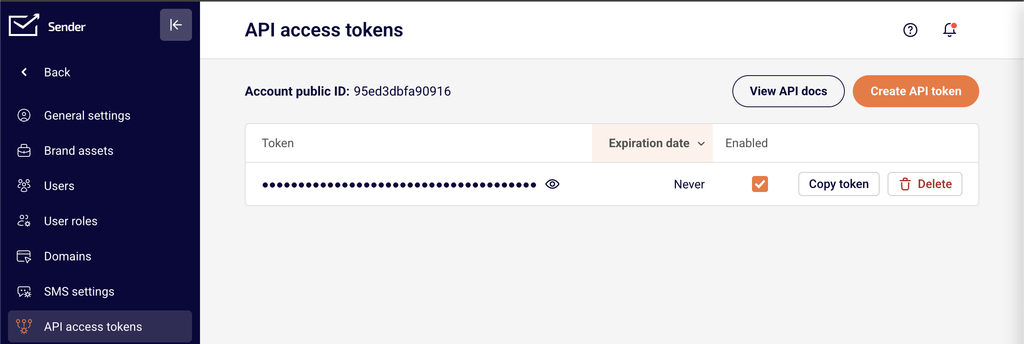
Copy the token immediately and store it securely. The token may not be displayed again after you navigate away from the page.
Step 2 — Add the token to your API requests
Include the Authorization: Bearer YOUR_API_TOKEN header in every request you send to https://api.sender.net/v2/. Also include Content-Type: application/json and Accept: application/json as headers. Here is an example using JavaScript:
javascript
``const url = "https://api.sender.net/v2/campaigns/";
let headers = {
"Authorization": "Bearer YOUR_API_TOKEN",
"Content-Type": "application/json",
"Accept": "application/json",
};
fetch(url, {
method: "GET",
headers,
}).then(response => response.json());
Step 3 — Verify that authentication works
Send a GET request to https://api.sender.net/v2/subscribers with your token in the Authorization header. A successful response returns a 200 status code with a JSON body containing a data array of subscriber objects, along with links and meta pagination objects. If you receive a 401 Unauthorized response, your token is invalid or missing — regenerate it from Account settings → API access tokens.
Step 4 — Handle token expiration
If you selected a limited validity period (e.g., 30 days, 7 days, or 1 day) when creating your token, the token expires after that duration. Expired tokens return a 401 Unauthorized response. To resolve this, go to Account settings → API access tokens, create a new token, and update the Authorization header in your application code with the new value.
Endpoint reference
GET /v2/subscribers — Returns a paginated list of all subscribers in your account. No required body parameters. Supports page, limit, order, and direction query parameters for pagination and sorting.
GET /v2/subscribers/{email}or{phone}or{ID} — Returns a single subscriber profile. Replace the path parameter with the subscriber’s email address, phone number, or subscriber ID. No request body required.
GET /v2/campaigns — Returns a paginated list of all campaigns. Supports optional limit and status query parameters. Accepted status values are SCHEDULED, SENDING, SENT, or DRAFT.
Error handling
401 — Unauthorized — The API could not authenticate your request. This means the Authorization header is missing, the token value is incorrect, or the token has expired. Regenerate a token from Account settings → API access tokens and update your request header.
400 — Bad request — The request was malformed or contained invalid data. The response body includes a "success": false field and a "message" field with details about what went wrong.
404 — Not found — The requested resource does not exist. Verify that the endpoint path and any resource IDs in the URL are correct.
422 — Bad request parameters — One or more request parameters failed validation. The response body includes a "message" field and an "errors" object where each key is the invalid field name and the value is an array of validation messages.
429 — Too many requests — You exceeded the API rate limit. The response includes X-RateLimit-Limit, X-RateLimit-Remaining, X-RateLimit-Reset, and Retry-After headers. Wait for the number of seconds specified in Retry-After before retrying.
API tips
Store your token securely — Save your API token in an environment variable or secrets manager. Never hardcode it in client-side code or commit it to public repositories.
Use the shortest valid token lifetime — If your integration runs a one-time migration, choose 1 day or 7 days instead of Forever to limit exposure if the token is compromised.
Always set both content headers — Include Content-Type: application/json and Accept: application/json on every request, even for GET requests, to ensure consistent response formatting.
Implement exponential backoff for rate limits — When you receive a 429 response, read the Retry-After header and wait before retrying. Increase the delay on consecutive 429 responses to avoid further throttling.
Verify responses programmatically — Check the HTTP status code before processing the response body. Only parse data from responses with a 200 or 201 status code.
Common issues
Requests return 401 immediately after token creation → The token was not copied correctly or includes extra whitespace. Go to Account settings → API access tokens, create a new token, and copy the full value without leading or trailing spaces.
Requests fail with a connection error → You are using http:// instead of https:// in the base URL. The API only accepts HTTPS connections. Change your base URL to https://api.sender.net/v2/.
422 errors on POST or PATCH requests → Required fields are missing or contain invalid values. Check the "errors" object in the response body to identify which fields failed validation, then correct the request body and retry.
Rate limiting triggered during bulk operations → Sending too many requests per minute causes 429 responses. Reduce your request frequency, batch operations where possible, and check the X-RateLimit-Remaining header before sending the next request.
Token stops working after a period → The token was created with a limited validity time (1 day, 7 days, or 30 days) and has expired. Generate a new token from Account settings → API access tokens and update your application configuration.
FAQs
Where do I find my API access token?
Go to Account settings → API access tokens in the Sender dashboard. Click Create API token to generate a new one. Copy the token immediately — it may not be displayed again after you navigate away.
What is the base URL for all API requests?
All Sender API v2 requests use the base URL https://api.sender.net/v2/. Append the specific endpoint path after this base URL.
What token validity options are available?
When creating a token, you can choose Forever, 30 days, 7 days, or 1 day. Select the validity period that matches your use case — shorter durations are more secure for temporary integrations.
What happens if I exceed the API rate limit?
The API returns a 429 Too Many Requests response with a Retry-After header. Wait for the specified number of seconds before retrying. Implement exponential backoff in your code to handle rate limits gracefully.
Can I have multiple active API tokens?
Yes. You can create multiple tokens from Account settings → API access tokens. Each token authenticates independently. Use separate tokens for different applications or environments so you can revoke one without affecting others.
How do I paginate through large lists of subscribers?
List endpoints return paginated results. Use the page and limit query parameters to control which page of results is returned. Check the meta object in the response for current_page, last_page, and total values to iterate through all records.