

Email Client Compatibility
This guide explains how major email clients render HTML email differently and how to identify, troubleshoot, and work around compatibility issues using Sender’s editor and testing tools.
Where to Test Rendering
The editor includes three tools for verifying how your email will appear across clients.
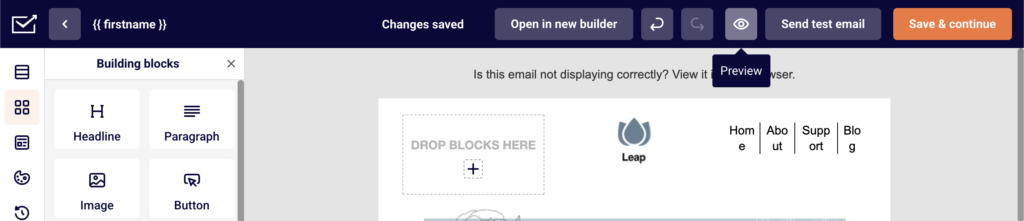
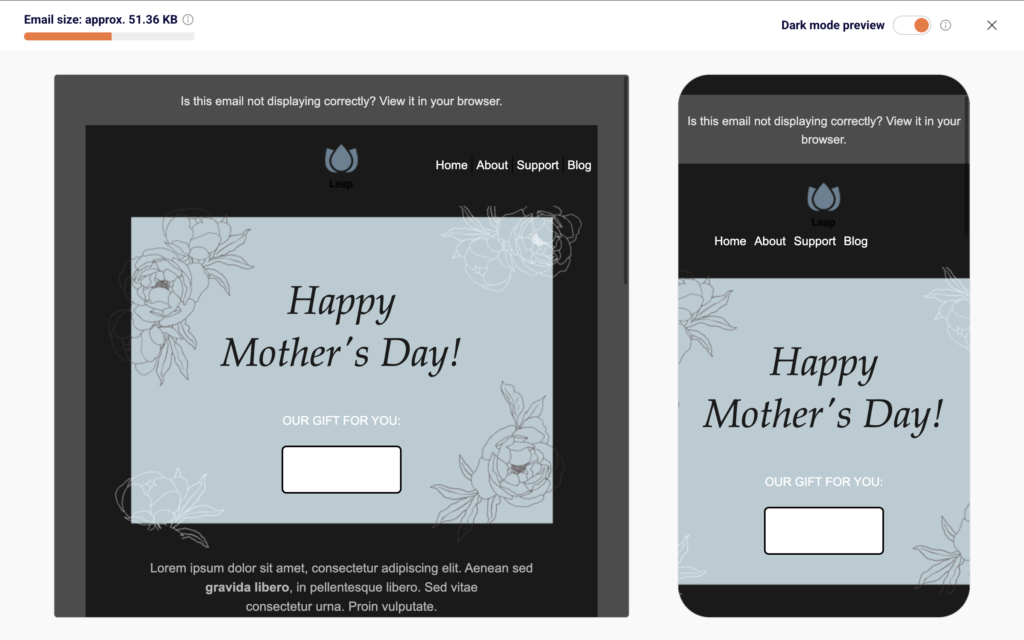
Click the Preview icon (eye) in the top toolbar to open the preview screen. This displays your email in desktop and mobile layouts side by side. The Dark mode preview toggle in the top-right corner of the preview screen simulates how clients with dark mode may invert your colors and backgrounds. The Email size: approx. X KB indicator in the top-left corner of the preview screen shows your current HTML file size — critical for avoiding Gmail clipping.
Use Send test email in the top toolbar to deliver the email to a real inbox. Enter any email address in the dialog and click Send. This lets you verify rendering in actual email clients, which is essential because the editor preview is a browser-based approximation that does not replicate the rendering engines used by Outlook, Gmail, or Apple Mail.
Always test in your top 3–5 recipient clients before sending a campaign. The editor preview catches layout and structural issues, but only real-client testing reveals engine-specific rendering differences.
Steps to Verify and Fix Email Client Compatibility
Step 1 — Check Email Size and Structure in Preview
Click the Preview icon in the top toolbar. Review the Email size: approx. X KB indicator. If your HTML exceeds 102 KB, Gmail will clip the email and display a “View entire message” link, hiding content below the cutoff.
Reduce file size by removing unused sections, consolidating inline styles, and compressing image references. Also verify that your desktop and mobile layouts both display correctly in the side-by-side preview before proceeding.
Step 2 — Test Dark Mode Rendering
In the Preview screen, enable the Dark mode preview toggle. Check that text remains legible against inverted backgrounds. Verify that logos and icons with transparency are still visible — dark logos on transparent backgrounds may disappear when the client inverts the background to dark.
If critical elements lose visibility, add a light-colored background or border directly to those image or text blocks within the editor. Note that this preview is an approximation; actual dark mode behavior varies across clients.
Step 3 — Verify Rendering in Real Email Clients
Click Send test email in the top toolbar. Send the email to accounts you control on Gmail, Outlook, and Apple Mail at minimum. Open each test email and compare against the editor preview.
Look for differences in font rendering, button appearance, background colors, image spacing, and column alignment. If your audience uses Yahoo Mail or Samsung Mail, include those in your test round as well.
Step 4 — Identify and Fix Client-Specific Issues
Compare your test results against the known behaviors listed in the Client Rendering Reference below. If Outlook is collapsing your layout, check for unsupported CSS properties like max-width or flexbox. If Gmail is stripping your styles, confirm that all styling is applied inline rather than in a <style> block in the <head>.
If images appear oversized on Apple Mail retina displays, verify that your images include explicit width and height attributes. Make corrections in the editor or in a Custom HTML block, then repeat the Send test email process to confirm fixes.
Step 5 — Confirm Final Output Before Sending
After making all corrections, click Preview one final time to verify file size is under 102 KB, check both light and dark mode views, and confirm the mobile layout is intact.
Then send a final test email via Send test email to your primary testing inboxes. Only proceed to Save & continue and the Recipients step once rendering is confirmed across your target clients.
Client Rendering Reference
Outlook (Windows) — Uses the Microsoft Word rendering engine (WordHTML), which has severely limited CSS support. It does not recognize max-width, margin: 0 auto, background-image on <div> elements, border-radius, padding on <p> or <a> tags, or CSS float. Use <table>-based layouts with inline styles and VML for background images. Set explicit pixel widths on <td> elements instead of percentage widths where precision matters.
Outlook (Mac/mobile) — Uses the WebKit rendering engine, providing significantly better CSS support than Outlook on Windows. Supports border-radius, background-image, and most modern CSS properties. Emails designed for web-based clients generally render well. However, do not assume consistency between Windows and Mac versions of Outlook.
Gmail (web) — Strips <style> blocks from the <head> of emails exceeding 8,192 characters and does not support embedded <style> in all cases. Use inline styles for all critical styling. Gmail clips emails with HTML larger than 102 KB. It does not support position, float, or form elements. Check file size in the Preview screen’s Email size indicator.
Gmail (Android/iOS) — Shares Gmail web’s rendering pipeline but applies additional constraints on mobile viewport. Supports inline styles but does not support <style> in the <head>. Some media queries may be ignored. Test responsive behavior via Send test email to a Gmail mobile account.
Apple Mail (macOS/iOS) — Uses the WebKit engine and provides the broadest CSS support of any major email client. Supports <style> blocks, media queries, border-radius, background-image, CSS animations, and web fonts via @import. On retina displays, images without explicit width attributes may render at 2x size. Always set width and height attributes on <img> tags.
Yahoo Mail — Rewrites CSS class names and can strip or modify <style> blocks unpredictably. Use inline styles as the primary method. Supports background-color and basic padding/margin, but complex selectors may not be applied. Test background images and button styles specifically.
Samsung Mail — Uses an Android WebView-based engine. Generally supports inline styles and basic CSS well. However, dark mode behavior is aggressive and may invert background colors and images. Ensure sufficient contrast in both light and dark contexts. Test via Send test email on a Samsung device.
Thunderbird — Uses the Gecko rendering engine with moderate CSS support. Supports <style> blocks and many CSS properties, but lacks support for some modern features like CSS Grid. Generally reliable for table-based layouts with inline styles.
Compatibility Tips
Use inline styles as the baseline — Inline styles are the only styling method guaranteed to work across all major email clients. Even if you use a <style> block, always include inline fallbacks for critical properties like color, font-family, font-size, and background-color.
Set explicit dimensions on images — Always include width and height attributes directly on <img> tags. This prevents oversized rendering on retina displays in Apple Mail and ensures Outlook reserves the correct space even if images are blocked.
Keep HTML under 102 KB — Monitor the Email size indicator in the Preview screen. Gmail clips emails exceeding this threshold, which hides content and breaks tracking. Remove redundant code, unused sections, and excessive whitespace to stay under the limit.
Use web-safe font stacks — Custom and Google Fonts are only supported in Apple Mail, iOS Mail, and some versions of Thunderbird. Outlook and Gmail fall back to system fonts. Always define a complete font-family stack ending with a generic family like Arial, Helvetica, sans-serif.
Test buttons as bulletproof buttons — CSS-styled <a> links may lose padding, border-radius, or background-color in Outlook on Windows. Use table-based button structures with bgcolor on a <td> element for Outlook compatibility, or use a Button block from the editor which generates compatible code.
Common Issues
Email is clipped in Gmail → The HTML file size exceeds 102 KB. Check the Email size indicator in the Preview screen and reduce content, remove unused sections, or consolidate inline styles until the size is below 102 KB.
Buttons appear as plain text links in Outlook → Outlook on Windows does not support padding or border-radius on <a> tags. Use a table-based button structure with bgcolor applied to a wrapping <td>, or use the editor’s Button block which generates Outlook-compatible code.
Background images do not display in Outlook → Outlook on Windows does not support background-image on <div> or <td> elements via standard CSS. Use VML (Vector Markup Language) code in a Custom HTML block to render background images in Outlook while using CSS background-image as a fallback for other clients.
Fonts change between clients → Custom and Google Fonts render only in clients that support them, such as Apple Mail. Outlook and Gmail substitute the nearest system font. Define a full font-family fallback stack in your Template settings under Headlines and Paragraph to control which system font is used when your preferred font is unavailable.
Dark mode inverts colors unexpectedly → Email clients with dark mode may invert background colors, swap light text to dark, or alter image backgrounds. Use the Dark mode preview toggle in the Preview screen to check. Avoid transparent backgrounds on logos, and ensure text has sufficient contrast in both light and dark contexts.
Layout breaks only in Outlook → Outlook on Windows ignores max-width, margin: auto, and CSS-based centering. Replace <div>-based layouts with <table> structures using explicit pixel widths and align="center" attributes for Outlook compatibility.
Images are oversized on Apple Mail retina screens → Apple Mail renders images at their native resolution on retina displays. If an image is 1200 px wide but displayed at 600 px, it appears full size without explicit constraints. Add width="600" directly on the <img> tag and include style="max-width: 100%" for responsive scaling.
FAQs
Why does my email look different in Outlook than in Gmail?
Outlook on Windows uses the Microsoft Word rendering engine, which has severely limited CSS support compared to browser-based rendering engines. Gmail uses its own pipeline that strips <style> blocks and restricts certain properties. These fundamental engine differences mean the same HTML produces different visual results. Design with both in mind and test in each client via Send test email.
How do I know if Gmail is clipping my email?
Gmail clips emails with HTML larger than 102 KB, showing a “View entire message” link at the bottom. Check the Email size: approx. X KB indicator in the editor’s Preview screen to monitor your file size before sending.
Can I make my email render identically in every client?
No. Email clients use different rendering engines with varying levels of HTML and CSS support. The goal is consistent appearance, not pixel-perfect parity. Test in your top 3–5 recipient clients using Send test email and optimize for those.
Should I use table-based layouts or div-based layouts?
Table-based layouts remain the most reliable method for cross-client compatibility, particularly for Outlook on Windows. The Sender drag-and-drop editor generates table-based HTML by default. If you use a Custom HTML block, use <table> structures with inline styles for sections that must render consistently in Outlook.
Do web fonts work in email?
Only in a few clients. Apple Mail (macOS/iOS), iOS Mail, and some versions of Thunderbird support web fonts via @font-face or @import. Gmail, Outlook, and Yahoo Mail ignore them and fall back to the font-family stack. Always include web-safe fallback fonts in your declarations.