

Mobile Responsiveness
This guide explains how to ensure your email adapts correctly across mobile devices, desktop clients, and varying screen sizes in Sender’s drag-and-drop email editor.
Where to Find This Setting
Mobile responsiveness controls are spread across multiple locations in the editor:
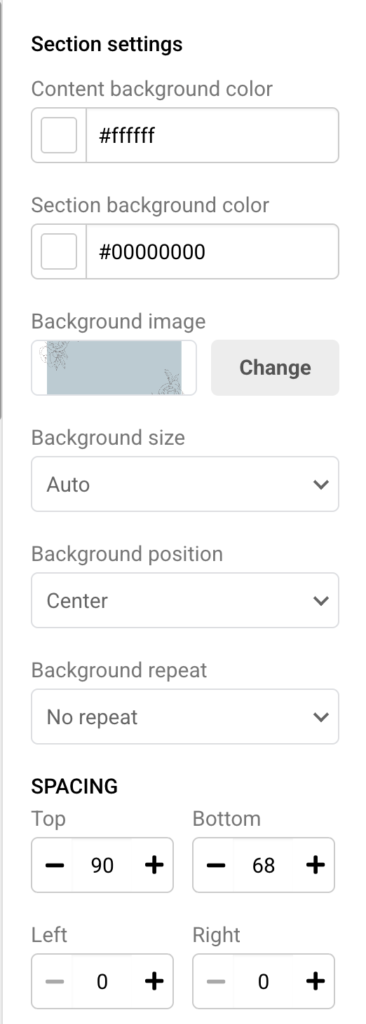
Section settings — Click any section label (e.g., Section: Headline & Image) on the canvas to open the right-side panel. Here you’ll find MOBILE SPACING values and Visibility on mobile and Visibility on desktop toggles.
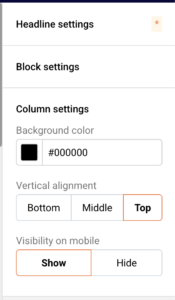
Column settings — Select any block, then expand Column settings at the bottom of the right-side panel. This contains the Visibility on mobile toggle with Show and Hide options.
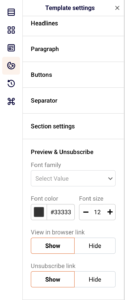
Template settings — Click the Template settings icon in the left sidebar, then expand Section settings to configure global SPACING and MOBILE SPACING defaults that apply across all sections.
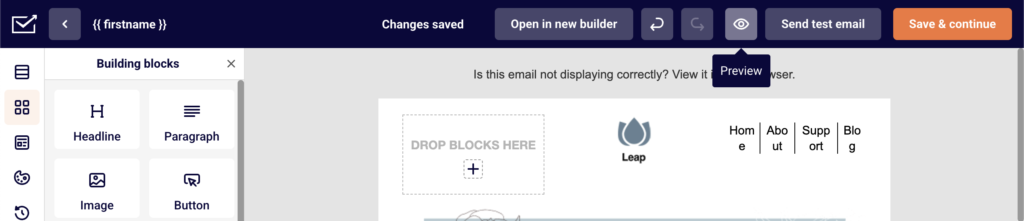
Preview — Click the Preview button (eye icon) in the top toolbar to view desktop and mobile renderings side by side, along with the Dark mode preview toggle.
Steps to Optimize Your Email for Mobile
Step 1 — Adjust Mobile Spacing at the Section Level
Click a section on the canvas to open Section settings in the right panel. Scroll to the MOBILE SPACING area. Set Top, Bottom, Left, and Right values independently from your desktop SPACING values.
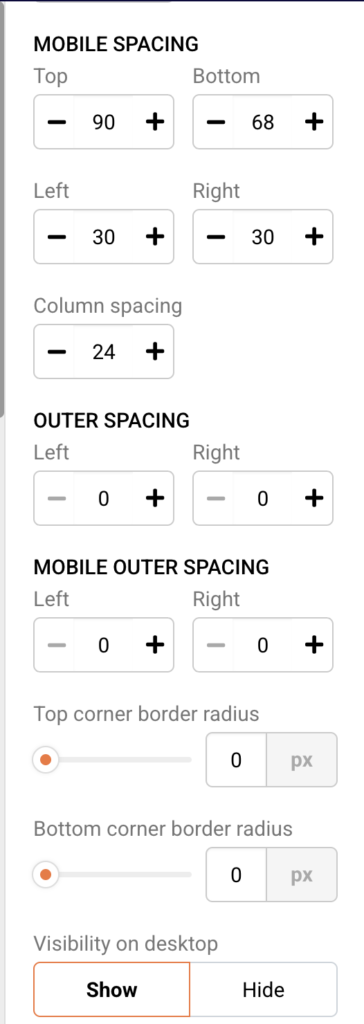
Reduce Left and Right padding to give content more room on narrow screens. Set Column spacing to 0 to eliminate gaps between stacked columns on mobile. Verify your changes in the Preview tool.
Step 2 — Control Column and Section Visibility by Device
In Section settings, locate Visibility on desktop and Visibility on mobile. Toggle either to Hide to prevent that section from displaying on the corresponding device type.
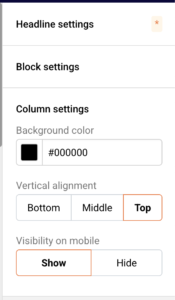
For column-level control, select a block inside the column, expand Column settings, and set Visibility on mobile to Hide to remove that specific column on smaller screens. Use this to show simplified layouts on mobile while keeping richer content on desktop.
Step 3 — Preview Across Devices and Dark Mode
Click the Preview button in the top toolbar. The editor displays a desktop view on the left and a mobile view on the right, side by side. Toggle Dark mode preview in the top-right corner to see how your colors, backgrounds, and text render in dark mode email clients.
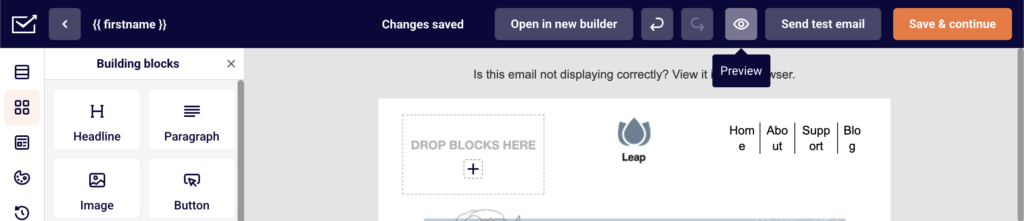
Review how multi-column layouts (e.g., 50/50, 33/33/33) stack vertically in the mobile preview. Use Send test email in the top toolbar to send a rendered version to your inbox and verify rendering in actual email clients.
Step 4 — Fine-Tune Block Spacing and Alignment for Mobile
Select any block and expand Block settings in the right panel. Adjust SPACING values (Top, Bottom, Left, Right) to control padding around individual blocks.
For the Logo block, use the separate Alignment on mobile setting to override the desktop alignment — for example, centering a logo on mobile even if it’s left-aligned on desktop. Check the mobile preview after each adjustment to confirm the layout holds.
How It Renders
Desktop email clients — Sections display at their full configured width with desktop SPACING values applied. Multi-column layouts such as 50/50 or 67/33 render side by side as designed. Visibility on desktop set to Hide removes the section from desktop rendering only.
Mobile email clients — Columns automatically stack vertically on smaller screens, following left-to-right, top-to-bottom order. MOBILE SPACING values override desktop spacing. Columns or sections with Visibility on mobile set to Hide do not appear. Images scale to fill the available width of the stacked column.
Dark mode — Email clients that enforce dark mode may invert background colors and adjust text for contrast. The Dark mode preview toggle in the editor provides an approximation. Light backgrounds may turn dark, and dark text may turn light. Behavior varies across clients — Apple Mail, Gmail, and Outlook each apply dark mode transformations differently.
Webmail clients (Gmail, Yahoo, Outlook.com) — Most webmail clients support responsive stacking. Gmail clips emails larger than 102 KB, which may affect complex layouts. Background images may not render in some webmail environments — the Content background color or Section background color serves as a fallback.
Display Tips
Test with real inboxes — The Preview tool gives a close approximation, but always use Send test email to verify rendering in your most common recipient clients, particularly Gmail, Apple Mail, and Outlook.
Reduce mobile padding — Desktop-friendly Left and Right spacing values often feel too wide on mobile. Set MOBILE SPACING left and right values lower than their desktop equivalents to maximize content width on small screens.
Use single-column layouts for critical content — A 100-width section ensures consistent rendering across all clients without relying on column stacking. Reserve multi-column layouts for content that remains readable when stacked.
Set fallback background colors — Some email clients strip background images. Always define a Section background color or Content background color that maintains sufficient contrast with your text if the background image fails to load.
Keep email size under 102 KB — Gmail clips emails that exceed 102 KB. Monitor the Email size indicator shown at the top left of the Preview screen and simplify your design if the file size is too high.
Common Issues
Columns do not stack on mobile → This typically occurs when viewing in a non-responsive email client or when the email is rendered inside a desktop webmail wrapper. Most modern mobile clients stack columns automatically. Verify by sending a test email and opening it on an actual mobile device.
Mobile spacing looks the same as desktop → The MOBILE SPACING values in Section settings may still match the desktop SPACING defaults. Open Section settings for the affected section and adjust the MOBILE SPACING values independently. You can also set global mobile spacing defaults under Template settings → Section settings.
A section or column is missing on mobile → Check the Visibility on mobile toggle. In Section settings, confirm it is set to Show. For columns, select a block inside the column, expand Column settings, and verify Visibility on mobile is set to Show.
Dark mode changes my brand colors → Dark mode behavior is controlled by each email client and cannot be fully overridden from the editor. Use high-contrast color pairings, avoid pure white (#ffffff) backgrounds where possible, and test with Dark mode preview enabled. Some clients will invert colors regardless of your settings.
Images appear too large or overflow on mobile → Images in the editor scale to fit the column width by default. If an image still overflows, check that the parent section’s MOBILE SPACING left and right values are not set to zero, which could push content edge-to-edge. Ensure the image block’s SPACING values in Block settings provide adequate breathing room.
FAQs
Why do my columns stack on mobile?
Columns automatically stack vertically on smaller screens to maintain readability. This is standard responsive behavior in Sender’s editor. You can hide specific columns on mobile by setting Visibility on mobile to Hide in Column settings.
Does the Preview tool show exactly how my email will look in every client?
The Preview tool provides a close approximation for desktop and mobile layouts, including a Dark mode preview toggle. However, email clients render HTML and CSS differently. Always send a test email using Send test email to verify rendering in your most important target clients.
How do I prevent dark mode from changing my background colors?
Dark mode behavior varies by email client and cannot be fully controlled from the editor. Use high-contrast color pairings and enable Dark mode preview to identify potential issues. Define a solid Section background color as a fallback. Some clients will override your colors regardless of your settings.
Can I set different padding for mobile and desktop?
Yes. Each section has separate SPACING (desktop) and MOBILE SPACING controls in Section settings. You can set different Top, Bottom, Left, Right, and Column spacing values for each device type. Global defaults for both can also be configured under Template settings → Section settings.
In what order do columns stack on mobile?
Columns stack in left-to-right order, meaning the leftmost column appears at the top on mobile. When designing multi-column sections like 50/50 or 33/33/33, place the most important content in the leftmost column so it appears first on mobile devices.