

Brand Settings (Colors, Fonts)
This guide explains how to configure your brand colors, fonts, and global styles in Sender’s email editor using Template settings.
Where to Find This Setting
All brand-level color and font controls are located in the Template settings panel. In the editor’s left sidebar, click the Template settings icon (the fourth icon from the top, resembling a palette). This opens a panel with collapsible sections: General settings, Headlines, Paragraph, Buttons, Separator, Section settings, and Preview & Unsubscribe. Each section controls global defaults for its respective block type across the entire email.
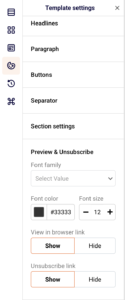
If you need to save or reuse your branded design as a starting template, use the Template options icon (the third icon from the top in the sidebar), which provides Change template and Save as template options.
Steps to Configure Brand Settings
Step 1 — Set Your Brand Background Colors
In the Template settings panel, expand General settings at the top. Set Background color to your brand’s outer background hex value — this controls the color behind the entire email body. Set Content background color to define the background of the content area itself.
Together, these two values create the foundational color contrast for your email. You can also click Change next to Background image to upload a full-width background image behind the email body.
Step 2 — Configure Headline and Paragraph Typography
Expand the Headlines section. Use the Type tabs (H1, H2, H3) to configure each heading level independently. For each type, set Font family from the dropdown, which offers Web Safe Fonts (Arial, Georgia, Verdana, Times New Roman, etc.) and Custom Fonts (Google Fonts such as Arvo, Cabin, and others). Set your brand’s Font color, Font size, Alignment, and Line height. Use Font styling to apply bold, italic, underline, or strikethrough. Set Link color to match your brand’s accent color for any links within headlines.
Then expand Paragraph and repeat the same process — set Font family, Font color, Font size, Alignment, Link color, and Line height. If blocks in your email were previously customized individually, a notice will appear stating how many have custom styling. Click Overwrite custom styles to apply your new global paragraph settings to all paragraph blocks at once.
Step 3 — Style Buttons to Match Your Brand
Expand the Buttons section. Under BUTTON STYLES, set Color to your brand’s primary action color — this controls the button fill. Adjust Alignment (left, center, or right), Corner radius (in px) for rounded or sharp corners, and Width to toggle between auto-width or full-width buttons. Under PADDING, configure Horizontal and Vertical values to control internal button spacing, and set Button spacing for distance between stacked buttons.
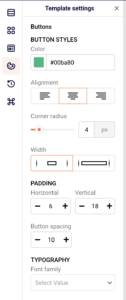
Under TYPOGRAPHY, choose a Font family, set the Font color for button text (commonly white over a colored fill), adjust Font size, and apply Font styling as needed. Under BORDERS, select a border Style (solid, dotted, dashed, or double), set the Color, and define the Width in pixels. If any buttons have been individually customized, click Overwrite custom styles to unify them with these global settings.
Step 4 — Verify Your Brand Colors in Dark Mode
Click the Preview button (eye icon) in the top toolbar. The editor displays your email in both desktop and mobile views. Toggle Dark mode preview in the top-right corner of the preview screen to see how your background colors, text colors, button fills, and images adapt in dark mode email clients.
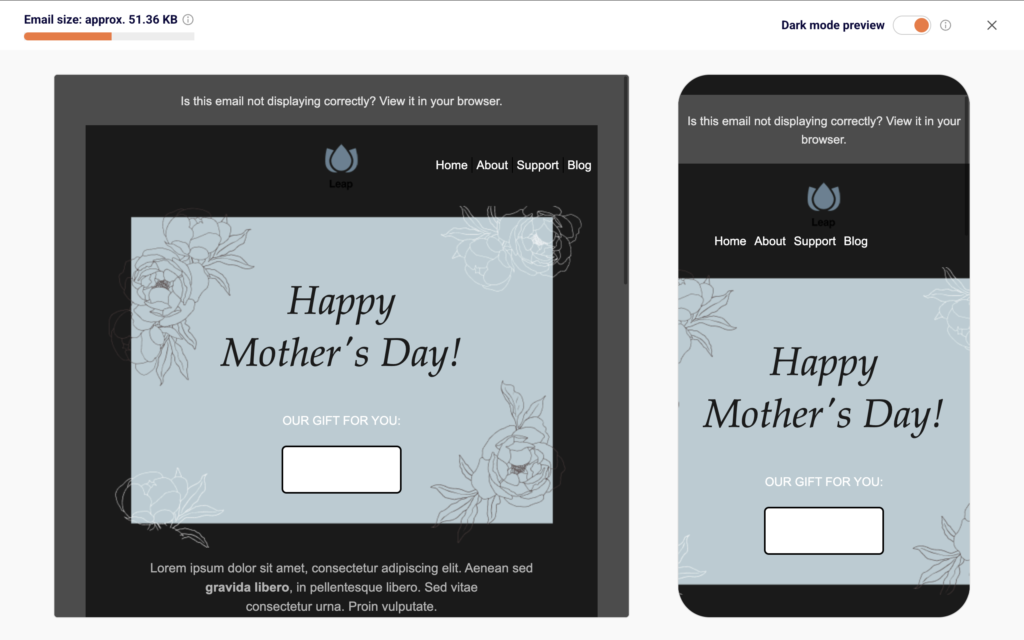
Review both views to confirm your brand colors remain legible and your content background provides sufficient contrast against the inverted dark mode backgrounds.
Design Best Practices
Match link colors across all text types — Set the same Link color value in both Headlines and Paragraph sections within Template settings to ensure hyperlinks appear consistent throughout the email.
Use Content background color for contrast — Set Content background color to white or a light brand shade and Background color to a darker or neutral tone. This creates a clear visual boundary between the email body and the surrounding area.
Apply global styles before customizing individual blocks — Configure all values in Template settings first, then only override at the block level where necessary. This reduces inconsistencies and makes the Overwrite custom styles button more effective when you need to reset.
Keep button typography simple — Use the same Font family for button text as your paragraph text. Set Font size to 14–16 and ensure the Font color contrasts sharply against the button Color fill for readability.
Test dark mode early — Toggle Dark mode preview each time you change background colors or text colors. Some color combinations that work in light mode may lose contrast or become unreadable in dark mode clients.
Common Issues
Global font changes not applying to all blocks → Blocks that were individually styled before the global change retain their custom settings. Open the relevant section in Template settings (e.g., Paragraph or Buttons) and click Overwrite custom styles to force the global values onto all existing blocks.
Button color looks different in dark mode → Some dark mode email clients override background colors. Use the Dark mode preview toggle in the Preview screen to identify affected buttons, and consider using higher-contrast color pairings.
Font family not rendering as expected → Fonts listed under Custom Fonts (Google Fonts) may not render in all email clients. Email clients that do not support the selected font will fall back to the closest Web Safe Font. Choose a web-safe fallback that closely matches your brand typeface.
FAQs
How do I ensure my brand colors are consistent across all blocks?
Configure your primary colors in Template settings under each section — Headlines, Paragraph, and Buttons. This sets the global default. Blocks that have been individually customized will need to be reset using Overwrite custom styles.
Can I preview how my email looks in dark mode?
Yes. Click the Preview button (eye icon) in the top toolbar, then toggle Dark mode preview in the top-right corner to see how your colors, backgrounds, and images adapt in dark mode email clients.
How do I create a reusable branded template?
Design your email with all brand styles applied in Template settings, then click the Template options icon in the left sidebar and select Save as template. You can select this template as a starting point for future campaigns.
What is the difference between Background color and Content background color?
Background color controls the outer area surrounding the email body — the frame visible behind the content. Content background color controls the background of the main content area where your blocks are placed. Using both together creates a layered visual effect.
Can I use Google Fonts in my email?
Yes. The Font family dropdown in Template settings includes both Web Safe Fonts and Custom Fonts (Google Fonts). Select any available Google Font, but note that email clients that do not support it will display the closest web-safe fallback instead.