

Email Layout Structure
This guide explains how to build and configure the structural layout of your emails using sections, columns, and spacing controls in Sender’s drag-and-drop editor.
Where to Find This Setting
The layout structure of an email is controlled through sections — the horizontal containers that hold your columns and content blocks. To access section-level settings, click the label that appears on the upper-left edge of any section on the canvas (e.g., Section: Headline & Image). This opens Section settings in the right panel.
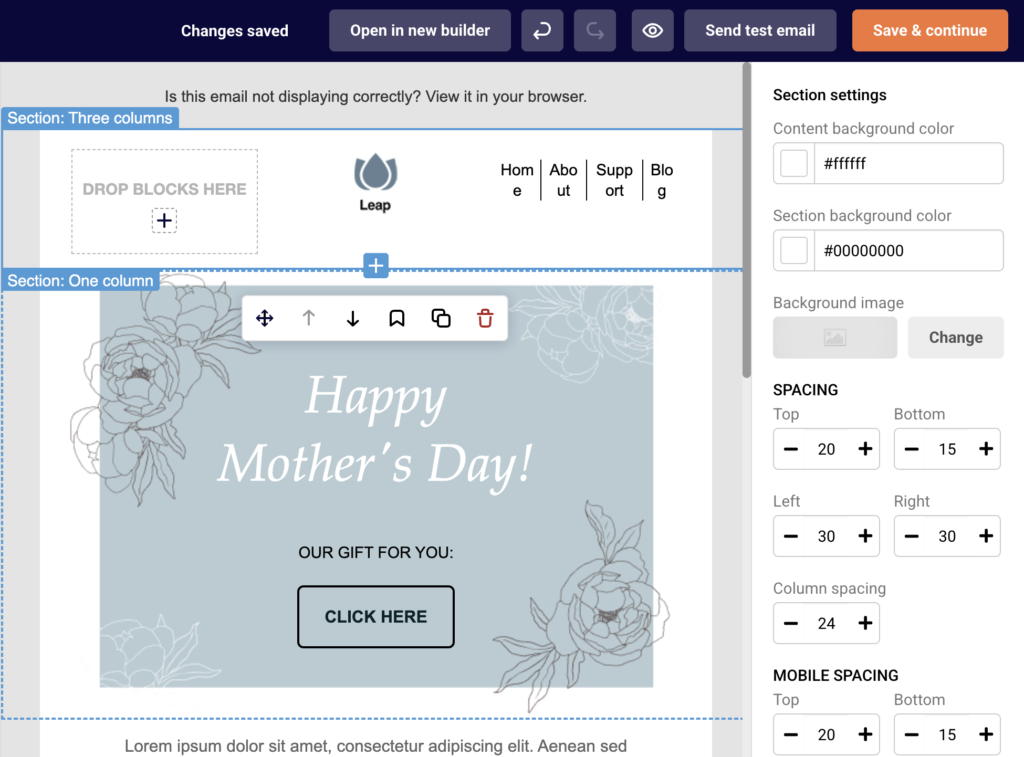
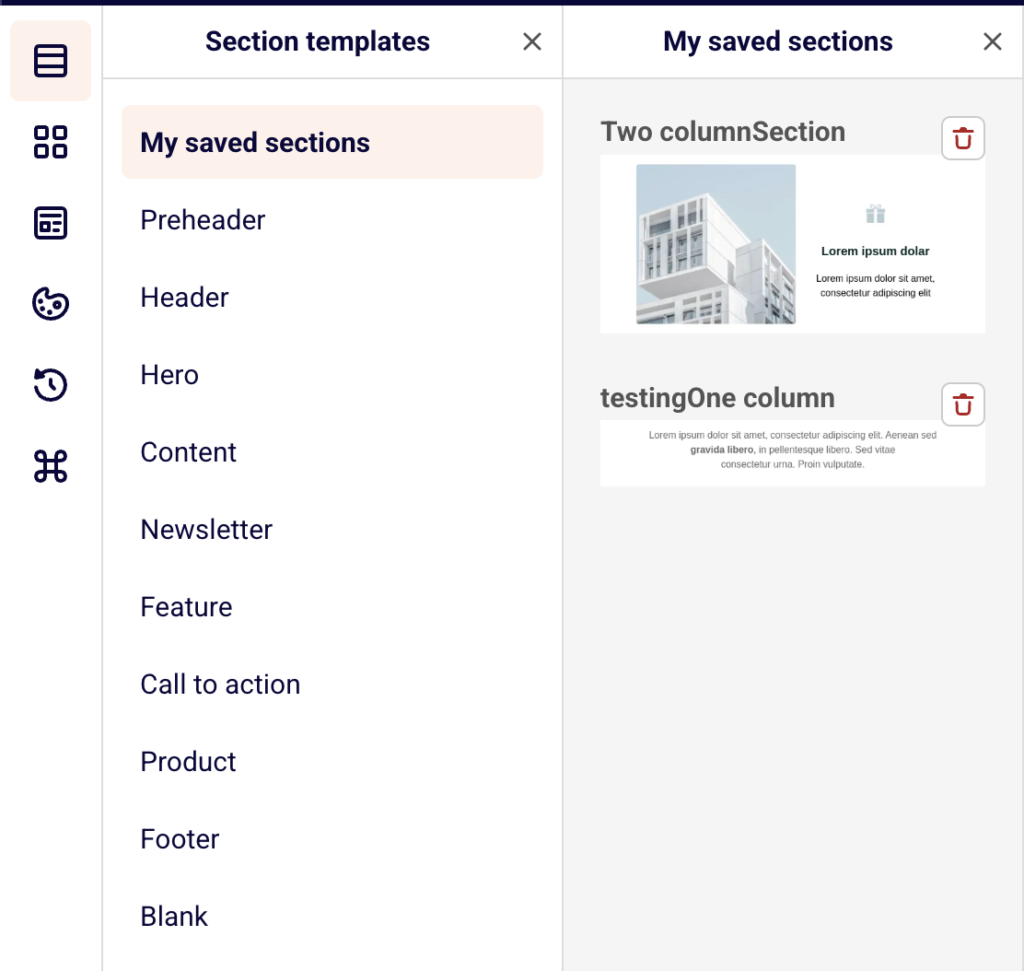
To browse available column layouts and pre-built section templates, use the left sidebar. Click the Section templates icon (top icon in the sidebar) to open the Section templates panel.
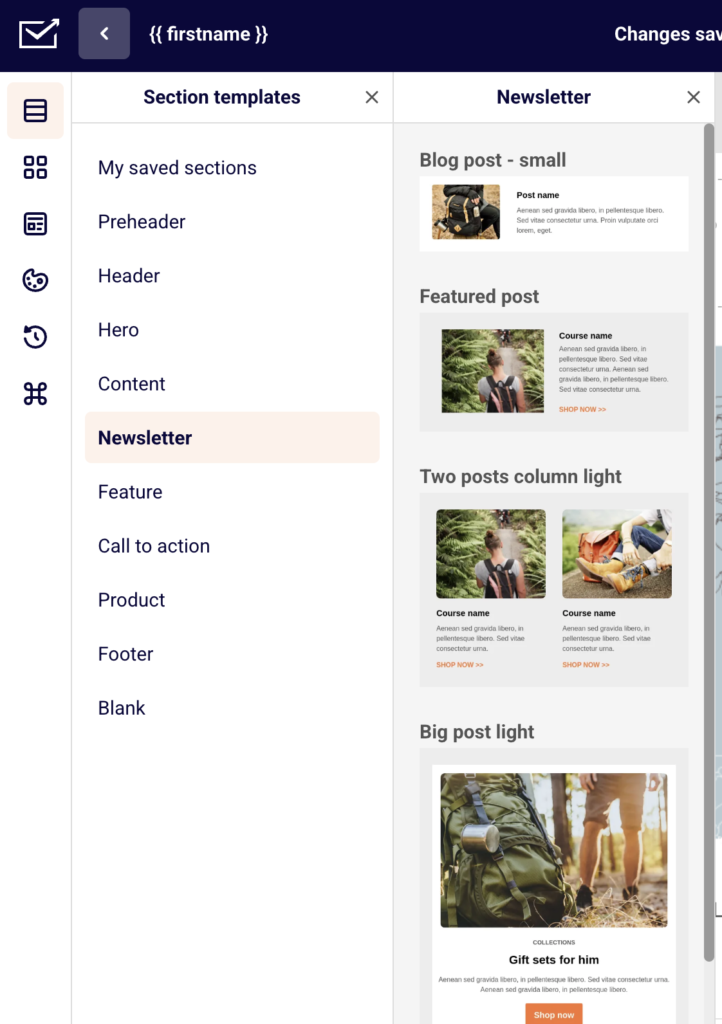
You will see categories such as Preheader, Header, Hero, Content, Newsletter, Feature, Call to action, Product, Footer, and Blank. The Blank category contains raw column layout options you can add to your email.
Steps to Build an Email Layout
Step 1 — Add a Section with a Column Layout
Click the + button that appears between existing sections on the canvas, or open the Section templates panel from the left sidebar. Under the Blank category, choose a column layout such as 100, 50/50, 33/33/33, 25/25/25/25, 50/25/25, 25/25/50, 67/33, or 33/67.
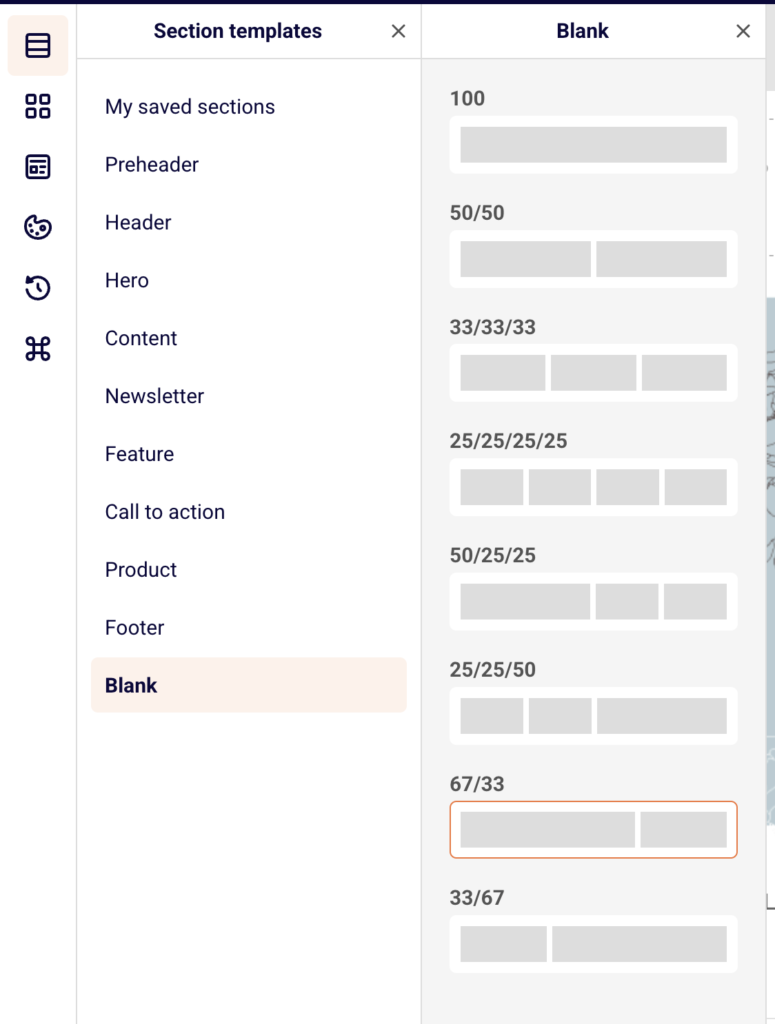
The selected layout is added to the canvas as a new section with empty columns displaying DROP BLOCKS HERE placeholders. Click the + icon inside any column to add a content block.
Step 2 — Configure Section Background and Spacing
Click the section label on the canvas to select the section and open Section settings in the right panel. Set the Content background color to control the inner content area color, and the Section background color for the outer area behind the content. To add a background image, click Change next to Background image.
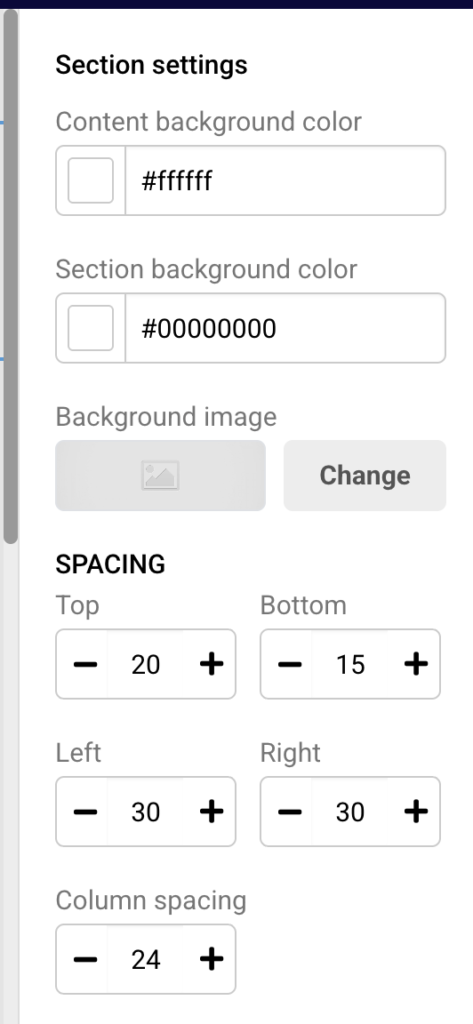
Under SPACING, adjust the Top, Bottom, Left, and Right values to control the padding around the section’s content. Use Column spacing to set the gap between columns within the section.
Step 3 — Adjust Mobile Spacing and Visibility
Scroll down in Section settings to find MOBILE SPACING. Set separate Top, Bottom, Left, Right, and Column spacing values that apply only on smaller screens.
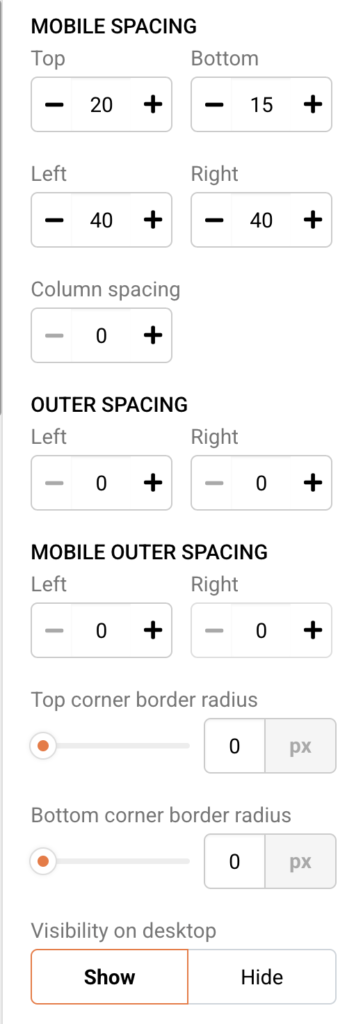
Below that, use Visibility on desktop and Visibility on mobile toggles to Show or Hide the entire section on each device type. This lets you create sections that appear only on mobile or only on desktop.
Step 4 — Configure Individual Column Settings
Click any block inside a column to select it, then expand Column settings at the bottom of the right panel. Set the Background color for that specific column. Choose a Vertical alignment option — Bottom, Middle, or Top — to control how blocks align vertically within the column.
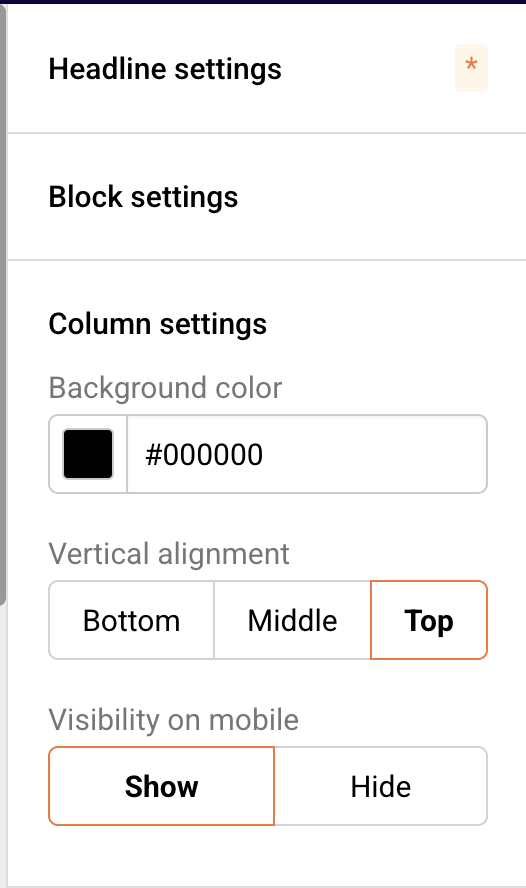
Toggle Visibility on mobile to Show or Hide to control whether a specific column appears on mobile devices.
Step 5 — Reorder, Save, and Reuse Sections
Hover over a section to reveal the section toolbar at the top of the section. Use the up arrow and down arrow icons to move the section up or down in the email. Click the save icon (bookmark) to save the section to My saved sections in the Section templates panel.
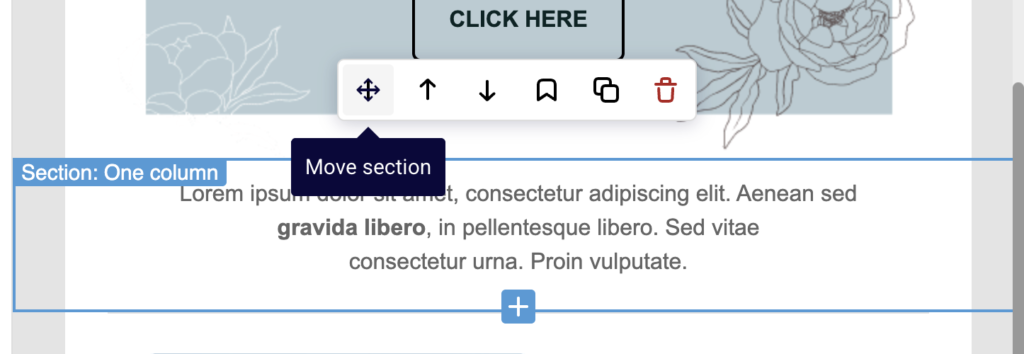
To reuse a saved section, open Section templates, click My saved sections, and drag the saved section onto the canvas. Use the duplicate icon to create a copy of the section, or the delete icon to remove it.
Layout Tips
Use Blank sections for custom layouts — Start with a Blank column layout from the Section templates panel when you need precise control over column proportions rather than using a pre-built template.
Set mobile spacing independently — The MOBILE SPACING values in Section settings override desktop spacing on smaller screens. Reduce Left and Right padding on mobile to maximize content width.
Control column gaps with Column spacing — Increase or decrease the Column spacing value in Section settings to tighten or loosen the horizontal gap between columns. Set mobile Column spacing to 0 to remove gaps when columns stack vertically.
Use section visibility to tailor device experiences — Toggle Visibility on desktop or Visibility on mobile to Hide to create device-specific sections. This lets you show a simplified layout on mobile and a multi-column layout on desktop.
Preview both views before sending — Click the Preview icon (eye icon) in the top toolbar to see desktop and mobile versions side by side. Use the Dark mode preview toggle to check how your layout renders in dark mode.
Common Issues
Columns appear stacked instead of side by side → This happens when the email is viewed on a mobile device. Columns automatically stack vertically on smaller screens. To hide a column on mobile, select a block inside it, expand Column settings, and set Visibility on mobile to Hide.
Section background color not visible → The Content background color covers the inner content area and may overlap the Section background color. Set Content background color to transparent (clear the hex value) if you want the section background to show through.
Spacing looks different on mobile → Desktop SPACING values do not automatically apply to mobile. Open Section settings and configure the MOBILE SPACING values separately to control padding on smaller screens.
FAQs
How do I change the number of columns in a section?
You cannot change the column count of an existing section. Instead, add a new section with the desired column layout from the Blank category in the Section templates panel, move your content blocks into it, and delete the original section.
Can I have different column layouts in different sections?
Yes. Each section has its own column layout. You can have a single-column 100 section for a hero image and a 33/33/33 section for product cards within the same template.
How do columns behave on mobile?
By default, columns stack vertically on mobile screens. You can control this by adjusting MOBILE SPACING and Column spacing values for mobile in Section settings, or hide specific columns using the Visibility on mobile toggle in Column settings.
Can I save a section layout to reuse later?
Yes. Select the section on the canvas to reveal the section toolbar, then click the save icon (bookmark). The section will appear under My saved sections in the Section templates panel, ready to drag into any future email.
What is the difference between Content background color and Section background color?
Content background color applies to the inner content area where blocks and columns are placed. Section background color applies to the full-width area behind the content, visible on both sides when the email content area is narrower than the viewport.