

Saved Blocks and Global Styles
This guide explains how to save sections for reuse and configure global styles in Sender’s drag-and-drop email editor.
Where to Find These Features
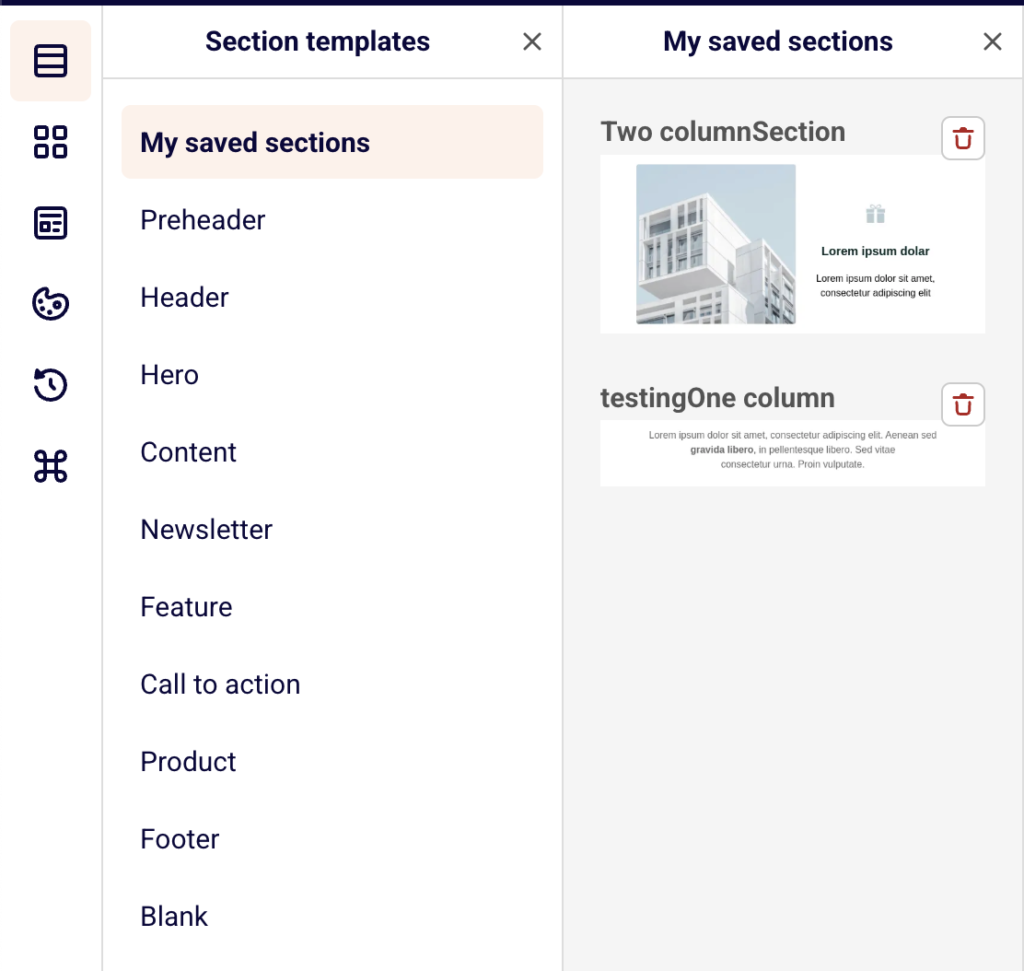
Saved sections are managed at the section level. Select any section on the canvas to reveal the section toolbar, which includes the Save section icon (bookmark). Saved sections are stored under Section templates → My saved sections in the left sidebar.
Global styles are configured in the Template settings panel. Click the Template settings icon (the settings card icon) in the left sidebar to open it.
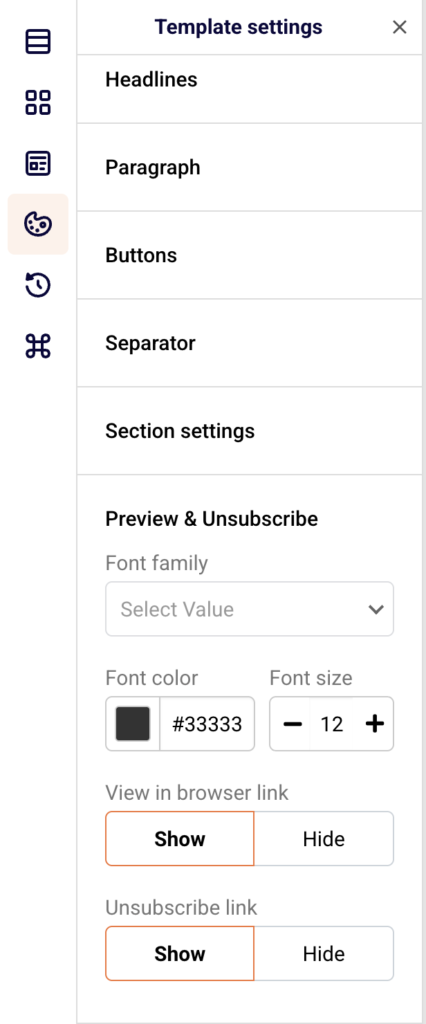
This panel contains collapsible sections for General settings, Headlines, Paragraph, Buttons, Separator, Section settings, and Preview & Unsubscribe.
Steps to Save and Reuse Sections
Step 1 — Save a Section to Your Library
Click the edge or label of any section on the canvas to select it. The section toolbar appears above the section with six icons.
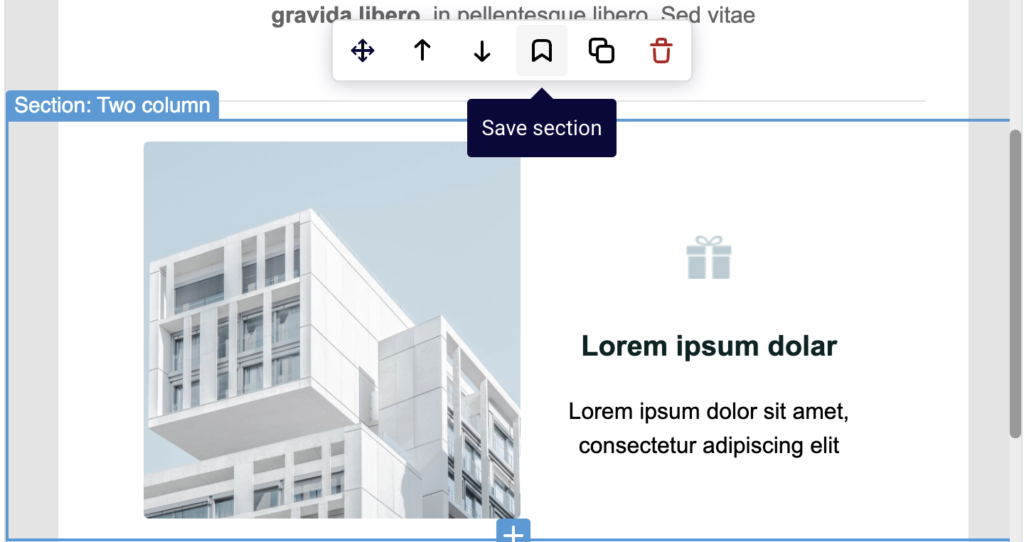
Click the Save section icon (bookmark). A Save section to my library dialog opens with a Name field pre-filled with the section’s name. Edit the name if needed, then click Save. The section is now stored in your personal library.
Step 2 — Reuse a Saved Section
Click the Section templates icon in the left sidebar to open the panel. Select My saved sections at the top of the category list. A secondary panel opens showing thumbnail previews of all saved sections with their names. Drag a saved section from this panel onto the canvas to insert it into your email at the desired position.
Step 3 — Configure Global Styles
Click the Template settings icon in the left sidebar. Expand any style category — Headlines, Paragraph, Buttons, Separator, Section settings, or Preview & Unsubscribe — to reveal its global settings. Adjust values such as Font family, Font size, Font color, Alignment, or Line height. Changes apply to all matching blocks in the email that have not been individually customized.
Step 4 — Overwrite or Revert Individual Block Styles
When a block has been individually styled, its settings panel displays an orange asterisk (*) next to each customized property. Click Revert to default style in the block’s settings panel to reset it to the current global style.
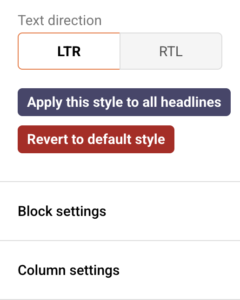
Alternatively, after customizing a single block, click Apply this style to all headlines (or the equivalent button for the block type) to push that block’s custom style to all blocks of the same type.
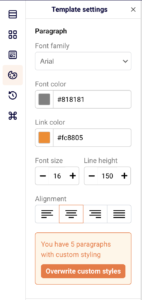
In Template settings, if blocks have custom overrides, a notice such as “You have 4 paragraphs with custom styling” appears with an Overwrite custom styles button that resets all overrides.
Available Settings
General Settings
Background color — Sets the outer background color surrounding the email content area. Accepts a hex color value.
Content background color — Sets the background color of the main email content area. Accepts a hex color value.
Background image — Adds a background image behind the entire email. Click Change to upload or select an image.
Language — Sets the language direction for the email template. Select a value from the dropdown.
Preheader text — Defines the preview text shown in the inbox next to or below the subject line. Enter text in the input field.
Headlines
Type — Switches between H1, H2, and H3 heading levels. Each level stores its own set of global styles.
Font family — Sets the default font for all headline blocks of the selected type. Choose from the dropdown.
Font color — Sets the default text color for headlines. Accepts a hex color value.
Font size — Sets the default size in pixels for headlines. Use the stepper control to adjust.
Alignment — Sets the default text alignment: left, center, or right.
Font styling — Applies default formatting: Bold, Italic, Underline, or Strikethrough.
Link color — Sets the default color for links inside headline blocks. Accepts a hex color value.
Line height — Controls the default vertical spacing between lines. Entered as a percentage value.
Paragraph
Font family — Sets the default font for all paragraph blocks. Choose from the dropdown.
Font color — Sets the default text color. Accepts a hex color value.
Font size — Sets the default paragraph font size in pixels.
Alignment — Sets the default text alignment: left, center, right, or justify.
Link color — Sets the default color for links inside paragraph blocks.
Line height — Controls the default vertical spacing between lines as a percentage value.
Buttons
Color — Sets the default button background fill color.
Alignment — Sets the default button position: left, center, or right.
Corner radius — Controls how rounded the button corners are. Adjust using the slider or enter a pixel value.
Width — Toggles between auto-width (sized to text) and full-width (spans the column).
Padding (Horizontal / Vertical) — Sets the internal spacing around the button text.
Button spacing — Controls the gap between multiple buttons in the same block.
Font family — Sets the default font for button text.
Font color — Sets the default button text color.
Font size — Sets the default button text size in pixels.
Font styling — Applies default formatting to button text: Bold, Italic, Underline, or Strikethrough.
Border Style — Sets the default button border style: solid, dotted, dashed, or double.
Border Color — Sets the default border color.
Border Width — Sets the default border thickness in pixels.
Separator
Style — Sets the default separator line style: none, solid, dotted, dashed, or double.
Color — Sets the default separator line color. Accepts a hex color value.
Thickness — Sets the default separator line thickness in pixels.
Width — Sets the default separator width as a percentage of the column. Adjust using the slider or enter a value.
Section Settings
Spacing (Top, Bottom, Left, Right) — Sets the default internal padding for all sections on desktop.
Column spacing — Sets the default horizontal gap between columns in multi-column sections on desktop.
Mobile Spacing (Top, Bottom, Left, Right) — Sets the default internal padding for sections on mobile devices.
Mobile Column spacing — Sets the default horizontal gap between columns on mobile devices.
Preview & Unsubscribe
Font family — Sets the font for the preheader and unsubscribe text at the top and bottom of the email.
Font color — Sets the text color for the preview and unsubscribe area.
Font size — Sets the text size for the preview and unsubscribe area.
View in browser link — Toggles the “View in browser” link visibility. Options: Show or Hide.
Unsubscribe link — Toggles the unsubscribe link visibility. Options: Show or Hide.
Block Tips
Use global styles first — Configure Template settings before editing individual blocks. This establishes a consistent design baseline and reduces the need for per-block adjustments.
Name saved sections descriptively — When saving a section, edit the default name in the Save section to my library dialog to reflect its purpose, such as “Product Feature 2-Column” or “Footer with Social Links.” Descriptive names make sections easier to locate later.
Watch for the asterisk indicator — An orange asterisk (*) next to a setting name in a block’s panel means that property has been customized away from the global style. Use this to quickly identify which blocks have overrides.
Use Overwrite custom styles carefully — The Overwrite custom styles button in Template settings resets all custom-styled blocks of that type back to the global style. Review your design before clicking, as block-level customizations will be lost.
Save sections across campaigns — Saved sections persist in My saved sections across all campaigns in your account. Build a library of reusable sections like headers, footers, and product layouts to speed up future email creation.
Common Issues
Saved section not appearing in My saved sections → The section may not have been saved successfully. Select the section on the canvas, click the Save section icon in the toolbar, enter a name, and click Save. Verify it appears under Section templates → My saved sections.
Global style changes not applying to some blocks → Blocks with individual customizations are not affected by global style changes. Open Template settings, expand the relevant category, and click Overwrite custom styles to reset all custom-styled blocks of that type to the global defaults.
Asterisk appears next to a setting but no change was made → The block may have inherited a custom style from a template or a duplicated section. Click Revert to default style in the block’s settings panel to realign it with the current global style.
Saved section looks different after inserting → Global styles in the current email may differ from the original campaign where the section was saved. Adjust Template settings to match, or update the individual blocks within the inserted section.
FAQs
Can I rename or edit a saved section?
No. There is no rename or edit option in the My saved sections panel. To update a saved section, delete the existing one by clicking the delete icon on its thumbnail, make changes to the section on the canvas, and save it again with the new name.
Do global styles affect all campaigns?
No. Template settings are scoped to the individual email you are editing. Changing global styles in one campaign does not affect other campaigns.
What happens when I click Apply this style to all headlines?
The current block’s custom style replaces the global headline style and is applied to every headline block of the same type (H1, H2, or H3) in the email. Blocks that were previously using the global default will be updated automatically.
Can I delete a saved section from my library?
Yes. Open Section templates → My saved sections, then click the delete icon (trash) in the top-right corner of the saved section’s thumbnail. The section is removed permanently from your library.
Does the Overwrite custom styles button affect all block types?
No. It only affects the specific block type within the expanded category. For example, clicking it under Paragraph resets only paragraph blocks, not headlines or buttons.