

Connecting a signup form to your landing page
This guide explains how to add a Leads form block to your landing page and connect it to a subscriber group in Sender’s landing page builder.
Where to find this feature
The Leads form block is located in the Builder panel on the left sidebar of the landing page builder. Click the Building blocks icon (the first icon at the top of the left sidebar) to open the panel, then scroll down to the Layout section. The Leads form block appears alongside other layout elements like Section, Spacer, and Custom HTML.
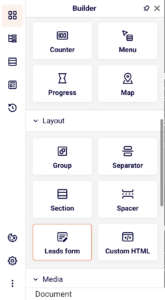
Once added to the canvas, the form’s connection and field settings are managed in the right panel under the Content tab.
Steps to connect a signup form
Step 1 — Add the Leads form block to your page
Select an existing block on the canvas, then click the parent Column in the breadcrumb bar at the bottom of the screen. Click the green + button that appears at the bottom of the column. In the block picker dialog, select Leads form.
The form appears on the canvas with a default Email field and a Submit button. You can also drag the Leads form block directly from the Builder panel onto the canvas.
Step 2 — Connect the form to a subscriber group
Click the Leads form block on the canvas to open its settings in the right panel. Under the Content tab, find the FORM SETTINGS section.
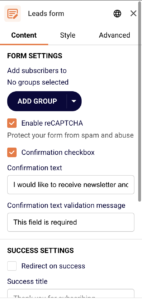
The Add subscribers to field shows “No groups selected” by default. Click ADD GROUP to open a dropdown listing your existing subscriber groups. Select a group from the list, use the Find by name search field to locate a specific group, or click + Create a new group to set one up. The selected group appears as a tag with an × button to remove it. You can add multiple groups if needed.
Step 3 — Add and configure form fields
The form includes an Email field by default. To add more fields, click + Add form input at the bottom of the form on the canvas.
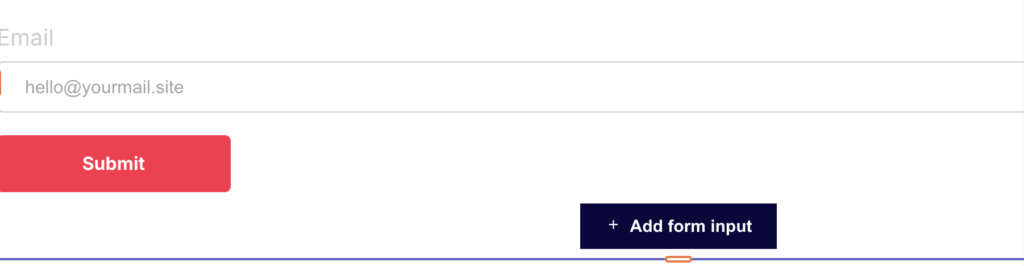
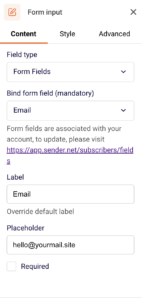
Each field has its own settings in the right panel under the Content tab. Use the Bind form field dropdown to assign a field type — options include Email, First name, Last name, and Phone number. Customize the Label, Placeholder text, and toggle the Required checkbox for each field.
Step 4 — Customize form appearance and messages
Click the Leads form block and switch to the Style tab in the right panel. Under Form style, adjust the Background color, Gap between fields, Text alignment, and Button alignment.
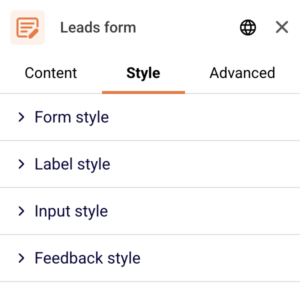
Expand the Label style, Input style, and Feedback style sections for finer control. Switch back to the Content tab to edit SUCCESS SETTINGS — set the Success title (default: “Thank you for subscribing”) or enable Redirect on success. Under FAILURE SETTINGS, customize the Required error message and the general failure Message.
Step 5 — Preview and save your changes
Click Preview in the top-right toolbar to check how the form looks and behaves on desktop and mobile. Use the device icons in the top toolbar to switch between desktop, tablet, and mobile views. Once satisfied, click Save changes or Save and continue to preserve your work.
Design tips
Choose the right fields — Keep signup forms short. An Email field alone often performs best. Add First name only if you plan to use personalization in your email campaigns.
Align the form with your page layout — Use the Button alignment and Text alignment options in the Style tab to match the form’s visual positioning with the rest of your landing page content.
Enable reCAPTCHA for public pages — Under FORM SETTINGS in the Content tab, check Enable reCAPTCHA to protect your form from spam submissions.
Customize success and error messages — Update the Success title and Required error message fields under the Content tab so visitors receive clear, on-brand feedback after submitting the form.
Preview on all devices — Use the device icons (desktop, tablet, mobile) in the top toolbar to verify the form fields, labels, and button render correctly at every screen size.
Common issues
Form not saving subscribers → No subscriber group is connected. Click the Leads form block, open the Content tab, and click ADD GROUP under FORM SETTINGS to select or create a group.
“Duplicate form field name” warning appears → Two or more form inputs are bound to the same field type. Click each Form input on the canvas and change the Bind form field dropdown so every field uses a unique value.
Submit button settings are locked → The button inside the Leads form is locked by default. Click the lock icon in the floating toolbar above the button to unlock it before editing its style.
Form fields not visible after adding → The new field may be added below the visible area of the form. Scroll down on the canvas or check the Blocks Tree panel (second icon in the left sidebar) to confirm the field exists inside the Leads form block.
FAQs
Can I connect a signup form to multiple subscriber groups?
Yes. In the Leads form settings under the Content tab, click ADD GROUP to select additional groups. Each group appears as a separate tag under Add subscribers to. New signups are stored in all selected groups.
What form fields can I add to the signup form?
The default field options include Email, First name, Last name, and Phone number. These are set through the Bind form field dropdown in each Form input block’s Content tab. To manage custom fields, visit the subscriber fields page linked in the form input settings.
Can I redirect visitors after they submit the form?
Yes. Click the Leads form block, open the Content tab, and check Redirect on success under SUCCESS SETTINGS. Enter the destination URL where visitors should be sent after a successful submission.
How do I change the submit button text or style?
Click the Submit button on the canvas. If the settings show “Unlock the block to edit settings,” click the lock icon in the floating toolbar to unlock it. You can then edit the button text directly on the canvas and adjust its style in the right panel.
Do design changes save automatically?
The builder includes an autosave indicator at the bottom of the screen. You can also click Save changes in the top-right toolbar at any time to manually save your progress before leaving the builder.