

Creating landing pages
This guide walks you through how to create, design, and publish a landing page in Sender for the first time.
Where to find this feature
In the Sender dashboard, go to: Landing pages in the left sidebar.
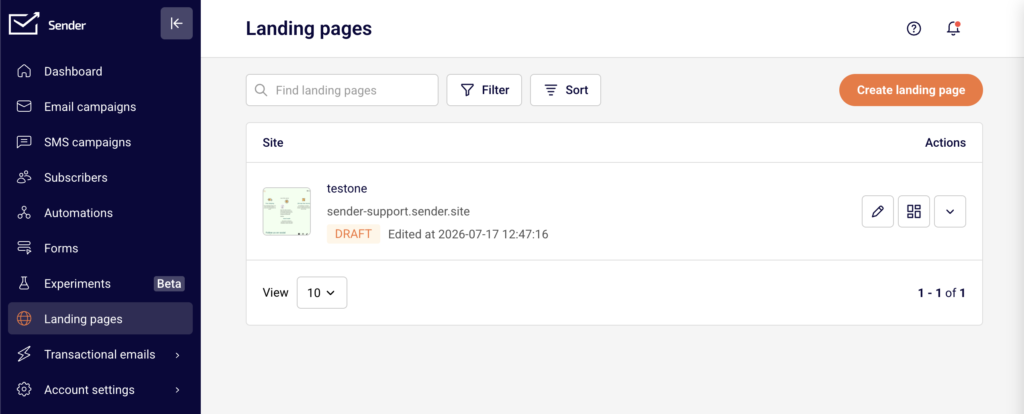
If you have not created any landing pages yet, you will see a welcome screen with a Create landing page button. If you already have landing pages, you will see a list of your existing pages with their names, URLs, statuses, and action icons, along with a Create landing page button in the top-right corner.
Steps to create a landing page
Step 1 — Start a new landing page
Click Create landing page from the landing pages screen. The template gallery opens, showing all available pre-designed templates along with a Start from scratch option.
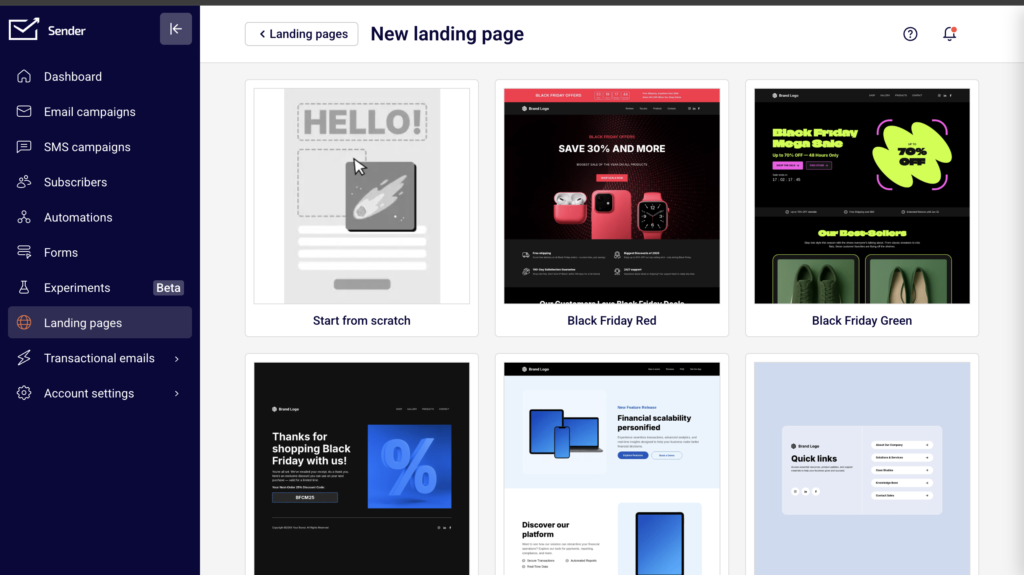
Browse the templates to find one that fits your goal. Hover over any template to reveal a preview icon (eye) to see how it looks and an edit icon (pencil) to select it. Click the edit icon on your chosen template or on Start from scratch to proceed. A Create New Landing Page dialog appears. Enter a name in the Name your landing page field, then click Create.
Step 2 — Navigate the builder interface
The builder opens with your page name at the top and a blank canvas in the center. The left sidebar contains five tabs, accessible via icons from top to bottom: Builder (content blocks), Blocks Tree (page structure), Section Templates (pre-designed sections by category), Choose template (full-page templates), and History (revision history).
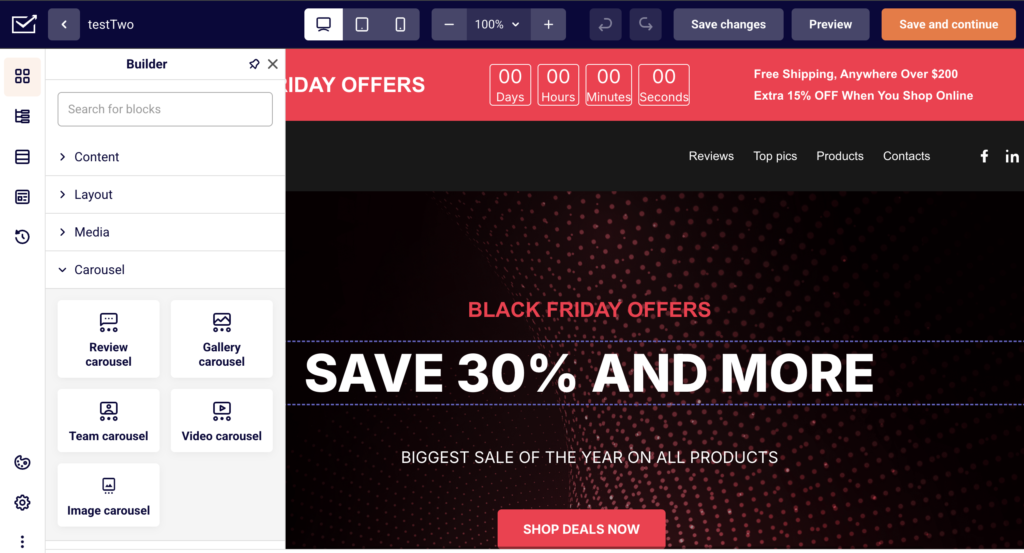
The top toolbar includes device preview buttons for desktop, tablet, and mobile views, zoom controls, undo/redo buttons, Save changes, Preview, and Save and continue.
Step 3 — Add sections and content blocks
Click the orange column layout icon on the canvas to choose a layout. A panel appears with two tabs: Blocks (column layouts such as 100%, 50%/50%, 33%/33%/33%, and others) and Library (pre-designed section templates organized by category, including Hero, Feature, Gallery, Contacts, CTA, Newsletter, Team, Pricing, Testimonial, Header, and Footer).
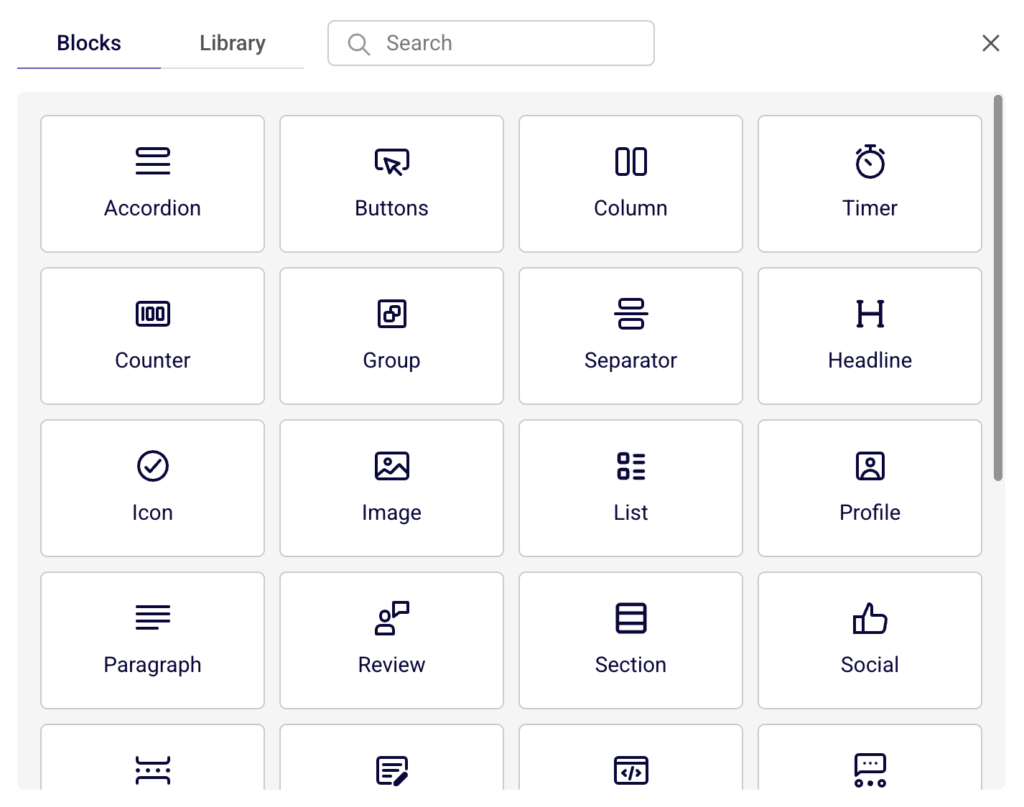
Select a column layout or a library section to add it to your page. You can then drag content blocks from the Builder panel onto your sections.
Step 4 — Customize with content blocks
Open the Builder panel by clicking the top icon in the left sidebar. Blocks are organized into four categories: Content (Headline, Paragraph, Buttons, List, Infobox, Icon, and others), Layout (Section, Group, Separator, Spacer, Leads form, Custom HTML), Media (Image, Gallery, Video), and Carousel (Review carousel, Gallery carousel, Team carousel, Video carousel, Image carousel). Click or drag a block to add it to a section on your canvas. Click any element on the canvas to select it and edit its content, style, or settings in the panel that appears on the left.
Step 5 — Add a leads form
To collect subscriber data, open the Builder panel and drag the Leads form block into a section on your page.
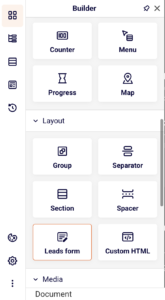
The leads form lets visitors submit their information directly from your landing page. Subscribers collected through this form appear in the Subscribers section on the landing page overview. This works the same way a standalone signup form collects data in Sender.
Step 6 — Configure SEO and social share settings
Click the Site Settings icon (gear) at the bottom of the left sidebar. Expand SEO settings to fill in the Site title, Meta descriptions (a short summary of your page for search engines), Tags (comma-separated keywords), and upload a favicon (the small icon that appears in the browser tab, sized at 24×24 pixels).
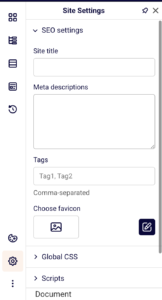
Expand Social share settings to upload a share image, and enter a Title and Description that appear when your page is shared on social media. Click Show preview to see how the social card will look.
Step 7 — Save, preview, and publish
Click Save changes in the top toolbar to save your work without leaving the builder. Click Preview to open your page in a new browser tab and see how it looks on a live screen. When you are ready to finalize, click Save and continue.
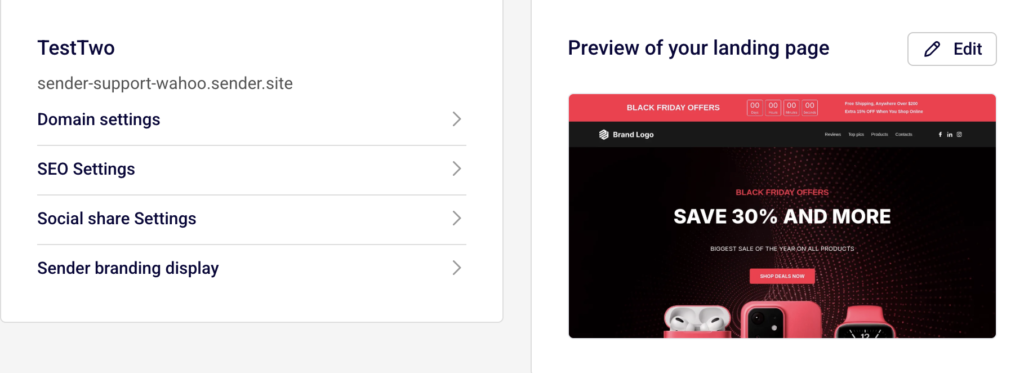
This takes you to the landing page Overview screen. Here you can review your Domain settings, SEO Settings, Social share Settings, and Sender branding display. Click the Publish button in the top-right corner to make your landing page live at the generated URL.
What happens next
After publishing, your landing page is live and accessible at the URL shown under Domain settings on the Overview screen (for example, https://your-account.sender.site). You can edit the subdomain or add a custom domain from the same section.
To manage your page going forward, go to Landing pages in the left sidebar. Your page appears in the list with a status label: Draft (saved but not live), Published (live and accessible), or Unpublished (was live but has been taken offline).
You can click the edit icon (pencil) next to any page to reopen the builder, or click the overview icon (grid) to view its analytics and settings. Subscribers who submit the leads form on your page are automatically added to your Sender subscriber list and visible under the Subscribers section on the page overview.
Common issues
Landing page shows a blank preview → This happens when no content blocks have been added to the page. Open the builder, add at least one section with a column layout, and place content blocks inside it before previewing.
Publish button does not appear → The Publish button is located on the landing page Overview screen, not inside the builder. Click Save and continue in the builder to reach the Overview screen where the Publish button is available.
Changes are not visible after editing → Edits made in the builder are not applied automatically. Click Save changes in the builder toolbar, then click Save and continue to return to the Overview. If the page is already published, republish it for the updated version to go live.
Subdomain or URL not working → The temporary subdomain is generated based on your Sender account name. To change it, go to the Overview screen, open Domain settings, and click Edit next to the temporary domain to update your subdomain through the Change subdomain dialog.
FAQs
Can I use a custom domain for my landing page?
Sender generates a default URL under the .sender.site domain for each landing page. To connect a custom domain, go to the landing page Overview, open Domain settings, and click Add domain to configure your own domain.
Can I add a signup form to my landing page?
Yes. In the builder, open the Builder panel and drag the Leads form block into a section on your page. Subscribers who fill out this form are collected the same way standalone forms work in Sender.
How do I edit a landing page after publishing?
Go to the Landing pages list, click the edit icon (pencil) next to the page you want to modify, make your changes in the builder, click Save changes, then click Save and continue and republish from the Overview screen.
Can I preview my landing page before publishing?
Yes. Click the Preview button in the builder toolbar to open a live preview of your page in a new browser tab. You can also switch between desktop, tablet, and mobile views using the device icons in the top toolbar to check how your page looks on different screen sizes.
What is the difference between Save changes and Save and continue?
Save changes saves your current work and keeps you inside the builder. Save and continue saves your work and takes you to the landing page Overview screen where you can configure page settings and publish.
Can I duplicate a landing page?
Yes. On the Landing pages list, click the dropdown arrow next to the page you want to copy and select Duplicate from the menu.