

Deleting a landing page
This guide explains how to permanently delete a landing page from your Sender account.
Where to Find This Setting
In the Sender dashboard, go to Landing pages from the left sidebar menu. This opens the landing pages list, where all your existing pages are displayed with their name, subdomain, status, and last edited date.
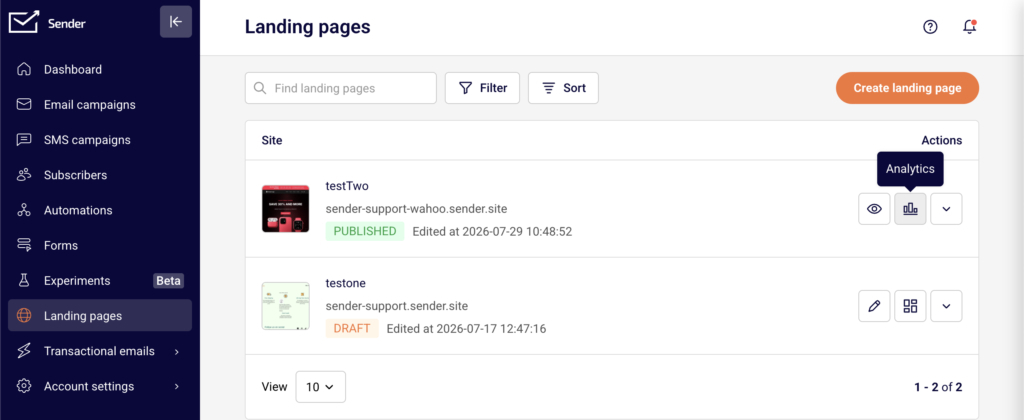
The delete option is located in the actions menu for each individual landing page.
Steps to Delete a Landing Page
Step 1 — Open the actions menu
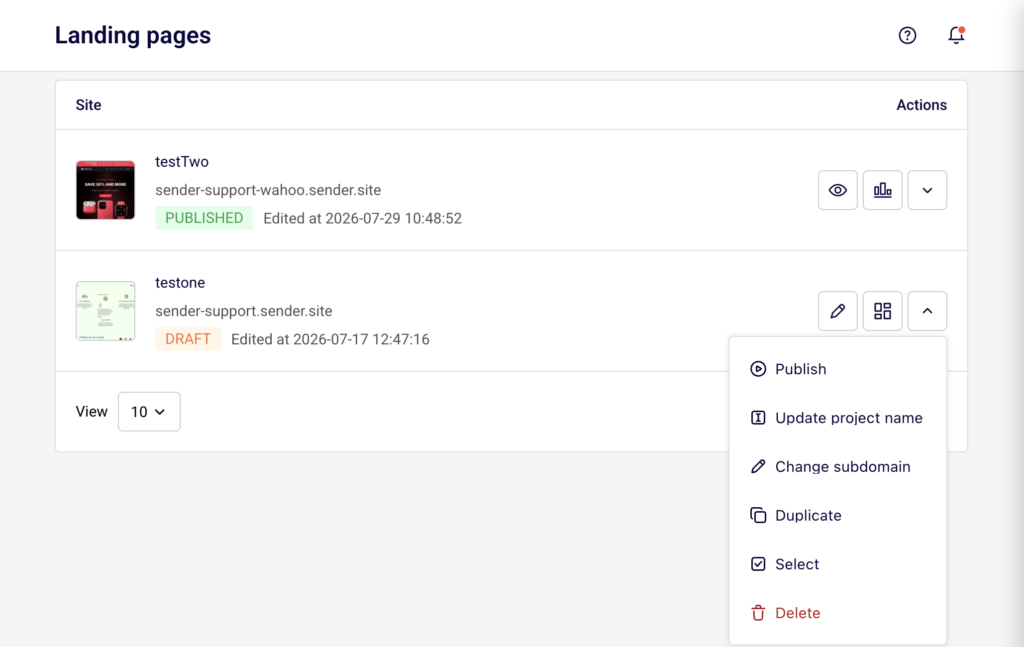
In the Landing pages list, find the page you want to delete. On the right side of the page row, under the Actions column, click the dropdown arrow icon (next to the edit and grid icons). A menu appears with several options, including Publish, Update project name, Change subdomain, Duplicate, Select, and Delete.
Step 2 — Select Delete
Click Delete at the bottom of the actions menu. It is displayed in red text to indicate this is a destructive action. A confirmation dialog titled Delete Page appears, asking “Are you sure you want to delete your site [page name]?”
Step 3 — Confirm the deletion
In the Delete Page dialog, click Yes, I am sure to permanently delete the landing page. To cancel and keep the page, click No, let’s keep it instead. Once confirmed, the page is removed from the landing pages list immediately.
What Happens After the Change
The landing page is permanently removed from your account. It no longer appears in the Landing pages list.
If the page was published, its URL becomes inactive immediately. Visitors who try to access the old URL will see an error page.
Any subscribers who signed up through forms on the deleted landing page remain in their assigned subscriber groups. Deleting the page does not remove subscriber data.
This action cannot be undone. There is no way to restore a deleted landing page.
Management Tips
Duplicate before deleting — If you might need the page design later, use the Duplicate option from the actions menu to create a copy before you delete the original.
Unpublish first if you’re unsure — If you only want to take a page offline temporarily, consider unpublishing it instead of deleting it. This keeps the page in your list as a draft while making the URL inactive.
Check for active traffic — Before deleting a published landing page, verify that no active campaigns, emails, or external links are directing visitors to its URL.
Review subscriber groups — Subscriber data collected through the page remains intact after deletion, but the form and page are no longer available for new signups. Make sure you have alternative signup paths in place if needed.
Common Issues
Delete option is not visible → The Delete option is located at the bottom of the actions dropdown menu. Click the dropdown arrow icon in the Actions column for the landing page to reveal the menu.
Accidentally deleted a page → Deletion is permanent and cannot be undone. If you need to recreate the page, you will need to build it again from scratch. To prevent this, always use the Duplicate option before deleting.
Old URL still loads after deletion → Browser caching may temporarily display the old page. Clear your browser cache or try accessing the URL in a private/incognito window to confirm the page has been fully removed.
FAQs
Can I undo a landing page deletion?
No. Once you click Yes, I am sure in the Delete Page confirmation dialog, the landing page is permanently removed. There is no trash folder or undo option.
Does deleting a landing page remove its subscriber data?
No. Subscribers who signed up through a form on the landing page remain in their assigned groups. Deleting the page only removes the page itself.
Can I delete a published landing page?
Yes. You can delete a landing page regardless of its status — Draft, Published, or Unpublished. If the page is published, the URL becomes inactive immediately upon deletion.
Can I delete multiple landing pages at once?
You can use the Select option from the actions menu to select pages individually. Check whether a bulk delete option is available from the selection toolbar once pages are selected.
What happens to links pointing to a deleted page?
Any links pointing to the deleted page’s URL will stop working. Visitors who click those links will see an error page. Update or remove these links from your campaigns and external sources.