

Publishing and unpublishing a landing page
This guide explains how to publish a landing page to make it live, and how to unpublish it to take it offline in Sender.
Where to find this setting
In the Sender dashboard, go to Landing pages in the left sidebar. This opens the landing pages list, where each page displays its name, subdomain, status badge (Draft or Published), and last edited timestamp.
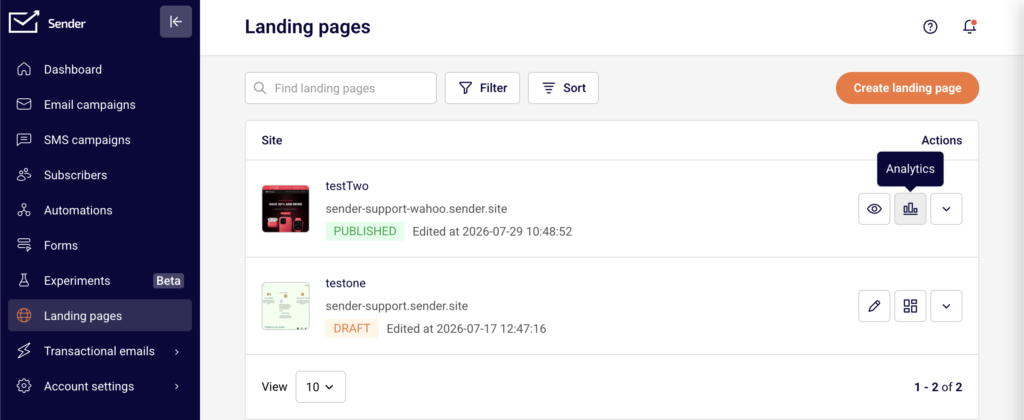
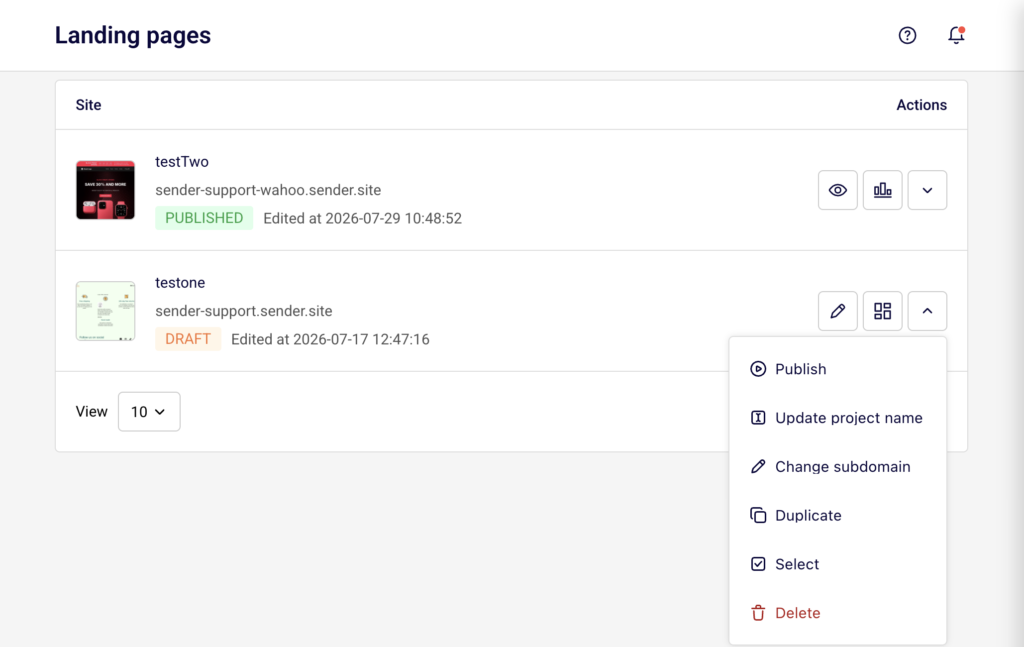
You can publish or unpublish a page from two locations: the actions menu (dropdown arrow) in the landing pages list, or the Overview page for an individual landing page.
To open the Overview page, click the page row or the grid icon next to the page name in the list. The Overview page shows the Publish, Re-Publish, or Unpublish buttons in the top-right corner, depending on the current page status.
Steps to publish and unpublish a landing page
Step 1 — Open the landing page Overview or actions menu
From the Landing pages list, locate the page you want to publish or unpublish. Click the dropdown arrow in the Actions column to open the actions menu. For a page in Draft status, the menu includes a Publish option. For a page in Published status, the menu includes an Unpublish option.
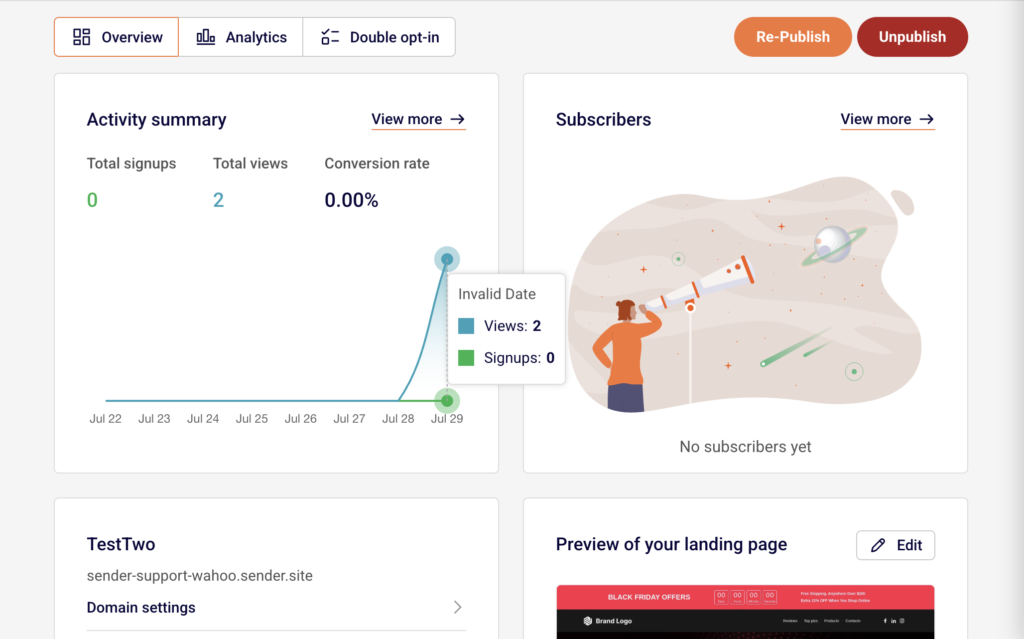
Alternatively, click the page row to open its Overview page, where the Publish or Unpublish button appears in the top-right corner.
Step 2 — Publish the landing page
Click Publish from the actions menu or from the Overview page. A green notification banner confirms “Page published.” The page status changes from Draft to Published in the landing pages list. The page is now live and accessible at its subdomain URL.
On the Overview page, the button area updates to show Re-Publish and Unpublish as separate buttons, replacing the single Publish button.
Step 3 — Unpublish the landing page
To take the page offline, click Unpublish from the actions menu in the landing pages list or from the Overview page. A notification confirms “Page unpublished.” The page status returns to Draft, and the page URL becomes inactive. Visitors who try to access the URL will no longer see the page.
The Publish button reappears on the Overview page, allowing you to republish at any time.
Step 4 — Republish after making changes
If you edit a previously published page in the builder, a yellow banner appears on the Overview page stating that the site has been updated with new changes and prompting you to re-publish. Click Save changes or Save and continue in the builder to save your edits first, then click Re-Publish on the Overview page to push the updated version live.
What happens after the change
When you publish a landing page, its status changes to Published and the page becomes accessible at its assigned subdomain URL (e.g., your-subdomain.sender.site).
When you unpublish a landing page, the status returns to Draft and the URL becomes inactive immediately. Any visitors currently on the page can still see it until they refresh or navigate away, but new visits to the URL will fail.
You can confirm the current status from the landing pages list, where the status badge next to each page shows either Draft or Published. Use the Filter button above the list and select Draft or Published to display only pages with a specific status.
Management tips
Preview before publishing — Click Preview in the builder toolbar to review your landing page before making it live. This lets you verify layout and content without affecting the published version.
Use Re-Publish for updates — After editing a live page in the builder, return to the Overview page and click Re-Publish to apply changes. Edits saved in the builder are not reflected on the live page until you republish.
Check the yellow update banner — If you see a yellow banner on the Overview page indicating new changes, your live page is out of date. Click Re-Publish to sync the published version with your latest edits.
Filter your pages by status — Use the Filter button on the landing pages list to quickly show only Draft or Published pages. This helps you identify which pages are currently live and which are still in progress.
Save your work frequently — Click Save changes in the builder toolbar to save progress without leaving the editor. Use Save and continue when you are ready to move to the Overview page and proceed with publishing.
Common issues
Page still shows old content after editing → Changes saved in the builder are not automatically applied to the live page. Click Re-Publish on the Overview page to push your updates live.
Page URL returns an error after unpublishing → This is expected. Unpublishing a page deactivates the URL immediately. Republish the page to restore access.
Publish button is missing from the actions menu → The Publish option only appears for pages in Draft status. If the page is already published, the menu shows Unpublish instead. Check the status badge next to the page name.
Yellow banner appears on the Overview page → This means the page has been edited since it was last published. Click Re-Publish to apply the pending changes to the live version.
FAQs
Can I edit a landing page after it is published?
Yes. Click Edit from the actions menu or click the edit (pencil) icon in the landing pages list to open the page in the builder. Make your changes, click Save changes, then click Re-Publish on the Overview page to apply the updates. The page URL remains the same.
What happens when I unpublish a landing page?
The page is taken offline and the URL becomes inactive. Visitors who try to access the URL will see an error or blank page. The page status returns to Draft. You can republish at any time to make it live again.
Can I publish a landing page directly from the builder?
Not directly. The builder toolbar includes Save changes, Preview, and Save and continue buttons. To publish, click Save and continue to go to the Overview page, then click Publish or Re-Publish from there.
Does unpublishing a landing page delete it?
No. Unpublishing only takes the page offline and changes its status to Draft. The page design, settings, and any collected subscriber data are preserved. You can edit and republish the page at any time.
Can I change the subdomain of my landing page?
Yes. From the Overview page, expand Domain settings and click Edit next to the temporary domain. Enter a new subdomain in the Change subdomain dialog and click Save. You can also add a custom domain by clicking Add domain under Domain settings.