

Custom domains for landing pages
This guide explains how to connect a custom domain to your landing page in Sender, configure the required DNS record, and verify the connection.
Where to find this setting
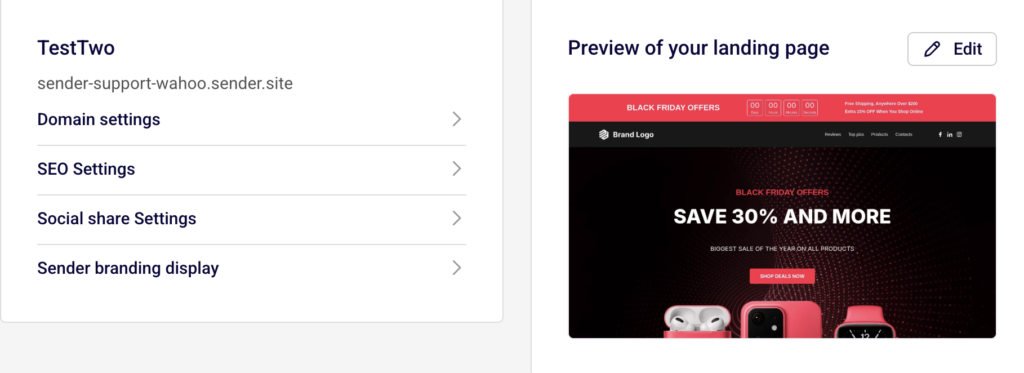
In the Sender dashboard, go to Landing pages in the left sidebar. Click the landing page you want to configure, or click the edit icon to open the page, then click Save and continue to reach the Overview page.
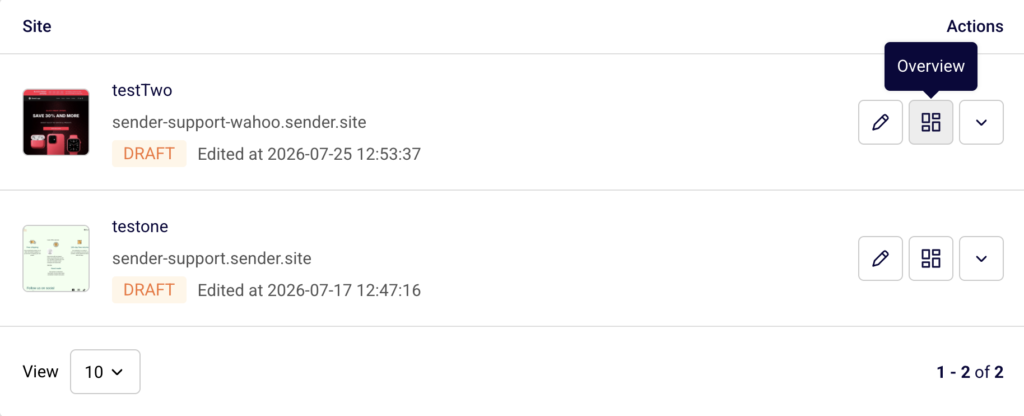
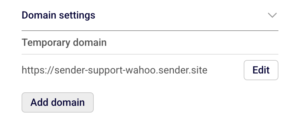
Scroll down to the Domain settings section under the page name. This is where you manage the temporary Sender subdomain and add or verify a custom domain.
You can also access the subdomain setting from the landing pages list by clicking the actions dropdown (arrow icon) next to a page and selecting Change subdomain.
Steps to connect a custom domain
Step 1 — Add your custom domain
On the landing page Overview page, expand the Domain settings section. Click the Add domain button. In the Add a custom domain dialog, enter your domain in the Domain URL field (for example, landing.yourdomain.com). Click Save.
Sender adds the domain and immediately opens the CNAME record settings dialog with the DNS values you need to configure.
Step 2 — Configure the CNAME record with your DNS provider
In the CNAME record settings dialog, you will see two values: a CNAME record name (displayed as @) and a Value (displayed as my.sender.site).
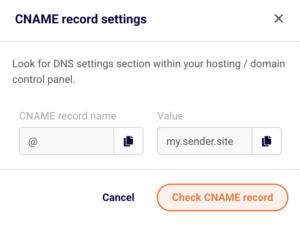
Both fields have a copy icon next to them. Copy these values, then log in to your domain registrar or hosting provider’s DNS settings panel. Create a new CNAME record using the CNAME record name as the host and my.sender.site as the target value. Save the DNS record. DNS changes can take up to 24–48 hours to propagate.
Step 3 — Verify the CNAME record
Return to the Domain settings section on your landing page Overview page. Your custom domain now appears in the domain table with a Status column. If the DNS record has not yet propagated, the status shows a red indicator. Click Recheck records next to the domain, or click the domain row to reopen the CNAME record settings dialog and click Check CNAME record. Once verified, the status changes to a green indicator and your landing page becomes accessible at the custom domain.
Step 4 — Edit or change the Sender subdomain (optional)
If you want to change the default Sender subdomain (the yourname.sender.site address), click the Edit button next to the Temporary domain URL in the Domain settings section. In the Change subdomain dialog, enter a new value in the New subdomain field and click Update. The temporary domain URL updates immediately. You can also access this from the landing pages list by clicking the actions dropdown and selecting Change subdomain.
What happens after the change
Once the CNAME record is verified, your landing page is accessible at both the custom domain and the temporary Sender subdomain. Visitors can reach the page using either address.
If the CNAME record is not yet verified, the custom domain remains inactive and the page continues to be served only at the temporary Sender subdomain.
Changing the Sender subdomain updates the temporary domain URL immediately. Any previously shared links using the old subdomain will stop working.
You can confirm the domain status at any time by checking the Status column in the Domain settings section on the landing page Overview page.
Management tips
Use a subdomain for your custom domain — Connect a subdomain like landing.yourdomain.com or promo.yourdomain.com rather than a root domain. Subdomains are simpler to configure with CNAME records and avoid conflicts with your main website.
Verify DNS before publishing — Add and verify your custom domain before clicking Publish. This ensures visitors reach your page on the custom domain as soon as it goes live rather than seeing an error.
Keep track of domain status — Check the Status indicator in the Domain settings table regularly. A red indicator means the CNAME record is missing or misconfigured. Click Recheck records after making DNS changes.
Do not delete a verified domain on a published page — Removing a custom domain from a live landing page will make the page unreachable at that address. Visitors using saved bookmarks or shared links to the custom domain will get an error.
Copy DNS values directly from the dialog — Use the copy icons next to the CNAME record name and Value fields in the CNAME record settings dialog to avoid typos when entering values at your DNS provider.
Common issues
Custom domain shows a red status after adding → The CNAME record has not been configured or has not propagated yet. Add the CNAME record at your DNS provider pointing to my.sender.site, wait up to 48 hours, then click Recheck records.
CNAME record is configured but verification still fails → The DNS record may have a typo, or propagation is still in progress. Double-check that the host and target values match the values shown in the CNAME record settings dialog and try again after a few hours.
Old subdomain links stopped working after changing the subdomain → Changing the value in the Change subdomain dialog replaces the temporary domain. Previous links using the old subdomain will no longer resolve. Update any shared links or bookmarks to the new subdomain.
Custom domain works but shows a security warning → SSL certificates may take a few minutes to provision after the CNAME record is verified. Wait briefly and reload the page. If the warning persists, verify the CNAME record is correctly pointed to my.sender.site.
FAQs
Can I connect more than one custom domain to a single landing page?
Yes. Click Add domain in the Domain settings section to add additional domains. Each domain requires its own CNAME record pointing to my.sender.site.
Does adding a custom domain remove the temporary Sender subdomain?
No. The temporary subdomain (e.g., yourname.sender.site) remains active alongside the custom domain. Your landing page is accessible at both addresses.
Can I change my custom domain after it has been verified?
There is no edit option for an existing custom domain. Remove the current domain by clicking the delete icon in the Domain settings table, then add the new domain using the Add domain button.
Do I need to republish my landing page after adding a custom domain?
If the page is already published, the custom domain becomes active once the CNAME record is verified. You do not need to republish.
What happens to my custom domain if I unpublish the landing page?
The custom domain remains configured in the Domain settings section, but visitors will not be able to access the page at that address while it is unpublished. Republishing the page makes the custom domain active again.
Can I use a root domain instead of a subdomain?
Sender provides a CNAME record for domain configuration. Some DNS providers do not support CNAME records on root domains. Use a subdomain like landing.yourdomain.com for reliable setup, or check with your DNS provider for root domain CNAME support (sometimes called CNAME flattening or ALIAS records).