

Landing page analytics and performance
This guide explains how to view analytics and monitor the performance of your landing pages in Sender.
Where to find this setting
In the Sender dashboard, go to Landing pages. This opens the landing pages list showing all your pages with their status, subdomain URL, and last edited date.
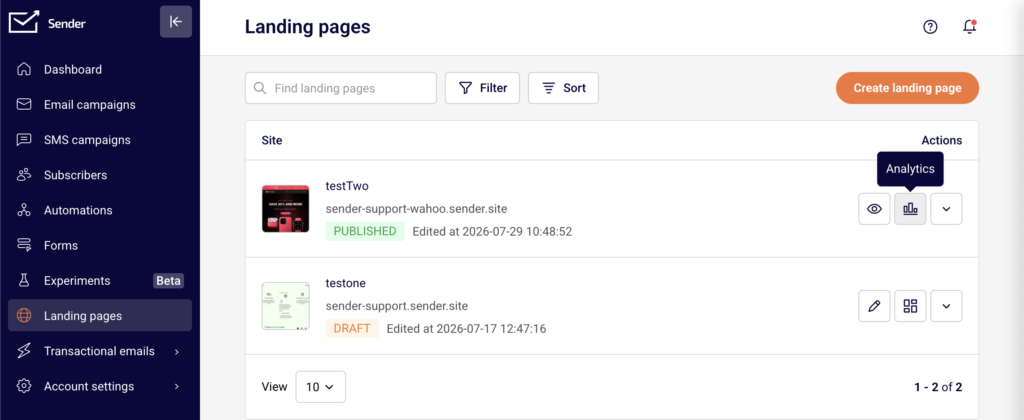
To access analytics for a specific page, click the view icon (grid icon) in the Actions column next to the landing page you want to review. This opens the landing page management screen, which has three tabs at the top: Overview, Analytics, and Double opt-in. Performance data is available on both the Overview and Analytics tabs.
Steps to view and use landing page analytics
Step 1 — Open the landing page Overview
From the Landing pages list, click the view icon next to the page you want to review. The Overview tab loads by default. At the top, the Activity summary section displays three key metrics: Total signups, Total views, and Conversion rate.
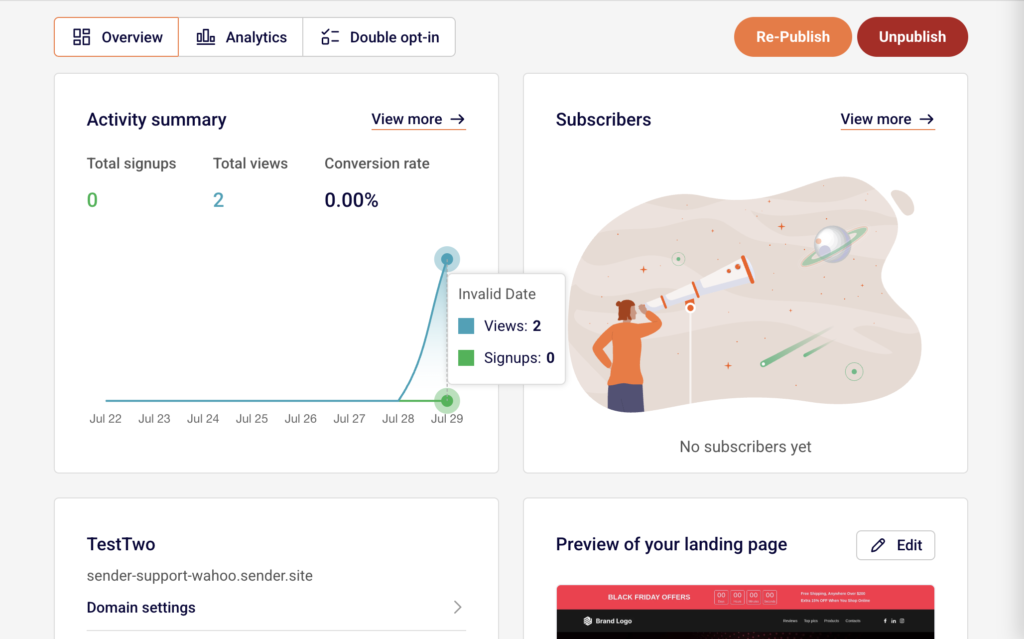
A chart below these metrics shows activity over the past week. To the right, the Subscribers section lists recent signups. Click View more next to either section to go directly to the Analytics tab for detailed data.
Step 2 — Review detailed metrics on the Analytics tab
Click the Analytics tab at the top of the page. Four metric cards appear: Views, Unique visitors, Subscribers, and Conversion rate.
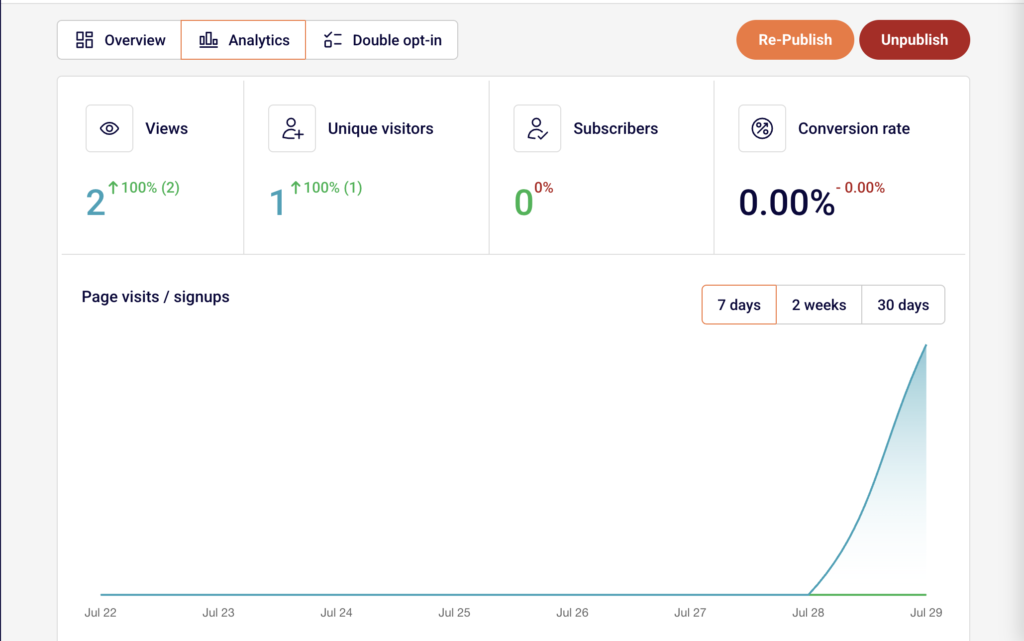
Each card shows the current value and a percentage change indicator so you can see whether performance is trending up or down. Below the cards, the Page visits / signups chart displays activity over time. Use the 7 days, 2 weeks, or 30 days buttons above the chart to change the reporting period. The chart and metric cards update to reflect the selected range.
Step 3 — Review the Subscribers table
Below the chart on the Analytics tab, the Subscribers section lists every person who signed up through your landing page. The table includes four columns: Email/Phone, Name, Date & Time, and IP address. This gives you a complete record of each signup with the exact timestamp and source IP. To download this data, click the Export CSV button in the top-right corner of the Subscribers section. The file contains all subscriber records for the selected landing page.
Step 4 — Compare performance across time ranges
Use the time range filters above the Page visits / signups chart to compare performance across different periods. Select 7 days for a short-term view of recent activity, 2 weeks for a mid-range snapshot, or 30 days for a broader trend. The percentage indicators on each metric card update based on the selected range, showing the rate of change for Views, Unique visitors, Subscribers, and Conversion rate relative to the prior equivalent period.
What happens after the change
Analytics data is read-only and does not affect your landing page content, status, or URL. The metrics update automatically as visitors interact with your published page.
Changing the time range filter only adjusts the reporting window displayed on the Analytics tab. It does not alter any underlying data.
Exporting subscribers to CSV creates a snapshot file of the current data. New signups after the export are not included in that file.
If your page is in Draft status or has been unpublished, analytics still display historical data from when the page was live, but no new views or signups will be recorded until the page is published again.
Management tips
Check analytics regularly — Review the Analytics tab at least weekly after publishing to identify trends in visitor traffic and signups early.
Use time range filters for context — Switch between 7 days, 2 weeks, and 30 days to distinguish short-term spikes from sustained trends. A single-day spike may look significant at 7 days but minor at 30 days.
Export subscriber data for external use — Click Export CSV to download your landing page signups. Use this file to cross-reference subscriber data with other tools or to keep an offline backup.
Monitor conversion rate closely — The Conversion rate metric shows the percentage of visitors who signed up. If views are high but conversions are low, consider revisiting your page content or form placement in the builder.
Start from the Overview tab — Use the Overview tab for a quick snapshot of Total signups, Total views, and Conversion rate without navigating into full analytics. Click View more only when you need deeper detail.
Common issues
Analytics show zero values for a published page → This typically happens if the page was just published and has not yet received any traffic. Allow time for visitors to find the page, then check again. Confirm the page status is Published and the URL is accessible.
Percentage change indicators show 0% → This occurs when there is no data in the comparison period. If your page is new, the prior period has no baseline to compare against. As data accumulates over time, percentage changes will begin to reflect actual trends.
Export CSV button does not produce a file → This happens when there are no subscribers to export. The Subscribers table must contain at least one record for the export to generate a file. Verify that your landing page has a signup form and that it has received submissions.
FAQs
Where can I see how many people visited my landing page?
Open your landing page from the Landing pages list, then click the Analytics tab. The Views and Unique visitors metric cards at the top show your traffic numbers.
What is the difference between Views and Unique visitors?
Views counts the total number of times your landing page was loaded, including repeat visits from the same person. Unique visitors counts individual visitors, so one person visiting three times counts as one unique visitor but three views.
Can I see analytics for a landing page that is not published?
Yes. Historical data from when the page was live remains visible on the Analytics tab. However, no new data is recorded while the page is in Draft or unpublished status.
How do I export my landing page subscriber list?
Go to the Analytics tab for the landing page and click the Export CSV button above the Subscribers table. This downloads a CSV file with all subscriber records including Email/Phone, Name, Date & Time, and IP address.
How often does analytics data update?
Analytics data updates automatically as visitors view the page and submit forms. There is no manual refresh needed. Reloading the Analytics tab shows the most current data.
Can I change the date range for the analytics chart?
Yes. Use the 7 days, 2 weeks, or 30 days buttons above the Page visits / signups chart to switch the reporting period. The metric cards and chart update to reflect the selected time range.