

Editing and customizing landing page content
This guide explains how to edit text, images, buttons, and other content blocks, and customize the visual design of your landing page in Sender’s landing page builder.
Where to find this feature
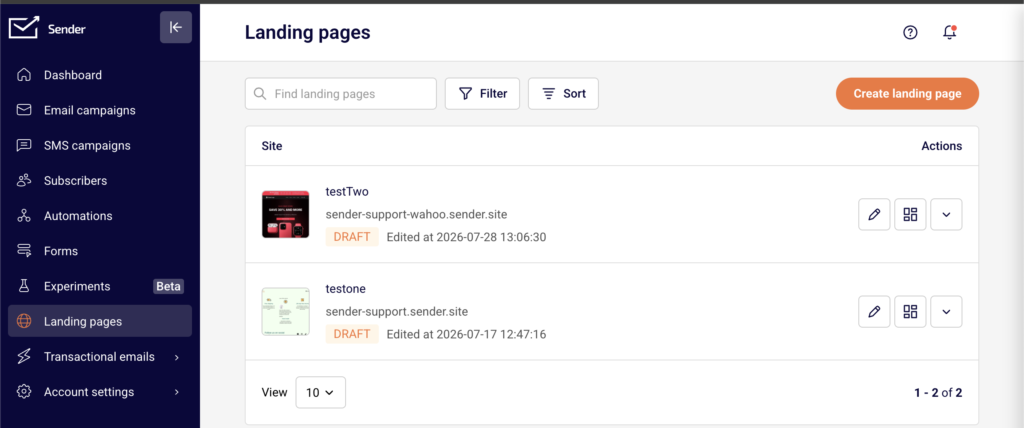
Go to Landing pages in the main sidebar. Click the edit (pencil) icon next to an existing landing page to open it in the builder.
The builder interface has three main areas: the left sidebar for adding blocks and managing page structure, the central canvas where you edit content visually, and the right panel that displays settings for whichever block or section is currently selected. The top toolbar provides device preview switching, zoom controls, undo/redo, Save changes, Preview, and Save and continue buttons.
Steps to edit and customize landing page content
Step 1 — Add and arrange content blocks on the canvas
Click the Builder icon (the grid icon at the top of the left sidebar) to open the blocks panel.
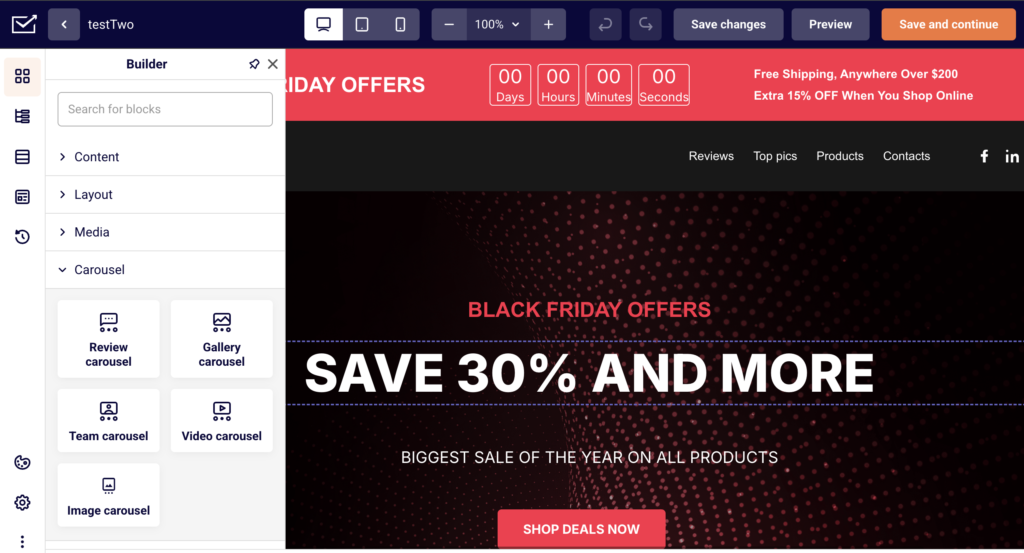
Blocks are organized into four categories: Content (Headline, Paragraph, Buttons, List, Icon, and more), Layout (Section, Spacer, Separator, Leads form), Media (Image, Gallery, Video), and Carousel. Click the + button inside any section on the canvas, then select a block from the popup to add it.
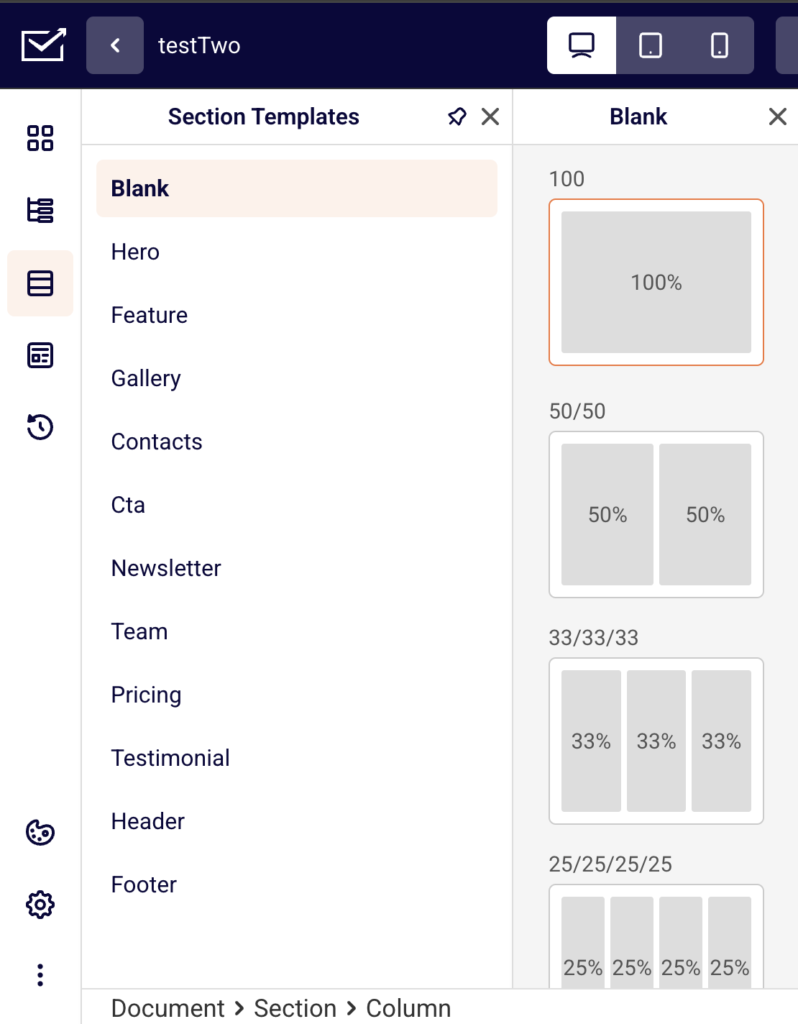
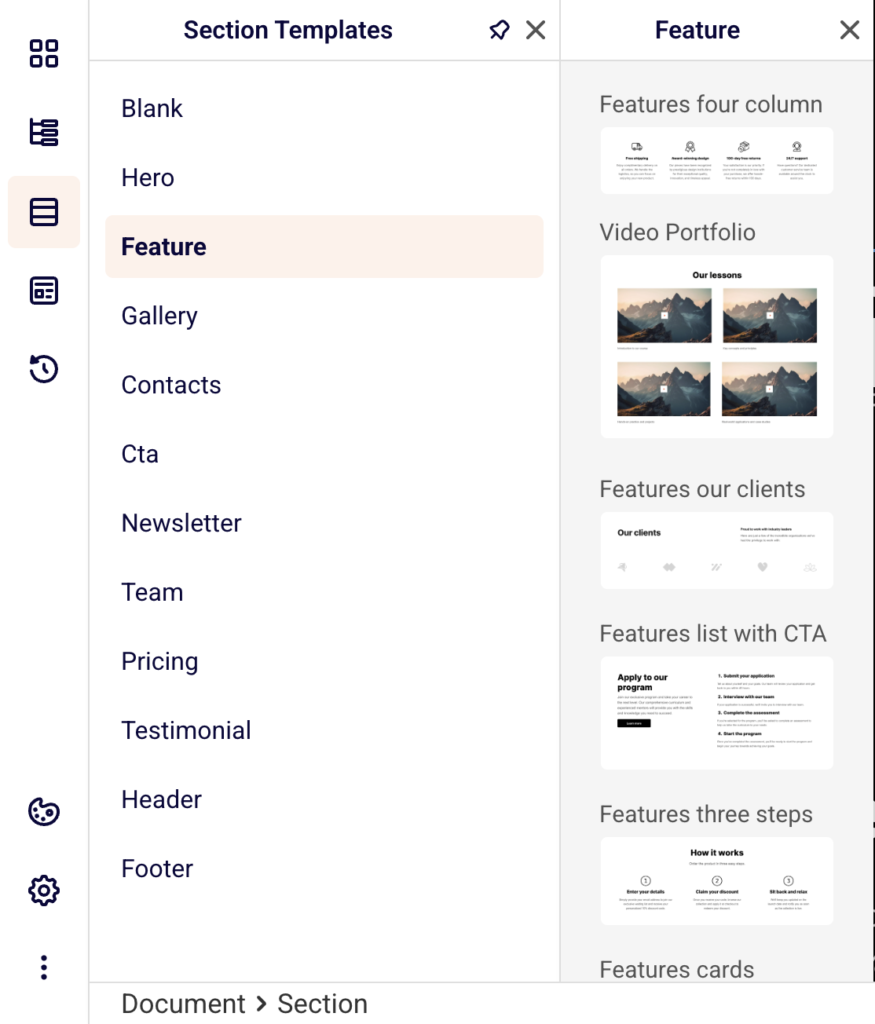
You can also use the Section Templates panel in the left sidebar to insert pre-built sections such as Hero, CTA, Header, or Footer. Use the block toolbar to reorder blocks with the Move up and Move down arrows, Duplicate a block, or Delete it.
Step 2 — Edit text, images, and button content directly on the canvas
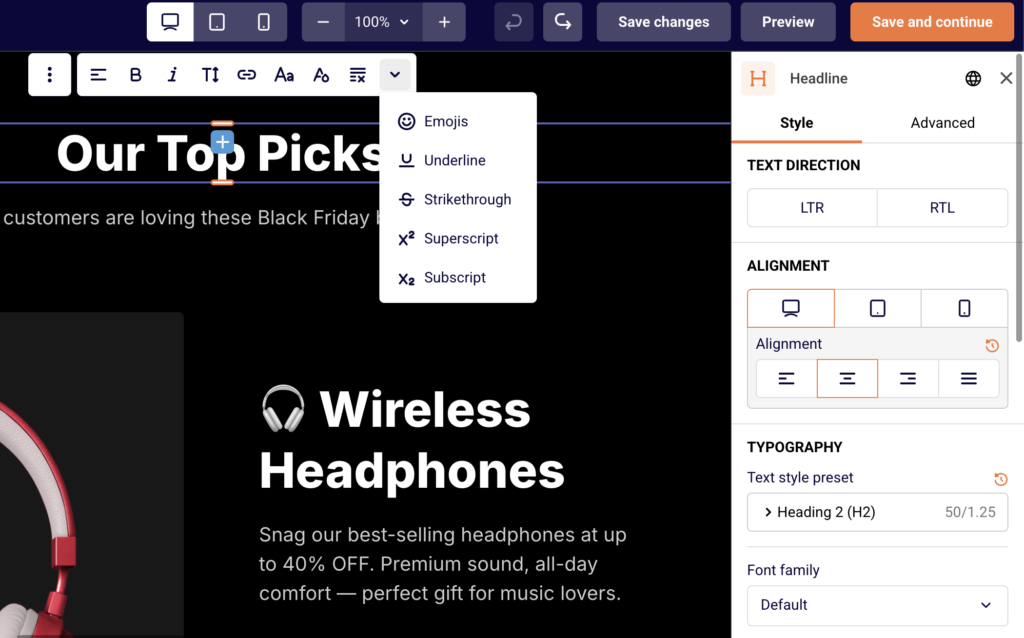
Click any text block (such as a Headline or Paragraph) on the canvas to select it, then double-click to enter inline editing mode and type your content directly. The right panel opens the block’s Style tab where you can adjust Font family, Font weight, Font size, Line height, Letter spacing, Color, and Alignment. Use the Html tag buttons (H1–H6) on a Headline block to set the heading level.
For an Image block, click it to open the image settings in the right panel where you can upload or replace the image. For a Buttons block, click the button on the canvas to edit its label, and use the right panel to configure the link URL, button color, and styling.
Step 3 — Customize section layout, spacing, and backgrounds
Click on any section on the canvas to open its settings in the right panel. Under the Style tab, set the Maximum width, choose an Alignment (left, center, or right), and configure Vertical align to control how blocks sit within the section.
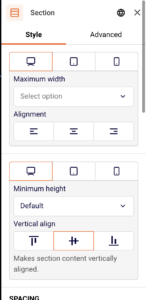
Adjust the SPACING sliders for Between columns, Between rows, and Between blocks to control internal spacing. In the BACKGROUND area, set a Color value or add a background Image. Use BORDER to apply a Border style and Border radius, and the SHAPE DIVIDER to add decorative section edges at the top or bottom.
Step 4 — Adjust page-level theme and typography settings
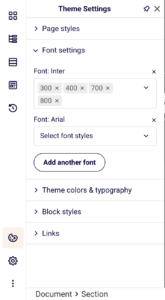
Click the Theme Settings icon (the globe icon in the lower-left sidebar) to open page-wide design controls. Expand Page styles to set the PAGE BACKGROUND color or image, configure PAGE SPACING padding, and adjust BLOCK SPACING between sections and blocks. Open Font settings to manage which fonts are loaded on your page and add new ones using the Add another font button.
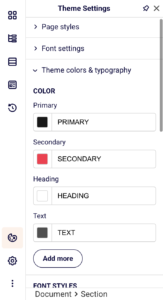
Expand Theme colors & typography to define your Primary, Secondary, Heading, and Text colors, and edit FONT STYLES presets like Title font 1–4, Body font, and Button font to maintain consistent typography across the entire page.
Step 5 — Preview your design on desktop, tablet, and mobile
Use the three device icons in the top toolbar to switch between desktop, tablet, and mobile canvas views. The builder resizes the canvas to reflect each breakpoint (tablet: 768px–991px, mobile: 0px–767px), so you can see how your layout and content adapt.

Many block settings in the right panel include separate device toggles, allowing you to set different font sizes, spacing, or alignment for each screen size. Click Preview in the top toolbar to open a full preview of the published page in a new tab. Click Save changes to save your work, or Save and continue to save and proceed to the next step.
Design tips
Use section templates for faster layout building — Instead of building from scratch, click the Section Templates icon in the left sidebar and choose from pre-built sections like Hero, CTA, Pricing, or Testimonial to quickly scaffold your page structure.
Set theme colors and fonts before styling individual blocks — Define your brand colors and typography in Theme Settings first. Blocks that use the theme defaults will automatically inherit these values, saving you from configuring each block separately.
Check spacing on all three breakpoints — Spacing that looks balanced on desktop may feel too tight or too loose on mobile. Switch between device views in the top toolbar and use the device toggles in the right panel to fine-tune padding and block spacing for each screen size.
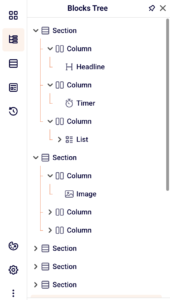
Use the Blocks Tree to navigate complex pages — Click the Blocks Tree icon in the left sidebar to see a structured overview of every section, column, and block on your page. This makes it easy to select deeply nested blocks or reorder elements without scrolling through the canvas.
Save frequently and use version history — Click Save changes regularly. If you need to revert, click the History icon in the left sidebar to view saved versions and Restore a previous one.
Common issues
Block not appearing after dragging → The block may have landed outside the section column. Click the + button inside the section on the canvas to add blocks directly, or use the Blocks Tree to verify where the block was placed.
Text changes not showing in the right panel settings → Inline text edits happen directly on the canvas and do not change the settings panel inputs. The right panel controls styling properties like font size, color, and alignment, not the text content itself.
Spacing looks different on mobile → Page and block spacing values set for desktop do not automatically adjust for smaller screens. Switch to the mobile view using the device icons in the top toolbar, then use the device toggles in the right panel’s spacing controls to set mobile-specific values.
Background image not visible → The background may be set at the section level while you are checking the page-level settings, or vice versa. Verify in both the section’s BACKGROUND settings (right panel) and Theme Settings > Page styles > PAGE BACKGROUND to confirm where the background is applied.
FAQs
Can I add a signup form to my landing page?
Yes. Open the Builder panel and drag a Leads form block onto the canvas inside a section. Configure the form fields and connect it to a subscriber group so new signups are stored in the correct list.
How do I change the landing page background color?
Click the Theme Settings icon (globe) in the lower-left sidebar. Expand Page styles and update the Background color hex value under PAGE BACKGROUND. The change applies to the entire page. You can also set a background color on individual sections through the section’s BACKGROUND settings in the right panel.
Can I preview my landing page on mobile?
Yes. Click the mobile device icon in the top toolbar to switch the canvas to mobile view (0px–767px). For a full preview, click Preview in the top toolbar to open the page in a new tab, then resize your browser window or use your browser’s responsive mode to simulate a mobile screen.
Do design changes save automatically?
No. You need to click Save changes in the top toolbar to preserve your edits. The builder also shows a Page content saved confirmation when a save completes. Use the History panel in the left sidebar to view and restore previously saved versions.
Can I use custom fonts on my landing page?
Yes. Open Theme Settings, expand Font settings, and click Add another font to add a new font to your page. You can then select it from the Font family dropdown in any text block’s style settings. The builder supports adding multiple fonts with different weight options.
How do I reorder blocks on the page?
Click a block on the canvas to select it. Use the Move up and Move down arrows in the block toolbar, or click the three-dot menu for additional options including Duplicate, Group, Lock, Copy styles, and Delete. You can also rearrange blocks by dragging them via the move handle (the four-arrow icon) in the block toolbar.