

Form field types and configuration
This guide walks you through the available form field types in Sender and how to configure them when building a signup form or popup.
Where to Find This Feature
In the Sender dashboard, go to: Forms
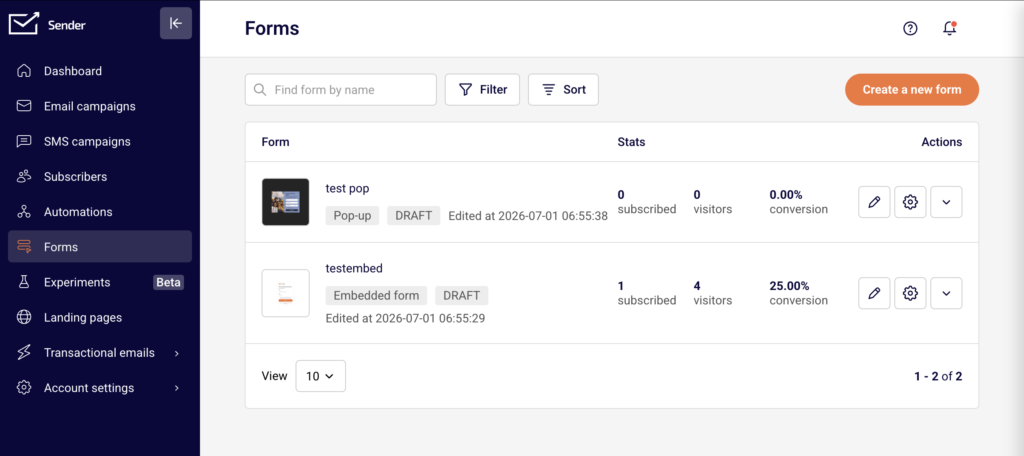
Click Forms in the left sidebar to open the forms list. You will see all your existing forms with their type, status, stats, and action icons. To configure fields, click the pencil (edit) icon on any form, or click Create a new form to start fresh. Field configuration is located under the Settings tab in the form builder.
Steps to Configure Form Fields
Step 1 — Open the form builder and go to Settings
From the Forms page, either click Create a new form to build a new form, or click the pencil icon next to an existing form. In the form builder, click the Settings tab in the right-side panel.
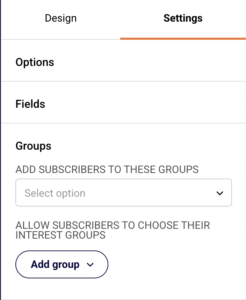
You will see three collapsible sections: Options, Fields, and Groups. Click Fields to expand it. The fields currently on your form are listed here, each with its own configuration controls.
Step 2 — Review and configure default fields
Every form includes an Email field by default. This field is always required and cannot be removed. Most templates also include a Name field.
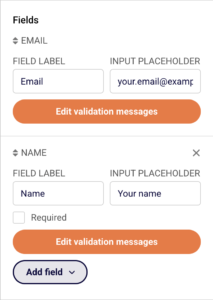
For each field, you can edit two settings: Field Label (the label text shown above the input) and Input Placeholder (the hint text shown inside the input before the user types). For the Name field and other non-email fields, you will also see a Required checkbox — enable it to make the field mandatory.
Step 3 — Add more fields to your form
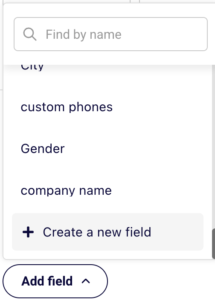
Click the Add field dropdown below the existing fields. A list appears with available built-in fields: Last name, Phone number, and Birthday. Select any field to add it to your form. Each newly added field appears in the Fields panel with the same configuration options: Field Label, Input Placeholder, and a Required checkbox. If you need a field that isn’t listed, click Create a new field at the bottom of the dropdown to open the custom field dialog.
Step 4 — Create a custom field
In the Create new field dialog, enter a Field name to identify the field. Open the Field type dropdown to choose from five types: Text (a standard single-line input), Date (a date picker), Datetime (a date and time picker), Number (numeric input only), and Drop-down (a selectable list of options).
You can also set a Default value if needed. Click Create to add the custom field to your form. It will now appear in the Add field dropdown and can be added like any other field.
Step 5 — Edit validation messages
Each field has an Edit validation messages button. Click it to open the validation messages dialog for that field. Here you can customize the messages visitors see when they submit the form incorrectly.
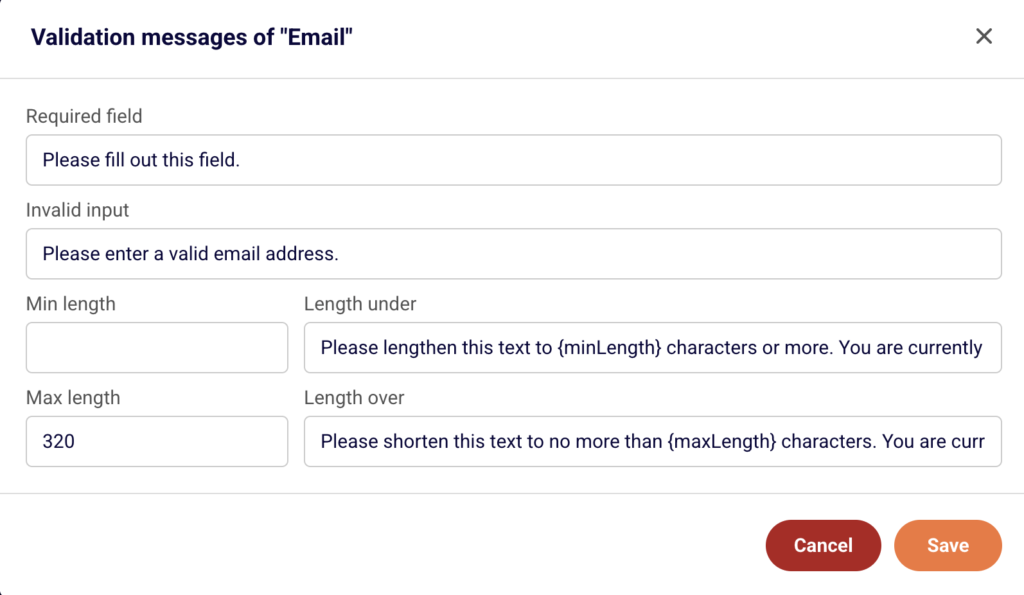
The available settings are: Required field (message when a required field is left blank), Invalid input (message when the input format is wrong), Min length and Length under (minimum character count and its error message), and Max length and Length over (maximum character count and its error message). Click Save to apply changes.
What Happens Next
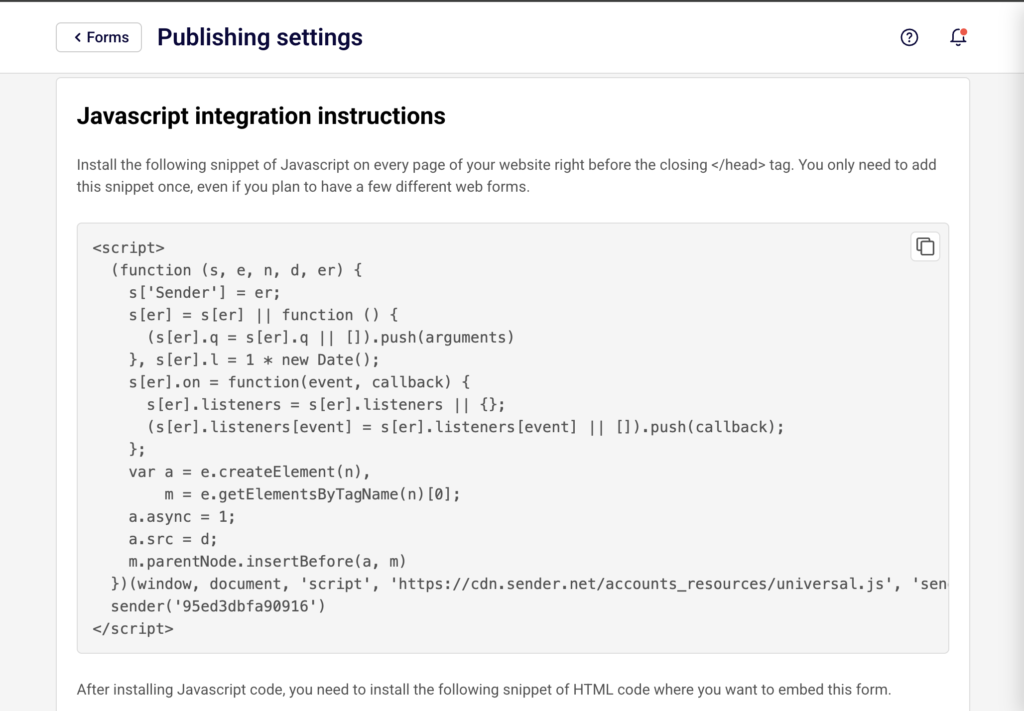
After configuring your fields, click Save and continue in the top-right corner of the form builder to save your progress. The form returns to the Publishing settings page, where you can publish it or copy the embed code.
New signups collected through your form are stored in whichever subscriber group you selected under the Groups section in Settings. If no group is selected, signups go to your default subscriber list.
Your form appears on the Forms list page with its current status shown as a badge — DRAFT before publishing or Active once published. You can return to edit fields at any time by clicking the pencil icon next to the form.
Common Issues
Fields not appearing on the form → This happens when a field is created but not added to the form. Open the Add field dropdown in the Fields section and select the field you want to include.
Email field cannot be removed or made optional → The Email field is required by default on every form and cannot be deleted or set to optional. This is by design, as an email address is needed to create a subscriber record.
Custom field not showing in the Add field dropdown → The custom field may not have been saved. Open the Add field dropdown, click Create a new field, and make sure you click Create after filling in the field name and type.
Validation messages not updating → Changes to validation messages must be saved using the Save button inside the validation dialog. If you closed the dialog without saving, reopen it via Edit validation messages and save again.
FAQs
What field types can I add to a signup form in Sender?
Sender provides several built-in fields you can add: Email (included by default), Name, Last name, Phone number, and Birthday. You can also create custom fields with the following types: Text, Date, Datetime, Number, and Drop-down.
Can I make a field required?
Yes. In the Fields section under Settings, enable the Required checkbox next to any field. The Email field is always required and does not have this toggle because it cannot be made optional.
What are validation messages and how do I change them?
Validation messages are the error texts shown to visitors when they submit a form with missing or incorrect input. Click Edit validation messages on any field to customize the messages for required fields, invalid input, minimum length, and maximum length.
Can I reorder fields on the form?
Fields appear on the form in the order they are listed in the Fields panel. You can rearrange them by dragging the handle icon next to each field name in the Settings tab.
Is the field configuration the same for all form types?
Yes. Whether you are building an Embedded form, Popup form, or Spin-to-win wheel, the field types and configuration options under the Settings tab work the same way. The only difference is that popup forms have an additional Behaviour tab for display rules, which does not affect field configuration.