

Form analytics and performance stats
This guide explains how to view form analytics, monitor submission activity, and review performance stats for your signup forms in Sender.
Where to Find This Feature
In the Sender dashboard, go to Forms in the left sidebar.
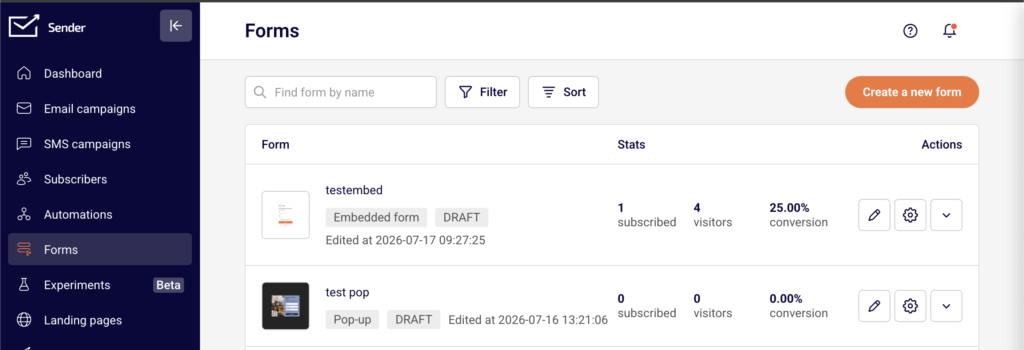
The Forms page displays all your forms in a list. Each row shows the form name, form type badge (such as Pop-up or Embedded form), status badge (such as DRAFT or ACTIVE), and the date it was last edited. The Stats columns on the right side of each row display three key metrics: subscribed (total signups), visitors (total views), and conversion (conversion rate as a percentage). The Actions column provides quick-access icons for editing, opening settings, and a dropdown menu with additional options including Overview.
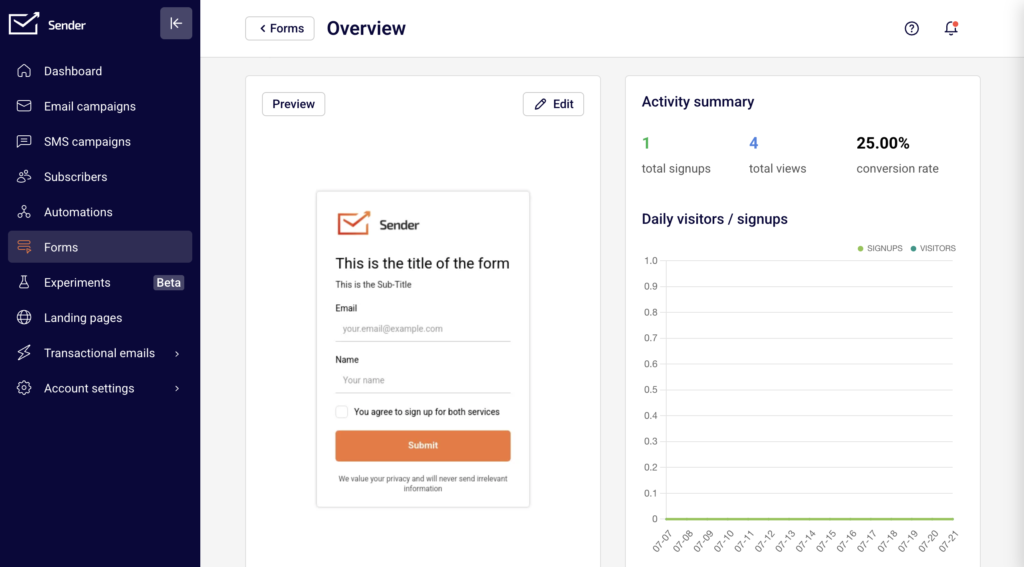
For detailed analytics, open the Overview page for any form. You can access it by clicking the dropdown arrow (chevron icon) next to the form in the Actions column and selecting Overview. The Overview page displays the Activity summary, a Daily visitors / signups chart, and a Subscribers table listing every person who submitted the form.
Steps to Review Form Analytics
Step 1 — Check stats from the Forms list
Go to Forms in the left sidebar. The list displays subscribed, visitors, and conversion next to each form. Use these columns to compare performance across all your forms at a glance. To narrow down the list,
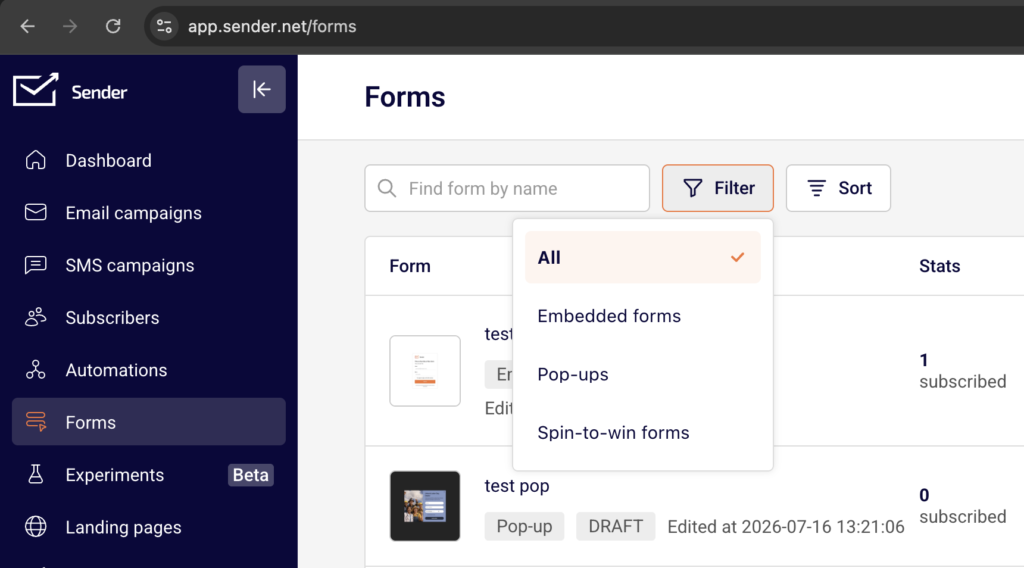
Use the Filter button to show only Embedded forms, Pop-ups, or Spin-to-win forms. Use the Sort button to reorder by Name, Edited at, or Created at in ascending or descending order. You can also type a form name in the Find form by name search field.
Step 2 — Open the Overview page for detailed metrics
Click the dropdown arrow in the Actions column next to the form you want to review, then select Overview. The Activity summary section at the top displays three metrics: total signups, total views, and conversion rate. Below that, the Daily visitors / signups chart plots SIGNUPS and VISITORS over a date range so you can identify trends and traffic patterns for that specific form.
Step 3 — Review individual subscriber data
Scroll down on the Overview page to the Subscribers section. This table lists every person who submitted the form, with columns for Email address, First Name, Last Name, and Date / time.

Use the Find by email search field to locate a specific subscriber. Use the Starting date – Ending date date picker to filter submissions by a specific time range.
Step 4 — Export subscriber data
To export the subscriber list from a specific form, use the Export CSV or Export XLSX buttons in the top-right corner of the Subscribers section on the Overview page. The export includes all subscribers who signed up through that form, filtered by any date range you have applied. This is useful for reporting or for reviewing form performance outside of Sender.
Form Status Reference
DRAFT — The form has been created but has not been published. It is not visible on your live site and does not collect submissions. You can edit, rename, duplicate, or delete a draft form. To make it live, click Publish on the Overview or Publishing settings page.
Active (Published) — The form is live and visible to visitors on your website. It collects submissions, and its stats update in real time on the Forms list and the Overview page. You can deactivate a published form to remove it from your live site without deleting it.
Inactive (Deactivated) — The form has been taken offline and is no longer visible to visitors. All configuration, design, and submission history are preserved. You can reactivate the form at any time to make it live again. Deactivating is a reversible action.
Management Tips
Use the Forms list for quick comparisons — The subscribed, visitors, and conversion columns on the Forms list let you compare all your forms side by side without opening each one individually.
Filter by form type to stay organized — If you manage multiple forms, use the Filter button to display only Pop-ups, Embedded forms, or Spin-to-win forms at a time. This helps you focus on a specific category.
Sort by date to find recent activity — Use the Sort button and select Edited at (newest to oldest) to bring your most recently updated forms to the top of the list.
Export data regularly for reporting — Use the Export CSV or Export XLSX buttons on the Overview page to save subscriber data from individual forms. Apply a date range filter before exporting to get data for a specific period.
Check the Overview page for trends — The Daily visitors / signups chart on the Overview page helps you spot traffic spikes or drops. Review this chart after launching a new campaign or making changes to your site to measure impact.
Common Issues
Stats show zero for a form you expected activity on → The form may still be in DRAFT status and has not been published. Check the status badge on the Forms list and click Publish if needed.
Conversion rate appears unusually low → The form may be receiving visitors but not signups. Open the Overview page and compare total views to total signups. Consider reviewing form design or placement (covered in other help center categories).
Subscriber list on the Overview page shows “No data found” → No one has submitted the form yet, or the date range filter is too narrow. Clear the date filter or expand the range to see if submissions exist outside the selected period.
Exported file does not include expected subscribers → Check if a date range filter is active in the Subscribers section before exporting. The export respects any filters you have applied. Remove the date range to export all submissions.
FAQs
Where can I see how many submissions a form has received?
The Forms list displays subscribed, visitors, and conversion stats next to each form. For a more detailed breakdown, click the dropdown arrow next to the form and select Overview to see the Activity summary with total signups, total views, and conversion rate.
What is the difference between “subscribed” and “visitors” on the Forms list?
Subscribed counts the number of people who submitted the form. Visitors counts the number of times the form was viewed. The conversion percentage is calculated from these two numbers.
Can I export the subscriber data from a specific form?
Yes. Open the form’s Overview page by selecting Overview from the dropdown menu in the Actions column. Scroll to the Subscribers section and click Export CSV or Export XLSX. You can apply a date range filter before exporting.
Can I filter the Forms list to show only one type of form?
Yes. Click the Filter button above the forms list and select Embedded forms, Pop-ups, or Spin-to-win forms. Select All to return to the full list.
How do I sort my forms by most recently edited?
Click the Sort button above the forms list and select Edited at (newest to oldest). You can also sort by name or creation date in ascending or descending order.
Does deactivating a form delete its stats?
No. Deactivating a form removes it from your live site but preserves all configuration, design, and submission history. Stats remain visible on the Forms list and the Overview page. You can reactivate the form at any time.
Can I see which subscribers came from a specific form?
Yes. Open the form’s Overview page and scroll to the Subscribers table. This table lists every person who submitted that specific form, along with their Email address, First Name, Last Name, and the Date / time of submission.