

Customizing form design (colors, fonts, spacing)
This guide explains how to customize the visual design of your signup form in Sender, including colors, fonts, spacing, borders, and other style settings across all form elements.
Where to Find This Setting
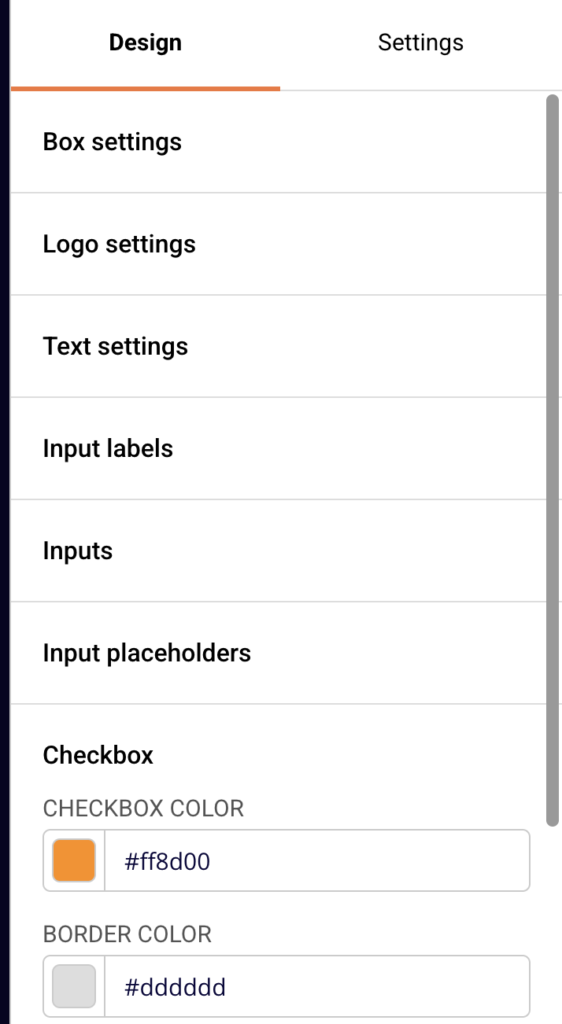
In the form builder, click the Design tab in the right-side panel to access all visual customization settings. The Design tab contains expandable sections for every styleable element on your form, including Box settings, Logo settings, Text settings, Input labels, Inputs, Input placeholders, Checkbox, Submit button, Close button, Exit text, Overlay, Shadow, and Image.
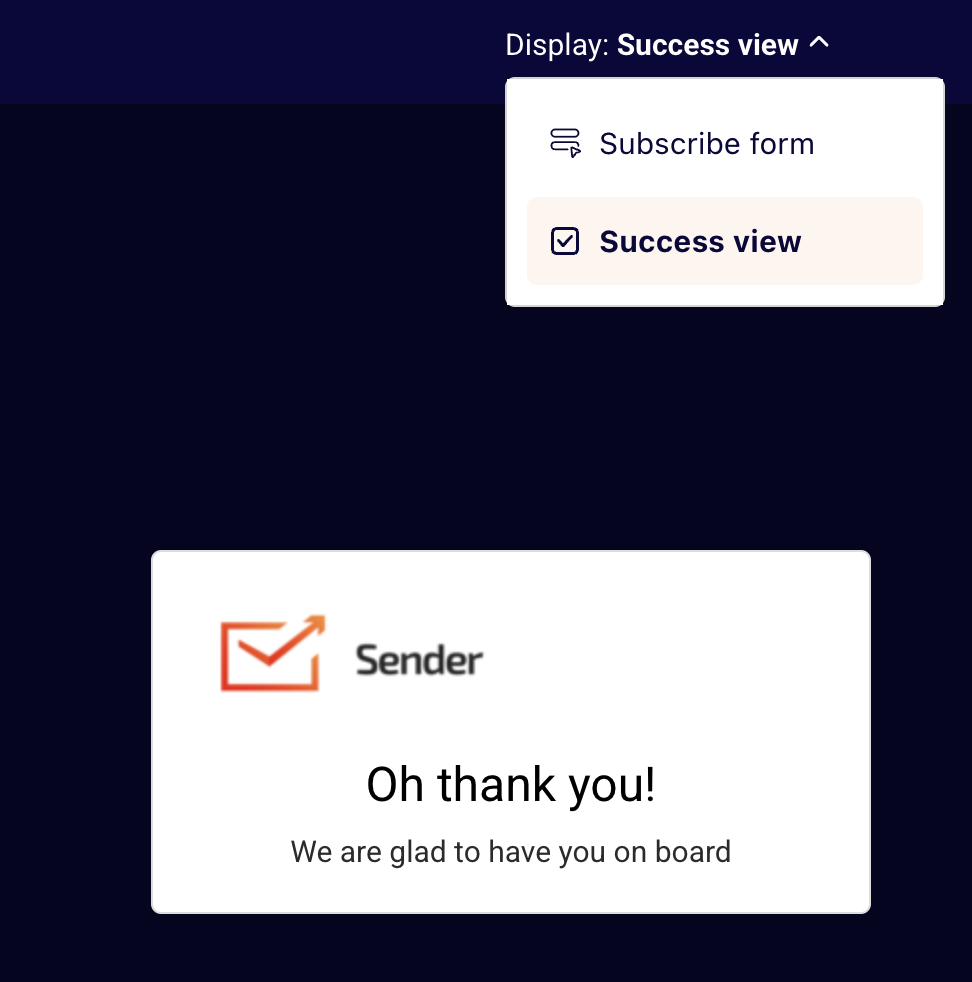
To customize the success view that appears after submission, open the Display dropdown at the top center of the form builder and select Success view. The Design tab updates to show the success view settings, which include Headline and CTA button sections.
Use the device preview icons in the top-right toolbar to switch between desktop and mobile views at any time.
Steps to Customize Form Design
Step 1 — Adjust the form container and background
Click the Design tab and expand Box settings at the top of the panel. Under PADDING, set the TOP, BOTTOM, LEFT, and RIGHT values to control the inner spacing of your form. Use the link/unlink icons next to PADDING to apply uniform or independent values to each side.
Under BORDER, set the WIDTH, STYLE dropdown, COLOR picker, and RADIUS to define the form’s outer border. Use the BACKGROUND COLOR picker to set a solid background color. To add a background image, expand the BACKGROUND section, click Add, then configure the SIZE, POSITION, and REPEAT dropdowns. The form preview updates as you make changes.
Step 2 — Customize text styles and fonts
Expand Text settings to control the typography for each text element on your form. Each text type — title, subtitle, compliance text, and bottom text — has its own toggle, font dropdown, font weight, color picker, font size, line height, and line height unit settings. Use the Display title, Display subtitle, Display compliance text, and Display bottom text toggles to show or hide each text element.
For each visible text element, select a font from the FONT dropdown, set the FONT WEIGHT, choose a color using the COLOR hex picker, and adjust the FONT SIZE using the +/- controls. Changes appear immediately on the form preview.
Step 3 — Style input fields and the submit button
Expand the Inputs section to customize form fields. Set the BORDER WIDTH, BORDER STYLE, BORDER COLOR, and BORDER RADIUS to control field borders. Enable Border only on bottom if you want a minimal underline style. Set the BACKGROUND COLOR, FONT FAMILY, FONT WEIGHT, TEXT COLOR, and FONT SIZE for the typed input text.
Expand Input placeholders to separately style the placeholder text inside fields, including FONT, FONT WEIGHT, TEXT COLOR, and FONT SIZE.
Expand Submit button to set the button TEXT, TEXT WHEN SUBMITTING, BACKGROUND COLOR, BORDER RADIUS, FONT FAMILY, FONT WEIGHT, TEXT COLOR, and FONT SIZE. The form preview reflects all changes in real time.
Step 4 — Configure overlay, shadow, and close button (popup forms)
For popup forms, expand Overlay to set the OVERLAY COLOR and OVERLAY OPACITY that control the dimmed background behind your popup.
Expand Shadow to add a box shadow to your form container. Set the COLOR, OPACITY, BLUR RADIUS, SPREAD RADIUS, OFFSET X, and OFFSET Y. Enable the Inset shadow toggle to apply the shadow inside the form box instead of outside.
Expand Close button to adjust the WIDTH, HEIGHT, OFFSET X, OFFSET Y, ICON SIZE, and ICON COLOR. Under Styles on focus, set the ICON COLOR, BACKGROUND COLOR, and BACKGROUND OPACITY that appear when a user hovers over or focuses on the close button.
Step 5 — Customize the success view design
Open the Display dropdown at the top center of the form builder and select Success view. The form preview switches to show the post-submission screen, and the Design tab updates accordingly.
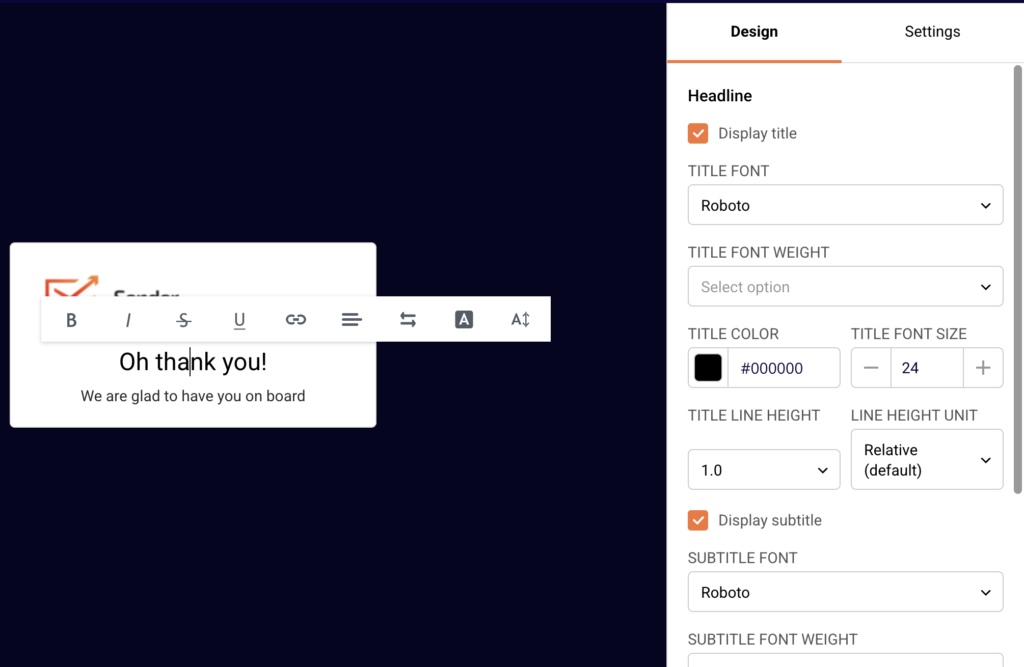
Expand Headline to set the title and subtitle styles using the same font, weight, color, size, and line height controls as the main form. Use the Display title and Display subtitle toggles to show or hide each text element.
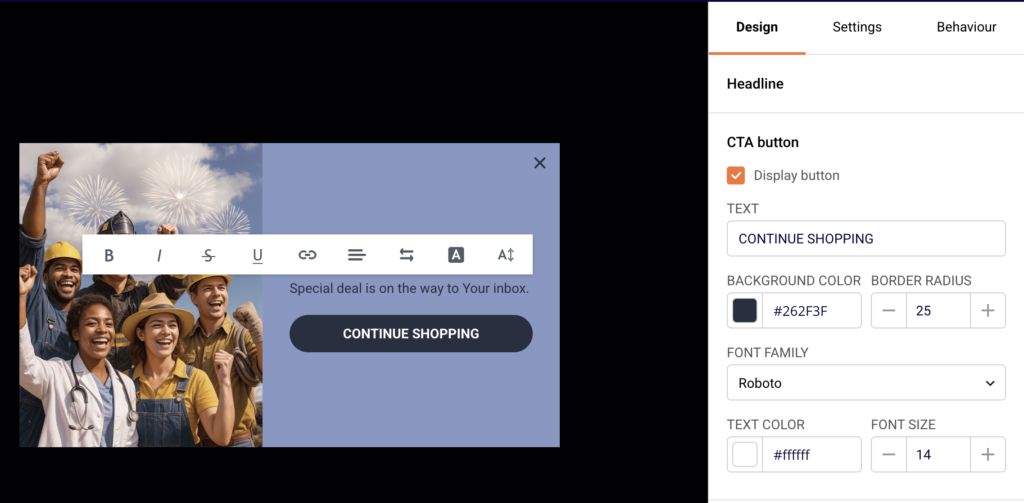
Expand CTA button and enable Display button to show a call-to-action button on the success view. Set the TEXT, BACKGROUND COLOR, BORDER RADIUS, FONT FAMILY, TEXT COLOR, and FONT SIZE. After finishing, use the device preview icons in the toolbar to verify your design on both desktop and mobile.
Available Design Settings
Box settings — Controls the form container’s inner spacing (padding for top, bottom, left, right), border (width, style, color, radius), background color, and background image (with size, position, and repeat options).
Logo settings — Upload or replace a logo image, set alternative text, adjust the logo width as a percentage, and choose left, center, or right alignment.
Text settings — Separate controls for title, subtitle, compliance text, and bottom text. Each has a display toggle, font family, font weight, color, font size, line height, and line height unit.
Input labels — Toggle label visibility with Display labels, then set the font, font weight, text color, and font size for field labels.
Inputs — Controls for input field borders (width, style, color, radius), background color, font family, font weight, text color, font size, and a Border only on bottom toggle.
Input placeholders — Sets the font, font weight, text color, and font size for placeholder text displayed inside empty input fields.
Checkbox — Sets the CHECKBOX COLOR for the checked state and the BORDER COLOR for the checkbox outline.
Submit button — Controls the button label text, submitting-state text, background color, border radius, font family, font weight, text color, and font size.
Close button — Sets the close icon’s width, height, position offsets (X and Y), icon size, icon color, and focus-state styles (icon color, background color, background opacity). Available on popup forms.
Exit text — Toggle visibility with Display exit text, then set the text label, alignment (left, center, right), font family, font size, and color.
Overlay — Controls the overlay color and opacity behind popup forms.
Shadow — Sets the box shadow color, opacity, blur radius, spread radius, horizontal and vertical offsets, and an inset shadow toggle.
Image — Upload or change the form’s side image, with background size, background position, and background repeat settings.
Success view — Headline — Separate title and subtitle controls with display toggles, font, weight, color, size, line height, and line height unit.
Success view — CTA button — Toggle button visibility, set the button text, background color, border radius, font family, text color, and font size.
Branding Tips
Use consistent colors across form elements — Set the same hex values for your Submit button background color, Checkbox color, and any accent elements to maintain a cohesive brand appearance.
Match fonts to your website — Select the same font family in Text settings, Inputs, Input placeholders, and Submit button to ensure your form looks like a natural extension of your site.
Check both preview modes after every change — Use the desktop and mobile preview icons in the toolbar to verify that padding, font sizes, and layout look correct on both screen sizes before saving.
Style the success view to match your form — Switch to Success view from the Display dropdown and apply the same font, color, and button style settings so the post-submission screen feels consistent with the subscribe form.
Adjust padding for visual balance — Use the Box settings padding controls to add or reduce spacing around your form content. Unlink padding values when you need more space on specific sides, such as extra top padding above a title.
Common Issues
Design changes not appearing on the live form → You may not have saved after making changes. Click Save and continue in the top-right corner of the form builder to apply your updates.
Form looks different on mobile than on desktop → Some padding and font size values may not scale well on smaller screens. Switch to the mobile preview using the device preview icon in the toolbar and adjust settings as needed.
Background image not displaying correctly → The SIZE, POSITION, or REPEAT settings under Box settings or Image may need adjustment. Try setting SIZE to Cover and POSITION to Center for most layouts.
Submit button text is hard to read → The TEXT COLOR and BACKGROUND COLOR in the Submit button section may lack contrast. Choose colors with sufficient contrast between the button fill and the text.
Close button not visible on the form → The ICON COLOR in the Close button section may match the form background. Change the ICON COLOR to a value that contrasts with your form’s background color.
FAQs
How do I change the form background color?
In the form builder, click the Design tab and expand Box settings. Use the BACKGROUND COLOR picker to select your preferred color. The form preview updates in real time.
Can I add my logo to the form?
Yes. Expand Logo settings under the Design tab and click Add to upload your logo image. You can adjust the WIDTH (%) and ALIGNMENT after uploading.
How do I change the submit button color and text?
Expand the Submit button section under the Design tab. Use the BACKGROUND COLOR picker to change the button fill color and edit the TEXT field to change the button label.
Can I remove the Sender logo from my form?
Check your plan features — Sender branding removal may be available on paid plans. If available, look for a toggle in the Design tab or publishing settings to hide the Sender logo.
How do I customize the success view that appears after submission?
In the form builder, open the Display dropdown at the top center and select Success view. The Design tab updates to show the Headline and CTA button sections, where you can customize the text styles, colors, and button appearance.
Can I preview my form design on mobile? Yes. Use the device preview icons in the form builder toolbar to switch between desktop and mobile views. The mobile preview displays your form inside a phone mockup so you can check the layout after making design changes.
How do I change the font on my form? Each text element has its own font dropdown. Expand Text settings to change the title, subtitle, compliance text, and bottom text fonts. Expand Inputs, Input placeholders, and Submit button to change fonts for those elements separately.
Can I add a border to my form?
Yes. Expand Box settings under the Design tab and set the BORDER WIDTH to a value greater than zero. Then choose a STYLE, COLOR, and RADIUS to define the border appearance.