

Attachments and Size Limits
This guide explains how to add attachments to transactional emails and work within size limits in Sender.
Where to Find This Feature
In the Sender dashboard, go to: Transactional emails → Templates You will see a list of your saved transactional email templates with stats and action menus.
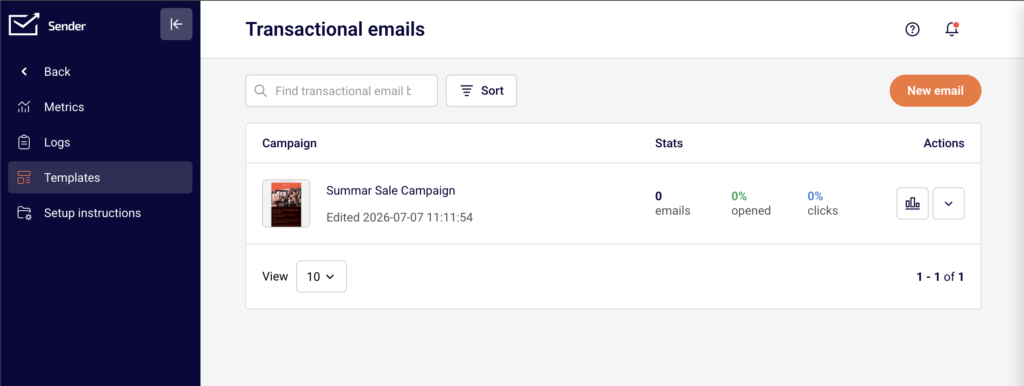
Attachments are not configured inside the template editor. Instead, you include them in the attachments parameter of your API request at send time. The API step of each template displays a code example that includes the attachments field.
Steps to Add Attachments to a Transactional Email
Step 1 — Open your template and locate the API example
Go to Transactional emails → Templates and click the actions dropdown next to the template you want to send. Select Edit, then click Save & continue through the Settings and Design steps until you reach the API step.
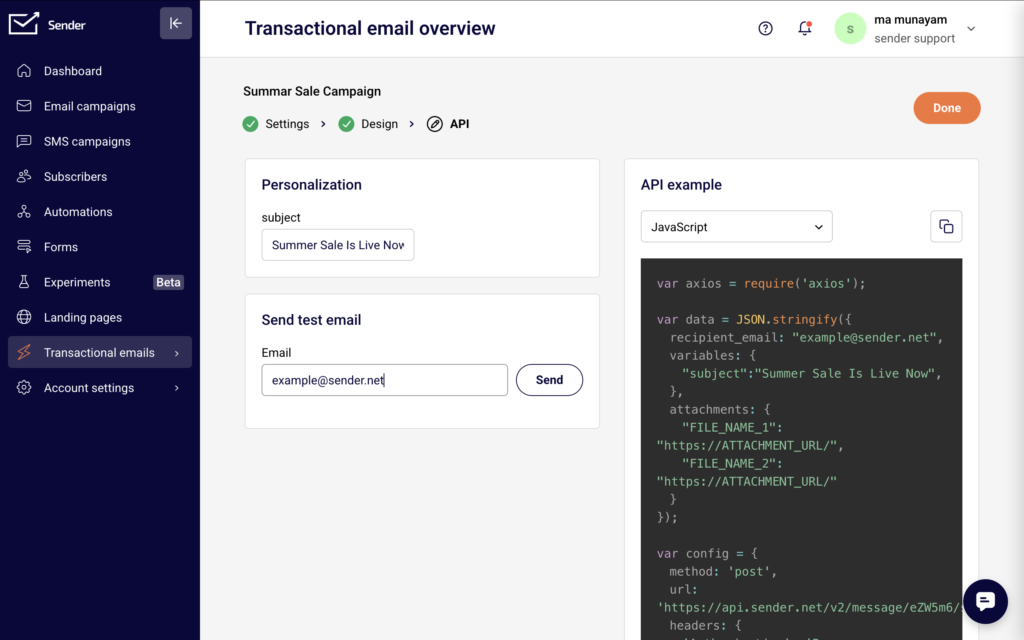
You will see a code example on the right side of the page with your template’s unique campaign ID already included. The example contains an attachments object showing the expected format.
Step 2 — Add the attachments parameter to your API request
In your API request body, include the attachments object. Each key is the filename the recipient will see, and each value is a publicly accessible HTTPS URL pointing to the file. The format is:
json
"attachments": {
"invoice.pdf": "https://yourdomain.com/files/invoice.pdf",
"receipt.pdf": "https://yourdomain.com/files/receipt.pdf"
}
You can attach multiple files by adding more key-value pairs. Each file must be hosted at a URL that Sender’s servers can reach when the email is sent.
Step 3 — Verify size limits and send
Confirm that each attachment is under the 25 MB per-file limit and that the file URL uses HTTPS. Supported formats include PDF, Office documents, images, and ZIP files. Once your request body is complete with the to, variables, and attachments fields, send the POST request to https://api.sender.net/v2/message/{id}/send, replacing {id} with your template’s campaign ID. A successful response returns "success": true and an emailId.
Step 4 — Test with a test email
Before going live, return to the API step of your template in the dashboard. Enter your email address in the Send test email section and click Send. Note that the dashboard test sender does not include the attachments parameter — you will need to send a test API request directly to verify that attachments are delivered correctly.
How to Use the Template
To send a transactional email with attachments using a template, send a POST request to https://api.sender.net/v2/message/{id}/send, where {id} is the campaign ID shown in your template’s API tab. Include the attachments object in the request body alongside to, variables, and any optional text or html overrides. Each attachment key is the display filename and the value is the HTTPS URL of the hosted file. To send without a template, use https://api.sender.net/v2/message/send and include the from, to, subject, html or text, and attachments fields directly.
For SMTP sends, attachments are handled through standard MIME multipart encoding in your application’s mail library rather than through a JSON parameter.
Common Issues
Attachment not delivered → The file URL may not be publicly accessible or may require authentication. Ensure the URL is reachable over HTTPS without login credentials, cookies, or IP restrictions.
Request returns a 422 validation error → The attachments value may be malformed. Confirm that the field is a valid JSON object with string keys (filenames) and string values (URLs), not an array.
File exceeds size limit → Each individual attachment must be under 25 MB. Compress large files or host them externally and link to them in the email body instead of attaching.
Attachment filename appears incorrect to recipient → The filename the recipient sees is determined by the key in the attachments object, not the URL. Set the key to the desired display name including the file extension, such as "report-2026.pdf".
FAQs
Can I add attachments through the drag-and-drop email editor?
No. The template editor handles layout and content design only. Attachments are included at send time by adding the attachments parameter to your API request.
What is the maximum file size for a transactional email attachment?
Each individual attachment can be up to 25 MB. Files must be hosted at a publicly accessible HTTPS URL.
What file formats are supported for attachments?
Sender supports PDF, Office documents (DOCX, XLSX, PPTX), images (PNG, JPG, GIF), ZIP archives, and other common file types.
Can I attach different files to different recipients using the same template?
Yes. Because attachments are passed in each individual API request rather than stored in the template, you can specify different file URLs for each recipient by changing the attachments object per request.
Do attachments work with the send-without-template endpoint?
Yes. The POST https://api.sender.net/v2/message/send endpoint accepts the same attachments object format. Include it alongside the from, to, subject, and content fields in the request body.
Can I use dynamic variables in attachment URLs?
No. The attachments values are static HTTPS URLs. To send personalized files, generate unique URLs for each recipient in your application logic before making the API call.