

Transactional email rate limits
This guide explains how to identify, monitor, and handle rate limits when sending transactional emails through the Sender API and SMTP relay.
Prerequisites
- An active Sender account with a verified sending domain
- An API access token (generated under Account settings → API access tokens)
- Access to your application code or sending infrastructure to implement rate-limit handling
Where to Find This Setting
In the Sender dashboard, go to Transactional emails → Setup instructions.
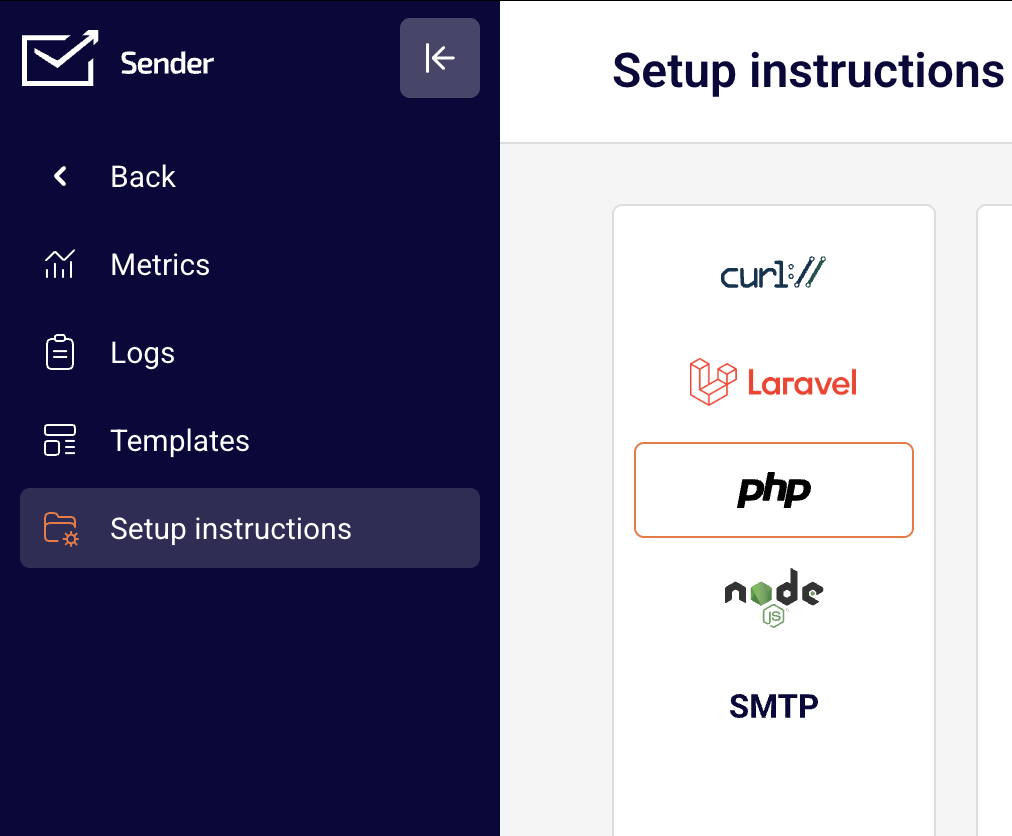
This page displays integration options for cURL, Laravel, PHP, Node.js, and SMTP. The API endpoints and SMTP server details shown here are the sending methods subject to rate limits. Rate limit responses are returned directly in the API response headers or as SMTP connection errors — there is no dedicated rate limit settings page in the dashboard.
Steps to configure rate limit handling
Step 1 — Understand the rate limit structure
Sender enforces rate limits on a per-minute basis for API requests. When you send a transactional email via POST https://api.sender.net/v2/message/send or POST https://api.sender.net/v2/message/{id}/send, the response includes rate limit headers:
X-RateLimit-Limit— the maximum number of API requests you can make per minuteX-RateLimit-Remaining— the number of requests you have left in the current windowX-RateLimit-Reset— the date and time when the limit resets
Check these headers after each API call to track your remaining allowance in real time.
Step 2 — Monitor rate limit headers in API responses
After each successful POST request to https://api.sender.net/v2/message/send, read the response headers in your application code. Parse the X-RateLimit-Remaining value and compare it against X-RateLimit-Limit.
If X-RateLimit-Remaining is approaching zero, pause or throttle your sending logic before the next request. Use the X-RateLimit-Reset timestamp to calculate how long to wait before resuming.
Step 3 — Handle 429 Too Many Requests errors
When you exceed the rate limit, the API returns a 429 status code. The response includes a Retry-After header indicating the number of seconds to wait before making a new request.
Implement exponential backoff in your application: wait for the duration specified in Retry-After, then retry the request. Do not immediately resend — repeated 429 responses without proper backoff may result in extended throttling.
For SMTP-based sending via smtp.sender.net on port 587, 2525, or 25, rate limit exceeded conditions are returned as temporary SMTP failure codes. Apply the same retry logic when your SMTP client receives a temporary rejection.
Step 4 — Implement a sending queue for high-volume use
If your application sends a high volume of transactional emails, implement a queue system that processes messages at a controlled rate. Space your API calls evenly within each minute rather than sending them in bursts.
For each request, check the X-RateLimit-Remaining header and dynamically adjust your sending interval. This prevents hitting the limit and avoids delivery delays caused by 429 retries.
Step 5 — Verify rate limit behavior with a test request
Send a single test email using the POST https://api.sender.net/v2/message/send endpoint with the Authorization: Bearer YOUR_API_TOKEN header. Inspect the full response headers to confirm the X-RateLimit-Limit, X-RateLimit-Remaining, and X-RateLimit-Reset values are present.
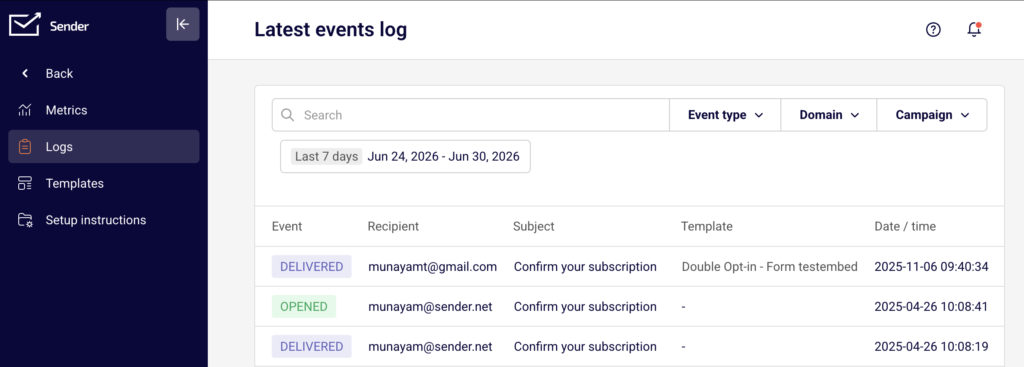
Navigate to Transactional emails → Logs in the dashboard to confirm the test email appears in the Latest events log with a delivered status.
How to Verify It Works
Send a test transactional email using the API or SMTP and inspect the response headers for X-RateLimit-Limit and X-RateLimit-Remaining. Confirm the email appears in the Logs page under Transactional emails → Logs. A successful result shows the email listed with a “delivered” event, and the X-RateLimit-Remaining value should have decreased by one from your previous request.
Common Issues
429 Too Many Requests returned on every call → This happens when your application sends requests faster than the per-minute limit allows. Implement a delay between requests using the Retry-After header value, and add exponential backoff logic to your retry mechanism.
X-RateLimit-Remaining reaches zero unexpectedly → Multiple services or application instances may be sharing the same API token, consuming the limit faster than expected. Use separate API tokens for different services, or coordinate sending across instances using a shared queue.
SMTP connection rejected with a temporary failure code → Sending too many SMTP messages in a short period triggers throttling on smtp.sender.net. Reduce the connection rate, add a delay between messages, and ensure your SMTP client retries on temporary failures rather than dropping the message.
401 Unauthorized after a rate limit pause → Your API token may have expired or been regenerated during the wait period. Verify that the token in your Authorization: Bearer header is still valid under Account settings → API access tokens.
FAQs
What is the rate limit for transactional email API requests?
Rate limits are enforced per minute per API token. The exact limit for your account is returned in the X-RateLimit-Limit response header with every API call. Check this header to see your current allocation.
Do rate limits apply to both API and SMTP sending?
Yes. Both the API endpoint (https://api.sender.net/v2/message/send) and the SMTP relay (smtp.sender.net) are subject to rate limits. The API returns rate limit details in response headers, while SMTP returns temporary rejection codes when limits are exceeded.
Does my plan affect my rate limit?
Transactional email sending is available on all Sender plans (Free, Standard, Professional, and Enterprise). Plan-specific differences affect features like log retention, webhook limits, and dedicated IPs, but the per-minute API rate limit applies across all plans. Contact support for information about higher-volume sending needs.
How should I handle rate limits in a high-volume application?
Use a message queue to control the pace of outgoing requests. Read the X-RateLimit-Remaining header after each request and throttle dynamically. Implement exponential backoff for any 429 responses using the Retry-After header value.
Where can I monitor whether my emails were affected by rate limiting?
Go to Transactional emails → Logs in the Sender dashboard. The Latest events log shows the delivery status of each email. If emails are missing from the log, they were likely rejected before processing due to a 429 response — check your application logs for the error.