

Common Transactional Issues
This guide helps you diagnose and resolve the most frequent delivery failures, API errors, and authentication problems with transactional emails in Sender.
Symptoms
Transactional emails are not arriving in your recipients’ inboxes.
The Logs page under Transactional emails → Logs shows no Emails sent events for recent sends, or events appear with Bounces status.
Your API requests to https://api.sender.net/v2/message/send return a non-2xx response code such as 401, 422, or 429.
SMTP connections to smtp.sender.net fail with authentication or timeout errors.
Possible Causes
Invalid or missing API token — Your request does not include a valid Authorization: Bearer header, or the token has been deleted from Account settings → API access tokens. This results in a 401 Unauthorized response.
Malformed API request or missing required fields — The request body is missing required fields such as from, to, or subject, or contains invalid values. The API returns a 422 response with details about which fields failed validation.
Domain authentication failure — Your sending domain does not have valid SPF, DKIM, or DMARC records. Receiving mail servers may reject or quarantine emails sent from unauthenticated domains.
SMTP connection or credential errors — The SMTP username, password, server address, or port is incorrect, causing connection refused or authentication failure errors when sending through smtp.sender.net.
Rate limiting — You are exceeding the allowed number of API requests per minute. The API returns a 429 Too Many Requests response with a Retry-After header indicating when you can send again.
Steps to Resolve
Step 1 — Verify Your API Token or SMTP Credentials
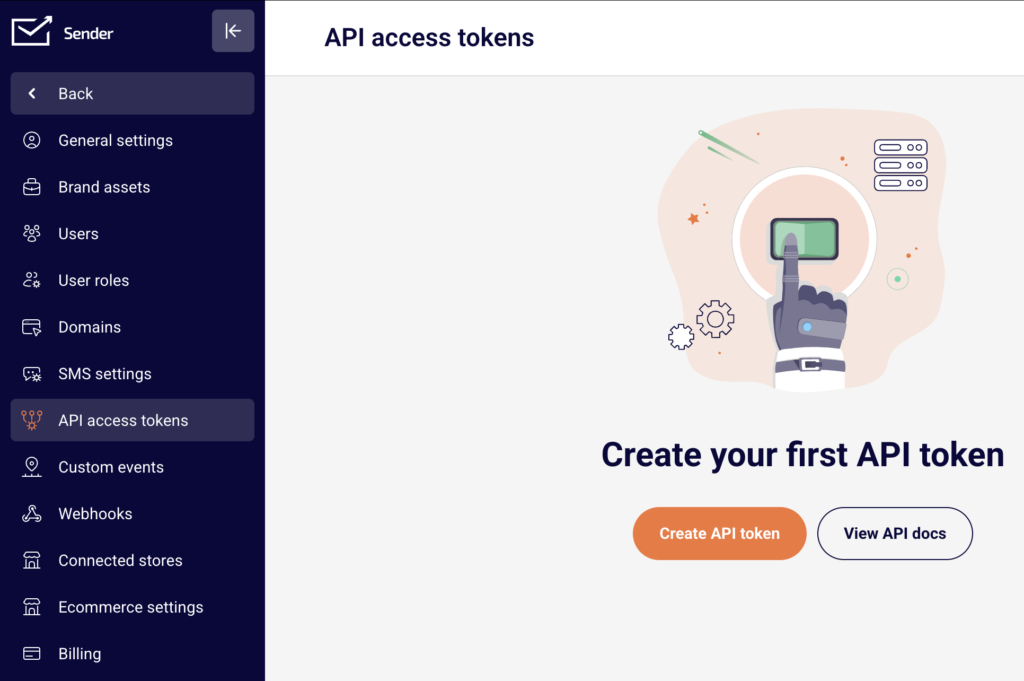
If you are sending via the API, go to Account settings → API access tokens and confirm that the token used in your Authorization: Bearer {token} header exists and has not been revoked. If no tokens are listed, create a new one by clicking Create API token.
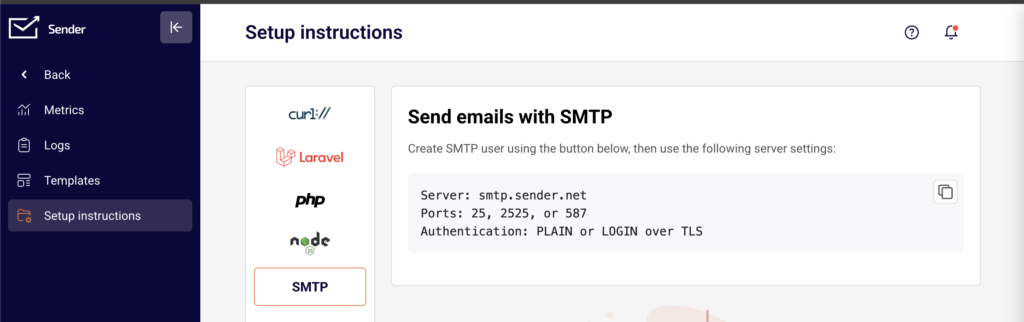
If you are sending via SMTP, go to Transactional emails → Setup instructions → SMTP and confirm your credentials match an active SMTP user. Verify that your application connects to smtp.sender.net on port 25, 2525, or 587 using PLAIN or LOGIN authentication over TLS.
Step 2 — Check the API Request for Missing or Invalid Fields
If the API returns a 422 error, inspect the response body for the errors object, which lists each invalid field. Ensure your request includes all required fields: from (with email and name), to (with email), and subject.
If you are sending with a template, the endpoint is https://api.sender.net/v2/message/{id}/send and requires a valid campaign id and a to object.
If the API returns 400 Bad Request, review the message field in the response for a description of the problem.
Step 3 — Verify Domain Authentication Records
Go to Account settings → Domains. Locate your sending domain and check the Authentication column for three green checkmarks representing SPF, DKIM, and DMARC. If any checkmark is missing or shows a warning, your DNS records are incomplete or misconfigured.

Click Recheck DNS records after updating your DNS settings. All three records must pass validation for reliable inbox delivery.
Step 4 — Check for Bounces and Rate Limits in Logs
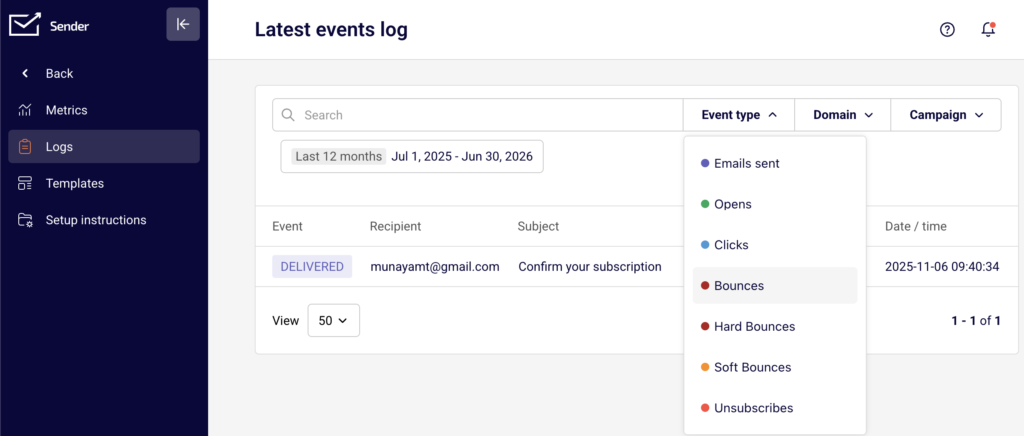
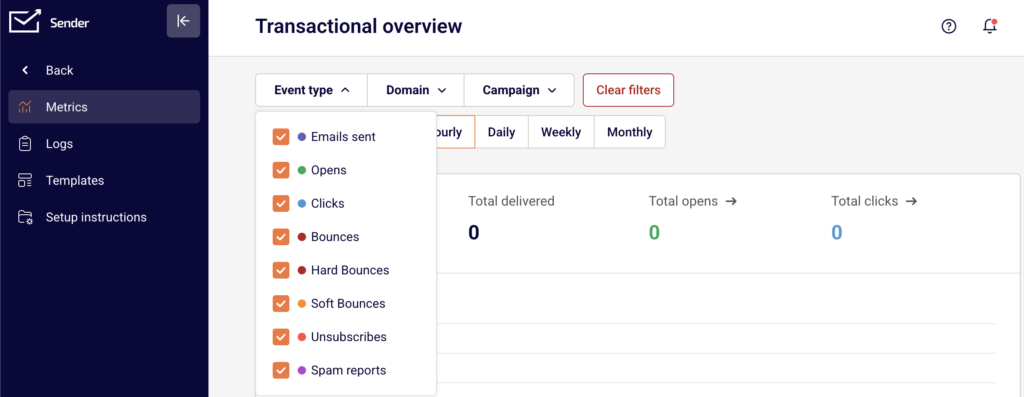
Go to Transactional emails → Logs. Use the Event type filter and select Bounces to isolate failed deliveries. Review the Recipient and Subject columns to identify which emails bounced.
If your API responses include a 429 status code, check the X-RateLimit-Remaining and Retry-After headers to determine how long to wait before retrying. Implement exponential backoff or throttle your send rate to stay within the limit shown in X-RateLimit-Limit.
Step 5 — Review Metrics for Delivery Trends
Go to Transactional emails → Metrics. Check the Hard bounces, Soft bounces, and Spam reports counters at the bottom of the page. A rising Hard bounces count indicates invalid recipient addresses in your sends. A rising Spam reports count may signal sender reputation problems that could lead to broader deliverability issues.
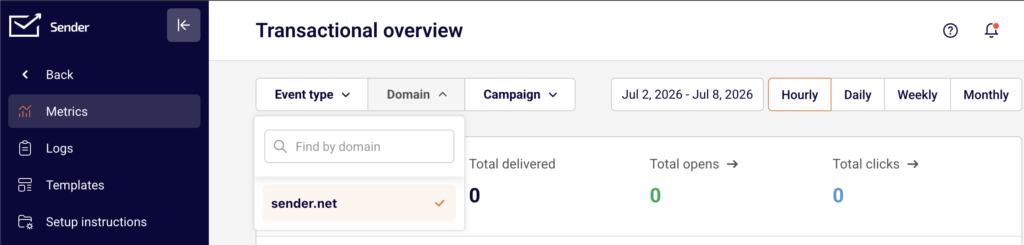
Use the Domain filter to isolate metrics for a specific sending domain if you use more than one.
How to Verify the Fix
After applying your fix, send a test transactional email using either the API or SMTP. Go to Transactional emails → Logs and filter by Event type → Emails sent to confirm the test email appears with the correct Recipient, Subject, and Date / time.
A successful API response returns {"success": true, "message": "Email sent"} along with an emailId. If the email also appears under Event type → Opens after you open it in the recipient inbox, delivery and tracking are working correctly.
Related Issues
Emails delivered to spam instead of inbox → This typically results from incomplete domain authentication or poor sender reputation. Check your SPF, DKIM, and DMARC status under Account settings → Domains and review the Spam reports metric under Transactional emails → Metrics.
Template variables not populating in received emails → If recipients see raw variable placeholders instead of personalized values, verify that the variables object in your API request includes matching key-value pairs for every placeholder used in the template.
Emails showing as sent in Logs but not received → The email may have been accepted by the recipient’s mail server but filtered or delayed. Check with the recipient to review their spam or junk folder, and verify that the sending domain is not listed on any public blocklists.
FAQs
I fixed the issue but old emails still show as bounced in Logs. Will they be retried?
No. Previously bounced emails are not retried automatically. You will need to resend them through a new API request or SMTP send after resolving the underlying issue.
How do I know if the problem is on my side or on Sender’s servers?
Check the HTTP response code from the API. Codes in the 4xx range indicate a problem with your request, such as invalid authentication or missing fields. Codes in the 5xx range indicate a server-side issue on Sender’s end. If you consistently receive 5xx errors, contact Sender support.
Can I test my API integration without sending a real email?
There is no sandbox mode for the transactional email API. To test, send a real request to https://api.sender.net/v2/message/send using a recipient address you control. Check Transactional emails → Logs to confirm the email was sent and delivered successfully.
My SMTP connection keeps timing out. What should I try?
Verify that your firewall or hosting provider is not blocking outbound connections on port 25, 2525, or 587. Try each port to determine which one your network allows. Confirm the server address is set to smtp.sender.net and that TLS is enabled in your SMTP client configuration.