

Transactional sender identity and domain requirements
This guide explains how to configure your sender identity and verify your sending domain for transactional emails in Sender.
Prerequisites
- An active Sender account
- A verified domain with DNS access to add SPF, DKIM, and DMARC records
- An API access token or SMTP user credentials (see Account settings → API access tokens or Setup instructions → SMTP)
- A valid email address on the domain you plan to send from
Where to Find This Setting
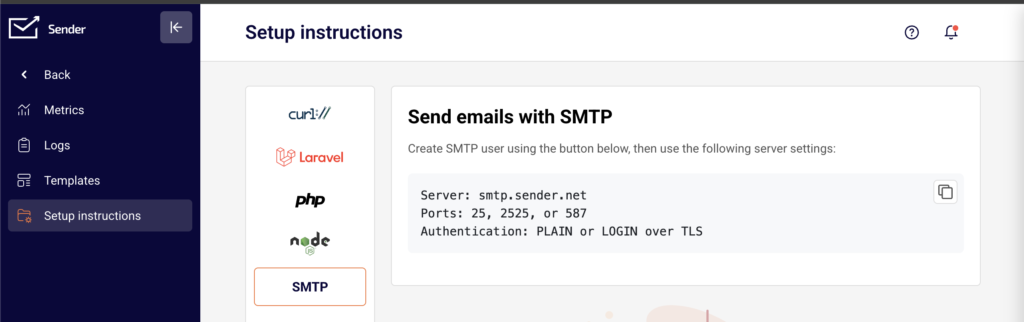
In the Sender dashboard, go to Transactional emails → Setup instructions to configure your sending method and sender identity at the API or SMTP level.
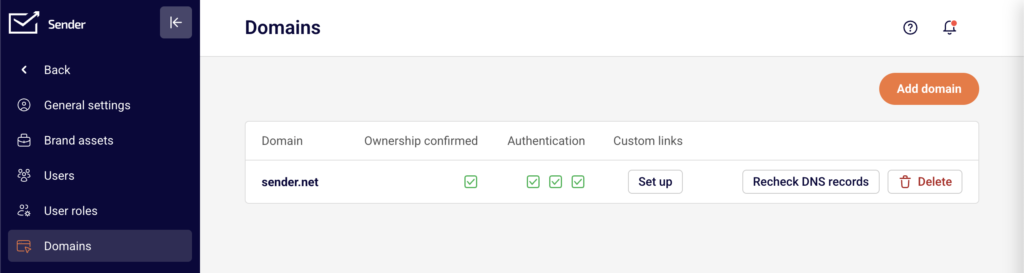
To manage domain verification and authentication, go to Account settings → Domains. This page displays a table with columns for Domain, Ownership confirmed, Authentication (showing individual status indicators for SPF, DKIM, and DMARC), and Custom links. Use this page to add domains, verify ownership, and confirm that DNS authentication records are in place.
To configure sender identity fields within a specific transactional email template, go to Transactional emails → Templates, then select a template and open its Settings step.
Steps to Configure Sender Identity and Domain
Step 1 — Add and verify your sending domain
In the Sender dashboard, go to Account settings → Domains and click Add domain. Enter your domain name in the Domain field (e.g., yourdomain.com) and click Next. Sender will prompt you to verify ownership by adding a DNS record.
After adding the required DNS record at your domain registrar, return to the Domains page and click Recheck DNS records. Once verified, a green checkmark appears under Ownership confirmed.
Step 2 — Configure domain authentication records
On the Domains page, check the Authentication column for your domain. Three indicators represent SPF, DKIM, and DMARC status. All three must show as verified for reliable delivery.
Add the SPF, DKIM, and DMARC DNS records provided by Sender to your domain’s DNS settings. After propagation, click Recheck DNS records to update the status. Each indicator turns green when the corresponding record is detected and validated.
Step 3 — Set sender identity in your API request or SMTP configuration
When sending via the API, set the from object in your request body to https://api.sender.net/v2/message/send. Include the email and name fields inside the from object:
json
``"from": {
"email": "notifications@yourdomain.com",
"name": "Your Company"
}
The email value must use a verified domain from the Domains page. The name value appears as the sender display name in the recipient’s inbox.
When sending via SMTP, configure your application’s “From” address and display name to use a verified domain. Connect to smtp.sender.net on port 587 (or 25 / 2525) with PLAIN or LOGIN authentication over TLS, using the credentials from your SMTP user.
Step 4 — Set sender identity in a transactional email template
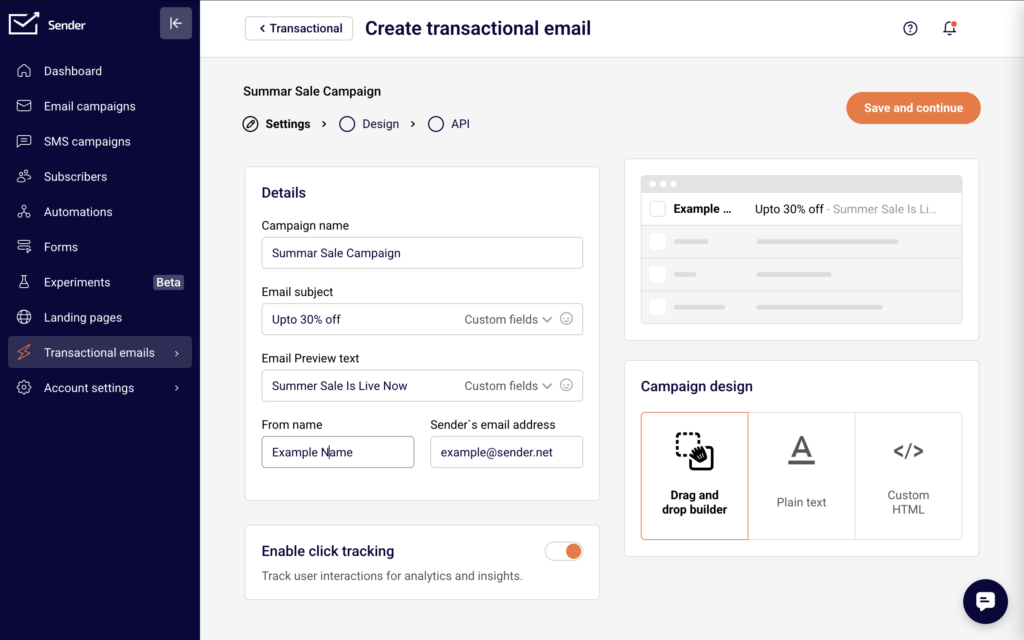
Go to Transactional emails → Templates and click the dropdown arrow next to a template, then select Edit. On the Settings step, locate the From name and Sender’s email address fields.
Enter your desired display name in the From name field (e.g., Your Company). Enter a verified email address in the Sender’s email address field (e.g., notifications@yourdomain.com). The address must belong to a domain that has passed ownership and authentication verification on the Domains page. Click Save and continue to apply.
How to Verify It Works
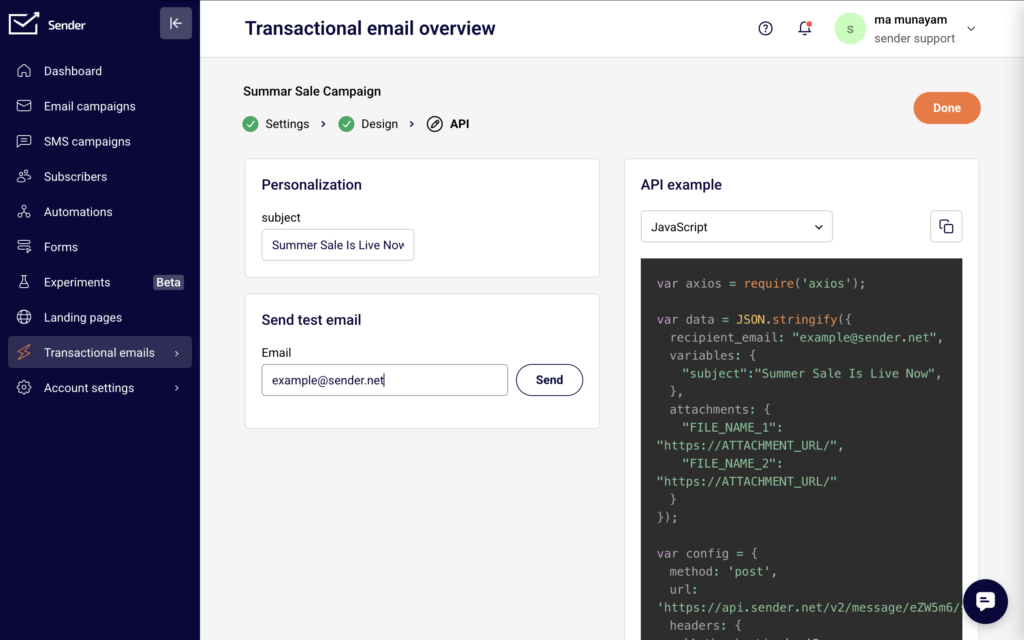
Send a test email using the Send test email section on the template’s API step, or trigger a test request to https://api.sender.net/v2/message/send using your API token.
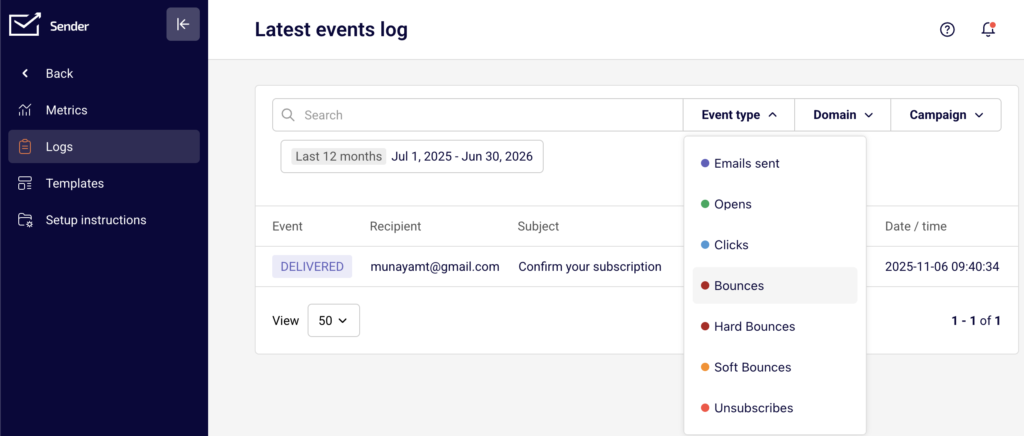
After sending, go to Transactional emails → Logs to confirm the email appears in the Latest events log with the correct recipient and subject. A delivered event confirms your sender identity and domain are configured correctly.
Common Issues
Email rejected or bounced due to unverified domain → The from email address uses a domain that has not been added or verified on the Domains page. Go to Account settings → Domains, add the domain, complete ownership verification, and ensure all three authentication indicators (SPF, DKIM, DMARC) are green.
SPF, DKIM, or DMARC not passing after adding DNS records → DNS propagation can take up to 48 hours. Confirm the records are correctly entered at your registrar, then click Recheck DNS records on the Domains page. Verify that no conflicting records exist for the same domain.
Sender name or address not matching expectations in recipient inbox → The from.name and from.email values in your API request override the template-level From name and Sender’s email address settings. Ensure the values in your API call or SMTP configuration match what you intend recipients to see.
FAQs
Can I use different sender addresses for different transactional emails?
Yes. Set the from.email field in each API request to a different verified address, or configure distinct Sender’s email address values in each transactional email template’s Settings step. All addresses must belong to verified domains.
Do I need to verify my domain separately for API and SMTP sending?
No. Domain verification on the Domains page applies to both sending methods. Once your domain is verified and authenticated, you can use it with either the API or SMTP.
Where do I create an SMTP user for transactional sending?
Go to Transactional emails → Setup instructions and select the SMTP tab. Click Add SMTP user to generate credentials. Use these credentials along with server smtp.sender.net and port 587 in your application’s SMTP configuration.
What happens if I send from an address on an unverified domain?
The API will reject the request, or the email will fail to deliver. Always confirm that the domain portion of your from.email address appears as verified with a green checkmark under Ownership confirmed on the Domains page.