

Using Liquid Variables
This guide explains how to insert and use Liquid variables in your transactional email templates in Sender to personalize content dynamically at send time.
Where to Find This Feature
In the Sender dashboard, go to: Transactional emails → Templates.
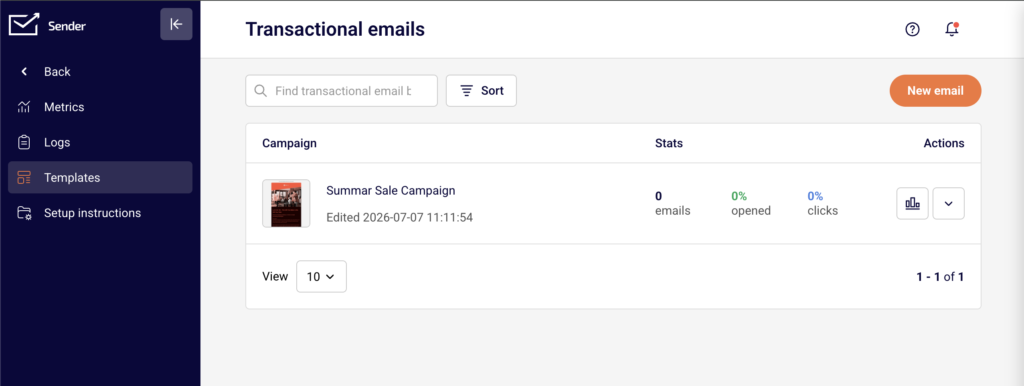
You will see a list of your saved transactional email templates, a search bar, sorting options, and a New email button. Liquid variables can be added during template creation or while editing an existing template, in both the Settings and Design stages.
Steps to Use Liquid Variables
Step 1 — Add Variables to the Subject or Preview Text
Open a transactional email template or click New email to create one. On the Settings page, click the Custom fields dropdown inside the Email subject or Email Preview text field. Select a variable from the list, such as firstname or email. Sender inserts the variable in Liquid syntax — for example, {{ firstname }}. You can combine variables with static text, like Your order is confirmed, {{ firstname }}.
Step 2 — Insert Variables in the Template Body
Click Save and continue to move to the Design stage. Choose a design option such as Drag and drop builder or Custom HTML.
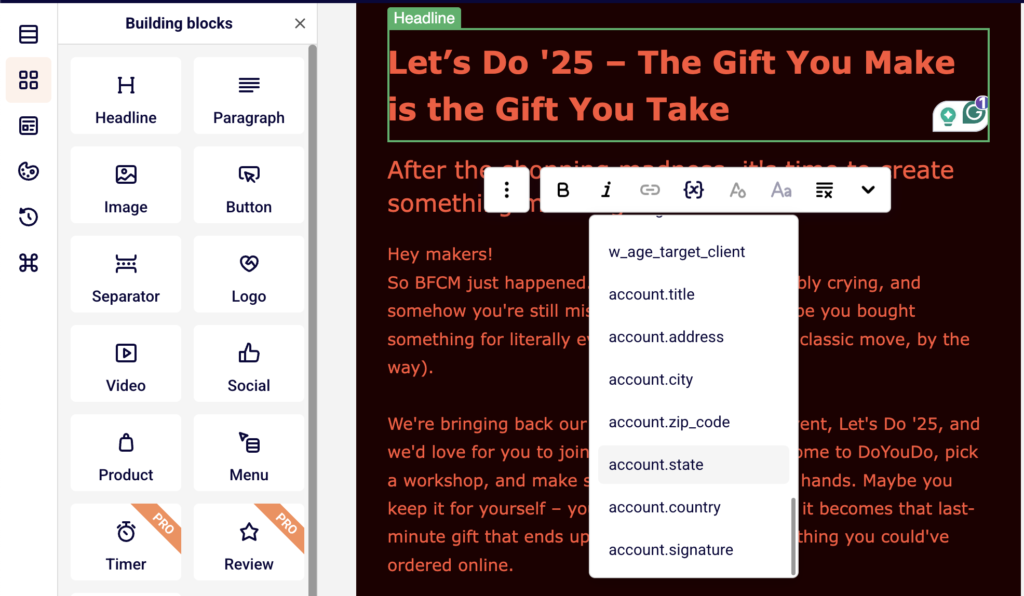
In the drag-and-drop editor, add a Paragraph or Headline block and click into the text area. In the text editing toolbar, click the Custom fields button to open the variable list. Select a variable to insert it at the cursor position.
Available variables include email, phone, firstname, lastname, birthday, unsubscribe_link, and account-level fields like account.title, account.address, account.city, account.zip_code, account.state, account.country, and account.signature.
Step 3 — Use Variables in Custom HTML
If you selected Custom HTML as your design option, or if you add a Custom HTML building block in the drag-and-drop editor, type Liquid variables directly using the {{ variable_name }} syntax.
For example, write <p>Hello, {{ firstname }}!</p> to greet the recipient by name. Any variable name you use in the template body or subject line will appear as a required field on the API page.
Step 4 — Preview and Test the Template
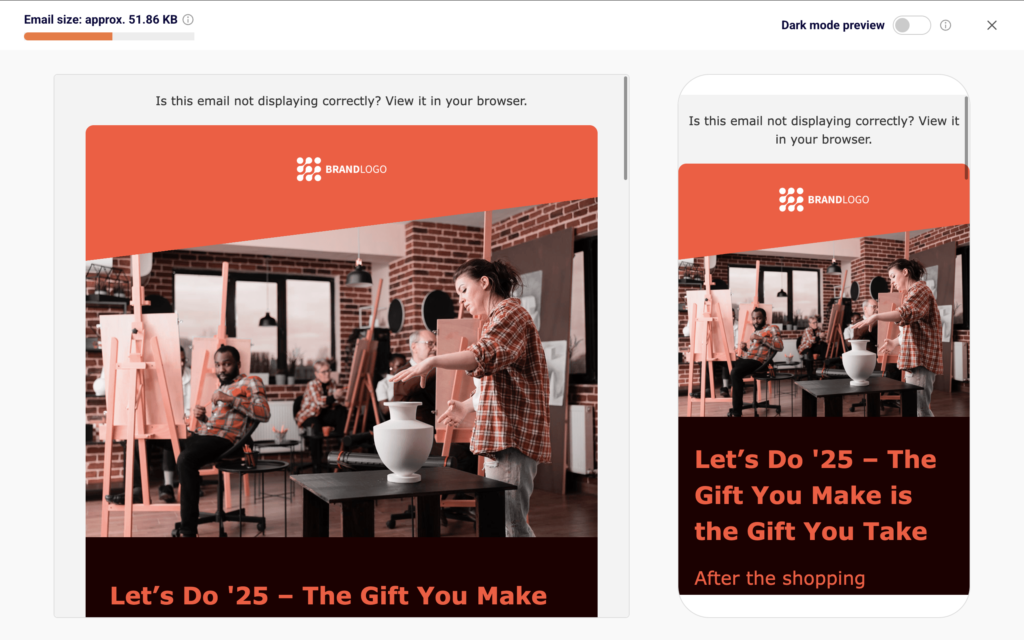
Click the Preview button (eye icon) in the editor toolbar to see a desktop and mobile preview of your template. Liquid variables display as {{ variable_name }} in the preview since no data has been passed yet.
To test with real values, click Send test email, enter a recipient address, and click Send. On the API page, fill in the Personalization fields (one for each variable used in the template) to supply test values before sending.
How to Use the Template
On the API page, Sender displays a ready-to-use code snippet with a language selector for JavaScript, PHP, or Python. The API endpoint follows the pattern https://api.sender.net/v2/message/{template_id}/send.
Pass dynamic values for each Liquid variable using the variables object in your API request body. For example, to populate {{ firstname }} and a custom {{ subject }}, include them as key-value pairs inside variables:
json
{
"recipient_email": "customer@example.com",
"variables": {
"subject": "Your order has shipped",
"firstname": "John"
}
}
Each variable you used in the template appears as a named field under Personalization on the API page, so you can confirm which values your request needs to include.
Common Issues
Variable renders as raw text in the delivered email → The variable name in the variables object does not match the name used in the template. Verify that the key in your API request exactly matches the variable name — for example, firstname not first_name.
Custom fields dropdown does not appear in the editor → You need to click into a text area first. Double-click a text block such as Paragraph or Headline to enter editing mode, then the Custom fields button appears in the text editing toolbar.
Variable appears blank in the received email → The corresponding key was not included in the variables object of your API request, or its value was empty. Ensure every Liquid variable used in the template has a matching key with a value in the request body.
FAQs
What syntax do Liquid variables use in Sender?
Liquid variables use double curly braces: {{ variable_name }}. For example, {{ firstname }} inserts the recipient’s first name. You can insert them manually in Custom HTML or select them from the Custom fields menu in the drag-and-drop editor.
Can I create custom variable names beyond the preset list?
The Custom fields dropdown includes preset subscriber and account fields. You can also type custom variable names directly in the {{ }} syntax when using Custom HTML. Any variable name you add to the template will appear on the API page as a personalization field that must be supplied at send time.
Can I use Liquid variables in the email subject line?
Yes. On the Settings page, click Custom fields next to the Email subject field and select a variable. You can also type the {{ variable_name }} syntax directly into the subject or preview text fields.
How do I pass variable values when sending via API?
Include a variables object in your API request body. Each key should match a variable name used in the template, and each value is the string you want rendered in the email. Sender provides a pre-built code example on the API page of the template.
Where can I preview how variables will look in the final email?
Click the Preview button (eye icon) in the editor toolbar to see desktop and mobile previews. Variables display in their raw {{ }} form in preview mode. Use Send test email with personalization values filled in on the API page to see fully rendered output.