

How to Set Up Webhooks for Transactional Email Events
Webhooks let you receive real-time HTTP POST notifications at your own endpoint whenever specific events occur in your Sender account. You can use webhooks to track bounces, monitor new subscriber activity, and integrate delivery data with your own systems — without polling the API.
This article walks you through adding a webhook, selecting a topic, securing your endpoint with the signing secret, and monitoring webhook performance.
Before You Begin
Confirm the following before setting up a webhook:
- You have an active endpoint URL that accepts HTTP POST requests (e.g.,
https://yourdomain.com/webhooks). - Your endpoint returns a
2xxstatus code on successful receipt. Non-2xxresponses are logged as failures. - You have access to Account settings in your Sender dashboard.
Step 1: Open the Webhooks Page
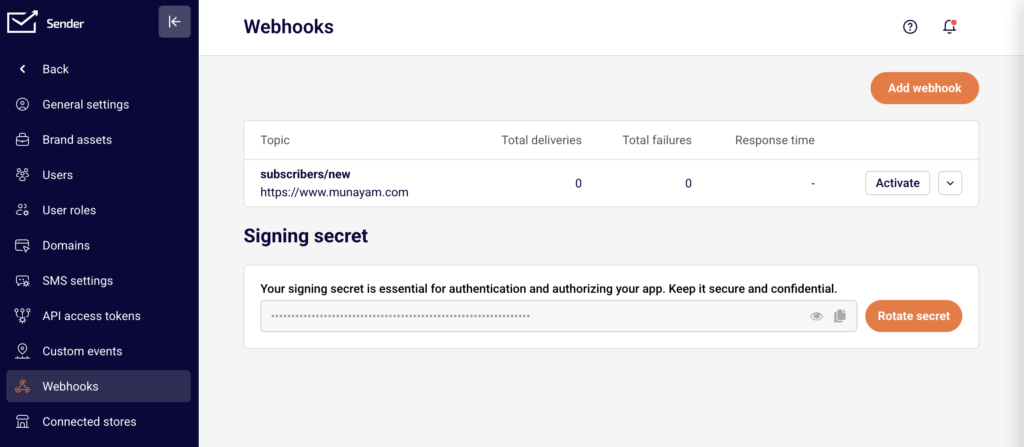
Go to Account settings → Webhooks in the left sidebar. This opens the Webhooks page, which displays a table of all configured webhooks with four columns: Topic, Total deliveries, Total failures, and Response time. If no webhooks exist yet, the table will be empty.
Step 2: Add a New Webhook
Click the Add webhook button in the top-right corner. A modal dialog appears with two fields:
URL — Enter the full endpoint URL where Sender should send POST requests (e.g., https://yourdomain.com/webhooks).
Topic — Open the Select topic dropdown and choose the event you want to subscribe to.
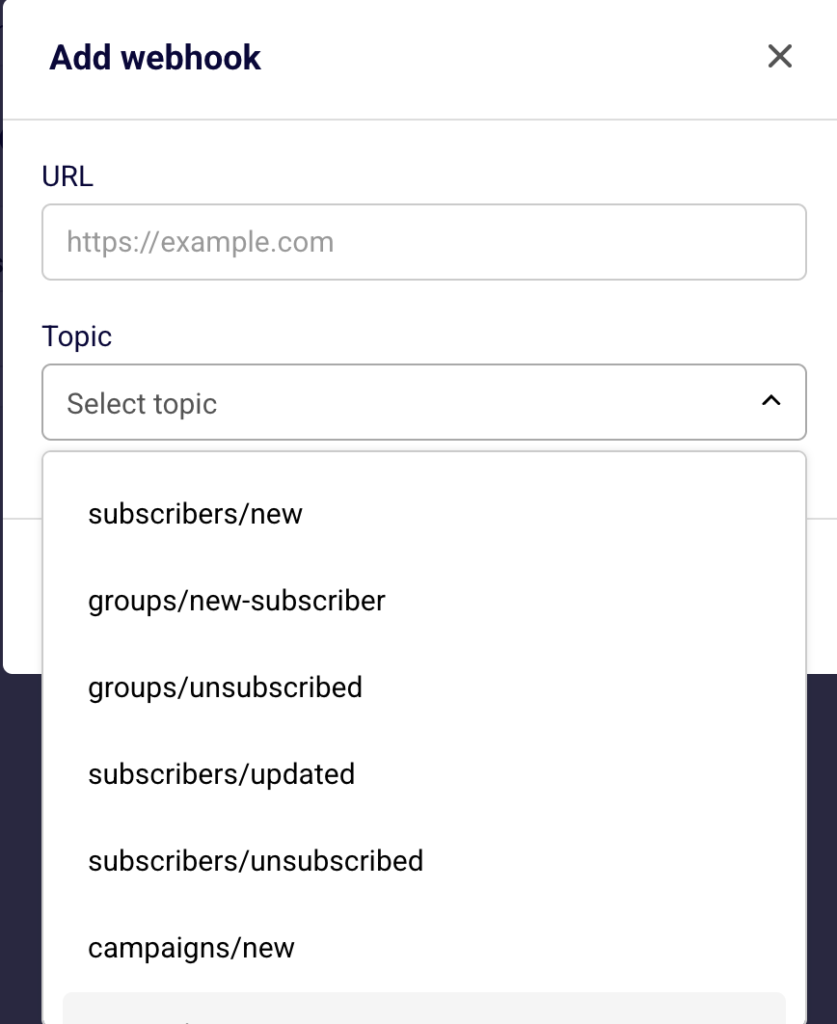
The available topics are:
Topic
Description
subscribers/new
A new subscriber is added to your account
subscribers/updated
An existing subscriber’s data is modified
subscribers/unsubscribed
A subscriber opts out
groups/new
A new group is created
groups/new-subscriber
A subscriber is added to a group
groups/unsubscribed
A subscriber is removed from a group
campaigns/new
A new campaign is created
bounces/new
A bounce event is recorded
For transactional email monitoring, the bounces/new topic is particularly useful — it notifies your endpoint whenever a sent email bounces, letting you flag delivery issues in real time.
After filling in both fields, click Add to save the webhook.
Step 3: Verify Webhook Delivery
Once the webhook is created, it appears as a row in the table on the Webhooks page. Monitor the Total deliveries and Total failures columns to confirm your endpoint is receiving and acknowledging payloads correctly. The Response time column shows how quickly your server responded to the most recent delivery.
If Total failures is incrementing, your endpoint may be returning a non-2xx status code or is unreachable. See Step 5 below to investigate.
Step 4: Secure Your Webhook With the Signing Secret
Below the webhook table, the Signing secret section displays a masked secret value. Use this secret to verify that incoming POST requests genuinely originate from Sender.
Click the eye icon next to the secret field to reveal the full value. Click the copy icon to copy the secret to your clipboard. Use this secret on your server to validate the signature included in each webhook request header.
If you suspect the secret has been compromised, click Rotate secret to generate a new one. After rotating, update the secret in your application immediately — requests signed with the old secret will no longer validate.
Step 5: View Error Logs for a Webhook
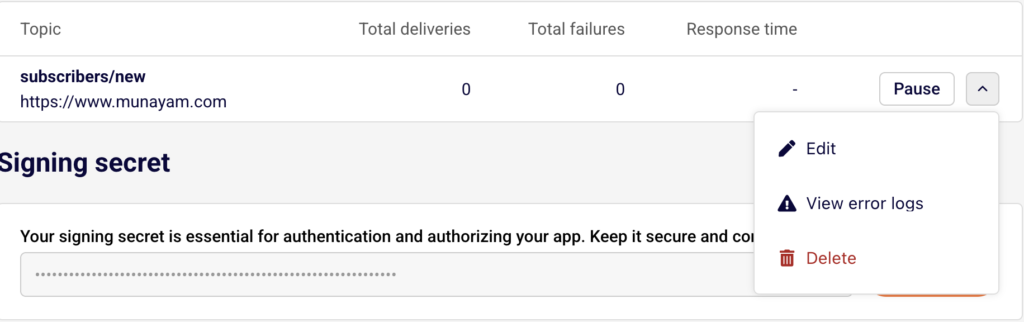
To diagnose failed deliveries, click the dropdown arrow (chevron) to the right of the Pause button on the webhook row, then select View error logs. This opens the Webhook logs page, which displays a table with two columns:
Date / time — The timestamp of the failed delivery attempt.
Error code — The HTTP status code returned by your endpoint (e.g., 405, 500).
Click the expand arrow on any log entry to reveal the full response body returned by your server. This is helpful for identifying misconfigured endpoints, incorrect HTTP methods, or server-side errors.
Managing Existing Webhooks
Pause a Webhook — Click the Pause button on any webhook row to temporarily stop deliveries without deleting the configuration. This is useful when performing maintenance on your endpoint.
Edit a Webhook — Click the dropdown arrow next to the Pause button and select Edit. The Edit webhook modal lets you update the URL or change the Topic. Click Add to save your changes.
Delete a Webhook — From the same dropdown menu, select Delete to permanently remove the webhook. This action cannot be undone.
Tips for Reliable Webhook Integration
Respond quickly — Your endpoint should return a 2xx status code within a few seconds. Long-running processing should be handled asynchronously after acknowledging receipt.
Use the signing secret — Always validate the request signature on your server to ensure payloads are authentic.
Monitor the Webhooks table — Check Total failures and Response time regularly to catch delivery issues early.
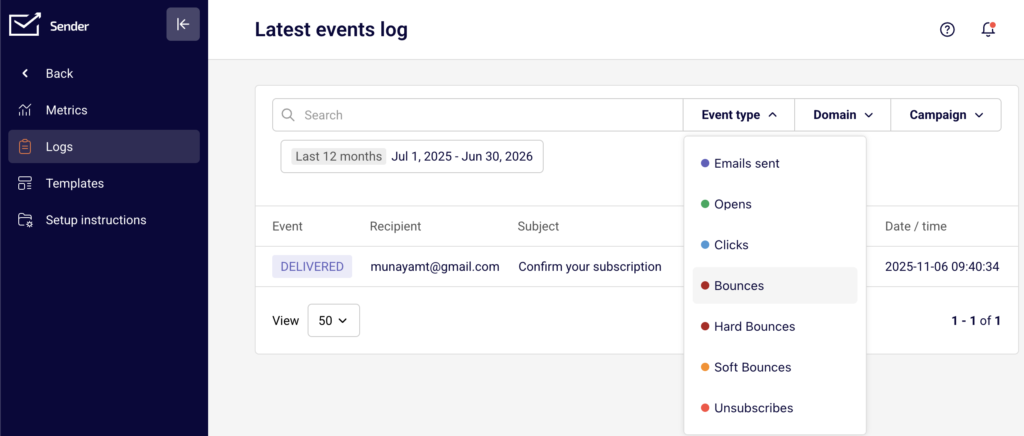
Combine with Logs — Cross-reference webhook data with the Logs page under Transactional emails → Logs to match bounce notifications with specific recipient email addresses and event details.
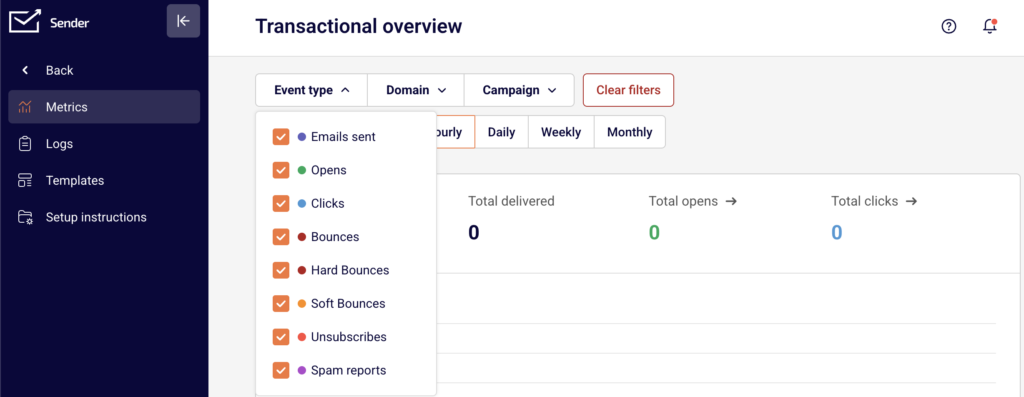
Combine with Metrics — Use the Metrics page under Transactional emails → Metrics and filter by Event type (Bounces, Spam reports) to see aggregate trends alongside your webhook-driven alerts.