

What Are Transactional Emails
This guide explains what transactional emails are and walks you through how to access and understand the transactional email feature in Sender for the first time.
Where to Find This Feature
In the Sender dashboard, click Transactional emails in the left sidebar.
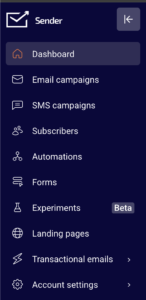
This opens the transactional emails section, which contains four subpages accessible from the inner sidebar: Metrics, Logs, Templates, and Setup instructions. Together, these pages let you monitor delivery performance, review individual email events, manage email templates, and configure your sending method.
Steps to Understand and Access Transactional Emails
Step 1 — Learn What Transactional Emails Are
Transactional emails are automated messages triggered by a specific user action or system event. Common examples include order confirmations, password reset links, account verification emails, and shipping notifications. Unlike marketing emails, which are sent in bulk to promote content or offers, transactional emails are sent to a single recipient in response to something they did. In Sender, transactional emails are managed separately from campaigns and automations, with their own dedicated section, API, and SMTP sending options.
Step 2 — Open the Transactional Emails Section
Click Transactional emails in the main left sidebar. You will land on the Transactional overview page, labeled Metrics.
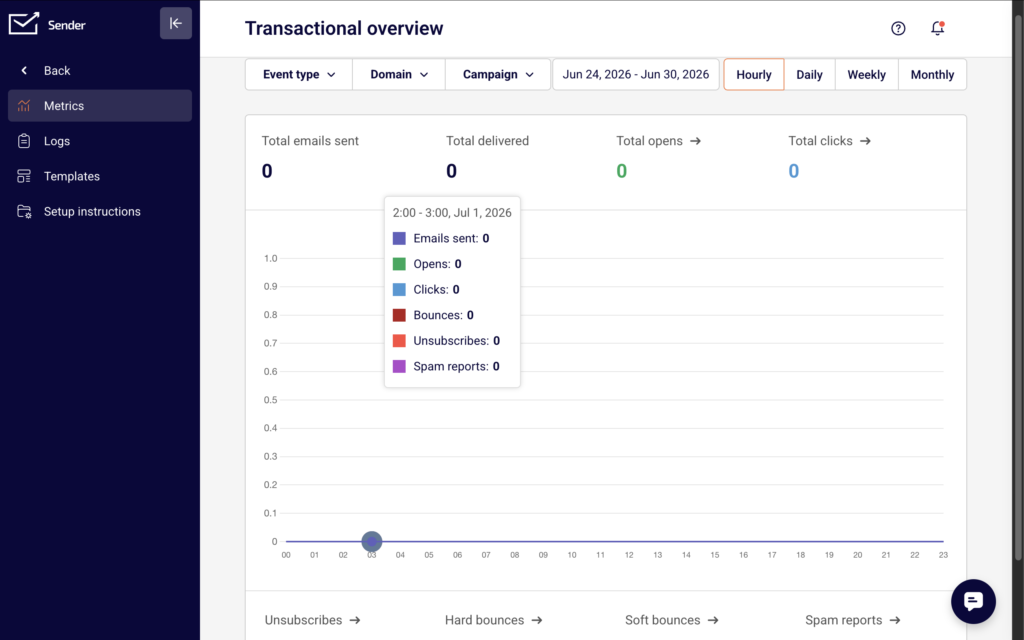
This page displays delivery statistics including Total emails sent, Total delivered, Total opens, and Total clicks, along with Unsubscribes, Hard bounces, Soft bounces, and Spam reports. You can filter results by Event type, Domain, and Campaign, and switch between Hourly, Daily, Weekly, or Monthly views.
Step 3 — Explore the Subpages
Use the inner sidebar icons to navigate between the four transactional email subpages: Metrics shows an overview chart and delivery statistics for your transactional emails.
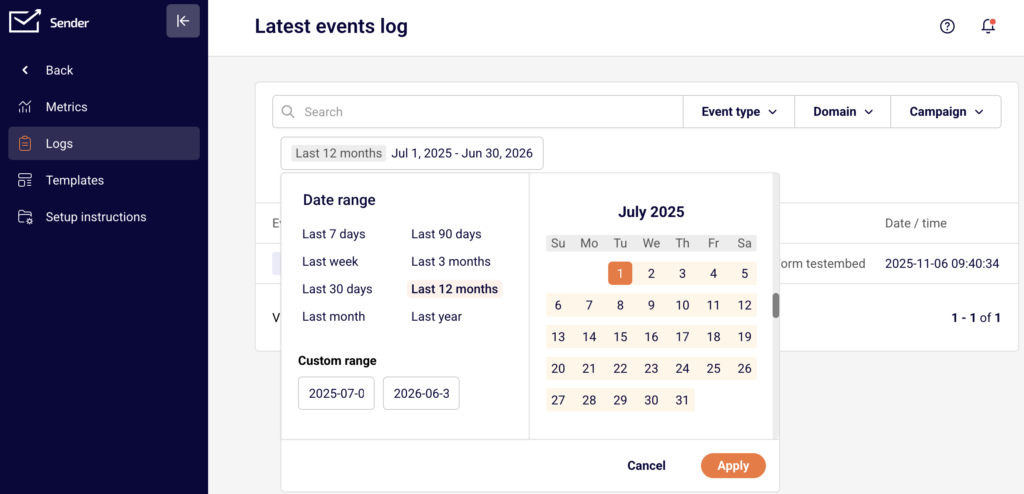
Logs opens the Latest events log, which lists individual email events with columns for Event, Recipient, Subject, Template, and Date / time. Templates displays your saved transactional email templates and includes a New email button to create one. Setup instructions provides ready-to-use code examples for integrating with Sender’s API or SMTP server.
Step 4 — Review Available Sending Methods
Click Setup instructions in the inner sidebar. This page offers integration guides for multiple platforms: curl, Laravel, PHP, Node.js, and SMTP.
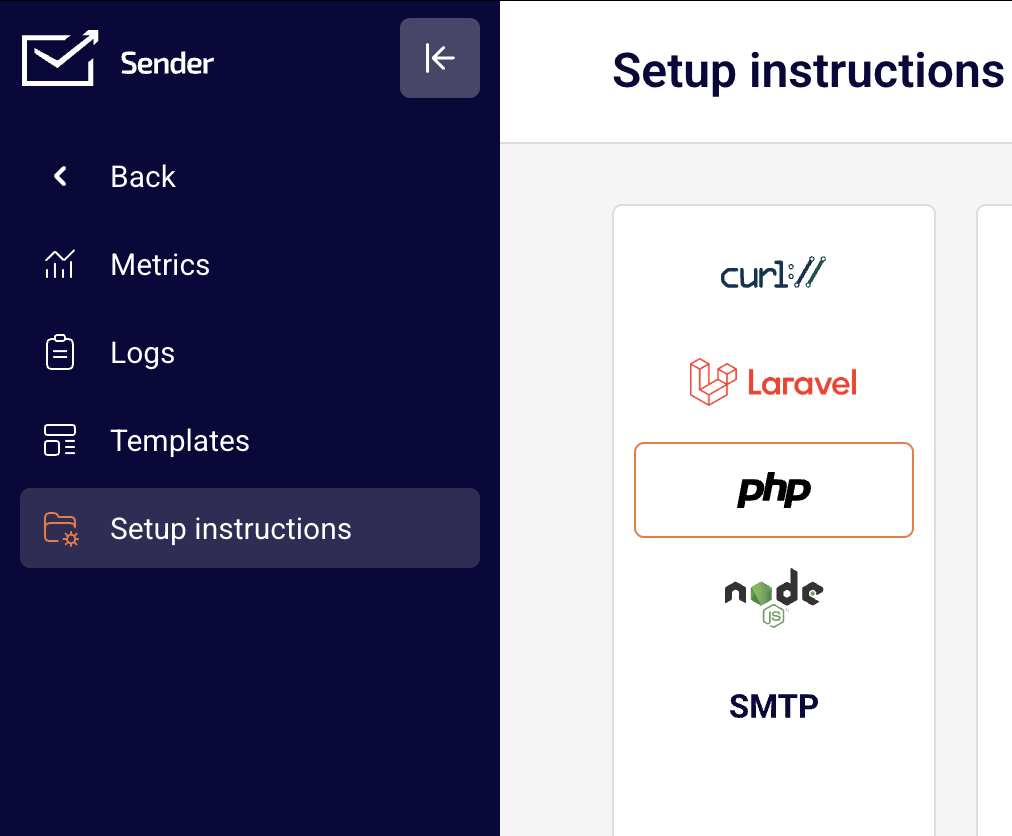
Select any tab to view the corresponding code sample or configuration details. For API-based sending, the code samples reference the endpoint and include a placeholder for your API token. For SMTP-based sending, the page displays the server credentials: Server is smtp.sender.net, Ports are 25, 2525, or 587, and Authentication is PLAIN or LOGIN over TLS. You can also click Add SMTP user to create SMTP login credentials.
Step 5 — Locate Your API Access Token
To send transactional emails through the API, you need an API token. Navigate to Account settings → API access tokens from the main sidebar.
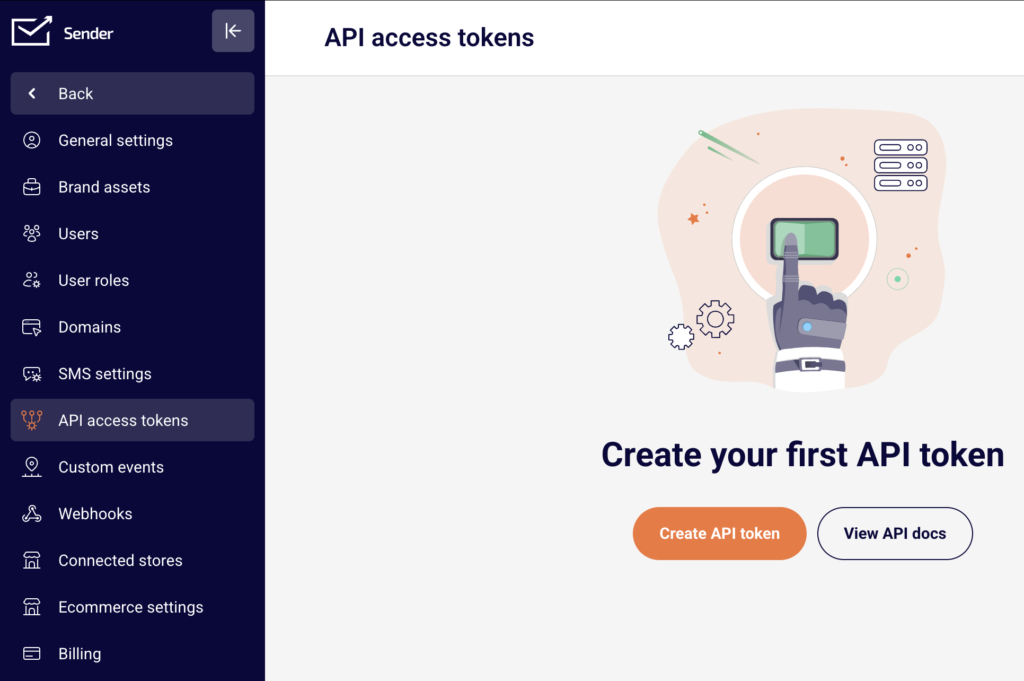
If you have not created a token yet, you will see Create your first API token on the page. Click Create API token to generate one. Copy the token and use it in the Authorization: Bearer YOUR_TOKEN_HERE header shown in the setup instructions.
What Happens Next
After reviewing the transactional emails section, you are ready to configure your first sending method — either by generating an API token or creating SMTP credentials. Once you send your first transactional email, visit the Logs page to confirm delivery. Each email event will appear with its status, recipient, subject, and timestamp. Check the Metrics page to monitor overall delivery performance over time.
Common Issues
Transactional emails section is empty → No transactional emails have been sent yet. Follow the code examples on the Setup instructions page to send your first email, and data will begin appearing in Metrics and Logs.
API token not working → The token may not have been copied correctly, or it may have been deleted. Go to Account settings → API access tokens and verify that an active token exists. If needed, create a new one and update your integration code.
SMTP connection fails → Confirm you are using the correct server (smtp.sender.net), one of the supported ports (25, 2525, or 587), and that you have created an SMTP user on the Setup instructions → SMTP tab. Check that your authentication method is set to PLAIN or LOGIN over TLS.
Emails not appearing in Logs → There may be a short delay before events are recorded. Refresh the Latest events log page and verify that the date range filter includes the current date. Also check that your API call or SMTP request returned a successful response.
FAQs
What is the difference between transactional and marketing emails?
Transactional emails are triggered by a user action, such as a purchase or password reset. They are sent to one recipient at a time. Marketing emails are sent in bulk to promote content, offers, or updates. In Sender, each type has its own dedicated section and sending tools.
Can I send transactional emails without using the API?
Yes. You can use SMTP credentials instead. Go to Transactional emails → Setup instructions, select the SMTP tab, and click Add SMTP user to generate your login credentials. Then configure your application to send through Sender’s SMTP server.
Do I need to verify a domain before sending transactional emails?
A verified domain improves deliverability and ensures your emails are authenticated. You can manage domains under Account settings → Domains. Adding and verifying your sending domain is recommended before you begin sending.
Where can I find the API documentation?
On the API access tokens page under Account settings, click View API docs. You can also reference the code samples on the Setup instructions page inside the Transactional emails section.
Can I create reusable templates for transactional emails?
Yes. Go to Transactional emails → Templates and click New email to create a template. You can then reference that template when sending emails through the API.