

Blacklist monitoring
This guide explains how to monitor your sending domain and IP against email blacklists and how to respond if a listing is detected as a Sender user.
Why this matters
If your domain or sending IP appears on a blacklist, mailbox providers may reject your emails outright or route them to spam. Blacklisting is one of the most severe reputation events a sender can experience, and it directly reduces inbox placement across all recipient providers. Proactive monitoring allows you to detect a listing early, identify the cause, and begin the delisting process before sustained delivery failures damage your sender reputation further.
How to identify the problem
Hard bounce rate on the Dashboard — Go to Dashboard and review the Hard bounce rate metric in the Traffic and reach report section. A sudden spike in hard bounces, particularly from a single mailbox provider, often indicates that your IP or domain has been blacklisted by that provider or by a blacklist it references.
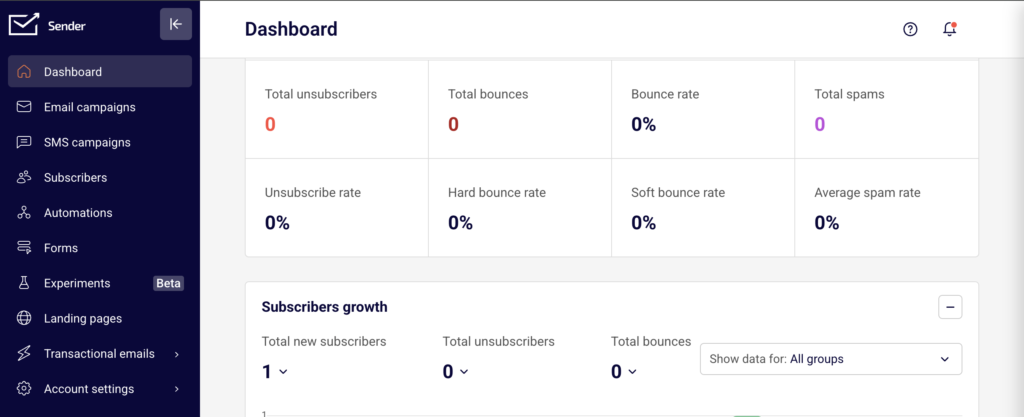
Average spam rate on the Dashboard — Check the Average spam rate metric on the Dashboard. A rising spam rate signals that recipients are marking your emails as spam, which contributes to blacklist listings. An Average spam rate above 0.1% is a warning sign that blacklisting may follow.
Total spams on the Dashboard — Review the Total spams count in the Traffic and reach report on the Dashboard. A high absolute number of spam reports over a short period increases the likelihood that blacklist operators will flag your sending infrastructure.
MXToolbox Blacklist Check — Use MXToolbox (mxtoolbox.com/blacklists.aspx) to run a multi-blacklist lookup against your sending domain or IP address. This tool checks your domain and IP against dozens of blacklists simultaneously and reports any active listings.
Spamhaus Lookup — Search your domain and sending IP on Spamhaus (check.spamhaus.org). Spamhaus operates several widely used blacklists including the SBL (Spamhaus Block List) and DBL (Domain Block List). A listing on Spamhaus has a high impact because many mailbox providers reference it directly.
Google Postmaster Tools — If you send to Gmail recipients, check Google Postmaster Tools (postmaster.google.com) for domain reputation data. A reputation rating of “Bad” or “Low” alongside delivery failures to Gmail may indicate an active blacklisting or severe reputation degradation.
Steps to monitor and respond
Step 1 — Run a blacklist check on your domain and IP
Open MXToolbox (mxtoolbox.com/blacklists.aspx) and enter your sending domain. Run the lookup to scan across multiple blacklists at once. Note any blacklists where your domain or IP is listed. Then repeat the check on Spamhaus (check.spamhaus.org) specifically, since Spamhaus listings have the widest impact on delivery. Record which blacklists show an active listing and the reason provided.
Step 2 — Correlate with Sender dashboard metrics
Go to your Dashboard in Sender and review the Hard bounce rate, Average spam rate, and Total spams in the Traffic and reach report. Compare the date when these metrics spiked against the approximate listing date shown by the blacklist provider. This helps you identify the sending behavior or campaign that triggered the listing, whether it was a high-complaint campaign, a list with outdated addresses, or a spam trap hit.
Step 3 — Submit a delisting request
Visit the blacklist provider’s website and follow their delisting process. For Spamhaus, submit a removal request through their lookup tool after addressing the underlying cause. For Barracuda, use the Barracuda Central removal request form. For SORBS, follow the delisting instructions on their lookup page. Each provider requires that you describe the corrective action you have taken. Do not request delisting until you have identified and resolved the root cause.
Step 4 — Address the root cause
Based on the metrics from Step 2, take corrective action. If Average spam rate is elevated, review recent campaign content and subscriber sources.
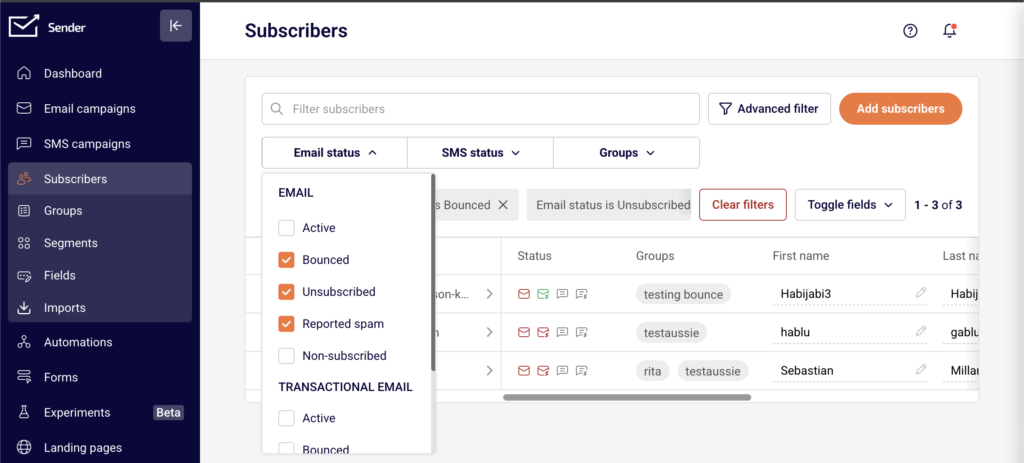
If Hard bounce rate spiked, clean your subscriber list by removing invalid addresses — go to Subscribers and filter by bounce status. If you suspect a spam trap hit, remove subscribers who have not engaged (opened or clicked) in the past 6–12 months. These actions prevent re-listing after delisting.
Step 5 — Monitor continuously after delisting
After your delisting request is approved, schedule regular blacklist checks using MXToolbox at least weekly for the first month. Continue reviewing Hard bounce rate, Average spam rate, and Total spams on the Dashboard after each campaign send. If metrics remain stable and no new listings appear, extend your monitoring cadence to biweekly or monthly. Re-listing can occur quickly if the underlying issue was not fully resolved.
How filtering works
Blacklist-based filtering — Mailbox providers query blacklists such as Spamhaus, Barracuda, and SORBS during the SMTP connection or message evaluation. If the sending IP or domain is listed, the provider may reject the message at the connection level or route it directly to spam. Different providers reference different blacklists, so a single listing may affect delivery to some providers but not others.
IP reputation scoring — Mailbox providers maintain internal reputation scores for sending IP addresses based on bounce rates, spam complaints, spam trap hits, and sending volume patterns. A blacklist listing typically occurs after the IP reputation has already degraded past a threshold. Recovering the IP reputation requires sustained clean sending behavior even after a blacklist removal.
Domain reputation scoring — In addition to IP reputation, providers like Gmail evaluate the reputation of your sending domain independently. Domain-based blacklists such as the Spamhaus DBL and SURBL list domains found in spam messages. A domain listing can affect delivery regardless of which IP you send from, making domain reputation monitoring equally important.
Spam trap detection — Blacklist operators maintain spam trap email addresses — addresses that should never receive email because they were either abandoned or were never associated with a real user. Sending to a spam trap signals poor list acquisition or maintenance practices. A single spam trap hit on a high-priority blacklist like Spamhaus can result in an immediate listing.
Feedback loop data — Some mailbox providers operate feedback loops (FBLs) that report back to senders when a recipient marks an email as spam. High complaint volumes reported through FBLs contribute to blacklist listings over time. Monitoring your Total spams and Average spam rate on the Sender Dashboard reflects this complaint data.
Recovery tips
Fix the root cause before requesting delisting — Blacklist providers review delisting requests and may deny them or re-list your IP/domain if the underlying issue persists. Identify whether the cause was a bad list segment, spam trap exposure, or a content issue before submitting a request.
Reduce sending volume temporarily — After a blacklist event, lower your sending volume and send only to your most engaged subscribers. This generates positive engagement signals and helps rebuild IP and domain reputation with mailbox providers.
Remove unengaged subscribers — Go to Subscribers in Sender and identify contacts who have not opened or clicked in the past 6–12 months. Removing these subscribers reduces the risk of hitting spam traps and improves overall engagement rates, which supports reputation recovery.
Send a re-engagement campaign first — Before resuming full-volume sending, send a targeted re-engagement campaign to moderately active subscribers. Monitor the resulting Hard bounce rate and Average spam rate on the Dashboard closely. If metrics remain clean, gradually increase volume.
Set up ongoing monitoring — Use MXToolbox to schedule automated blacklist monitoring alerts for your domain and IP. Combine this with regular reviews of your Dashboard metrics in Sender. Early detection of a re-listing allows faster corrective action.
Common issues
Listed on a blacklist but emails are still delivering → Not all mailbox providers reference the same blacklists. A listing on a smaller or less-referenced blacklist may not immediately affect delivery. However, you should still request delisting promptly, as blacklist data can propagate to other providers over time.
Delisting request was denied → The blacklist provider determined that the root cause has not been addressed. Review the denial reason, take the required corrective action (such as cleaning your list or reducing complaints), and resubmit the request. Some providers enforce a waiting period before you can resubmit.
Re-listed shortly after successful delisting → This indicates the underlying problem was not fully resolved. Common causes include continued sending to spam traps, ongoing high complaint rates, or a compromised subscriber list. Review your Hard bounce rate and Average spam rate on the Dashboard, clean your list more aggressively, and reduce volume before requesting delisting again.
Blacklist check shows a listing on an IP you don’t recognize → If you are on a shared IP plan, another sender’s behavior may have caused the listing. Contact Sender support to confirm your sending IP allocation and discuss whether a dedicated IP is available for your account.
Dashboard metrics look normal but delivery is declining → Some blacklist listings affect only specific providers. Check Google Postmaster Tools for Gmail-specific reputation data, and use MXToolbox to verify your status across multiple blacklists. A domain-level listing on Spamhaus DBL or SURBL may not surface in standard IP blacklist checks.
FAQs
How do I know if my domain is on a blacklist?
Use external tools like MXToolbox, Spamhaus Lookup, or Barracuda Reputation to check your domain and sending IP. If listed, follow the blacklist provider’s delisting process. Monitor your Hard bounce rate and Average spam rate on the Sender Dashboard for signs of blacklisting, such as a sudden spike in rejections from a specific provider.
How long does it take to recover sender reputation after a blacklisting?
Recovery time varies depending on the severity of the listing and the actions taken. Minor listings on smaller blacklists may resolve within days of delisting. Severe reputation damage from a Spamhaus listing combined with high complaint rates can take several weeks to months of clean sending to recover from. Consistent, low-volume sending to engaged subscribers accelerates recovery.
What is a spam trap and how does it affect my reputation?
A spam trap is an email address used by blacklist operators or mailbox providers to identify senders with poor list practices. Sending to a spam trap signals that your list contains unverified or outdated addresses. This can result in blacklisting or reduced inbox placement. Remove inactive subscribers regularly to reduce spam trap risk.
Does Sender share my sending IP with other users?
Sender’s infrastructure and IP allocation policies may vary by plan. Check your account settings or contact Sender support to understand whether your account uses shared or dedicated IPs, as this affects how other senders’ behavior may influence your reputation.
Why are my emails going to spam even though I’m not on any blacklist?
Blacklist status is only one factor in filtering decisions. Mailbox providers also evaluate sender reputation scores, engagement rates, complaint rates, and content quality independently. If your blacklist checks are clean but emails land in spam, review your Average spam rate and engagement metrics on the Dashboard, and check Google Postmaster Tools for domain reputation data specific to Gmail.