

CAN-SPAM and GDPR Compliance
This guide explains what CAN-SPAM and GDPR require from email senders and how to configure Sender’s tools to meet those requirements.
Why This Matters
Violating CAN-SPAM or GDPR can result in significant financial penalties, legal action, and permanent damage to your sender reputation. CAN-SPAM fines can reach over $50,000 per non-compliant email, while GDPR penalties can reach up to 4% of annual global revenue. Beyond legal risk, non-compliance leads to spam complaints, subscriber distrust, and potential account suspension on Sender.
What Is Required
Unsubscribe mechanism — Every commercial email must include a clear, working unsubscribe link. CAN-SPAM requires that opt-out requests be honored within 10 business days. GDPR requires that recipients can withdraw consent at any time. Failure to include an unsubscribe link violates both regulations and Sender’s sending policies.
Physical mailing address — CAN-SPAM requires a valid physical postal address in every commercial email. This can be a street address, a P.O. box registered with the postal service, or a private mailbox registered with a commercial mail receiving agency. Omitting it is a direct violation of U.S. federal law.
Accurate sender identity — CAN-SPAM prohibits misleading “From” names, email addresses, and subject lines. The sender information in your campaign must accurately identify the person or business sending the email. Deceptive header information or subject lines can trigger enforcement action.
Lawful basis for processing (GDPR) — Under GDPR, you must have a lawful basis — typically explicit consent — before sending marketing emails to individuals in the European Economic Area (EEA) or the UK. Consent must be freely given, specific, informed, and unambiguous. Pre-checked boxes do not constitute valid consent.
Data subject rights (GDPR) — GDPR gives subscribers the right to access, correct, export, and delete their personal data. You must be able to respond to these requests promptly. Failure to comply can result in regulatory complaints and fines.
Note: This article provides general guidance on compliance requirements. Consult a legal professional for advice specific to your jurisdiction and business.
Steps to Configure Compliance Settings in Sender
Step 1 — Add your physical mailing address
Go to Account settings → General settings. Under the Company info section, fill in the Address, City, State / Province / Region, Postal/ZIP code, and Country fields. Click Save.
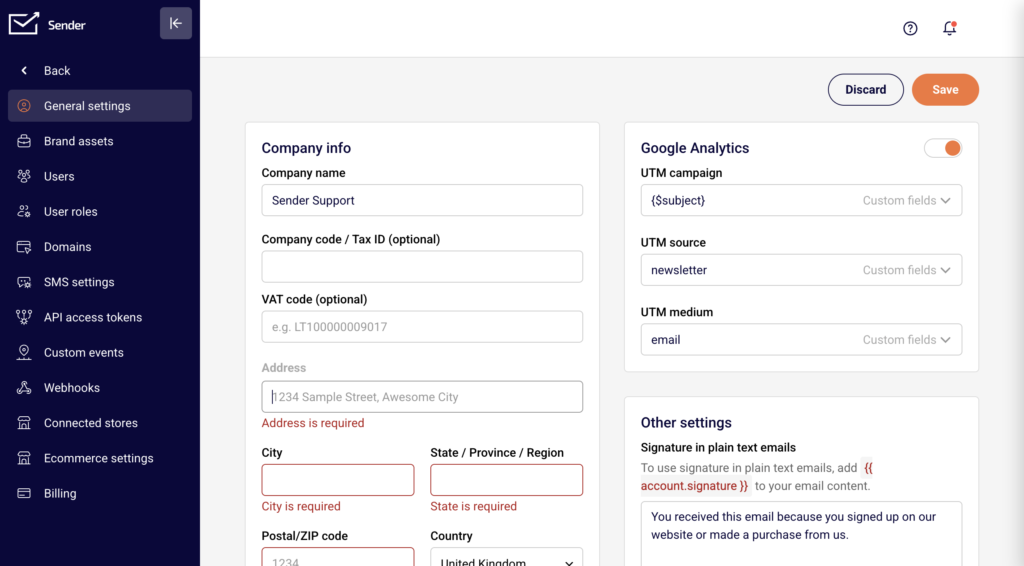
Sender’s default email templates automatically insert this address into your email footer using variables like {{ account.address }} and {{ account.city }}.
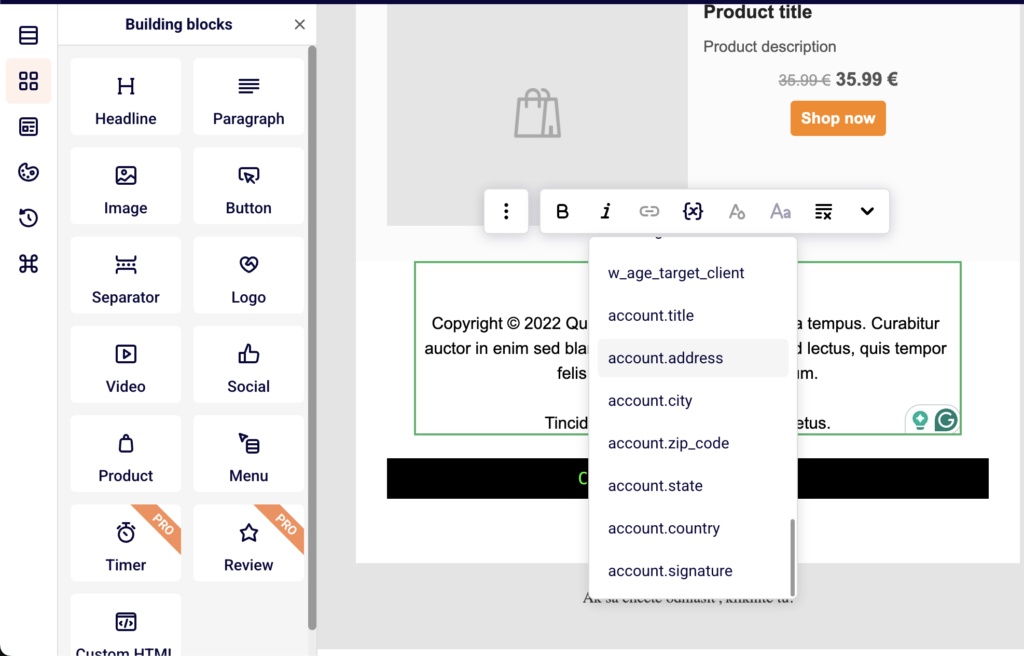
Once saved, every email sent using a default template will display your physical address, satisfying the CAN-SPAM address requirement.
Step 2 — Verify unsubscribe link and confirmation settings
Sender automatically includes an unsubscribe link in the footer of every email sent through default templates. The link text reads “If you would like to unsubscribe, please click here.”
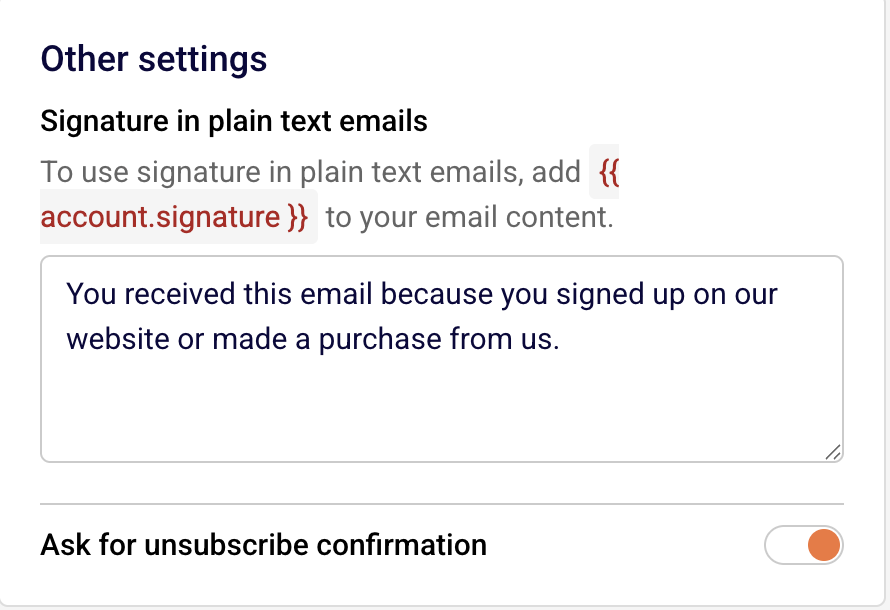
To configure whether subscribers see a confirmation step, go to Account settings → General settings and locate the Ask for unsubscribe confirmation toggle under Other settings. Enable or disable this based on your preference. This satisfies the CAN-SPAM opt-out and GDPR withdrawal-of-consent requirements.
Step 3 — Enable double opt-in for signup forms
Go to Forms, select a form, and click the settings icon to open Publishing settings. At the top, locate Double opt-in settings and enable the toggle to send confirmation emails to new subscribers.
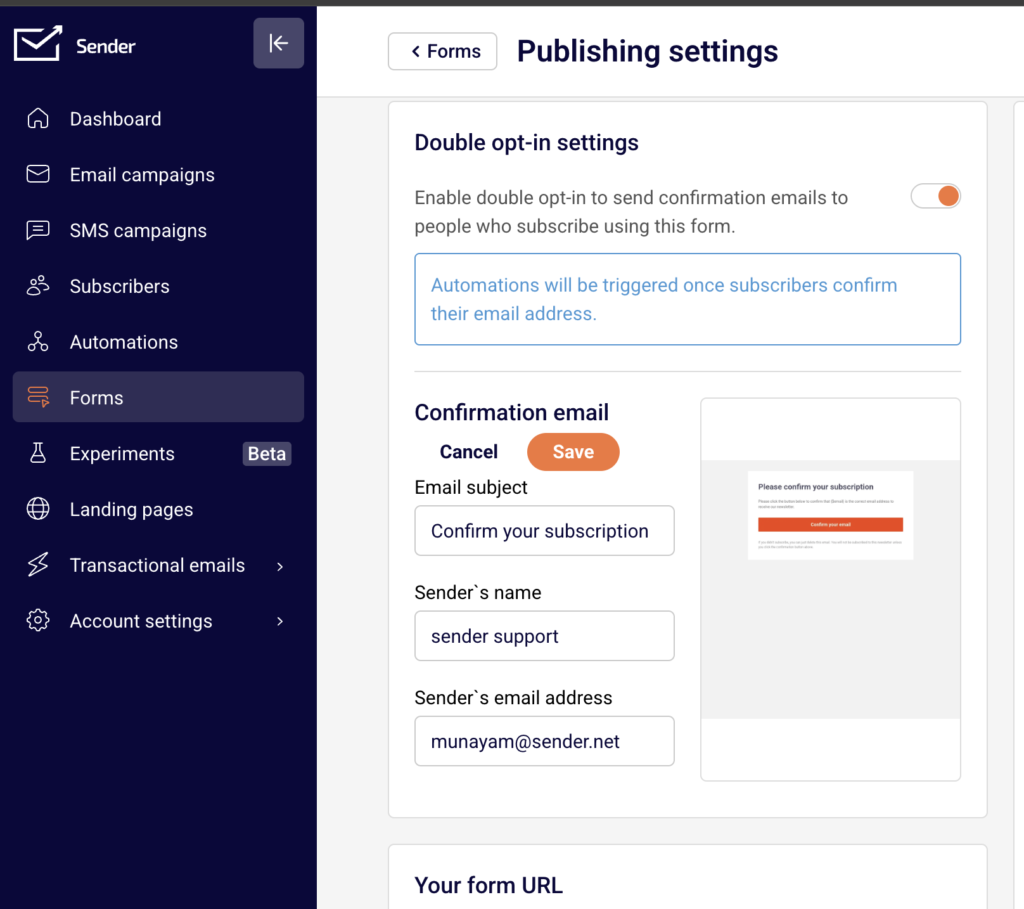
Customize the Confirmation email subject, sender name, and sender email address using the Edit button. When enabled, subscribers must confirm their email address before being added to your list. This helps demonstrate explicit consent as required by GDPR.
Step 4 — Set accurate sender identity in campaigns
When creating or editing a campaign, the Campaign settings page includes a Sender details section with From name and Sender’s email address fields.
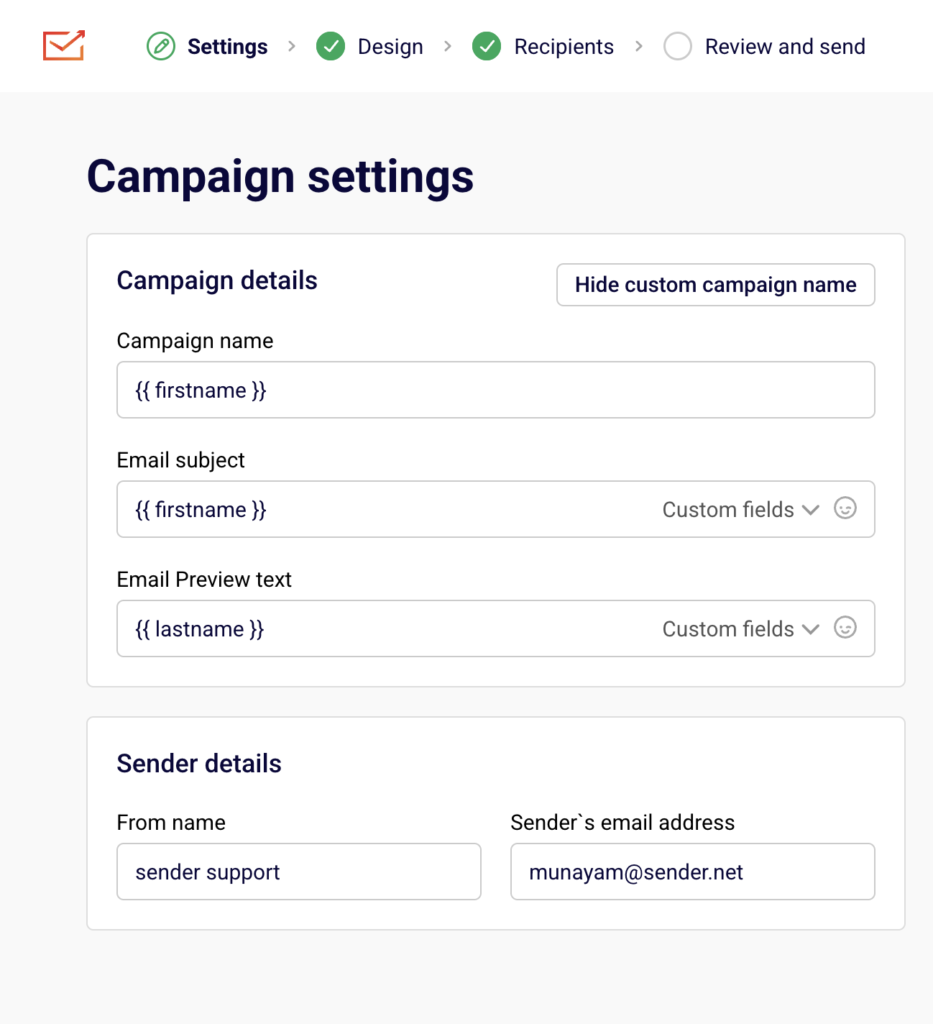
Ensure these accurately represent your business or brand. CAN-SPAM prohibits misleading header information, so the “From” name and email address must truthfully identify the sender. Review the Email subject field to confirm it is not deceptive or misleading.
Step 5 — Handle data subject requests
To respond to a GDPR data access or deletion request, go to Subscribers and locate the subscriber using the search or filter tools. Click on the subscriber’s email to open their Subscriber’s profile. To export their data, return to the Subscribers list, select the subscriber’s checkbox, click Actions, and choose Export to CSV or Export to XLSX.
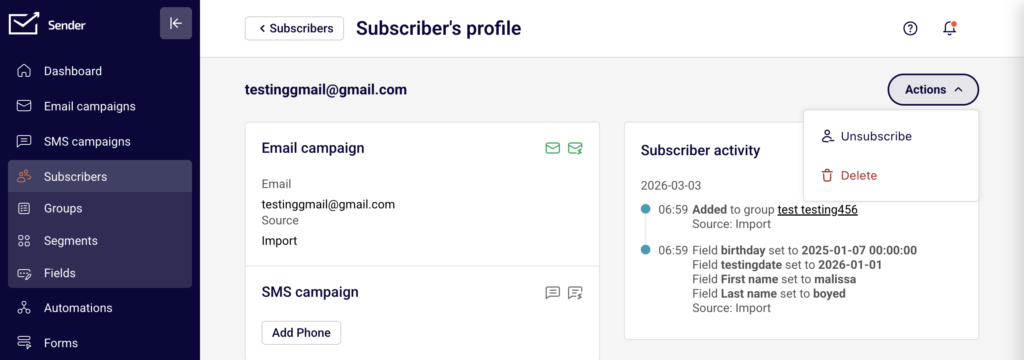
To delete their record, open their Subscriber’s profile, click Actions in the top-right corner, and select Delete. Always confirm the request is legitimate before processing.
Sender’s Policies
Working unsubscribe link required — Every marketing email sent through Sender must contain a functional unsubscribe link. Sender’s default templates include one automatically. Removing or obscuring the unsubscribe link violates Sender’s sending policies and may result in account suspension.
Purchased and scraped lists prohibited — Sender’s acceptable use policy prohibits sending to purchased, rented, or scraped email lists. Sending to non-consented contacts leads to high bounce rates, spam complaints, and account suspension.
Misleading content prohibited — Sender prohibits the use of deceptive subject lines, false sender identities, or misleading email content. Campaigns flagged for misleading practices may be paused or blocked, and the account may be placed under review.
Consent verification on onboarding — During account setup, Sender asks whether you have explicit permission (opt-in) from all subscribers on your list. Sender may request additional details about your email collection practices at any time to verify compliance.
Account suspension and reinstatement — If your account is suspended for a policy violation, Sender sends a notification explaining the reason. You must correct the issue — such as removing non-consented contacts or updating content — and follow the reinstatement instructions. Contact Sender support if you need assistance.
Compliance Tips
Use double opt-in wherever possible — Enabling double opt-in in your form Publishing settings creates a verifiable record of consent, which strengthens your position under GDPR and reduces spam complaints.
Audit your subscriber list regularly — Review your Subscribers list periodically and remove contacts who have not engaged. This reduces the risk of complaints and improves deliverability.
Keep your address up to date — If your physical mailing address changes, update it immediately in Account settings → General settings under Company info. Outdated addresses violate CAN-SPAM.
Document your consent records — Track when and how each subscriber gave consent (e.g., which form, what date, what disclosure was shown). This documentation is critical for responding to GDPR inquiries.
Review campaigns before sending — Check every campaign’s From name, Sender’s email address, and Email subject on the Campaign settings page to ensure accuracy and transparency before clicking send.
Common Issues
Unsubscribe link missing from email → This happens when using custom HTML without including the Sender unsubscribe variable. Use Sender’s default drag-and-drop templates, which include the unsubscribe link automatically, or manually add the unsubscribe tag to your custom HTML.
Physical address not appearing in email footer → The Address, City, and Country fields in Account settings → General settings are empty or incomplete. Fill in all address fields and click Save. The template variables will then populate correctly.
Account suspended for sending to non-consented contacts → This occurs when emails are sent to purchased, scraped, or otherwise non-opted-in lists. Review the suspension notification email, remove non-consented subscribers from your list, and follow the reinstatement instructions provided.
Double opt-in confirmation emails not sending → The Double opt-in settings toggle in the form’s Publishing settings is disabled. Open the form settings, enable the toggle, and verify the Confirmation email details are configured correctly.
Subscriber requests data deletion but record still exists → Ensure you are using the Delete option from the Actions dropdown on the Subscriber’s profile page, not simply unsubscribing them. Unsubscribing stops emails but retains the record. Deletion removes the subscriber’s data entirely.
FAQs
Do I need an unsubscribe link in every email?
Yes. Every marketing email sent through Sender must include a working unsubscribe link. This is required by CAN-SPAM, GDPR, and Sender’s own sending policies. Transactional emails are generally exempt, but including one is still recommended.
Can I send to a purchased email list?
No. Sender’s acceptable use policy prohibits sending to purchased, rented, or scraped email lists. Sending to these lists results in high bounce rates, spam complaints, and may lead to account suspension.
What happens if my account is suspended for a policy violation?
Sender sends a notification email explaining the reason for suspension. Review the details, correct the issue (e.g., remove non-consented contacts, update content), and follow the reinstatement instructions provided in the notification. Contact Sender support if you need assistance.
Am I required to include a physical address in my emails?
Yes. CAN-SPAM requires a valid physical postal address in every commercial email. Add your address in Account settings → General settings under Company info. Sender automatically includes it in your email footer when using the default templates.
How do I handle a GDPR data deletion request from a subscriber?
Locate the subscriber in the Subscribers section, click their email to open their Subscriber’s profile, then click Actions → Delete. If you need to confirm what data is stored, you can export the subscriber’s data first via Actions → Export to CSV from the subscriber list view. Consult a legal professional for guidance on your specific obligations under GDPR.
What is double opt-in and should I enable it?
Double opt-in means a new subscriber must confirm their email address by clicking a link in a confirmation email before being added to your list. Enable it in your form’s Publishing settings under Double opt-in settings. It is strongly recommended for GDPR compliance because it provides verifiable proof of consent.
Does Sender automatically handle CAN-SPAM and GDPR compliance for me?
Sender provides tools that help you comply — such as automatic unsubscribe links, physical address template variables, and double opt-in — but compliance is ultimately your responsibility. You must ensure your content, consent practices, and data handling meet the requirements of all applicable regulations. Consult a legal professional for jurisdiction-specific advice.