

Spam filter best practices
This guide explains how spam filters evaluate your emails and what practices help you avoid filtering, so your campaigns reach the inbox consistently.
Why This Matters
Spam filters are the primary gatekeepers between your sent email and the recipient’s inbox. Even with valid authentication, mailbox providers like Gmail, Outlook, and Yahoo evaluate multiple signals — including sender reputation, engagement history, complaint rates, and content patterns — before deciding whether to deliver your email to the inbox or route it to spam. Failing any of these checks reduces your inbox placement and can trigger long-term reputation damage that takes significant effort to reverse.
How to Identify the Problem
Average spam rate on the Dashboard — Go to Dashboard and review the Average spam rate in the Traffic and reach report section.
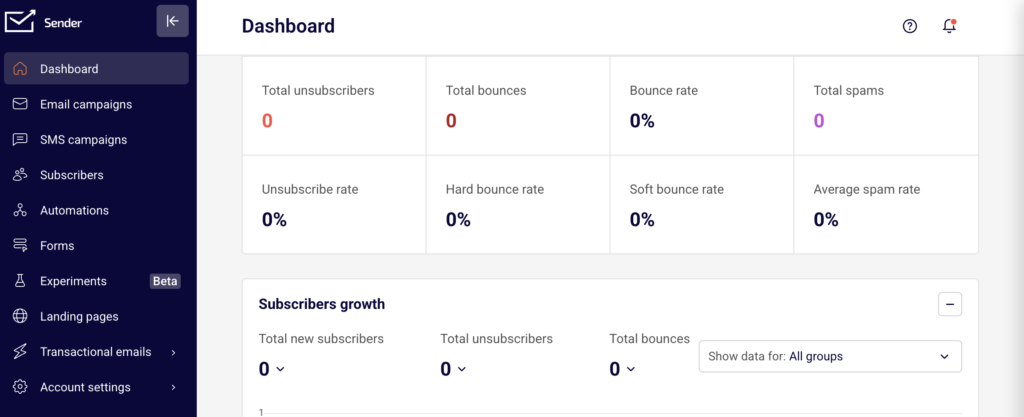
Any value above 0.1% signals that a meaningful share of recipients are marking your emails as spam, which directly impacts how mailbox providers filter your future sends.
Hard bounce rate on the Dashboard — In the same Traffic and reach report, check the Hard bounce rate. A rate above 2% suggests your list contains invalid addresses, which spam filters interpret as a sign of poor list hygiene and increases your likelihood of being filtered.
Spam reports per campaign — Open any sent campaign from Email campaigns, then review the Statistics section on the Campaign overview page. The spam reports metric shows how many recipients in that specific send flagged your email as spam. A spike in this value for a single campaign may indicate a content or targeting issue.
Performance by inbox provider — On the Campaign overview page, select Performance by inbox provider in the left sidebar (available on PRO plans). The Statistics by provider table displays Spam report rate and Bounce rate broken down by inbox provider, which helps you identify whether a specific provider is filtering your emails more aggressively than others.
External blacklist tools — Use MXToolbox, Spamhaus Lookup, or Barracuda Reputation to check whether your sending domain or IP has been blacklisted. A blacklisting causes widespread filtering or outright rejection of your emails across multiple providers.
Steps to Reduce Spam Filtering
Step 1 — Review your spam and bounce metrics
Go to Dashboard and check the Average spam rate and Hard bounce rate in the Traffic and reach report. Keep your spam rate below 0.1% and hard bounce rate below 2%. If either metric exceeds these thresholds, your emails are at increased risk of being filtered.
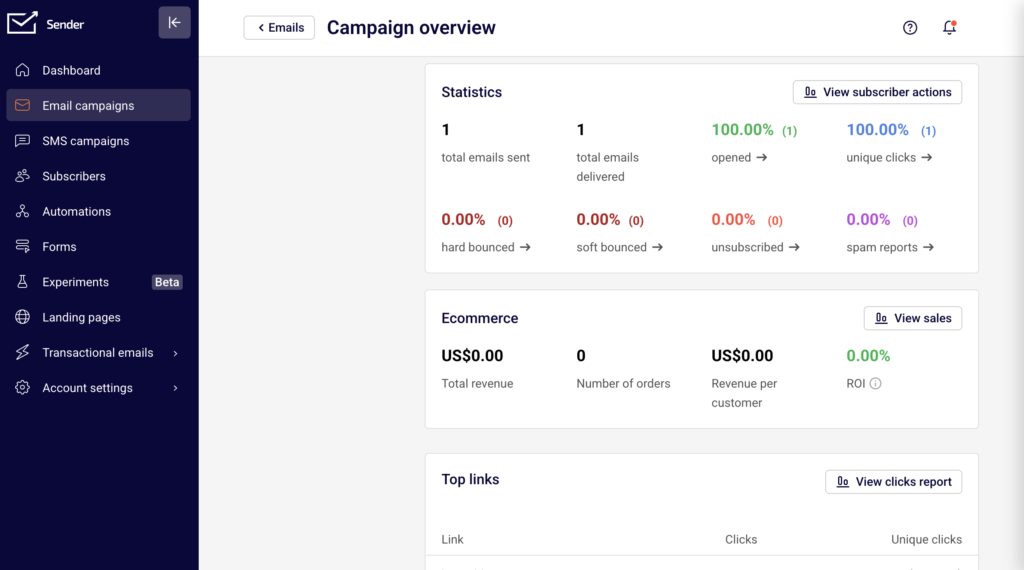
Next, open your most recent sent campaigns in Email campaigns and review the spam reports and hard bounced values in the Statistics section on each Campaign overview page to identify which specific sends are contributing to the problem.
Step 2 — Clean your list and target engaged subscribers
Go to Subscribers and use the Email status filter to identify subscribers with a Bounced or Reported spam status.
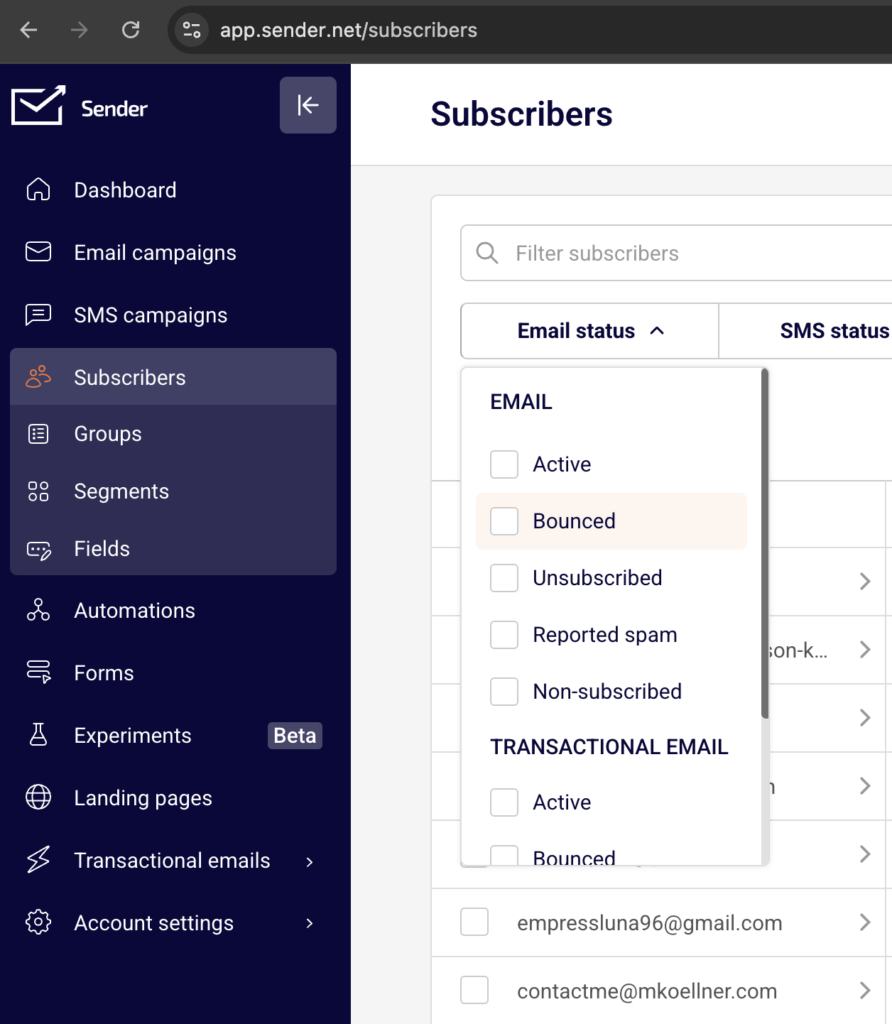
Remove or suppress these contacts to prevent further damage to your reputation. Then go to Subscribers → Segments and review the Unengaged subscribers 180 days segment.
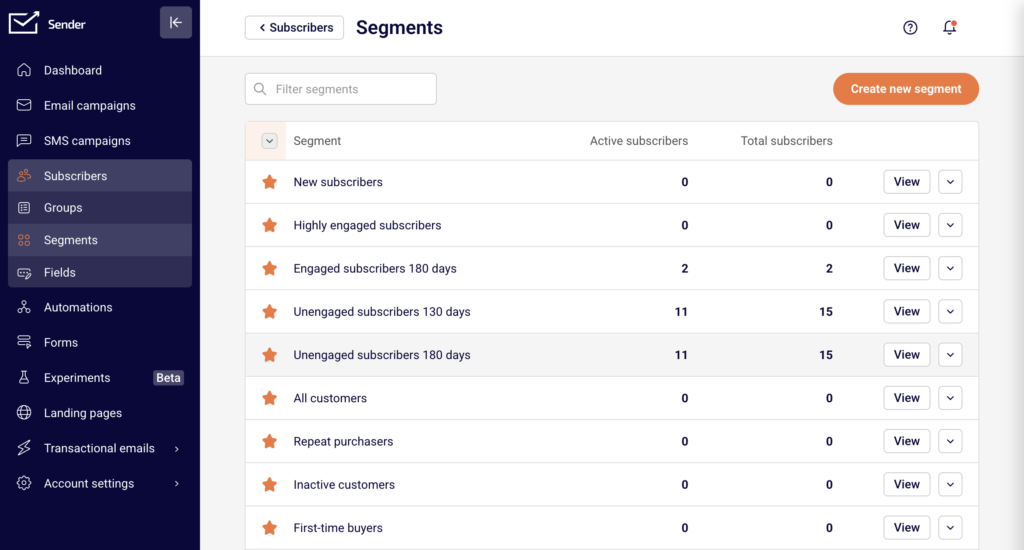
Exclude unengaged subscribers from your campaigns. Sending to recipients who do not open or click your emails lowers your engagement rates, which mailbox providers interpret as a negative signal when making filtering decisions.
Step 3 — Audit your email content for spam triggers
Before sending, review your email content for patterns that spam filters flag. Avoid using excessive capitalization, misleading subject lines, image-only layouts without text, and URL shorteners. Ensure your email includes a visible unsubscribe link and that your “From” name and address are recognizable to recipients. Use a consistent sending domain and avoid switching sender identities between campaigns. After sending, check the spam reports value on the Campaign overview page to confirm your content adjustments reduced complaint rates.
Step 4 — Send to the right audience at the right frequency
Use the pre-built segments under Subscribers → Segments — specifically Highly engaged subscribers and Engaged subscribers 180 days — to target recipients who interact with your emails. Sending to engaged recipients produces higher open and click rates, which strengthens your reputation with mailbox providers. Avoid sending too frequently, as this increases unsubscribes and complaints. Monitor the Unsubscribe rate and Average spam rate on the Dashboard after adjusting your send frequency to verify improvement.
Step 5 — Monitor inbox provider performance over time
After each campaign, go to the Campaign overview page and select Performance by inbox provider.
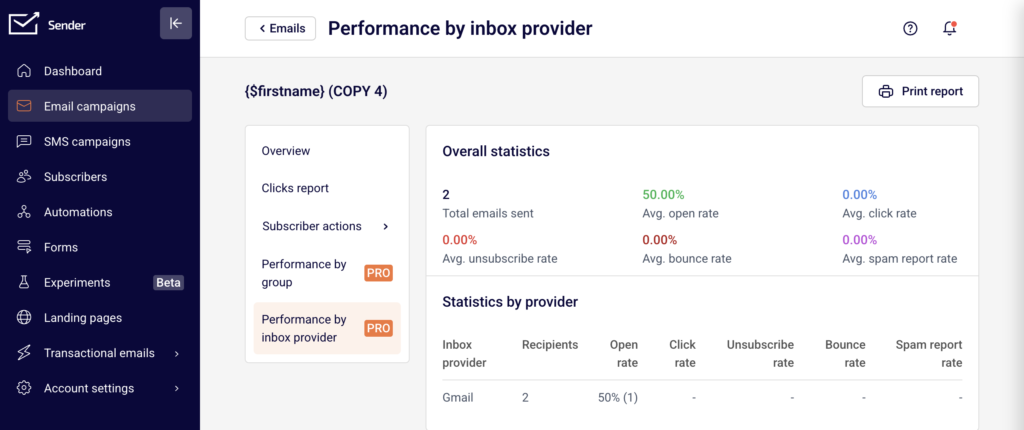
Review the Open rate, Bounce rate, and Spam report rate columns in the Statistics by provider table. If a specific provider shows significantly lower open rates or higher spam report rates than others, your emails are likely being filtered by that provider. Use external tools like Google Postmaster Tools (for Gmail) to get additional domain-level reputation data that supplements the metrics available in Sender.
How Filtering Works
Sender reputation scoring — Mailbox providers assign a reputation score to your sending domain and IP based on historical sending behavior. This score incorporates bounce rates, spam complaint rates, engagement rates, and sending volume consistency. A low reputation score causes providers to route your emails to spam or reject them outright, regardless of content quality.
Content analysis — Spam filters scan your email content for patterns associated with spam, including excessive use of capital letters, certain trigger phrases, misleading subject lines, a high image-to-text ratio, and embedded URL shorteners. Filters also check whether your content matches patterns seen in previously reported spam. Even emails from reputable senders can be filtered if the content triggers enough negative signals.
Engagement-based filtering — Providers like Gmail and Yahoo track how recipients interact with your emails over time. High open rates, clicks, and replies signal that your emails are wanted, which improves future inbox placement. Low engagement — especially when combined with deletions without opening — tells the provider that recipients do not value your emails, increasing the likelihood of spam folder placement for future sends.
Complaint feedback loops — When a recipient clicks “Report spam” or “Mark as junk,” that complaint is sent back to the email service provider through a feedback loop. Sender processes these complaints and marks the subscriber’s status as Reported spam in the Subscribers list. A high complaint rate directly damages your sender reputation and increases filtering across all providers.
Blacklist-based filtering — Blacklist operators like Spamhaus, Barracuda, and SORBS maintain lists of IPs and domains associated with spam. Mailbox providers query these blacklists during the delivery process. If your sending IP or domain appears on a blacklist, your emails may be rejected or filtered by any provider that checks that list.
Recovery Tips
Reduce sending volume temporarily — If your Average spam rate or Hard bounce rate has spiked, reduce your sending volume and send only to your most engaged subscribers. Use the Highly engaged subscribers segment under Subscribers → Segments to limit your audience while you rebuild reputation.
Remove all problematic contacts — Filter your Subscribers list by the Bounced and Reported spam statuses using the Email status filter. Remove these contacts from your active lists to stop sending to addresses that generate negative signals.
Check for blacklisting and request delisting — Use MXToolbox or Spamhaus Lookup to check your domain and sending IP. If listed, submit a delisting request through the blacklist provider’s website and address the underlying cause (such as list hygiene or high complaint rates) before requesting removal.
Re-engage gradually — After cleaning your list and reducing complaints, slowly increase your sending volume over several weeks. Start with your most engaged segments and gradually expand to broader audiences as your metrics stabilize.
Monitor continuously after changes — After each send, check the Average spam rate, Hard bounce rate, and spam reports metrics on the Dashboard and Campaign overview pages. Consistent improvement across multiple sends confirms that your corrective actions are working.
Common Issues
Emails go to spam despite passing authentication → Authentication (SPF, DKIM, DMARC) is necessary but not sufficient. Mailbox providers also evaluate reputation, engagement, complaints, and content. Review your Average spam rate and engagement metrics on the Dashboard, and audit your content for spam trigger patterns.
Spam rate suddenly increases after a campaign → This typically happens when you send to an unclean list, a purchased list, or a segment with many inactive subscribers. Check the spam reports metric on the Campaign overview page for that campaign, then filter your Subscribers list by Reported spam status to identify and remove the affected contacts.
Low open rates at a specific inbox provider → Go to Performance by inbox provider on the Campaign overview page and compare Open rate and Spam report rate across providers. If one provider shows significantly worse metrics, your reputation with that provider may be damaged. Use Google Postmaster Tools for Gmail-specific reputation data.
Bounce rate spikes without changes to list → This can indicate that your sending IP or domain has been blacklisted. Check MXToolbox or Spamhaus Lookup for listings. Also review the Hard bounce rate and Soft bounce rate on the Dashboard to determine whether the bounces are permanent (invalid addresses) or temporary (server-side filtering).
Unengaged subscribers drag down performance → Subscribers who never open your emails reduce your overall engagement rate, which mailbox providers use as a filtering signal. Go to Subscribers → Segments and review the Unengaged subscribers 180 days segment. Exclude or remove these contacts from future campaigns.
FAQs
How do I know if my domain is on a blacklist?
Use external tools like MXToolbox, Spamhaus Lookup, or Barracuda Reputation to check your domain and sending IP. If listed, follow the blacklist provider’s delisting process. Monitor your Hard bounce rate and spam reports in Sender for signs of blacklisting, such as a sudden spike in rejections from a specific provider.
How long does it take to recover sender reputation?
Recovery time varies depending on the severity of the damage and the actions taken. Minor issues may resolve within 1–2 weeks of corrected sending behavior. Severe reputation damage, such as sustained high spam complaint rates, can take several weeks to months. Consistent, low-volume sending to engaged subscribers accelerates recovery.
What is a spam trap and how does it affect my reputation?
A spam trap is an email address used by blacklist operators or mailbox providers to identify senders with poor list practices. Sending to a spam trap signals that your list contains unverified or outdated addresses. This can result in blacklisting or reduced inbox placement. Remove inactive subscribers regularly using the Unengaged subscribers 180 days segment to reduce spam trap risk.
Does Sender share my sending IP with other users?
Sender’s infrastructure and IP allocation policies may vary by plan. Check your account settings or contact Sender support to understand whether your account uses shared or dedicated IPs, as this affects how other senders’ behavior may influence your reputation.
Why are my emails going to spam even though authentication passes?
Authentication (SPF, DKIM, DMARC) is necessary but not sufficient for inbox placement. Mailbox providers also evaluate sender reputation, engagement rates, complaint rates, and content quality. If your emails pass authentication but land in spam, focus on improving engagement, reducing complaints, and reviewing your content for spam trigger patterns. Check the Average spam rate and Performance by inbox provider data in Sender for diagnostic clues.