

Warming Up Your Domain
This guide explains how to warm up a new or inactive sending domain in Sender by gradually increasing email volume and building a positive sender reputation with mailbox providers.
Prerequisites
- An active Sender account
- A domain you own or manage, added and verified in Sender
- SPF, DKIM, and DMARC authentication fully configured and showing green checkmarks in the Authentication column
- Access to your domain’s DNS settings (through your domain registrar or DNS provider)
- A subscriber list with identifiable engaged contacts (recent opens or clicks)
Where to Find This Setting
Domain warming is not a single toggle in Sender — it is a sending strategy you execute across multiple areas of the dashboard. The key locations are:
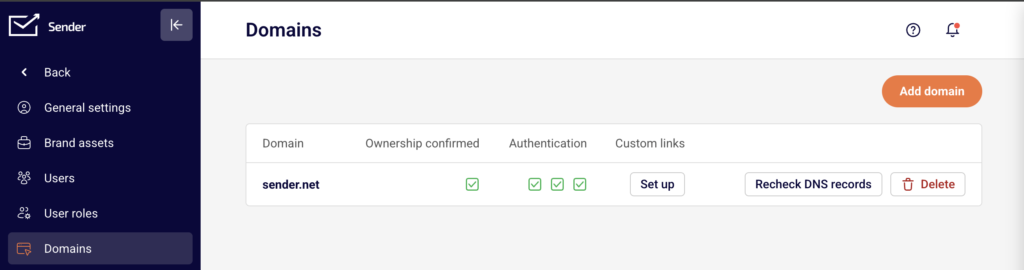
Account settings → Domains — confirm your domain is authenticated before you begin warming. You will see a table listing each domain with its Ownership confirmed status, Authentication checkmarks (SPF, DKIM, DMARC), and Custom links column. Use the Recheck DNS records button to verify your records are current.
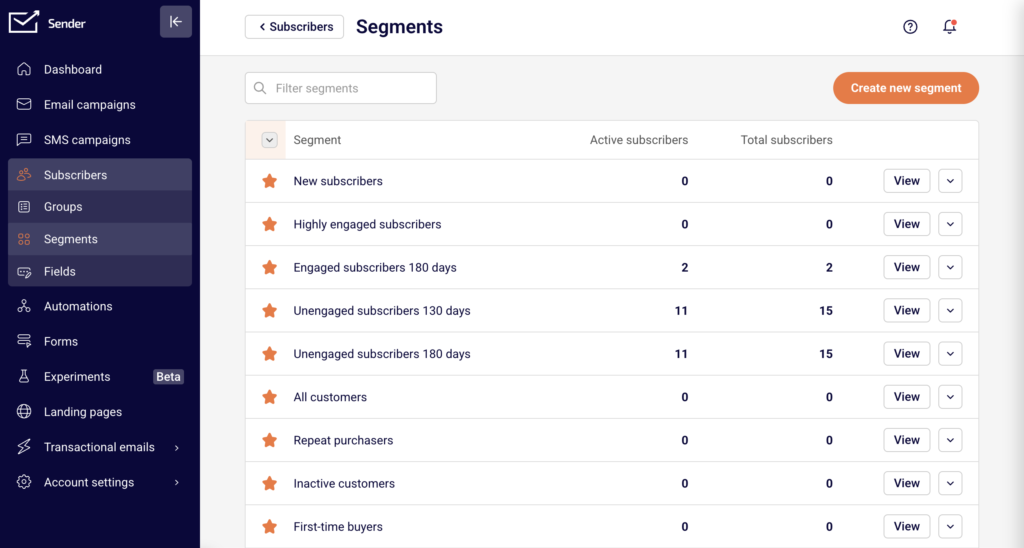
Subscribers → Segments — use the premade segments such as Highly engaged subscribers, Engaged subscribers 180 days, and New subscribers to target your warmup sends.
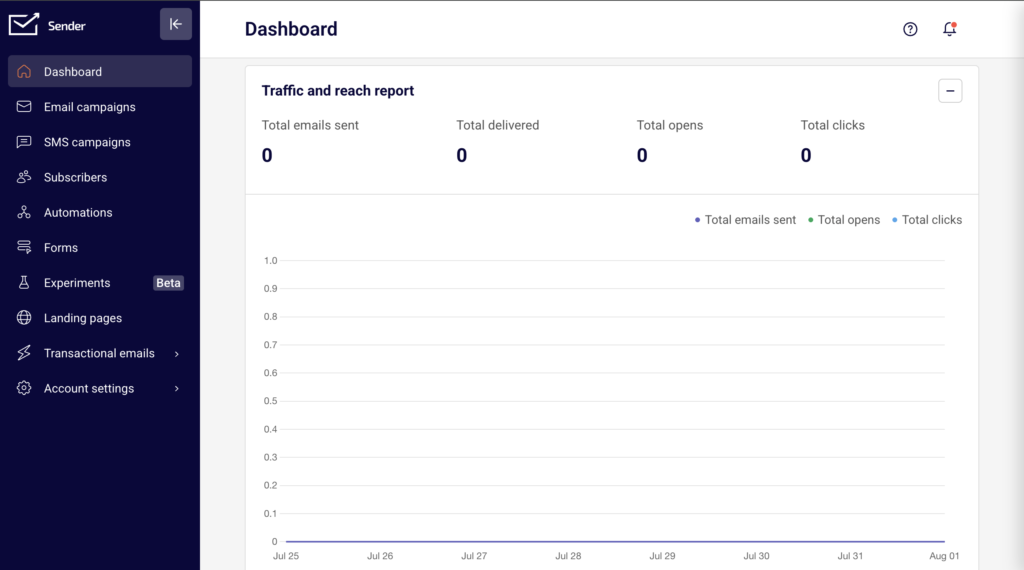
Dashboard — monitor the Traffic and reach report for Total emails sent, Total delivered, Total opens, Total clicks, Bounce rate, Total spams, and Average spam rate throughout the warming period.
Steps to Warm Up Your Domain
Step 1 — Verify domain authentication is complete
Go to Account settings → Domains. Confirm that your sending domain shows a green checkmark under Ownership confirmed and three green checkmarks under Authentication (one each for SPF, DKIM, and DMARC). If any checkmark is missing or shows a warning, resolve the DNS issue before starting the warmup. Click Recheck DNS records if you recently updated your DNS configuration. Do not begin sending volume until all three protocols pass verification.
Step 2 — Set up engagement-based automations
Go to Automations and click Create new workflow. Build high-engagement automation flows such as Welcome series or Abandoned cart sequences.
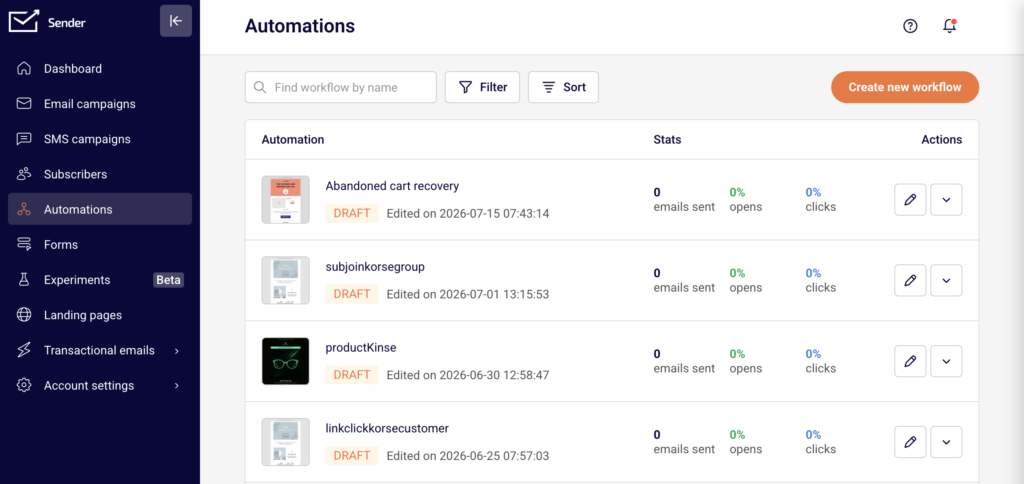
These automations generate one-to-one, subscriber-triggered emails that produce strong open and click signals. Activate these automations and let them run for at least 3–10 days before sending any bulk campaigns. This initial automated sending establishes positive engagement patterns with mailbox providers and lays the foundation for your domain’s reputation.
Step 3 — Segment your most engaged subscribers
Go to Subscribers → Segments. Use the premade Highly engaged subscribers or Engaged subscribers 180 days segment to identify contacts who have recently opened or clicked your emails. If you are migrating from another email platform, create a custom segment of contacts who engaged within the last 180 days. Your first manual campaigns should target only these engaged subscribers and any new subscribers from the last 45 days.
Step 4 — Send campaigns with gradually increasing volume
Go to Email campaigns and click New campaign. Send your first campaign to the engaged segment you created in Step 3. Start with a small portion of your list — a few hundred to a few thousand recipients depending on your total list size.
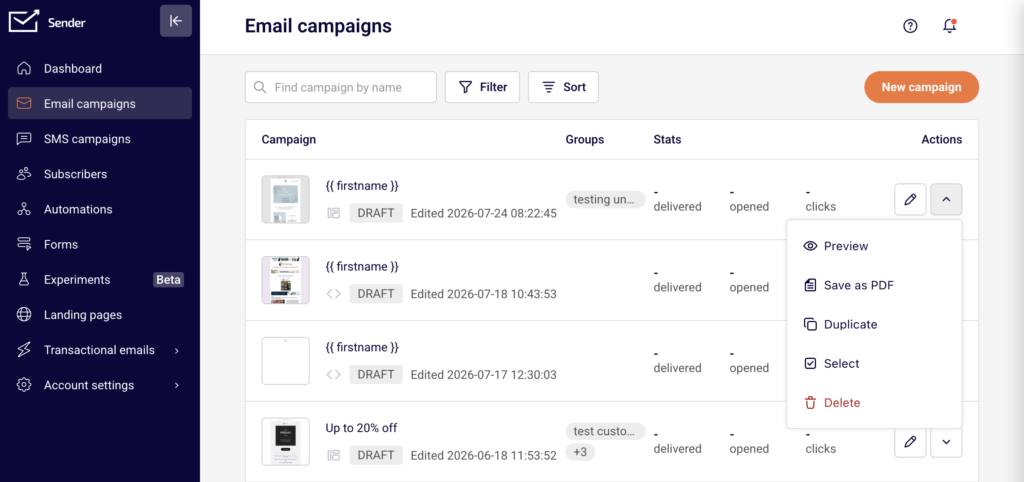
Over the following 2–4 weeks, gradually increase the number of recipients per campaign. Add less-engaged segments only after your engagement metrics remain healthy. Avoid sending to your full list until the warmup period is complete.
Step 5 — Monitor metrics and adjust
Return to the Dashboard after each campaign send. Review the Traffic and reach report for the following key indicators: Total opens, Total clicks, Bounce rate, Total spams, and Average spam rate. Aim for open rates above 20%, bounce rates below 2%, and spam complaint rates below 0.1%. If metrics trend downward, reduce volume, clean your list, or re-check your authentication. Continue monitoring for the full warmup duration of 2–4 weeks.
How to Verify
Go to Account settings → Domains and confirm all three green checkmarks remain visible in the Authentication column throughout the warming period. On the Dashboard, check the Traffic and reach report — healthy warming shows steady or increasing open rates, low bounce rates, and minimal spam complaints across sends. If authentication checkmarks disappear or metrics degrade significantly, pause sending, review your DNS records, and click Recheck DNS records. Consistent positive engagement metrics across 2–4 weeks of gradual volume increases indicate a successfully warmed domain.
How It Works
Domain reputation — Mailbox providers such as Gmail, Outlook, and Yahoo assign a reputation score to every sending domain. This score is built over time based on recipient engagement, bounce rates, and spam complaints. A new or inactive domain has no established reputation, so mailbox providers treat its emails with caution and may throttle or filter them.
Gradual volume increase — Sending a large volume of email from a domain with no history triggers spam filters and rate limits. By starting with small sends to engaged recipients and slowly increasing volume, you signal to mailbox providers that your domain sends wanted email. Each successful send with positive engagement improves the domain’s reputation incrementally.
Authentication as a foundation — SPF, DKIM, and DMARC records do not warm a domain on their own, but they are required for warming to succeed. SPF tells mailbox providers which servers are authorized to send on your domain’s behalf. DKIM cryptographically signs each message to prove it was not altered in transit. DMARC instructs mailbox providers how to handle messages that fail SPF or DKIM checks. Without all three in place, warming efforts will produce inconsistent results.
Engagement signals — Mailbox providers weight recipient actions such as opens, clicks, and replies heavily when evaluating sender reputation. Sending to engaged subscribers during the warming period generates the positive signals that build trust. Sending to unengaged or invalid addresses generates bounces and spam complaints that damage reputation and can undo warming progress.
Common Issues
High bounce rate during early sends → Your subscriber list may contain outdated or invalid email addresses. Clean your list before starting the warmup by removing hard bounces and long-inactive subscribers. Use the Subscribers page to filter by Email status and remove invalid contacts.
Emails landing in spam despite authentication passing → Authentication alone does not guarantee inbox placement. Mailbox providers also evaluate domain age, sending history, content quality, and engagement metrics. Reduce your send volume, target only highly engaged subscribers, and check that your email content does not trigger spam filters.
Sudden drop in open rates after increasing volume → You likely increased volume too quickly or added less-engaged segments too early. Scale back to the volume and audience of your last successful send, wait several days, then increase more gradually.
Authentication checkmarks disappear after domain was verified → Your DNS records may have been modified or removed by your DNS provider or another administrator. Go to Account settings → Domains and click Recheck DNS records. Compare the records shown in Sender with your current DNS configuration and restore any missing TXT or CNAME entries.
Mailbox provider throttling or deferring messages → Some providers impose per-sender limits for domains with no reputation. This is expected behavior during warming. Continue sending at moderate volumes and the throttling will ease as your reputation improves. Do not attempt to bypass throttling by sending large bursts.
FAQs
How long does domain warming take?
Most domains require 2–4 weeks of consistent, gradually increasing sends to build a stable reputation. The exact timeline depends on your total list size, engagement quality, and how aggressively you scale volume. Domains with very large lists or lower engagement may need longer.
Is domain warming the same as IP warming?
No. Domain warming builds reputation for your sending domain (the address in the From field), while IP warming builds reputation for the specific IP address your emails are sent from. On Sender’s shared infrastructure, IP reputation is managed for you. If you have a dedicated IP through the Enterprise plan, you need to warm both the IP and the domain separately.
Can I skip warming if my domain is already authenticated?
Authentication (SPF, DKIM, DMARC) is a prerequisite for warming, not a substitute for it. A fully authenticated domain with no sending history still has no reputation. Mailbox providers will throttle or filter emails from an authenticated but unwarmed domain.
What volume should I start with?
Start with your most engaged subscribers — typically a few hundred to a few thousand recipients. Increase volume by roughly 25–50% with each subsequent send, provided engagement metrics remain healthy. There is no universal number because list size and engagement vary.
Do I need to warm my domain if I am migrating from another email platform?
Yes. Even if your domain had a strong reputation on your previous platform, switching to Sender changes the sending infrastructure. Create a segment of contacts who engaged in the last 180 days and follow the warming steps starting with that segment. Your existing domain reputation will help, but a gradual ramp-up is still necessary.
What metrics should I watch during warming?
Monitor Total opens, Total clicks, Bounce rate, Total spams, and Average spam rate on the Dashboard. Open rates above 20%, bounce rates below 2%, and spam complaint rates below 0.1% indicate healthy warming. If any metric trends into a warning zone, reduce volume and review your list quality.
Can I send to my full list on day one?
No. Sending to your entire list before building reputation is the most common cause of deliverability problems with a new domain. Always start with engaged subscribers and scale gradually over 2–4 weeks.