

Sender reputation basics
This guide explains what sender reputation is, how mailbox providers evaluate it, and how to monitor and protect it as a Sender user.
Why this matters
Sender reputation is a score that mailbox providers (Gmail, Outlook, Yahoo) assign to your sending domain and IP address based on your email sending behavior. A strong reputation means your emails reach the inbox; a damaged reputation causes emails to land in spam or get rejected entirely. Every campaign you send contributes to this score, making ongoing monitoring essential to maintaining consistent inbox placement.
How to identify the problem
Hard bounce rate — Open your Dashboard and check the Hard bounce rate in the Traffic and reach report section. A hard bounce rate above 2% signals that your list contains invalid addresses, which degrades your reputation with mailbox providers.
Average spam rate — On the Dashboard, review the Average spam rate metric below the chart. A spam rate above 0.1% is a warning sign. Rates above 0.3% can cause mailbox providers to throttle or filter your emails aggressively.
Campaign-level spam reports — Navigate to Email campaigns, select a sent campaign, and open the Campaign overview. In the Statistics section, check the spam reports count. A spike in spam reports on a specific campaign indicates content or targeting issues that need immediate attention.
Google Postmaster Tools — If you send to Gmail recipients, check Google Postmaster Tools for your domain’s reputation rating (High, Medium, Low, Bad). This external tool provides domain-level reputation data that supplements Sender’s built-in metrics and shows how Gmail specifically views your sending behavior.
MXToolbox Blacklist Check — Run your sending domain and IP through MXToolbox Blacklist Lookup to check whether you appear on any major blacklists. Being listed on blacklists such as Spamhaus, Barracuda, or SORBS directly causes email rejections and filtering.
Steps to monitor and protect your reputation
Step 1 — Review your Dashboard metrics weekly
Go to Dashboard and review the Traffic and reach report. Check the Hard bounce rate, Average spam rate, and Bounce rate values. Compare them over time using the date selector in the top right corner. If any metric trends upward across multiple sending periods, investigate the cause before sending your next campaign. Healthy sending shows a hard bounce rate below 2% and a spam rate below 0.1%.
Step 2 — Audit campaign-level performance after each send
After each campaign, navigate to Email campaigns, open the sent campaign, and review the Statistics section on the Campaign overview page. Compare spam reports, hard bounced, soft bounced, and unsubscribed counts against previous campaigns. If spam reports or hard bounced numbers are higher than usual, pause sending and review your recipient list and content before the next campaign.
Step 3 — Check external reputation tools monthly
Visit Google Postmaster Tools to review your domain reputation and spam rate as reported by Gmail. Run a blacklist check on MXToolbox for both your sending domain and IP. If your domain reputation is rated Low or Bad in Google Postmaster Tools, or if you appear on any blacklist, take corrective action immediately — reduce sending volume and focus only on your most engaged subscribers.
Step 4 — Clean your subscriber list regularly
Go to Subscribers and use the Email status filter to identify inactive or problematic addresses.
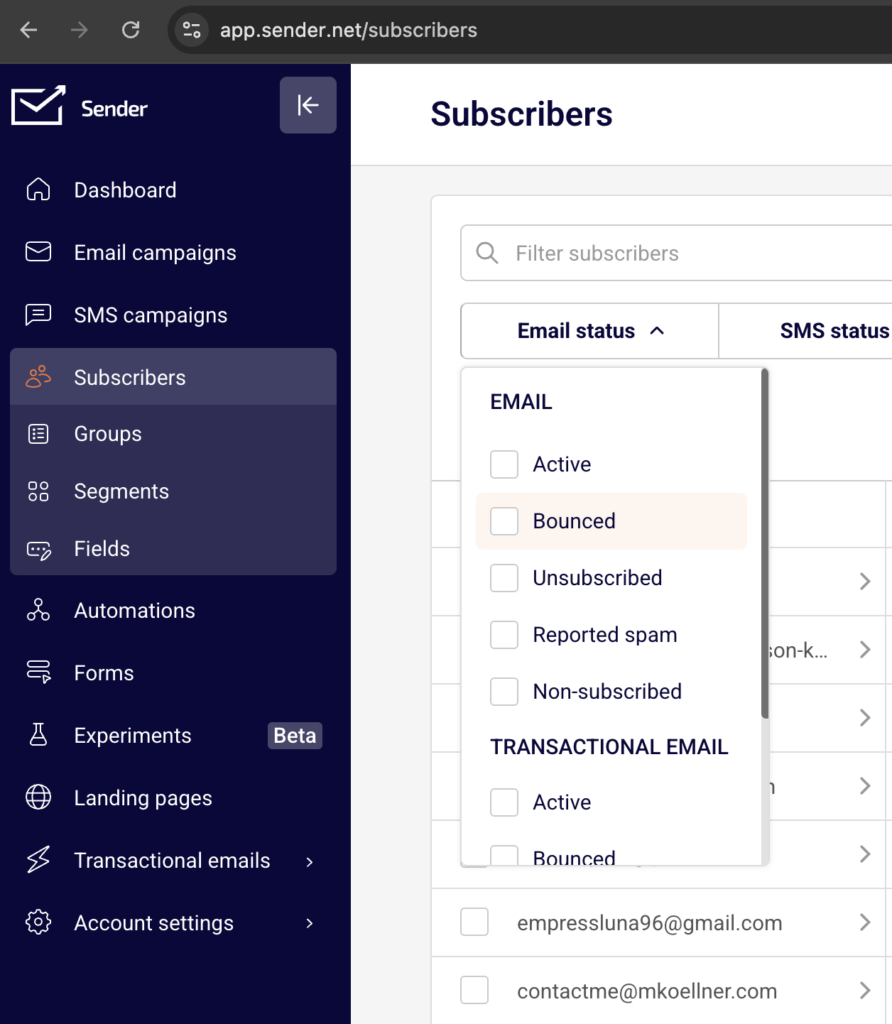
Remove subscribers who have not opened or clicked any email in the last 90–120 days. Sending to disengaged recipients lowers your engagement rate, which mailbox providers interpret as a negative reputation signal. Regular list hygiene also reduces the risk of hitting spam traps.
Step 5 — Monitor transactional email metrics separately
Navigate to Transactional emails → Metrics and check the Hard bounces and Spam reports counts.
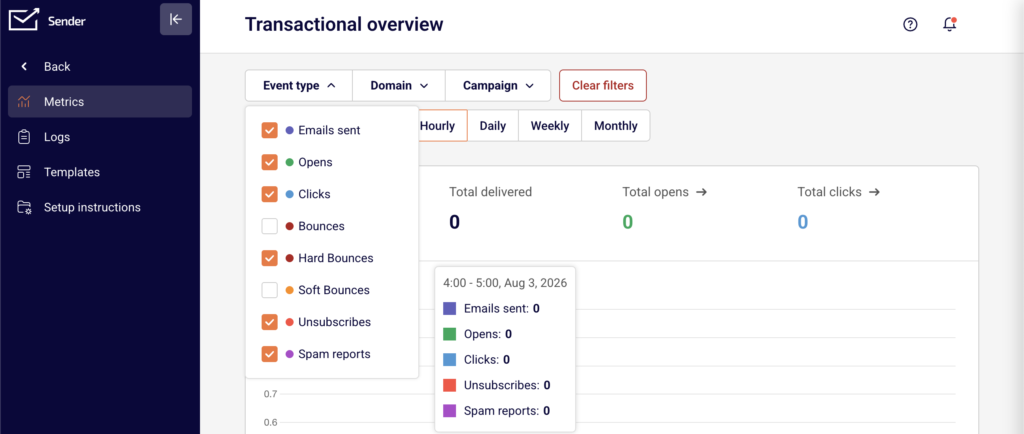
Transactional emails contribute to your domain reputation just like marketing campaigns. Filter by Domain to isolate performance per sending domain. If transactional emails show rising bounces or spam reports, verify that your transactional sending triggers and recipient data are accurate.
How filtering works
Reputation scoring — Mailbox providers assign a reputation score to your sending domain and IP address based on historical sending patterns. This score incorporates bounce rates, spam complaint rates, engagement metrics, and blacklist status. A low score causes your emails to be filtered to spam or rejected outright.
Engagement-based filtering — Providers like Gmail weigh recipient engagement heavily. If recipients consistently open, click, and reply to your emails, your reputation strengthens. If recipients ignore, delete, or mark your emails as spam, your reputation degrades. This is why sending to engaged subscribers is critical for inbox placement.
Content filtering — Spam filters analyze email content for patterns associated with spam, including excessive use of capital letters, misleading subject lines, heavy image-to-text ratios, and known spam phrases. Content filtering works alongside reputation scoring — poor content can trigger spam placement even when reputation is otherwise healthy.
Blacklist filtering — Blacklist operators like Spamhaus, Barracuda, and SORBS maintain lists of IPs and domains associated with spam. Mailbox providers query these blacklists in real time. If your domain or IP appears on a blacklist, providers may reject your emails entirely or route them to spam regardless of other reputation signals.
Feedback loops — Mailbox providers send complaint data back to email service providers like Sender when a recipient marks an email as spam. Sender processes this data and reflects it in your spam reports metric. High complaint rates through feedback loops directly lower your reputation score with the reporting provider.
Recovery tips
Reduce sending volume — If your reputation is damaged, temporarily reduce your sending volume and frequency. Send only to your most engaged subscribers to generate positive engagement signals and gradually rebuild trust with mailbox providers.
Remove problematic addresses — Go to Subscribers and remove addresses that have hard bounced, repeatedly soft bounced, or generated spam complaints. Continuing to send to these addresses accelerates reputation damage.
Send re-engagement campaigns — Before removing inactive subscribers entirely, send a targeted re-engagement campaign to a small segment. Subscribers who do not engage after re-engagement should be removed from your active list to prevent further reputation harm.
Request delisting if blacklisted — If you find your domain or IP on a blacklist through MXToolbox, visit the blacklist provider’s website (such as Spamhaus, Barracuda, or SORBS) and submit a delisting request. Most providers require you to demonstrate that the underlying issue has been resolved before granting removal.
Monitor continuously after correction — After taking corrective action, monitor your Dashboard metrics and Google Postmaster Tools daily for at least two weeks. Reputation recovery is gradual, and sustained improvement in bounce rates, spam rates, and engagement is necessary to restore inbox placement.
Common issues
Sudden spike in hard bounces → This typically happens after importing an old or unverified list. Remove all hard-bounced addresses immediately from Subscribers and avoid importing lists that have not been verified recently.
Emails going to spam despite low complaint rates → Low engagement (opens and clicks) can cause spam placement even without complaints. Review your Campaign overview → Statistics for opened and unique clicks rates, and segment your list to target only active subscribers.
Blacklisted after a single campaign → Sending a large volume to an unclean list can trigger blacklisting in one send. Check MXToolbox for listings, submit delisting requests, and reduce your next send volume significantly while focusing on list quality.
Reputation differs across providers → Gmail, Outlook, and Yahoo use independent reputation systems. Your emails may reach the inbox at one provider but land in spam at another. Use Google Postmaster Tools for Gmail-specific data, and review per-provider patterns in the Performance by inbox provider report on the Campaign overview page (available on Pro plans).
Spam rate rising gradually over time → This signals list fatigue or a growing number of disengaged recipients. Check the Average spam rate on your Dashboard over progressively longer date ranges. Implement regular list cleaning and re-engagement workflows to reverse the trend.
FAQs
How do I know if my domain is on a blacklist?
Use external tools like MXToolbox, Spamhaus Lookup, or Barracuda Reputation to check your domain and sending IP. If listed, follow the blacklist provider’s delisting process. Monitor your Hard bounce rate and Average spam rate on the Dashboard for signs of blacklisting, such as a sudden spike in rejections from a specific provider.
How long does it take to recover sender reputation?
Recovery time varies depending on the severity of the damage and the actions taken. Minor issues may resolve within one to two weeks of corrected sending behavior. Severe reputation damage, such as sustained high spam complaint rates, can take several weeks to months. Consistent, lower-volume sending to engaged subscribers accelerates recovery.
What is a spam trap and how does it affect my reputation?
A spam trap is an email address used by blacklist operators or mailbox providers to identify senders with poor list practices. Sending to a spam trap signals that your list contains unverified or outdated addresses. This can result in blacklisting or reduced inbox placement. Remove inactive subscribers regularly through the Subscribers section to reduce spam trap risk.
Does Sender share my sending IP with other users?
Sender’s infrastructure and IP allocation policies may vary by plan. Check your account settings or contact Sender support to understand whether your account uses shared or dedicated IPs, as this affects how other senders’ behavior may influence your reputation.
Why are my emails going to spam even though authentication passes?
Authentication (SPF, DKIM, DMARC) is necessary but not sufficient for inbox placement. Mailbox providers also evaluate sender reputation, engagement rates, complaint rates, and content quality. If your emails pass authentication but land in spam, focus on improving engagement metrics visible in your Campaign overview → Statistics, reducing complaints, and reviewing your content for spam trigger patterns.