

Gmail and Yahoo sender requirements
This guide explains what Gmail and Yahoo require from bulk email senders and how to configure your Sender account to meet those requirements.
Why This Matters
Gmail and Yahoo enforce strict sender requirements that affect whether your emails reach subscriber inboxes or get rejected entirely. Senders who do not comply risk having their messages blocked, filtered to spam, or silently dropped. Non-compliance can also trigger domain reputation damage that affects all emails sent from your domain, not just those sent through Sender. Meeting these requirements is essential to maintaining deliverability and avoiding disruption to your email program.
What Is Required
Domain authentication — Gmail and Yahoo require that all bulk senders authenticate their sending domain using SPF, DKIM, and DMARC. Messages that fail authentication checks are more likely to be rejected or sent to spam. This applies to anyone sending marketing or bulk email to Gmail or Yahoo recipients.
One-click unsubscribe (RFC 8058) — Bulk senders must support one-click unsubscribe by including a functioning List-Unsubscribe header in every marketing email. Gmail and Yahoo expect this header to allow recipients to unsubscribe without additional steps. Failure to include it can result in emails being blocked.
Low spam complaint rate — Gmail requires senders to keep their spam complaint rate below 0.3%, with a recommended target below 0.10%. Yahoo applies similar thresholds. Exceeding these limits triggers filtering or blocking of your messages.
Valid “From” address and matching domain — The domain in your “From” address must match the domain you have authenticated. Gmail and Yahoo check this alignment as part of DMARC validation. Sending from a free email address (e.g., gmail.com, yahoo.com) as your “From” address will cause authentication failures.
Physical mailing address — CAN-SPAM and other regulations require a valid physical postal address in every commercial email. While not a Gmail- or Yahoo-specific rule, it is enforced by Sender and expected by mailbox providers as a trust signal.
Proper DNS records (PTR/reverse DNS) — Sending IP addresses must have valid PTR records that resolve correctly. Sender manages this for emails sent through its infrastructure, but if you use a custom sending setup, you should verify this with your provider.
Note: This article describes general compliance guidance. Consult a legal professional for jurisdiction-specific advice on email regulations.
Steps to Meet Gmail and Yahoo Requirements
Step 1 — Verify your sending domain authentication
Go to Account settings → Domains. Locate your sending domain in the list and check the Authentication column.
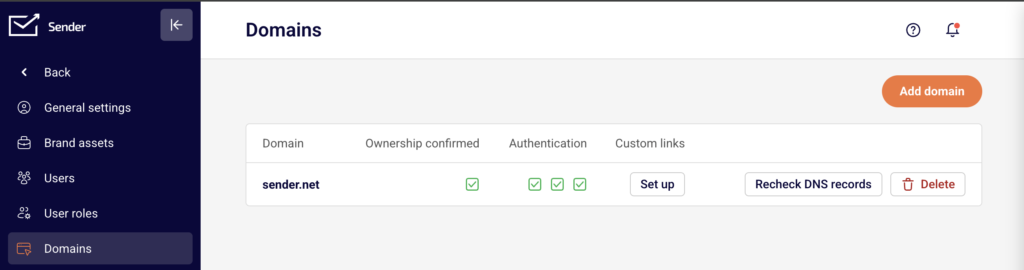
Three green checkmarks should appear, confirming that SPF, DKIM, and DMARC are properly configured. If any are missing, click Recheck DNS records to refresh the status.
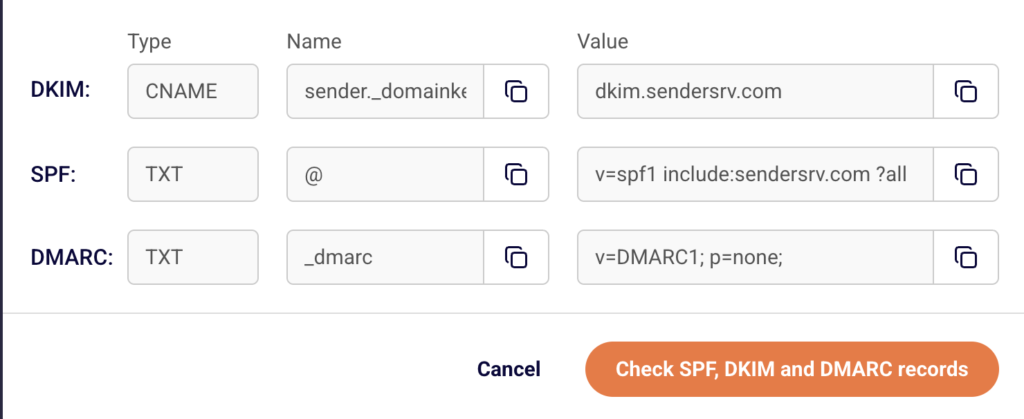
If authentication is not yet set up, click Add domain and follow the setup instructions provided. All three protocols must be verified before sending to Gmail or Yahoo recipients.
Step 2 — Use an authenticated “From” address
When creating a campaign, go to the Settings step and review the Sender details section. Confirm that the Sender’s email address field uses a domain you have already authenticated in Account settings → Domains.
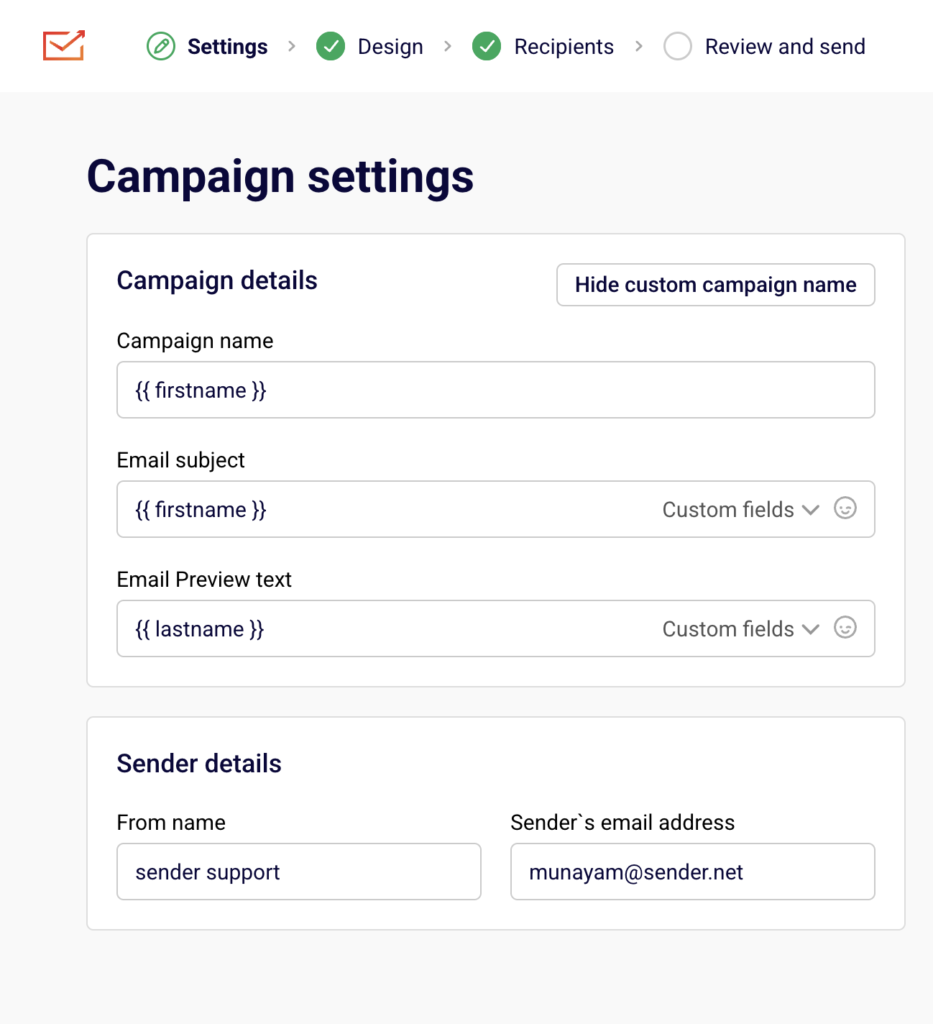
Do not use a free email provider address (e.g., gmail.com, yahoo.com) as your “From” address. The domain in your “From” address must match the authenticated domain for DMARC alignment to pass. If needed, update the From name field to reflect a recognizable sender identity.
Step 3 — Confirm your physical address is set
Go to Account settings → General settings. Under the Company info section, fill in the Address, City, State / Province / Region, Postal/ZIP code, and Country fields. This address is included in your email footer automatically when using Sender’s default templates.
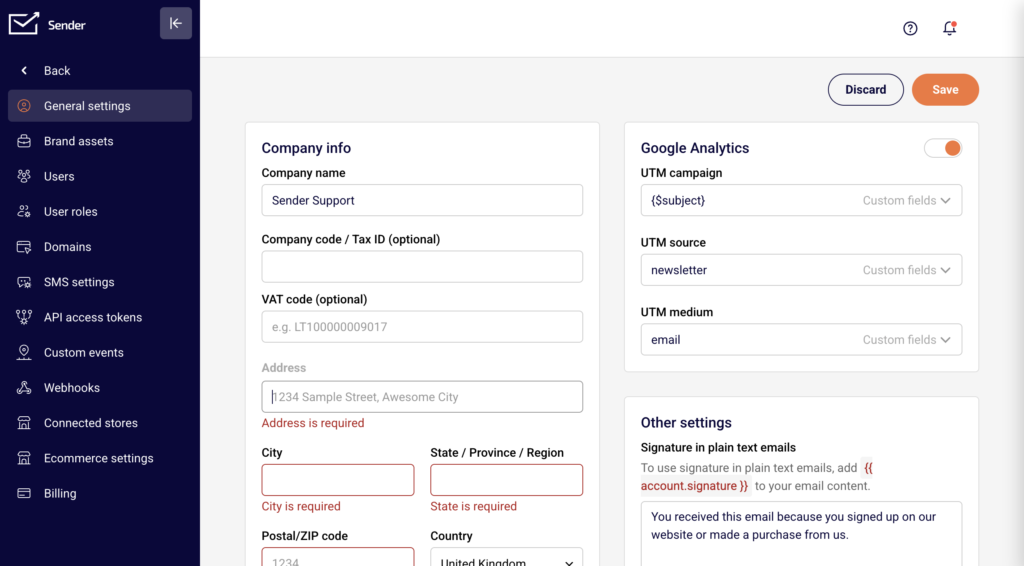
Click Save to apply changes. A valid mailing address is required by CAN-SPAM and is expected by Gmail and Yahoo as part of sender compliance.
Step 4 — Ensure unsubscribe handling is configured
Sender automatically includes a List-Unsubscribe header and a visible unsubscribe link in marketing emails sent through its templates. To adjust unsubscribe behavior, go to Account settings → General settings and locate the Ask for unsubscribe confirmation toggle under Other settings.
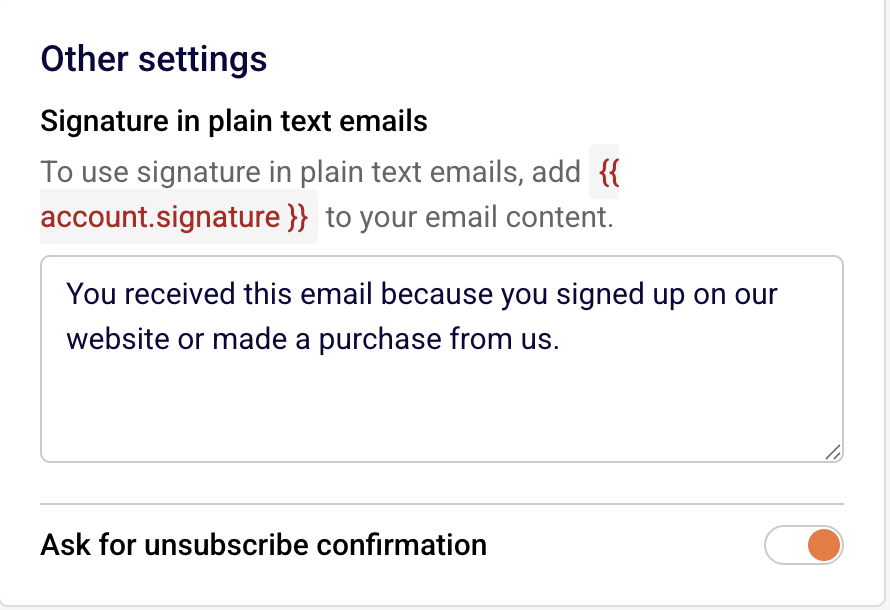
When this toggle is off, recipients are unsubscribed immediately upon clicking the link, which aligns with Gmail and Yahoo’s one-click unsubscribe requirement. Confirm this setting matches your compliance needs.
Step 5 — Monitor your spam complaint rate
Return to your Dashboard and review the Average spam rate metric in the Traffic and reach report section. Gmail and Yahoo expect this rate to stay below 0.3%, with a recommended target below 0.10%. If your spam rate is climbing, review your subscriber list for non-consented contacts, reduce sending frequency, or improve content relevance.
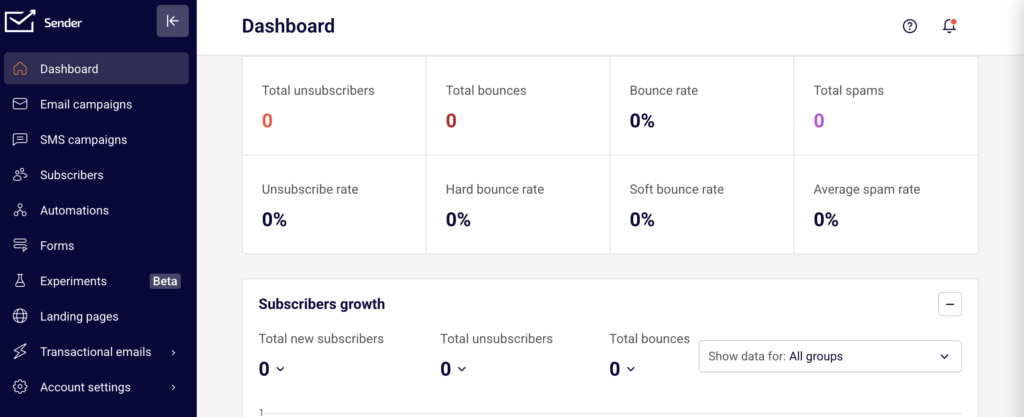
Sustained high complaint rates can trigger filtering or blocking by Gmail and Yahoo, and may also result in a review from Sender.
Sender’s Policies
Authenticated domain required — Sender requires you to add and verify a sending domain in Account settings → Domains before you can send campaigns. Sending from unverified or free email domains is restricted and may result in delivery failures.
Unsubscribe link required — Every marketing email sent through Sender must include a working unsubscribe link. Sender’s default templates include this automatically. Removing or hiding the unsubscribe link violates Sender’s sending policies and may lead to account suspension.
Purchased lists prohibited — Sender’s acceptable use policy prohibits sending to purchased, rented, or scraped email lists. Sending to these lists leads to high bounce rates and spam complaints, which violate Gmail and Yahoo thresholds and may result in account suspension.
Spam complaint monitoring — Sender monitors spam complaint rates across all accounts. If your complaint rate exceeds acceptable levels, your account may be flagged for review, restricted, or suspended. This enforcement aligns with Gmail and Yahoo’s requirement to maintain complaint rates below 0.3%.
Physical address required — Sender requires a valid physical mailing address in Account settings → General settings. This address is automatically inserted into email footers. Leaving it blank or entering invalid information violates Sender’s policies and CAN-SPAM regulations.
Compliance Tips
Keep your “From” domain consistent — Always send from the same authenticated domain. Switching between multiple unauthenticated domains confuses mailbox providers and damages your sender reputation with Gmail and Yahoo.
Disable unsubscribe confirmation for bulk sending — Gmail and Yahoo’s one-click unsubscribe requirement works best when subscribers are removed immediately. If the Ask for unsubscribe confirmation toggle is enabled, consider turning it off to ensure seamless compliance.
Clean your list before sending — Remove inactive, bounced, and unengaged subscribers regularly. High bounce rates and low engagement signal poor list quality to Gmail and Yahoo, increasing the likelihood of filtering.
Send only to opted-in subscribers — Every recipient on your list should have given explicit permission to receive your emails. Consent-based sending is the most effective way to maintain low complaint rates and comply with Gmail, Yahoo, and regulatory requirements.
Test authentication before launching campaigns — After adding your domain in Account settings → Domains, click Recheck DNS records to confirm all three authentication checks (SPF, DKIM, DMARC) show green checkmarks before sending your first campaign.
Common Issues
Emails landing in Gmail spam despite authentication → This typically happens when your spam complaint rate exceeds Gmail’s threshold or your DMARC policy is not aligned with your “From” domain. Check Account settings → Domains to verify all three authentication checks are green, and review your Dashboard for rising spam rates.
DMARC alignment failure → This occurs when the domain in your Sender’s email address field does not match the domain authenticated in Account settings → Domains. Update your “From” address to use the verified domain.
Unsubscribe link missing from emails → If you are using a custom HTML template without Sender’s default footer blocks, the unsubscribe link may not be included. Add the unsubscribe merge tag manually to your template to ensure compliance with Gmail, Yahoo, and Sender requirements.
Account flagged for high spam complaints → Sender monitors complaint rates and may restrict your account if rates are too high. Review your subscriber list for non-consented contacts, reduce frequency to unengaged segments, and ensure your content matches subscriber expectations.
Physical address missing from email footer → Go to Account settings → General settings and complete all fields under Company info. If you are using a custom template, confirm that the address merge tag is included in the footer.
FAQs
Do Gmail and Yahoo requirements apply to all senders?
The strictest requirements (domain authentication, one-click unsubscribe, low spam rates) apply specifically to bulk senders — generally those sending more than 5,000 messages per day to Gmail or Yahoo addresses. However, all senders benefit from following these requirements, and Sender enforces many of them regardless of volume.
Can I send from a Gmail or Yahoo email address as my “From” address?
No. Gmail and Yahoo’s DMARC policies reject emails sent from their domains through third-party platforms like Sender. You must use a custom domain that you own and have authenticated in Account settings → Domains.
What happens if I don’t set up DMARC?
Gmail and Yahoo may reject or filter your emails if DMARC is not configured. At minimum, you need a DMARC record published on your domain, even if it is set to a monitoring-only policy. Check the Authentication column in Account settings → Domains to confirm your DMARC status.
How does Sender handle the one-click unsubscribe requirement?
Sender automatically adds the List-Unsubscribe header to marketing emails, which satisfies Gmail and Yahoo’s one-click unsubscribe requirement. If you disable the Ask for unsubscribe confirmation toggle in Account settings → General settings, subscribers are removed immediately upon clicking, fully meeting the one-click standard.
Will my emails be blocked if my spam rate exceeds 0.3%?
Gmail may begin filtering or rejecting your messages if your spam complaint rate stays above 0.3%. Yahoo applies similar enforcement. If your rate is elevated, Sender may also flag your account for review. Reduce sending to unengaged contacts and review your list hygiene practices to bring the rate down.
Where do I check my authentication status in Sender?
Go to Account settings → Domains. Each domain in the list shows green checkmarks for SPF, DKIM, and DMARC under the Authentication column. If any checkmark is missing, your authentication is incomplete.