

Unsubscribe compliance and configuration
This guide explains the requirements for including and managing unsubscribe links in your emails and how to configure Sender’s unsubscribe settings to meet those obligations.
Why This Matters
Every marketing email you send must include a working unsubscribe mechanism. Failing to provide one violates CAN-SPAM, GDPR, CASL, and Sender’s own sending policies, and can result in spam complaints, deliverability damage, and account suspension. Subscribers who cannot easily opt out are more likely to mark your emails as spam, which directly harms your sender reputation. Proper unsubscribe configuration protects both your account standing and your recipients’ rights.
What Is Required
Working unsubscribe link in every marketing email — CAN-SPAM (the U.S. law governing commercial email) requires a clear and conspicuous opt-out mechanism in every commercial message. GDPR (the EU’s data protection regulation) and CASL (Canada’s anti-spam legislation) impose similar requirements. Emails sent without a functional unsubscribe link may trigger spam complaints, mailbox provider filtering, and regulatory penalties.
Timely processing of unsubscribe requests — CAN-SPAM requires that opt-out requests be honored within 10 business days. Sender processes unsubscribes automatically and immediately when a subscriber clicks the unsubscribe link. You must not re-add or re-email contacts who have unsubscribed unless they explicitly re-consent.
Physical mailing address in every commercial email — CAN-SPAM requires a valid physical postal address in every marketing email. This address must be entered in your Sender account settings and appears automatically in the email footer when using Sender’s default templates.
Unsubscribe confirmation behavior — Some regulations and best practices recommend confirming the unsubscribe action rather than requiring additional steps that could delay opt-out processing. Sender offers an optional confirmation step that you can enable or leave disabled based on your compliance needs.
Note: Regulations vary by jurisdiction. Consult a legal professional for guidance specific to your region and audience.
Steps to Configure Unsubscribe Compliance
Step 1 — Add your physical mailing address
Go to Account settings → General settings. In the Company info section, fill in the Address, City, State / Province / Region, Postal/ZIP code, and Country fields with your valid business mailing address. Click Save.
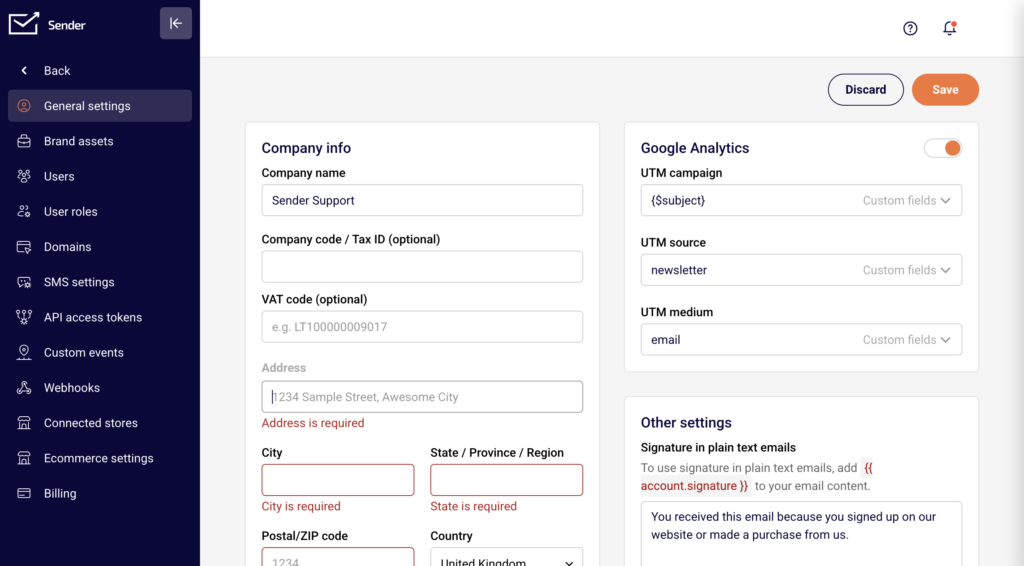
This address is automatically inserted into your email footer using template variables ({{ account.address }}, {{ account.city }}, {{ account.country }}), satisfying the CAN-SPAM physical address requirement.
Step 2 — Verify the unsubscribe link is visible in your email template
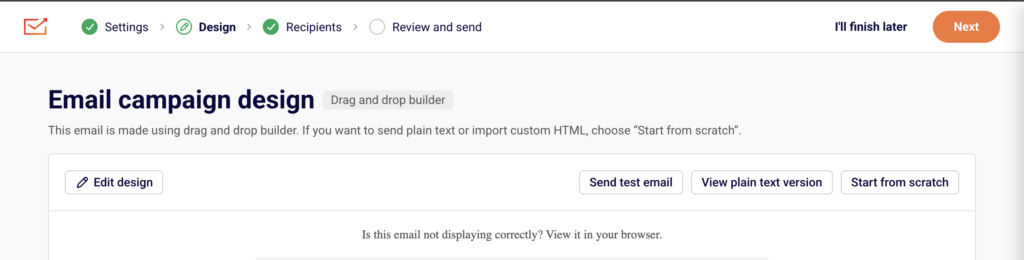
Open your campaign in the email builder (Email campaigns → select a campaign → Design → Edit design). In the left sidebar, click the Template settings icon, then expand Preview & Unsubscribe.
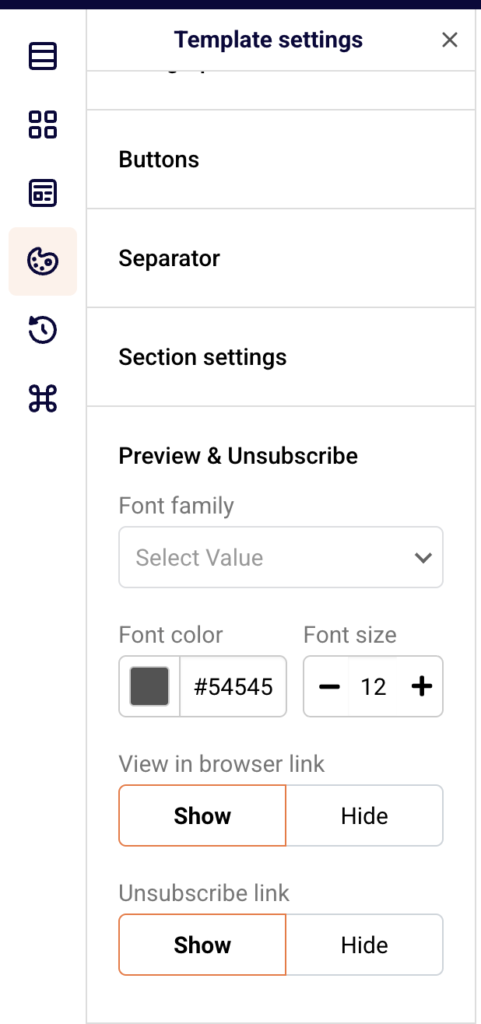
Confirm that the Unsubscribe link option is set to Show. This ensures every email sent from this template includes the unsubscribe link in the footer. The default footer text reads “If you would like to unsubscribe, please click here.”
Step 3 — Configure the unsubscribe confirmation setting
Go to Account settings → General settings. Scroll to the Other settings section and locate the Ask for unsubscribe confirmation toggle.
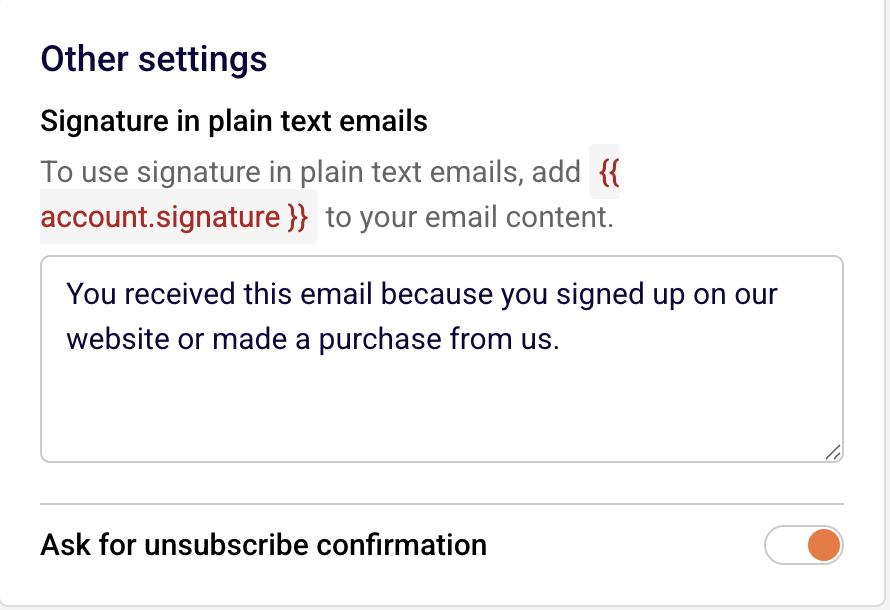
When disabled, subscribers are unsubscribed immediately upon clicking the link. When enabled, subscribers see a confirmation step before the unsubscribe is processed. Choose the setting that fits your compliance strategy — immediate processing is generally safer for regulatory compliance. Click Save.
Step 4 — Review unsubscribed subscribers
Go to Subscribers and click the Email status dropdown filter. Select Unsubscribed to view all contacts who have opted out. Sender automatically prevents these subscribers from receiving future marketing campaigns. Do not export and re-import unsubscribed contacts into active lists, as this violates sending policies and regulations.
Step 5 — Handle individual unsubscribe and deletion requests
To manually unsubscribe or delete a subscriber, go to Subscribers, click on the subscriber’s email to open their Subscriber’s profile, then click Actions in the top right.
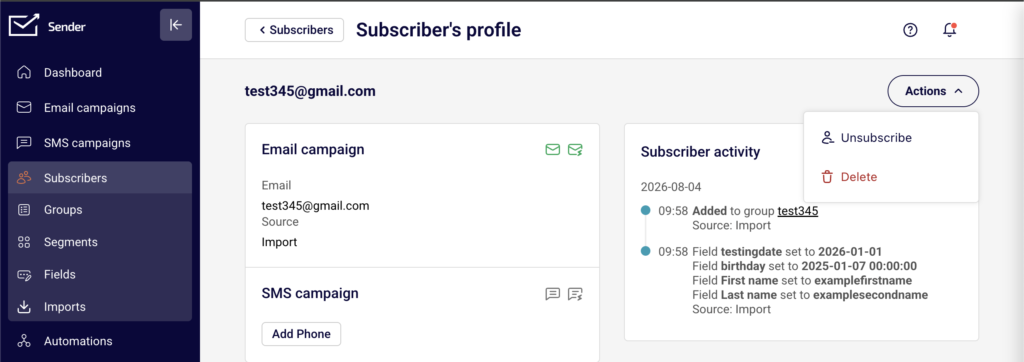
Select Unsubscribe to opt them out, or Delete to remove their record entirely. Use Delete when processing a GDPR data deletion request. You can also export their data first using the Actions → Export to CSV or Export to XLSX option on the main Subscribers page to fulfill data access or portability requests.
Sender’s Policies
Unsubscribe link required — Sender requires every marketing email to include a working unsubscribe link. Removing or hiding the unsubscribe link from your campaigns violates Sender’s acceptable use policy and may result in account review or suspension.
Automatic unsubscribe processing — When a subscriber clicks the unsubscribe link, Sender automatically updates their status to Unsubscribed and excludes them from future campaign sends. You cannot override this behavior or send marketing emails to unsubscribed contacts.
No re-subscribing without consent — Sender prohibits re-adding unsubscribed contacts to active mailing lists unless the contact has explicitly re-consented through a new opt-in action. Bulk re-subscribing unsubscribed contacts may trigger an account review.
Physical address enforcement — Sender’s default email templates include footer variables that pull your physical address from Account settings → General settings. If the address fields are empty, the footer will display incomplete information, which may violate CAN-SPAM and Sender’s policies.
Compliance Tips
Always use Sender’s default footer — The default email templates include both the unsubscribe link and physical address variables. Avoid removing or replacing the default footer in the email builder, as this is the simplest way to stay compliant with CAN-SPAM and Sender’s policies.
Test your unsubscribe link before sending — Use the Send test email button on the Design step of your campaign to send a test to yourself. Click the unsubscribe link in the test email to verify it works and leads to the correct opt-out page.
Enable double opt-in on your forms — In Forms → select a form → Publishing settings, enable the Double opt-in settings toggle. This sends a confirmation email to new subscribers before adding them to your list, which strengthens consent documentation and helps meet GDPR and CASL requirements.
Keep your address current — If your business address changes, update it immediately in Account settings → General settings. All future campaigns will automatically use the updated address in the footer.
Monitor your unsubscribe rate — Check the Unsubscribe rate metric on the Dashboard. A consistently high unsubscribe rate may indicate issues with content relevance, sending frequency, or list quality, and could trigger a Sender account review.
Common Issues
Unsubscribe link missing from sent emails → The Unsubscribe link is set to Hide in the email builder’s Template settings → Preview & Unsubscribe section. Open the campaign design, navigate to Template settings, expand Preview & Unsubscribe, and set the Unsubscribe link to Show.
Physical address showing as blank in email footer → The address fields in Account settings → General settings are empty or incomplete. Fill in the Address, City, State / Province / Region, Postal/ZIP code, and Country fields, then click Save.
Unsubscribed contact still receiving emails → This typically occurs if the contact was re-imported into an active list or added through an API call after unsubscribing. Check the subscriber’s status under Subscribers → Email status filter. If their status is Unsubscribed, Sender will not send them campaigns. If they appear as Active, verify your import process is not overriding unsubscribe status.
Subscriber complains they cannot unsubscribe → Verify the unsubscribe link is present and functional by sending a test email. If using a custom HTML template, confirm the unsubscribe tag is included in your email code. In the drag and drop builder, check Template settings → Preview & Unsubscribe to ensure the link is set to Show.
FAQs
Do I need an unsubscribe link in every email?
Yes. Every marketing email sent through Sender must include a working unsubscribe link. This is required by CAN-SPAM, GDPR, and Sender’s own sending policies. Transactional emails are generally exempt, but including one is still recommended.
Can I customize the unsubscribe link text in the email footer?
The default unsubscribe text in drag and drop templates reads “If you would like to unsubscribe, please click here.” You can modify this text by editing the footer section in the email builder. However, the unsubscribe link itself must remain functional and clearly identifiable as an opt-out mechanism.
What happens when a subscriber clicks the unsubscribe link?
Sender immediately updates the subscriber’s status to Unsubscribed. If you have enabled the Ask for unsubscribe confirmation toggle in Account settings → General settings, the subscriber sees a confirmation step first. Once unsubscribed, the contact is automatically excluded from all future marketing campaign sends.
Can I send to a purchased email list?
No. Sender’s acceptable use policy prohibits sending to purchased, rented, or scraped email lists. Sending to these lists results in high bounce rates, spam complaints, and may lead to account suspension.
What happens if my account is suspended for a policy violation?
Sender sends a notification email explaining the reason for suspension. Review the details, correct the issue (e.g., remove non-consented contacts, update content), and follow the reinstatement instructions provided in the notification. Contact Sender support if you need assistance.
Am I required to include a physical address in my emails?
Yes. CAN-SPAM requires a valid physical postal address in every commercial email. Add your address in Account settings → General settings under Company info. Sender automatically includes it in your email footer when using the default templates.
How do I handle a GDPR data deletion request from a subscriber?
Locate the subscriber in the Subscribers section, click their email to open the Subscriber’s profile, and select Delete from the Actions dropdown. If you need to confirm what data is stored, you can export the subscriber’s data first using the Export to CSV or Export to XLSX option on the main Subscribers page. Consult a legal professional for guidance on your specific obligations under GDPR.
Should I enable double opt-in?
Double opt-in is not required by all regulations but is strongly recommended, especially if you have subscribers in the EU or Canada. Enable it in Forms → select your form → Publishing settings → Double opt-in settings. It strengthens your consent records and reduces invalid signups.