


Every time you hit send on an email, an SMTP server does the heavy lifting behind the scenes. Simple Mail Transfer Protocol handles the journey from your outbox to your recipient’s inbox, but most people have no idea how it actually works.
If you’ve ever wondered why emails bounce, how to fix delivery issues, or whether you need your own SMTP server, our guide breaks down everything you need to know about the protocol that keeps email running.
What is an SMTP Server?
An SMTP server is the digital post office that handles outgoing mail. When you send emails, your email client connects to an SMTP server, which then routes your message across the internet to the recipient’s mail server. Think of it as the behind-the-scenes infrastructure that makes email delivery possible.
SMTP stands for Simple Mail Transfer Protocol—a set of rules that email servers follow to transfer messages reliably. Your outgoing email server uses SMTP to communicate with other mail servers, verify recipient addresses, and ensure messages reach their destination. Without SMTP, email as we know it wouldn’t exist.
Most people interact with SMTP servers without realizing it. When you configure Outlook, Gmail, or any email client, you’re entering an SMTP email server address that tells your software where to send outgoing messages. Email service providers run these servers, though some businesses prefer running their own SMTP server for greater control over email delivery.
How an SMTP Server Works
If you’re wondering ‘How does SMTP work?’, well, you’re not alone—it’s not rocket science but it takes some time for all this technical material to really sink in.
The SMTP protocol operates through a series of commands and responses between mail servers. When you send an email, your mail client initiates an SMTP connection to your outgoing mail server, which then locates the recipient’s SMTP server and delivers the message. The process happens in seconds but involves multiple verification steps to ensure reliable delivery.
Understanding how SMTP works helps troubleshoot delivery issues and optimize email configuration. The protocol handles everything from authentication to encryption, working alongside other email protocols to provide complete email functionality. While SMTP manages outgoing email, protocols like IMAP and POP3 handle incoming messages.
The Email Sending Process Step-by-Step
The journey starts when your email client connects to your SMTP server using credentials you’ve configured. The server authenticates your identity through SMTP authentication (SMTP AUTH), verifying you’re authorized to send mail. Once authenticated, your client hands off the email message with recipient details and content.
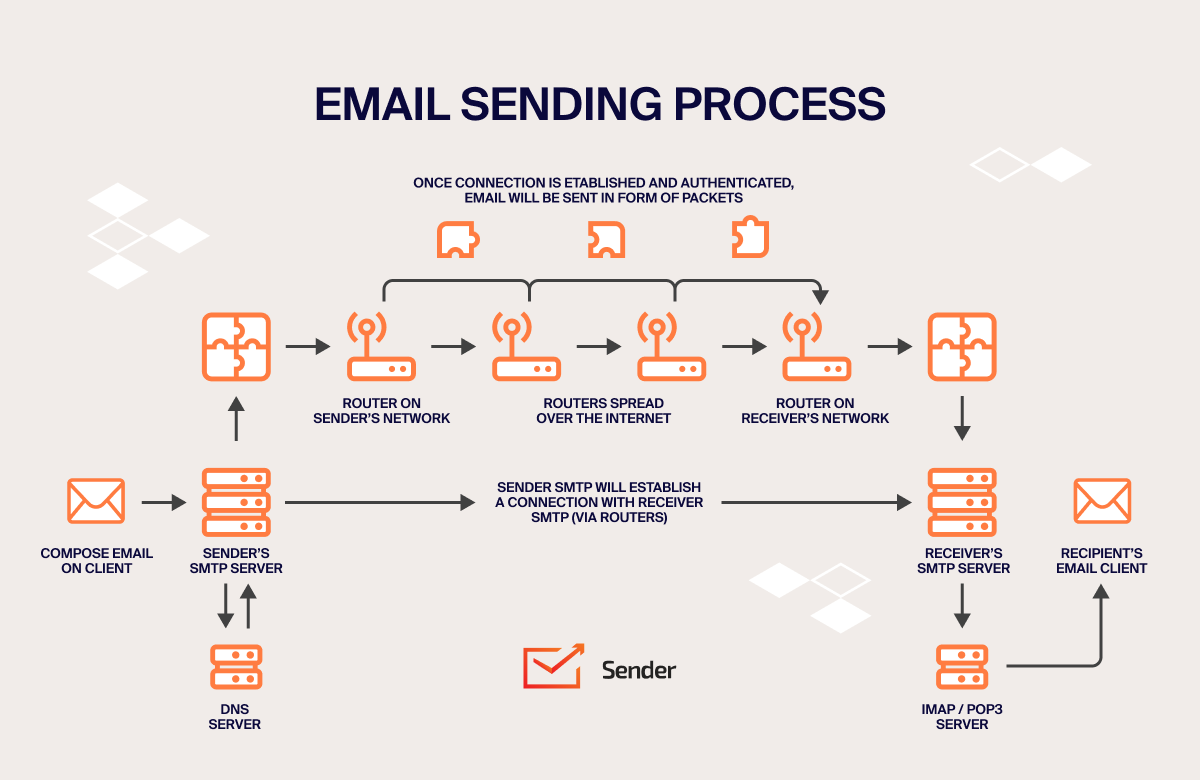
The mail transfer agent on your server then queries DNS records to locate the recipient’s mail server. It establishes an SMTP connection with that server and attempts delivery. If the recipient’s SMTP server accepts the message, it’s queued for the recipient’s inbox. If issues arise—invalid address, full mailbox, or server problems—your SMTP server typically notifies you of the failure.
Understanding SMTP Ports
SMTP servers listen on specific ports for incoming connections. Port 25 remains the standard SMTP port for server-to-server communication, though many ISPs block it to prevent spam. Port 587 has become the preferred choice for email clients submitting messages, requiring SMTP authentication before accepting mail.
Port 465 was originally designated for SMTP over SSL but was never officially standardized. Some providers still support it for legacy systems, though port 587 with Transport Layer Security (TLS) encryption offers better security. Choosing the right port depends on your email service provider’s requirements and security policies. Modern SMTP configuration almost always uses port 587 with TLS for secure, authenticated submission.
Key Components: MUA, MTA, and MDA
Three main components work together in email delivery. The Mail User Agent (MUA) is your email client—the software you use to compose and read email messages. It handles the interface but relies on servers for actual transmission.
The Mail Transfer Agent (MTA) is the SMTP server itself, responsible for routing outgoing mail between servers. When you send an email, the MTA receives it from your MUA, determines the destination, and forwards it through potentially multiple relay servers until reaching the recipient’s mail server.
The Mail Delivery Agent (MDA) receives incoming messages and stores them in the recipient’s mailbox. While SMTP handles transport, the MDA manages final delivery and storage, working with IMAP or POP3 servers to let recipients access their messages.
SMTP Commands and Communication
SMTP servers communicate through text-based commands that follow a predictable pattern. Each command triggers a specific response code from the receiving server, creating a structured conversation that ensures both parties stay synchronized.
HELO/EHLO (Hello/Extended Hello): Initiates the SMTP conversation by identifying the sending server to the recipient. EHLO is the modern version that requests the server’s extended capabilities. Expected response: 250 OK with a list of supported features. This handshake establishes the connection before any mail transfer begins.
MAIL FROM: Specifies the sender’s email address, telling the recipient who the message is from. The command looks like: MAIL FROM:sender@example.com. Expected response: 250 OK, confirming the server accepts this sender. If authentication is required but not provided, you’ll receive a 530 error instead.
RCPT TO (Recipient To): Identifies the destination address for the email message. You can issue multiple RCPT TO commands for multiple recipients. Expected response: 250 OK if the recipient is valid and accepted. A 550 error means the mailbox doesn’t exist or the server rejects delivery to that address.
DATA: Signals that the actual email content will follow. After issuing DATA, you transmit the message headers and body, ending with a period on a line by itself. Expected response: 354 Start mail input, indicating the server is ready to receive your message. Once complete, you receive 250 OK confirming acceptance.
QUIT: Ends the SMTP session cleanly, closing the connection between servers. Expected response: 221 Service closing transmission channel. This ensures both servers agree the conversation is finished and resources can be released. Abruptly closing without QUIT can cause issues with some mail servers.
RSET (Reset): Aborts the current mail transaction without closing the connection, useful if you need to start over after an error. Any MAIL FROM and RCPT TO commands issued are cleared. Expected response: 250 OK. The session remains active, allowing you to begin a fresh transaction without reconnecting.
SMTP Server Security and Authentication
SMTP wasn’t designed with security in mind. The original protocol transmits everything in plaintext—including login credentials and email content—making it vulnerable to interception. Anyone monitoring network traffic can read your messages and capture passwords.
STARTTLS and SSL/TLS Encryption
Transport Layer Security (TLS) solves SMTP’s plaintext problem by encrypting connections. STARTTLS upgrades an existing connection to encrypted—your client connects on port 587, issues the STARTTLS command, and encryption kicks in. SSL/TLS on port 465 establishes encryption immediately upon connection. Most email service providers now mandate TLS for all SMTP connections.
SMTP Authentication (SMTP AUTH)
SMTP AUTH prevents unauthorized server use by requiring credentials before accepting outgoing mail. Without it, your server becomes an open SMTP relay vulnerable to spam abuse. Simple Authentication and Security Layer (SASL) provides the framework, with common methods including PLAIN and LOGIN over TLS connections.
Additional security measures include SPF, DKIM, and DMARC records in your DNS configuration. These verify that emails claiming to come from your domain actually originated from authorized servers, protecting against phishing and spoofing attacks.
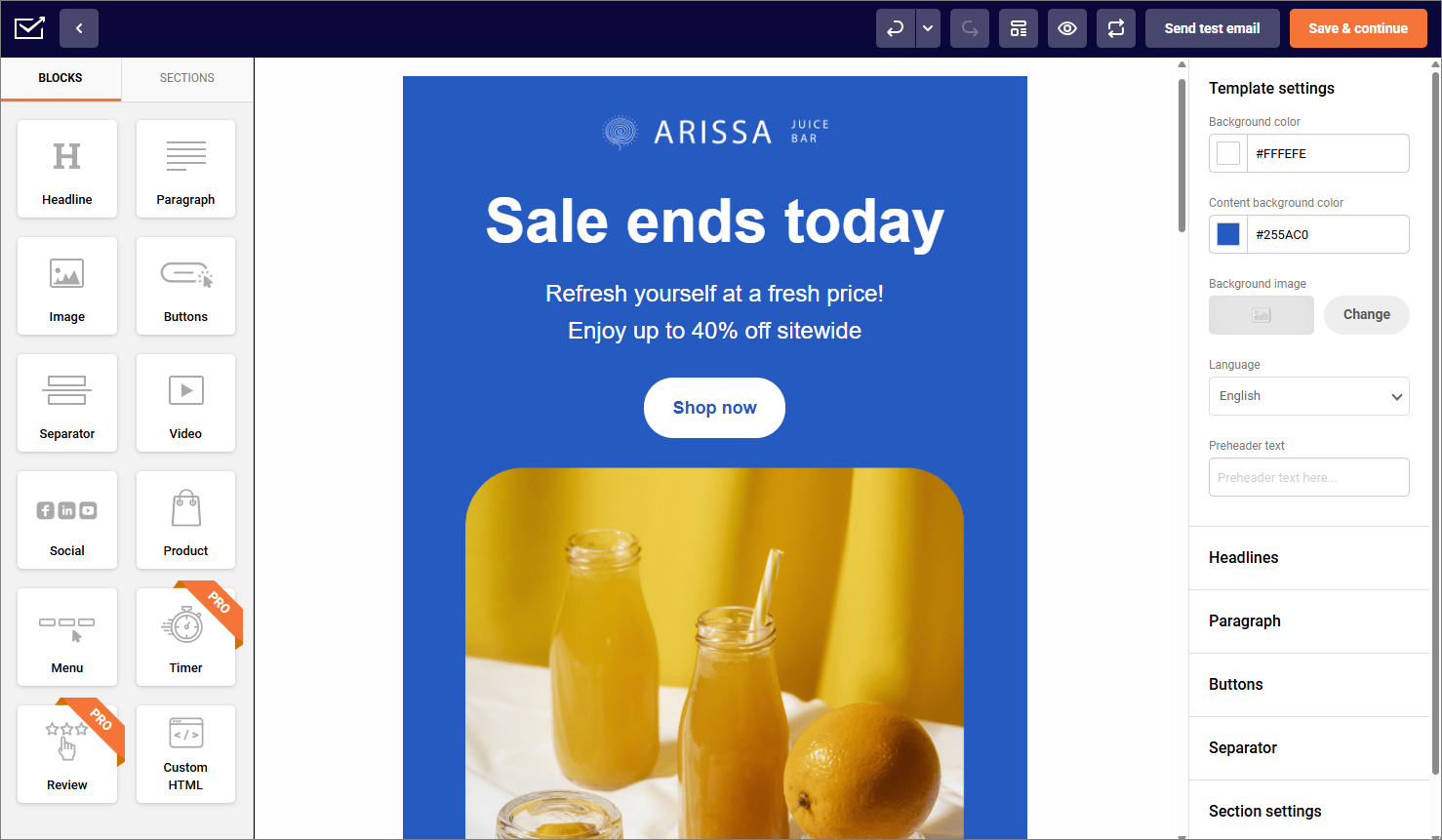
Need reliable SMTP? Sender offers excellent deliverability, unlimited automation, and 15,000 free emails monthly.
SMTP Server Setup Options
Choosing between running your own server versus using a third-party service depends on technical expertise, volume, and control requirements. Each approach offers distinct advantages for different use cases, from small businesses to enterprises sending bulk emails.
Running Your Own SMTP Server
Setting up your own SMTP server gives you complete control over email delivery and configuration. You choose the software, manage IP reputation, and customize every aspect of how your mail server operates. This matters for organizations with strict compliance requirements or those sending high volumes of email messages.
The downside is complexity. You’ll handle server maintenance, security patches, spam filtering, and deliverability monitoring. Your IP address needs proper warming, and getting removed from blacklists becomes your responsibility. For most businesses, the technical overhead outweighs the benefits unless you have dedicated IT staff and specific requirements that third-party services can’t meet.
Using a Third-Party SMTP Service
Third-party email service providers handle all the infrastructure complexity. They maintain server reputation, manage IP pools, provide analytics, and ensure deliverability. You simply configure your email client or application with the recipient’s SMTP server address and credentials.
Services like SendGrid, Mailgun, or Amazon SES specialize in transactional and bulk emails, offering features like bounce handling, template management, and detailed delivery tracking. They’re particularly valuable for applications sending automated messages, where reliability and deliverability matter more than direct server control. Most include generous free tiers for testing before committing to paid plans.
Local vs. Cloud-Based SMTP Servers
Local SMTP servers run on your own infrastructure, giving you physical control and eliminating monthly service fees. This works for companies with existing server infrastructure and IT expertise. However, maintaining deliverability from on-premises servers has become increasingly difficult as email providers tighten anti-spam measures.
Cloud-based SMTP leverages provider infrastructure designed specifically for email delivery. These services maintain sender reputation across shared IP pools, handle security updates, and scale automatically with your sending volume. The trade-off is ongoing costs and less granular control, but for most organizations, the reliability and reduced maintenance burden make cloud-based solutions the practical choice.
SMTP vs. Other Email Protocols
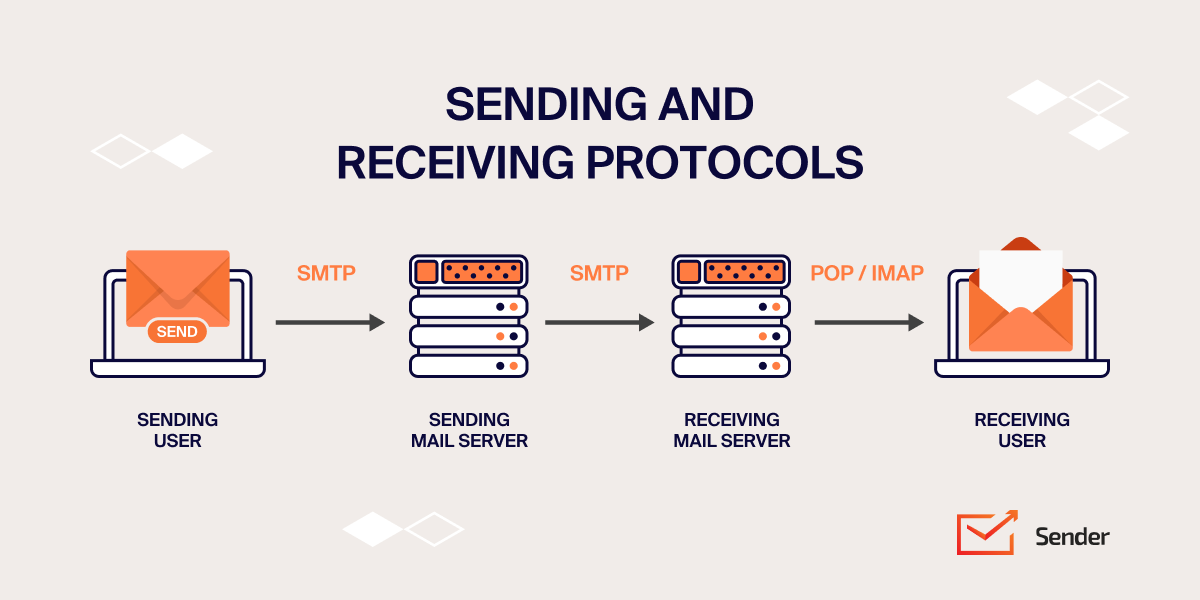
SMTP handles outgoing email exclusively. To receive and read messages, email clients use different protocols designed for retrieving mail from servers. Understanding how these protocols work together explains why you need multiple server configurations in your email client setup.
IMAP
IMAP servers let you access email messages stored on the mail server itself. Unlike SMTP, which pushes messages out, IMAP pulls them in and keeps them synchronized across devices. When you read an email on your phone, that same message shows as read on your laptop because both connect to the same IMAP server.
This protocol excels for multiple-device access. Your emails live on the server, and your email client downloads copies for viewing. Changes sync back to the server, so your inbox looks identical everywhere. IMAP uses separate ports from SMTP (typically 143 or 993 for encrypted connections) and requires its own server configuration in your email client alongside your SMTP settings.
POP3
POP3 downloads email messages to your local device and typically deletes them from the server. It’s simpler than IMAP but problematic for multi-device users. Once your desktop client downloads messages via POP3, they won’t appear on your phone unless you configure the server to keep copies.
This protocol made sense when storage was expensive and internet connections unreliable. Today, most people prefer IMAP’s synchronization capabilities. POP3 still has niche uses—like downloading all mail for local backup before server deletion—but IMAP’s flexibility makes it the default choice for modern email clients. Like IMAP, POP3 operates independently from your SMTP configuration.
How IMAP and SMTP Differ
The key difference between IMAP and SMTP protocols is direction. SMTP sends outgoing email while IMAP retrieves incoming messages. SMTP is a push protocol—it actively transfers messages from sender to recipient. WHile IMAP is a pull protocol—it fetches messages stored on a server for viewing.
They also use different ports and authentication methods. SMTP operates on ports 25, 587, or 465, while IMAP uses port 143 (or 993 with encryption). You need both configured in your email client: SMTP settings tell it where to send mail, and IMAP settings tell it where to retrieve mail. Without SMTP, you can read emails but can’t send them. Without IMAP or POP3, you can send but never receive.
SMTP Server Configuration Examples
Here’s what typical SMTP configuration looks like for common email service providers:
Gmail:
- SMTP server address: smtp.gmail.com
- SMTP port: 587 (TLS) or 465 (SSL)
- SMTP authentication: Required
- Username: Your full Gmail address
- Password: App-specific password (not your regular password)
Outlook/Office 365:
- SMTP server address: smtp.office365.com
- SMTP port: 587
- SMTP authentication: Required
- Encryption: TLS
Yahoo Mail:
- SMTP server address: smtp.mail.yahoo.com
- SMTP port: 587 or 465
- SMTP authentication: Required
Most email clients auto-configure these settings when you add an account, but knowing them helps troubleshoot connection issues. For your own SMTP server or third-party services, you’ll receive specific configuration details from your provider. Always enable TLS encryption when available and use port 587 for the most compatible, secure setup.
| Email Provider | SMTP Server Address | Port | Encryption Type |
| Gmail | smtp.gmail.com | 587 or 465 | TLS or SSL |
| Outlook/Office 365 | smtp.office365.com | 587 | TLS |
| Yahoo Mail | smtp.mail.yahoo.com | 587 or 465 | TLS or SSL |
| Mailtrap | live.smtp.mailtrap.io | 587 or 25 | TLS |
| Postmark | smtp.postmarkapp.com | 587 or 2525 | TLS |
Troubleshooting SMTP Server Issues
If your test emails worked but messages sent through your real SMTP server aren’t being delivered, a few common issues may be to blame. Use this quick troubleshooting checklist to pinpoint what’s going wrong:
- Check your internet connection to make sure your app or server is actually able to reach the SMTP service;
- Verify your SMTP configuration, including the server address, port number, username, and password. Even a small typo can block delivery;
- Try switching to a different SMTP port (such as 587, 465, or 25) in case your current one is blocked or unsupported by your hosting environment;
- Test the SMTP connection directly. You can use tools like MXToolbox or run a manual telnet/OpenSSL test to confirm whether the server is responding. If issues persist, reviewing basic SMTP commands and response codes can help you diagnose the root cause.
Understanding SMTP Error Codes
SMTP error codes reveal exactly why delivery failed. Codes starting with 2xx indicate success—your message went through. Codes beginning with 4xx mean temporary failure; the server will retry automatically. Messages starting with 5xx indicate permanent failure requiring intervention.
Common SMTP error codes include:
- Error 550 usually means the mailbox is unavailable—either the email address doesn’t exist, is spelled incorrectly, or has been blocked by the recipient’s server;
- Error 421 indicates the service isn’t available at the moment. This is typically a temporary server issue, so retrying later often resolves it;
- Error 535 points to an authentication failure—most commonly caused by incorrect login credentials, mismatched SMTP settings, or missing authentication requirements;
- Error 554 typically means the recipient’s server rejected your message, often due to spam filters or policy violations.
When troubleshooting, the full error message matters more than just the code. Receiving servers usually explain why they rejected mail: “550 5.7.1 Relaying denied” means authentication issues, while “550 5.1.1 User unknown” indicates an invalid recipient address.
Conclusion
At the end of the day, SMTP servers remain the backbone of email delivery despite decades of technological innovation. Whether you’re configuring an email client, building an application that sends messages, or managing your own mail server—understanding how SMTP works is as important as knowing how email campaigns function. If anything, we hope that you’ll take a thing or two from this guide and never look at that “send” button the same way again.