

Account verification process explained
This guide explains the Sender account verification process, what triggers it, what information you need to provide, and how to complete it successfully.
Why Verification Is Required
Sender requires account verification to protect its sending infrastructure and maintain high deliverability for all users. The Quality Assurance (QA) team reviews accounts to ensure compliance with the Terms of Service and anti-spam policy. This process prevents unfair email marketing practices, such as sending to harvested or purchased lists, and safeguards Sender’s IP reputation. Verification is a standard requirement for all accounts and is not optional.
Where to Find This
In the Sender dashboard, verification status is communicated through a notification banner displayed at the top of the Dashboard when your account is pending review or requires action. You may also receive a notification in the bell icon menu in the top-right corner of the dashboard, or an email to your registered address.
To review and complete the account details that support verification, go to Account settings → General settings for your company information, and Account settings → Domains to add and verify your domain.
Steps to Complete Verification
Step 1 — Complete your account information
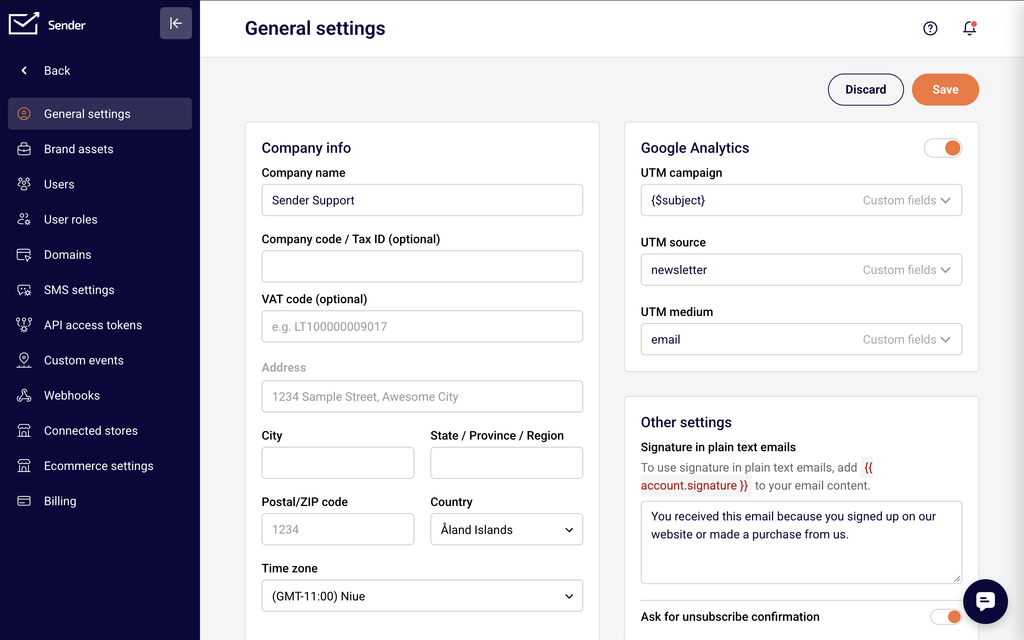
Go to Account settings → General settings. Fill in the Company info section, including Company name, Company code / Tax ID, Phone number, Address, City, State / Province / Region, Postal/ZIP code, and Country. Ensure all fields are accurate and match your business details. Click Save to confirm your changes.
Step 2 — Add and verify your domain
Go to Account settings → Domains and click Add domain. Enter your business domain and complete the ownership confirmation process. Once added, your domain will appear in the list with an Ownership confirmed status indicator.
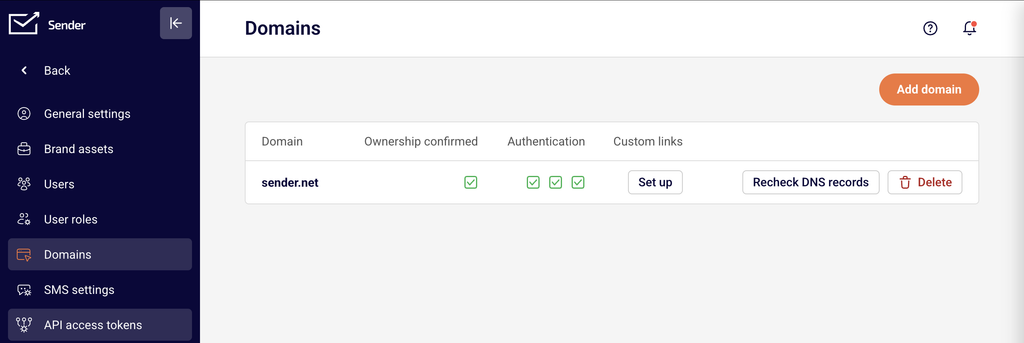
Ensure the Authentication records are also configured. You can click Recheck DNS records to refresh the status after making DNS changes.
Step 3 — Import subscribers and create your first campaign
Go to Subscribers in the left sidebar and import your subscriber list. Then go to Email campaigns and click New campaign to create your first campaign.
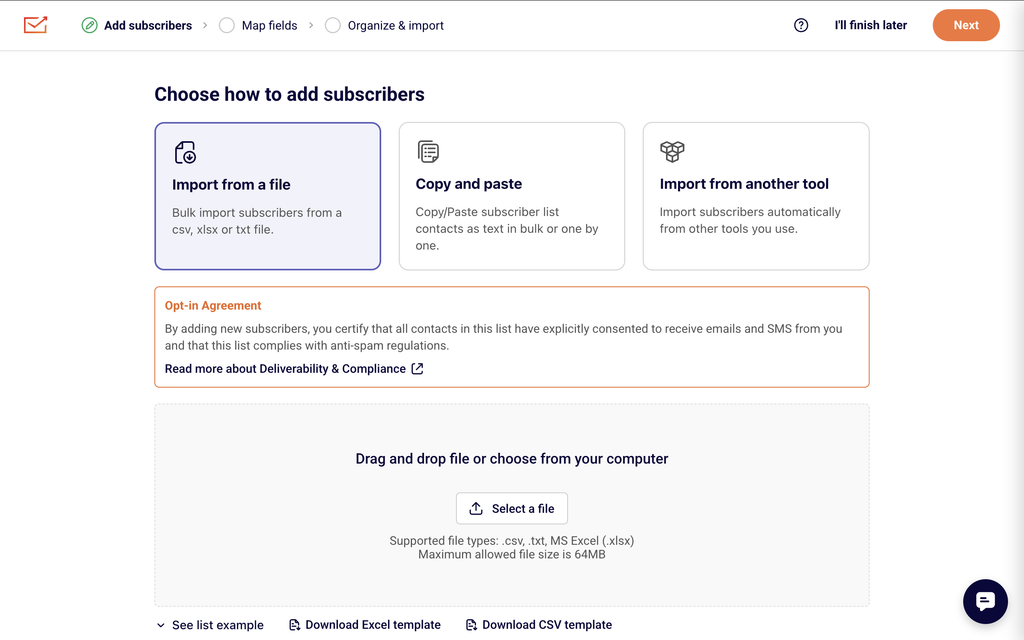
The campaign content must reflect and be relevant to your verified domain. Once your domain is verified, subscribers are imported, and a campaign is created, your account enters the QA review queue automatically.
Step 4 — Respond to additional information requests (if applicable)
If the QA team requires more details, you will receive a notification or email requesting additional information. Respond with the requested details by emailing support@sender.net or through LiveChat. Provide complete and accurate answers to avoid delays in the review process.
What Information Is Required
Company name — Your registered business or organization name, as entered in Account settings → General settings.
Business website / domain — A legitimate website URL that matches the domain you verify in Account settings → Domains. This confirms your business identity and sending purpose.
Business email marketing description — A brief explanation of how your business uses email marketing and what types of emails you plan to send (newsletters, promotions, transactional updates, etc.).
Subscriber source — An explanation of where and how you collect your email addresses, including URLs to signup forms, landing pages, or other sources where subscribers opt in.
Expected monthly email volume — An estimate of how many emails you plan to send per month, which helps the QA team assess your account requirements.
Company code / Tax ID — Your business registration number or tax identification number, if applicable. If you do not have one, enter your personal ID code or “N/A” in the field.
Verification Statuses
Pending — Your account has been created but has not yet entered the review queue. You still need to complete the required steps: adding your domain, importing subscribers, and creating your first campaign. Sending may be restricted until verification is complete.
Under Review — Your account is in the QA review queue. The review is typically completed within up to one hour from the moment it enters this status on business days. You may experience temporary sending restrictions while the review is in progress. No action is required unless additional information is requested.
Verified — Your account has passed the QA review and is fully approved for sending. All platform features and sending capabilities are available according to your plan. No further verification action is needed unless your account is flagged for re-review.
Rejected / Suspended — Your account did not pass the QA review due to a policy violation or missing information. Review the reason provided in the notification or email. If your account complies with the Terms of Service and anti-spam policy, contact Sender support at support@sender.net to discuss next steps or resubmit information.
Common Issues
Account flagged despite being legitimate → Sender’s automated system may flag accounts based on keywords, phrases, links, or even a shared IP address that was previously flagged. This does not necessarily indicate a problem with your account. Respond promptly to any information requests to resolve the flag quickly.
Verification taking longer than expected → The QA team typically reviews accounts within up to one hour during business days. Delays may occur during high-volume periods or if additional information is needed. Check your email and dashboard notifications for any pending requests from the QA team.
Domain not showing as verified → Ensure your DNS records are correctly configured and propagated. Go to Account settings → Domains and click Recheck DNS records to refresh the status. DNS changes can take up to 48 hours to propagate.
Rejection reason unclear → If the rejection notification does not clearly explain the issue, contact Sender support via LiveChat or at support@sender.net for clarification and guidance on how to resolve the issue.
Sending restricted during verification → While your account is under review, temporary restrictions on sending volume or features may apply. These restrictions are automatically lifted once your account is verified. Check your dashboard for details on any active limitations.
FAQs
Why does my account need to be verified?
Sender verifies accounts to protect its sending infrastructure, maintain high deliverability for all users, and comply with anti-spam requirements. Verification confirms that your account is used for legitimate email sending and that your content and subscriber lists meet Sender’s Terms of Service.
How long does verification take?
The QA team typically completes the review within up to one hour from the moment your account enters review status during business days. Complex cases or requests for additional information may take longer. You will receive a notification when the review is complete.
Can I send emails while my account is being verified?
Your account may have temporary sending restrictions while verification is pending. The specific limitations depend on your account status and the type of verification required. Check your dashboard for any active restrictions.
What happens if my verification is rejected?
Review the rejection reason provided in the notification or email. If your account complies with Sender’s Terms of Service and anti-spam policy, contact Sender support via LiveChat or at support@sender.net to discuss the issue and request reconsideration.
I don’t have a business website. Can I still verify my account?
Sender requires a legitimate website to be added and verified as part of the account verification process. If you do not have a business website, contact Sender support to discuss alternative verification options for your specific situation.
What additional information might I need to provide?
Depending on your account, the QA team may request a description of your email marketing practices, the types of emails you send, how you source your subscriber list (with URLs to sources), and your expected monthly email volume. Provide accurate and complete answers to support@sender.net to avoid delays.
Can my account be re-reviewed after it has been verified?
Yes. Even established accounts may undergo additional review if certain keywords, phrases, or links are flagged by Sender’s monitoring system. This is a standard security measure to protect all users on the platform.