

How to Change Your Account Email Address
This guide explains how to change a user’s account email address in Sender.
Where to Find This Setting
In the Sender dashboard, go to: Account settings → Users
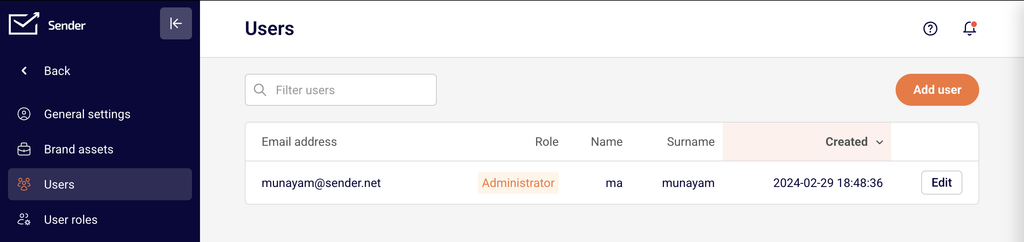
On this page, you will see a table listing all users associated with your account. Each row displays the user’s email address, role, name, surname, and creation date. Users with an active (accepted) role will have an Edit button on the right side of their row.
Steps to Change Your Account Email Address
Step 1 — Open the Users page
In the left sidebar of your Sender dashboard, click Account settings. The sidebar will expand to show account-level submenu options. Click Users. You will see the Users page with a table listing all users on your account. Locate the user whose email address you want to change.
Step 2 — Open the user for editing
Click Edit next to the user whose email address you want to update. This opens the user’s settings view, which displays the current email address, a pen icon next to it, and fields for First name and Last name under User settings.
Step 3 — Enter the new email address
Click the pen icon next to the current email address. A Change email dialog will appear with the message “Do you want to change the email?” and a text field pre-filled with the user’s current email address. Clear the field and enter the new email address.
Step 4 — Confirm the change
Click Yes to confirm the email change. If you do not want to proceed, click Cancel to close the dialog without making any changes. Once confirmed, the user’s account email address will be updated.
What Happens After
Email address is updated — The user’s login email address changes to the new address you entered. The change takes effect immediately within the account settings.
Login credentials change — The user will need to use the new email address to log in to Sender going forward. The previous email address will no longer work for authentication.
Existing account data is preserved — Changing the email address does not affect campaigns, subscribers, automations, or any other account data. Only the user’s login email is updated.
Common Issues
No Edit button visible → The Edit button only appears for users who have accepted their account invitation. If the user’s role shows Not accepted, they must first accept the invitation before their email can be edited. Use the Resend invitation button if needed.
Cannot find the Users page → Make sure you are navigating to Account settings in the left sidebar, then clicking Users in the submenu. You can also access it by clicking your account name in the top-right corner of the dashboard and selecting Settings, then clicking Users in the sidebar.
Change email dialog does not appear → Ensure you are clicking the pen icon directly next to the email address on the user editing view, not the email text itself. If the icon is not visible, try refreshing the page or contact Sender support for assistance.
New email address not accepted → The email address you enter must be a valid email format. Double-check for typos or formatting errors before clicking Yes.
FAQs
Can I change the account owner’s email address?
Yes. Navigate to Account settings → Users, click Edit next to the account owner, and follow the same steps to update the email using the pen icon and Change email dialog.
Does changing my email address affect my billing or subscription?
No. Changing the user email address only updates login credentials. Billing, subscription plans, and payment details remain unchanged.
Will I receive a verification email after changing my address?
You may need to verify the new email address depending on your account configuration. Check the inbox of the new email address for any verification prompts after making the change.
Can I change another user’s email address?
Yes, provided you have admin-level access. Go to Account settings → Users, find the user in the table, click Edit, and update their email address using the same workflow.
What if I no longer have access to my current account email?
If you cannot log in because you no longer have access to the email address associated with your account, contact Sender support via LiveChat or at support@sender.net for assistance with account recovery.
Can I revert to my old email address after changing it?
Yes. The email change is not permanent in the sense that you can repeat the same process to change it back to the previous address at any time, as long as you have access to the account.