

Upgrading or Downgrading Plans
This guide explains how to upgrade or downgrade your subscription plan in Sender, including switching plan tiers, adjusting subscriber limits, and changing your billing cycle.
Where to Find This Setting
In the Sender dashboard, go to: Account settings → Billing
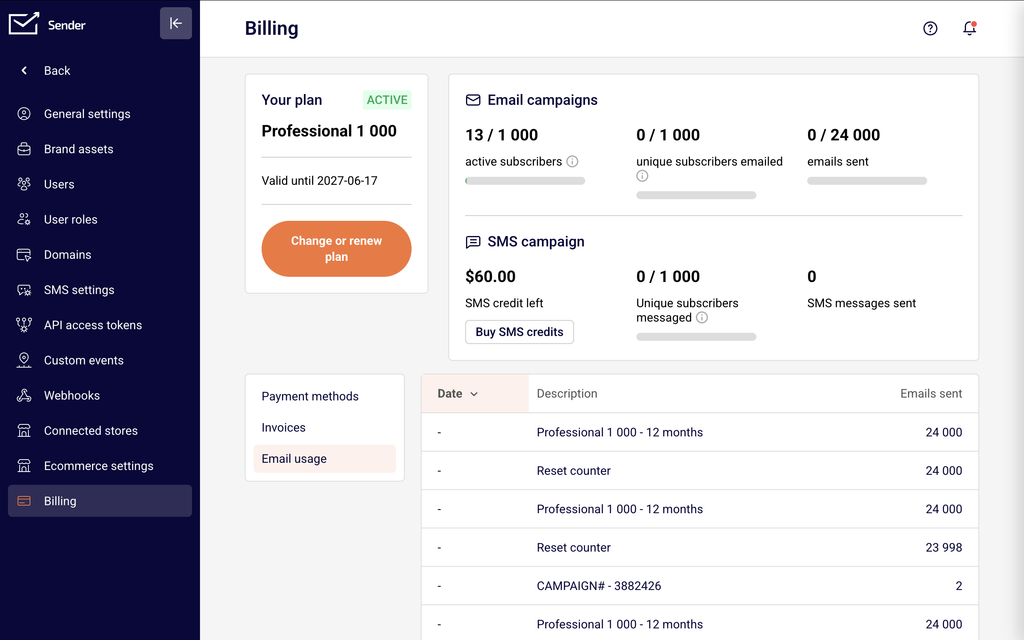
On the Billing page, you will see your current plan name, its ACTIVE status, and the Valid until date. Below the plan summary, usage indicators display your active subscribers, unique subscribers emailed, emails sent, and SMS campaign stats. A prominent Change or renew plan button appears beneath the plan details. The lower section contains three tabs — Payment methods, Invoices, and Email usage — for managing the operational side of your subscription.
Steps to Upgrade or Downgrade Your Plan
Step 1 — Open the plan selection page
Click Change or renew plan on the Billing page. This opens the Upgrade your plan page, which displays a two-step progress bar at the top: Select a plan → Payment.
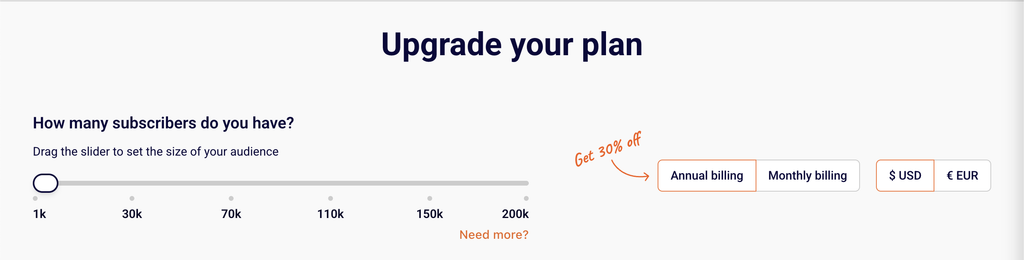
You will see a subscriber slider, a toggle between Annual billing and Monthly billing, a currency selector ($ USD / € EUR), and plan cards for Standard, Professional, and Enterprise. Your current plan is marked with a grayed-out Current plan label.
Step 2 — Select your new plan or subscriber tier
Use the subscriber slider to set your desired subscriber count. The plan cards update their pricing and email limits in real time as you adjust the slider. To upgrade within your current plan tier, click Increase subscriber limit on the relevant plan card. To switch to a different plan tier, click the corresponding button — for example, Downgrade to Standard to move to a lower tier. To change your billing cycle, switch to Monthly billing and click Switch to monthly billing on your current plan card. If you choose to downgrade, a confirmation dialog appears listing the features you will lose, with a Downgrade To Standard button to confirm or Stick with Professional to cancel.
Step 3 — Review the billing summary and complete payment
After selecting your plan, you are taken to the Billing Summary page (step 2 in the progress bar: Payment). This page shows your selected plan name, billing frequency, subscriber count, and monthly email send limit. The Payment method section lets you enter a new credit or debit card or select PayPal. The Billing information section displays your name and address — click Edit to update your First name, Last name, Company name, or Company code / Tax ID. The Order summary on the right shows the plan price, subtotal, any annual billing savings, remaining plan value credit, tax, and total. Enter a code in the Discount code field if applicable, then click Subscribe to confirm the change.
What Happens After the Change
Upgrades take effect immediately — When you upgrade to a higher plan tier or increase your subscriber limit, the new plan and its features are activated right away. Your billing cycle resets from the date of the upgrade, and any remaining value from your previous plan is credited toward the new charge.
Downgrades apply at the end of your billing cycle — When you downgrade to a lower plan tier, your current plan features remain active until your existing subscription period expires. After that date, your account switches to the lower plan and its corresponding limits.
Billing cycle changes — Switching from annual to monthly billing (or the reverse) typically takes effect at the start of your next billing cycle. Annual billing applies a discounted rate compared to monthly billing.
Prorated credits — If you change plans mid-cycle, the Remaining plan value is deducted from your new plan’s charge. This amount is visible in the Order summary on the Billing Summary page before you confirm the change.
Billing Tips
Compare plans before switching — On the Upgrade your plan page, scroll down to the Compare plans and features section to see a side-by-side breakdown of what each plan includes before making your decision.
Use the subscriber slider to preview pricing — Drag the subscriber slider to different values to see how pricing changes across all plan tiers in real time, without committing to any change.
Apply discount codes at checkout — If you have a promo code, enter it in the Discount code field on the Billing Summary page before clicking Subscribe. The total updates automatically once the code is applied.
Consider annual billing for savings — The Annual billing toggle on the plan selection page shows the discounted yearly rate. Switching from monthly to annual billing can reduce your total cost.
Review the order summary carefully — Before clicking Subscribe, verify the plan name, subscriber count, billing frequency, remaining plan value credit, and total amount in the Order summary section.
Common Issues
The plan I want is grayed out → The plan card for your current plan displays a grayed-out Current plan label and cannot be selected. Adjust the subscriber slider or switch the billing cycle to reveal an actionable button such as Increase subscriber limit or Switch to monthly billing.
I don’t see the remaining plan value credit → The Remaining plan value line only appears in the Order summary when you are changing plans mid-cycle. If you are renewing the same plan at the end of your billing period, no credit is applied.
My downgrade removed features I still need → When downgrading, the confirmation dialog lists all features you will lose. If you dismissed it without reviewing, go to Account settings → Billing, click Change or renew plan, and compare the feature lists on each plan card or in the Compare plans and features table.
Payment failed during plan change → If your payment does not go through on the Billing Summary page, verify your card details or try an alternative payment method such as PayPal. The plan change is not applied until payment is successfully processed.
FAQs
How do I upgrade my plan?
Go to Account settings → Billing and click Change or renew plan. Select a higher plan tier or move the subscriber slider to a larger value, then click the upgrade button on the plan card. Complete the payment on the Billing Summary page and click Subscribe.
How do I downgrade my plan?
Go to Account settings → Billing and click Change or renew plan. Click Downgrade to Standard on the Standard plan card. A confirmation dialog lists the features you will lose. Click Downgrade To Standard to confirm. Your current plan remains active until the end of your billing cycle.
Can I switch from monthly to annual billing?
Yes. Go to Account settings → Billing and click Change or renew plan. Select Annual billing at the top of the plan selection page. If your current plan card shows an actionable button, click it to proceed to checkout with the annual rate applied.
Will I be charged immediately when I upgrade?
Yes. Upgrades are charged immediately. Any remaining value from your current plan is credited toward the new charge, and the difference is shown in the Order summary as Remaining plan value before you confirm.
Can I change my subscriber limit without switching plans?
Yes. On the plan selection page, drag the subscriber slider to your desired count. Your current plan card will display Increase subscriber limit if a higher tier is available within the same plan. Click it to proceed to payment.
What payment methods are accepted?
Sender accepts credit or debit cards and PayPal. Both options are available on the Billing Summary page during checkout.
How do I apply a discount code when changing plans?
On the Billing Summary page, enter your code in the Discount code field on the right side under Order summary. The total updates once the code is applied. Click Subscribe to complete the change with the discount.
Where can I see what features I’ll lose if I downgrade?
When you click Downgrade to Standard, a confirmation dialog appears listing all features you will lose, such as Priority 24/7 support, Advanced automation, Advanced reports, Unlimited email editor features, and Dedicated IP. You can also scroll to the Compare plans and features table on the plan selection page.