

How Sender Pricing Works
This guide explains how Sender’s pricing model works, including plan tiers, subscriber-based pricing, billing cycles, SMS credits, and the Pay as you go option.
Where to Find This Setting
In the Sender dashboard, go to: Account settings → Billing
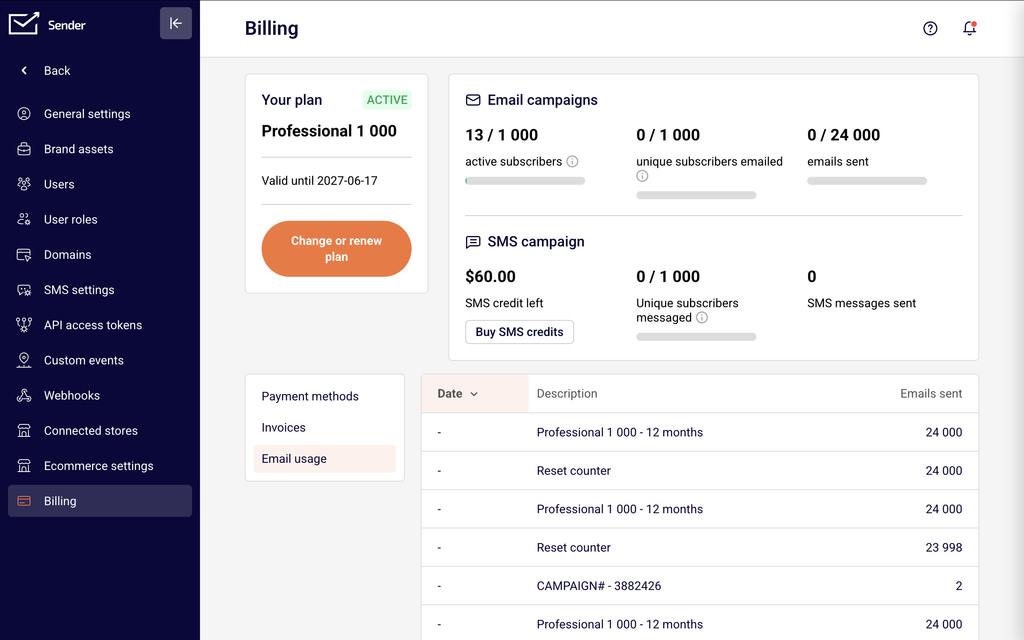
On the Billing page, you will see your current plan name and status (e.g., ACTIVE), your plan’s validity date, and a Change or renew plan button. The Email campaigns section displays three usage meters: active subscribers, unique subscribers emailed, and emails sent, each shown as a current count against your plan limit. The SMS campaign section shows your SMS credit left balance, Unique subscribers messaged, and SMS messages sent, along with a Buy SMS credits button. Below these sections, three tabs provide additional detail: Payment methods, Invoices, and Email usage.
Steps to Understand Sender Pricing
Step 1 — Open the plan selection page
On the Billing page, click Change or renew plan. This opens the Upgrade your plan page. At the top, you will see a subscriber slider labeled How many subscribers do you have? with preset tiers (1k, 30k, 70k, 110k, 150k, 200k). A Need more? link appears for higher volumes.
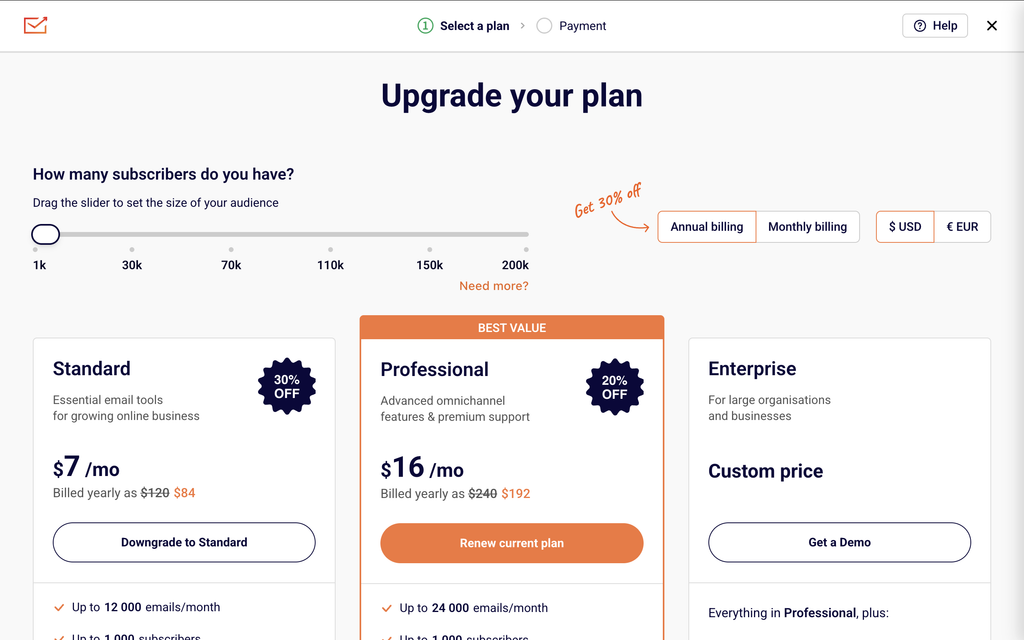
Two toggles let you switch between Annual billing and Monthly billing, and between $ USD and € EUR. The three paid plan tiers — Standard, Professional, and Enterprise — are displayed as cards below.
Step 2 — Set your subscriber tier using the slider
Drag the slider to the subscriber count closest to your audience size. As you move the slider, the displayed prices and email limits for Standard and Professional update automatically. For example, at 1k subscribers, the Standard plan includes up to 12k emails/month and the Professional plan includes up to 24k emails/month. At 30k subscribers, these limits increase to 360k and 720k emails/month respectively. The subscriber tier you select determines both your monthly price and your email send allowance.
Step 3 — Choose a billing cycle
Click Annual billing or Monthly billing to toggle between the two options. Annual billing offers a discount compared to monthly billing — the discounted annual total is shown on each plan card with the original price crossed out.
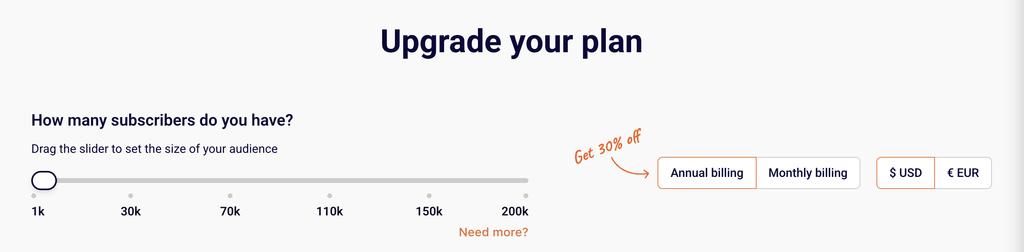
The prices on the plan cards update immediately when you toggle between billing cycles. The Enterprise plan is billed annually only.
Step 4 — Select your currency
Click $ USD or € EUR to display prices in your preferred currency. The plan prices and annual totals update immediately when you switch currencies. This setting affects how prices are displayed on the plan selection page.
Step 5 — Review plan features and compare tiers
Each plan card lists key limits and included features. Scroll down on the plan selection page to see a Compare plans and features section, which organizes feature comparisons into expandable categories such as Campaigns, Email content, Marketing Automation,
Subscribers Management & Segmentation, Forms, Landing Pages, Analytics & Reports, Platform & Support, and Integrations. Use this table to compare what each plan includes before making a selection.
Step 6 — Review the Pay as you go option
Below the three paid plan cards, a ‘Pay as you go’ plan section is displayed. This option lets you purchase email credits without a recurring subscription.
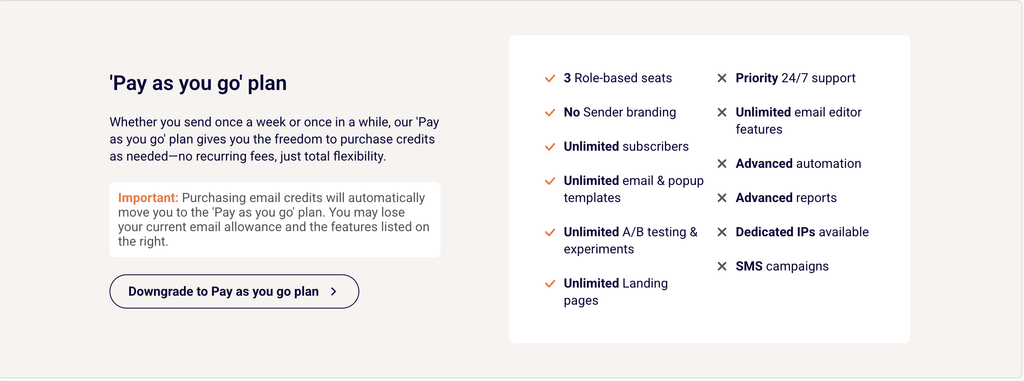
The Pay as you go plan includes unlimited subscribers, no Sender branding, email templates, drag & drop editor, reporting & analytics, and email automation. It does not include SMS campaigns, advanced automation, advanced email editor features, priority support, or dedicated IP. A Downgrade to Pay as you go plan button is available if you want to switch.
Step 7 — Understand how SMS credits work
SMS is a prepaid credit-based add-on. On the Billing page, click Buy SMS credits to purchase additional credits. The cost per SMS varies by destination country — you can check the per-message rate using the SMS pricing calculator on the Sender pricing page by selecting a country from the dropdown.
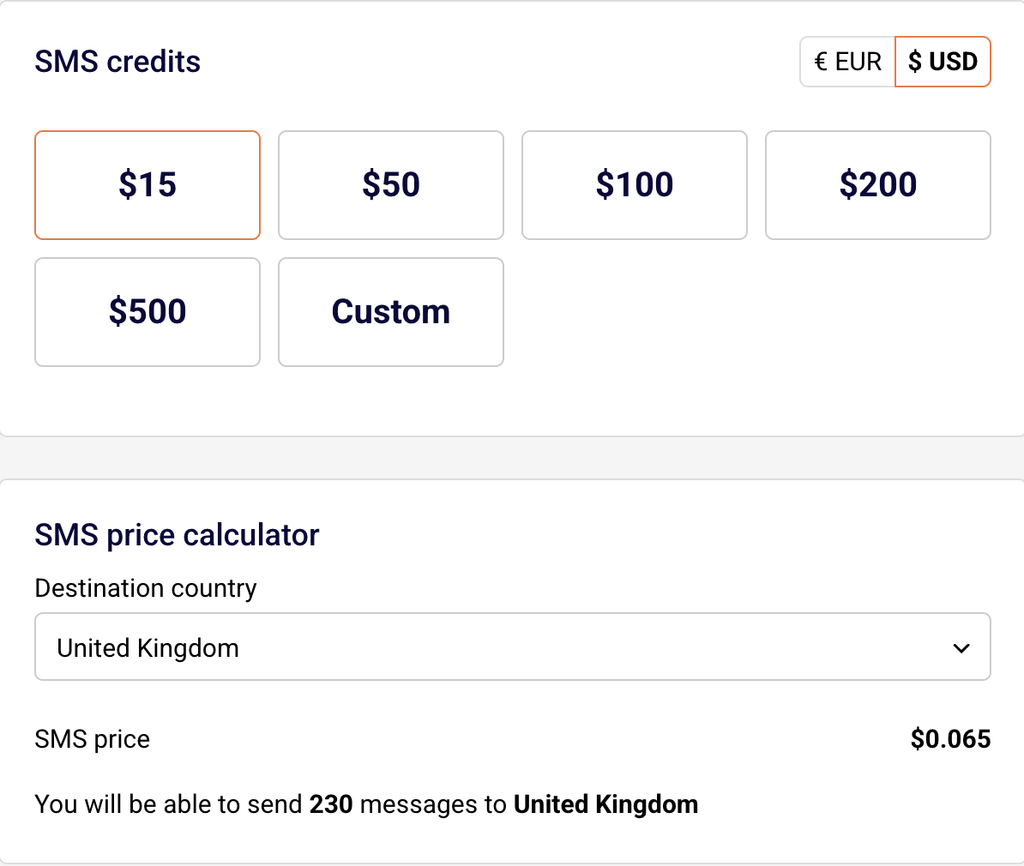
On the Professional plan, a monthly SMS credit allowance is included at no additional cost. On the Standard plan, SMS messaging is available but credits must be purchased separately.
Step 8 — Check your usage and billing history
On the Billing page, click the Invoices tab to view past invoices with columns for Date, Invoice no., Amount, and Status. Paid invoices include a Download Invoice button.
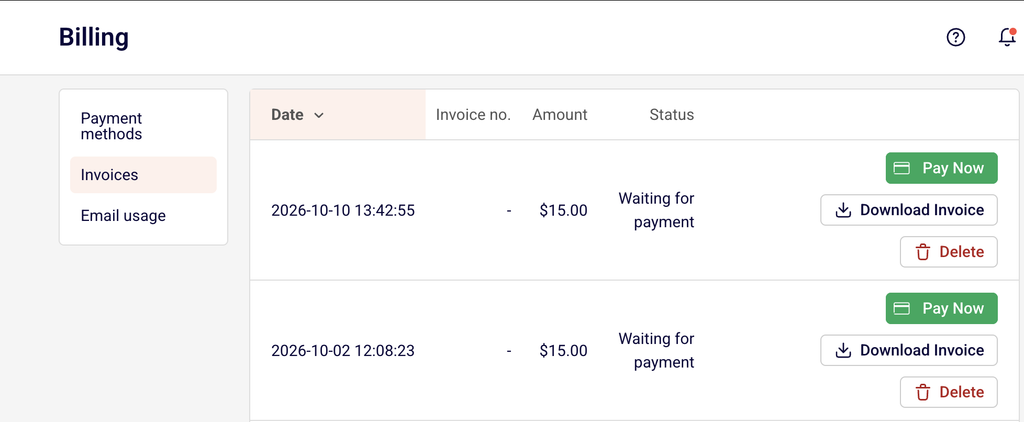
Unpaid invoices show a Pay Now button and a Delete option. Click the Email usage tab to view a log of email credit allocations and resets, showing how your monthly email allowance is replenished each billing period.
Plan Comparison
Free Forever — Up to 2,500 subscribers and 15,000 emails per month. Includes 1 seat, email newsletters, email automation, landing pages, signup forms and popups, and transactional emails. Sender branding is included on emails and forms. 24/7 email and live chat support is provided.
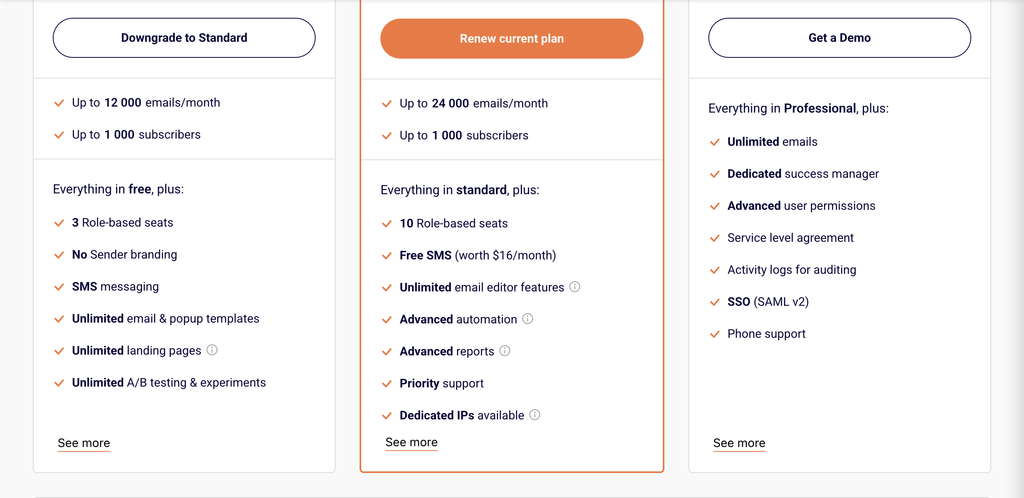
Standard — Subscriber limit based on the tier you select (starting at 1k). Email send limit is 12 times your subscriber count per month. Includes everything in the Free plan plus 3 role-based seats, no Sender branding, SMS messaging, unlimited email and popup templates, unlimited landing pages, and unlimited A/B testing and experiments.
Professional — Subscriber limit based on the tier you select (starting at 1k). Email send limit is 24 times your subscriber count per month. Includes everything in the Standard plan plus 10 role-based seats, free monthly SMS credits, unlimited email editor features, advanced automation, advanced reports, priority support, and dedicated IPs available.
Enterprise — For large organizations. Includes everything in the Professional plan plus unlimited emails, unlimited role-based seats, a dedicated success manager, advanced user permissions, a service level agreement, activity logs for auditing, SSO (SAML v2), and phone support. Billed annually. Contact Sender via Get a Demo for custom pricing.
Pay as you go — No recurring subscription. You purchase email credits as needed. Includes unlimited subscribers, no Sender branding, email templates, drag & drop editor, reporting & analytics, and email automation. Does not include SMS campaigns, advanced automation, advanced email editor features, priority support, or dedicated IP.
How Billing Works
Subscriber-based pricing — Sender’s paid plans (Standard and Professional) are priced based on the number of subscribers you select. Your email send limit is calculated as a multiple of your subscriber count: 12x for Standard and 24x for Professional. Moving the subscriber slider on the plan selection page shows you the corresponding price at each tier.
Billing cycles — You can choose between Annual billing and Monthly billing on the plan selection page. Annual billing offers a discounted rate compared to monthly billing. The Enterprise plan is available with annual billing only.
Email credit reset — Your monthly email send limit resets on each billing cycle renewal. You can track credit allocations and resets on the Email usage tab of the Billing page. Each reset appears as a separate entry with the date and number of emails allocated.
SMS credits — SMS pricing is separate from your plan subscription and based on prepaid credits. The cost per SMS depends on the destination country. Professional plan users receive a monthly SMS credit allowance included with their plan. Additional SMS credits can be purchased at any time by clicking Buy SMS credits on the Billing page.
Plan validity and renewal — Your plan’s validity period and renewal date are displayed in the Your plan section on the Billing page. Plans renew automatically at the end of each billing period unless changed or canceled.
VAT — Displayed prices do not include VAT. VAT is applied based on your country and may vary.
Common Issues
Subscriber count exceeds plan limit → Your active subscriber count has grown beyond your plan’s allowed limit. Go to Account settings → Billing, click Change or renew plan, and move the subscriber slider to a higher tier or upgrade to a plan with a higher subscriber allowance.
Email send limit reached before the billing period ends → You have used all of your monthly email credits. Your email allowance resets at the start of your next billing cycle. Check the Email usage tab to see when your next reset is due, or upgrade to a higher subscriber tier or plan to increase your monthly email limit.
Prices look different than expected → The displayed price depends on the subscriber tier selected, the billing cycle (annual vs. monthly), and the currency (USD vs. EUR). Verify that all three settings on the plan selection page match your expectations before comparing prices.
Invoice shows “Waiting for payment” → A generated invoice has not been paid yet. Go to Account settings → Billing, click the Invoices tab, and use the Pay Now button next to the unpaid invoice to complete payment.
SMS credits depleted → Your prepaid SMS credit balance has reached zero. Click Buy SMS credits on the Billing page to purchase additional credits. If you are on the Professional plan, your included monthly SMS credit allowance replenishes at the start of each billing cycle.
FAQs
Can I switch from monthly to annual billing?
Yes. Go to Account settings → Billing and click Change or renew plan. On the plan selection page, click Annual billing to see the discounted annual rates. Select your plan to confirm the switch. Annual billing offers a lower effective monthly rate compared to monthly billing.
What happens if I exceed my subscriber limit?
If your active subscriber count exceeds your plan’s limit, you may need to upgrade to a higher subscriber tier to continue adding contacts and sending campaigns. Check the active subscribers meter on the Billing page to monitor your current usage against your plan limit.
How is my email send limit calculated?
On the Free plan, the limit is a fixed 15,000 emails per month. On the Standard plan, your limit is 12 times your subscriber tier (e.g., 1k subscribers = 12k emails). On the Professional plan, your limit is 24 times your subscriber tier (e.g., 1k subscribers = 24k emails). The Enterprise plan includes unlimited emails.
Will I be charged immediately when I upgrade?
This depends on your current billing cycle. Check the confirmation dialog during the upgrade process for the exact amount and timing before confirming. The plan selection page shows the price and billing details for the option you select.
Can I downgrade to the free plan?
Yes. Go to Account settings → Billing and click Change or renew plan. On the plan selection page, you can also select the Downgrade to Pay as you go plan option. Downgrading may reduce your subscriber limit, email send limit, and feature access. The change typically takes effect at the end of your current billing cycle.
Where can I see my billing history and invoices?
Go to Account settings → Billing and click the Invoices tab. This displays a table with your invoice history including the date, invoice number, amount, and payment status. You can download paid invoices using the Download Invoice button.
Does Sender charge VAT?
Displayed prices on the plan selection page do not include VAT. VAT is applied based on your country at checkout and may vary.
What is the Pay as you go plan?
The Pay as you go plan lets you purchase email credits without a monthly or annual subscription. It includes unlimited subscribers and no Sender branding but does not include SMS campaigns, advanced automation, or priority support. It is suited for users who send emails infrequently.