

Free plan limits explained
This guide explains the limits that apply to the Free plan in Sender, how usage is tracked, and what happens when you reach those limits.
Where to Check Your Usage
In the Sender dashboard, go to Account settings → Billing.
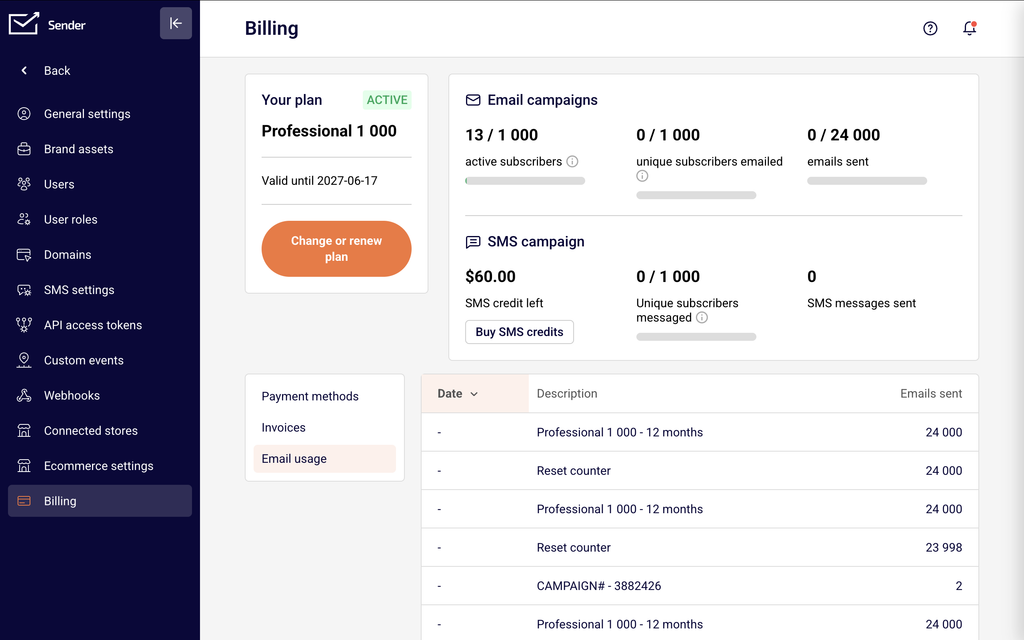
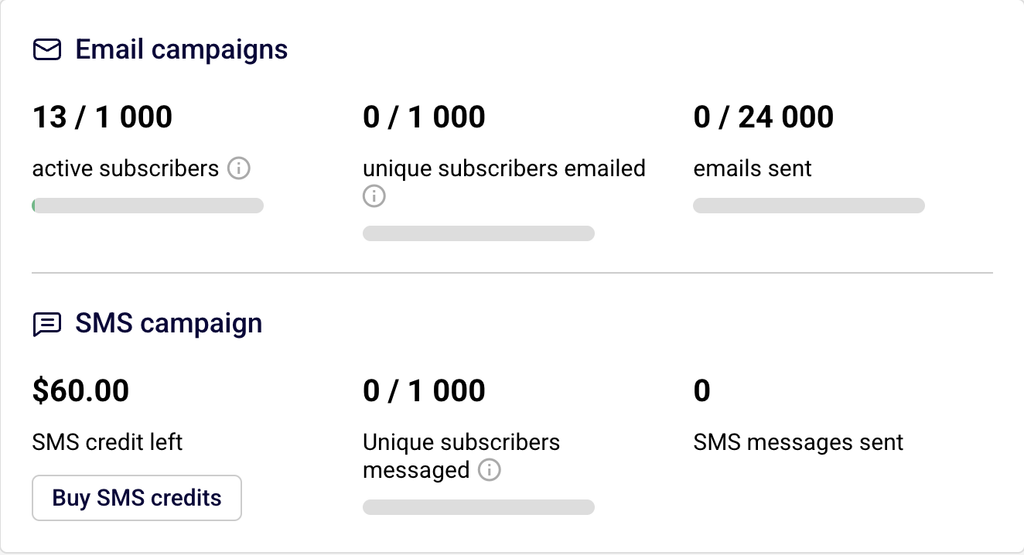
At the top of the Billing page, you will see two main sections. The Email campaigns section displays three usage indicators, each with a progress bar: active subscribers (your current count against the plan limit), unique subscribers emailed (the number of unique email addresses you have sent to against the plan limit), and emails sent (total emails sent against your monthly limit). The SMS campaign section shows SMS credit left (your remaining dollar balance), Unique subscribers messaged (distinct SMS recipients against the plan limit), and SMS messages sent (total SMS messages sent). Your plan name and status appear on the left under Your plan with an ACTIVE badge.
Steps to Check and Manage Your Free Plan Limits
Step 1 — Review your active subscriber count
Go to Account settings → Billing. Under Email campaigns, check the active subscribers indicator. This shows your current count against your plan’s subscriber limit as a fraction (for example, 2 / 1 000) with a progress bar beneath it. If the bar is nearly full, you are approaching your subscriber limit.
Step 2 — Review your email send usage
On the same Billing page, check the emails sent indicator under Email campaigns. This displays the total emails sent this billing cycle against your monthly limit.
To see a detailed log of email credit allocations and sends, select the Email usage tab below the usage summary. This log shows entries for plan credit allocations, counter resets at the start of each billing cycle, and individual campaign sends.
Step 3 — Review your SMS usage
Under the SMS campaign section on the Billing page, check SMS credit left for your remaining balance, Unique subscribers messaged for the number of distinct subscribers who received at least one SMS this billing period, and SMS messages sent for the total count. If your Free plan does not include SMS credits, these values will show zero.
Step 4 — Check your subscriber list for non-active contacts
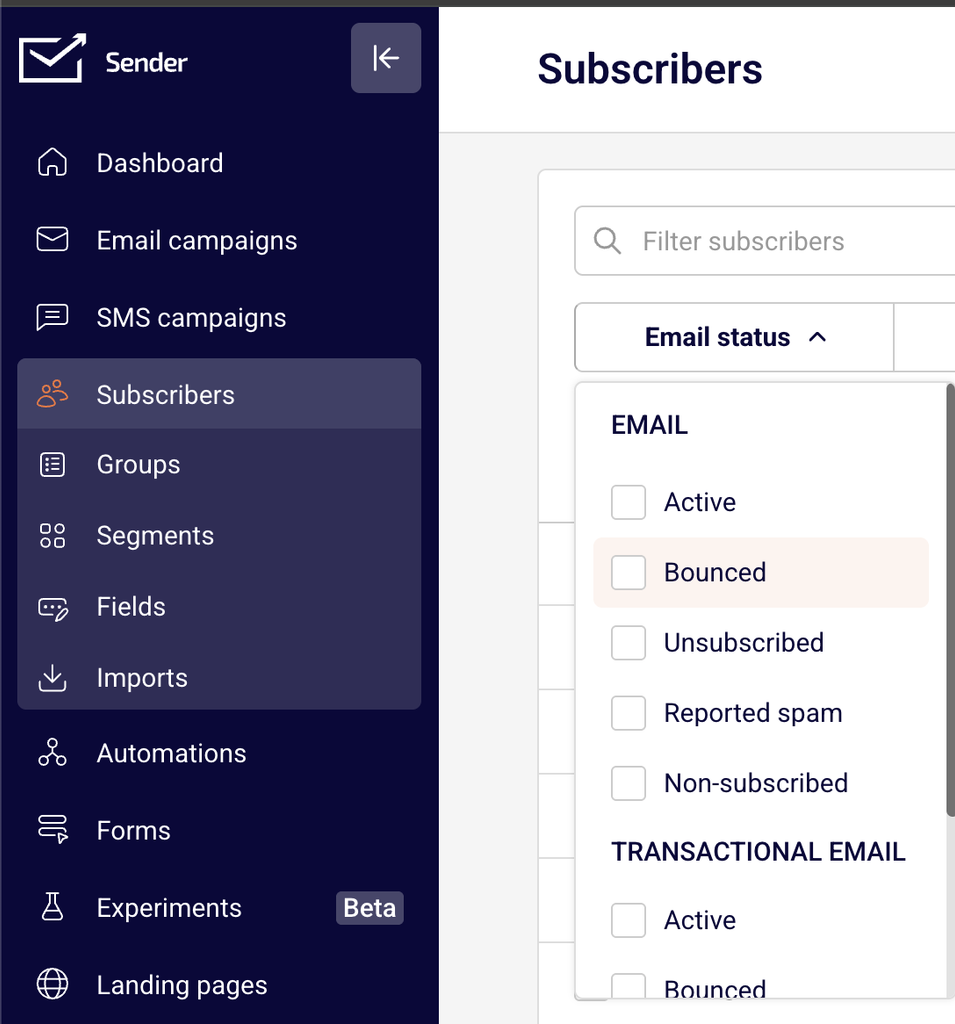
Go to Subscribers in the left sidebar. Use the Email status dropdown filter at the top of the page to view subscribers by status. Available statuses include Active, Bounced, Unsubscribed, Reported spam, and Non-subscribed. Filter by Bounced or Unsubscribed to identify contacts that no longer count toward your limit but may still appear in your list.
Step 5 — Remove inactive subscribers to free up space
On the Subscribers page, use the Email status filter to display Bounced, Unsubscribed, or other non-engaged contacts. Select the subscribers you want to remove using the checkboxes on the left. Click the Actions dropdown and choose Delete to permanently remove them. You can also use Unsubscribe to change a subscriber’s status without deleting them.
Step 6 — Verify your updated usage
Return to Account settings → Billing and confirm that the active subscribers count has decreased. The progress bar should reflect the updated count. If you have reduced your list below the plan limit, you can resume adding new subscribers and sending campaigns.
How Limits Are Calculated
Active subscriber count — Sender counts active subscribers as total recipients uploaded to your account minus those that have unsubscribed, bounced, or are duplicates. Only contacts with an Active email status count toward your plan’s subscriber limit.
Duplicate handling — If the same email address exists in multiple groups, Sender counts it as one unique subscriber toward your limit. Duplicate entries across groups do not multiply your count.
Monthly email send limit — Every email sent through a campaign, automation, or transactional send counts as one send toward your plan’s monthly email limit. The counter resets at the start of each billing cycle, which is visible in the Email usage log on the Billing page.
Unique subscribers emailed — This tracks the number of unique email addresses you have sent emails to during the current billing period. Sending multiple emails to the same address counts as one unique subscriber emailed.
SMS credit usage — SMS sends deduct from your SMS credit left balance. The Unique subscribers messaged metric counts distinct subscribers who received at least one SMS during the billing period. Free plan users may not have SMS credits included.
What Happens When You Hit a Limit
Subscriber limit reached — When your active subscribers count meets or exceeds your plan’s limit, Sender prevents new contacts from being added. You will need to reduce your list by deleting inactive or unengaged contacts, or move to a plan with a higher subscriber limit.
Email send limit reached — When the emails sent counter reaches your monthly limit, Sender prevents additional email sends until the counter resets at the start of your next billing cycle. Scheduled campaigns and active automations may be paused until sends become available again.
SMS credit depleted — When your SMS credit left reaches zero, Sender stops sending SMS messages. You can purchase additional credits by clicking Buy SMS credits on the Billing page.
Tips for Managing Limits
Filter and clean your list regularly — Go to Subscribers, filter by Bounced or Unsubscribed using the Email status dropdown, and delete contacts that no longer serve your campaigns. This frees up subscriber slots.
Monitor your usage before sending — Check Account settings → Billing before launching a large campaign to confirm you have enough remaining email sends and subscriber capacity.
Remove non-engaged contacts — Use the Advanced filter on the Subscribers page to identify contacts who have not opened or clicked recent emails. Removing non-engaged subscribers keeps your list lean.
Watch for duplicate imports — Before importing new contacts, be aware that Sender deduplicates by email address. Importing the same address into multiple groups does not increase your subscriber count, but importing new addresses does.
Track your email usage log — Select the Email usage tab on the Billing page to review when your send counter was last reset and how many emails have been consumed by individual campaigns.
Common Issues
Subscriber count appears higher than expected → This typically happens when contacts with an Active status exist across your account that you may not be aware of. Go to Subscribers, sort by Date added, and review recently added contacts. Use the Email status filter to confirm how many are Active.
Cannot add new subscribers → Your active subscribers count has reached the plan limit. Go to Account settings → Billing to verify. Reduce your list by deleting bounced, unsubscribed, or unengaged contacts on the Subscribers page.
Emails are not sending → Your emails sent counter may have reached the monthly limit. Check the emails sent indicator on the Billing page. If the limit is reached, wait for the billing cycle to reset or move to a plan with a higher send allowance.
Subscriber count did not decrease after unsubscribing contacts → Changing a contact’s status to Unsubscribed removes them from the active count, but the change may take a moment to reflect on the Billing page. Refresh the page and check the active subscribers indicator again.
Email usage log shows “Reset counter” → This entry appears at the start of each billing cycle when Sender resets your monthly email send allowance. It is expected behavior and confirms your new allocation is available.
FAQs
Do unsubscribed contacts count toward my subscriber limit?
No. Only contacts with an Active status count toward your plan’s subscriber limit. Unsubscribed, Bounced, and deleted contacts are excluded from the count.
If the same email address exists in multiple groups, does it count as one subscriber or multiple?
Sender counts each unique email address once toward your subscriber limit, regardless of how many groups it belongs to. Duplicate entries across groups do not multiply your count.
Do automation emails count toward my monthly email send limit?
Yes. Every email sent through a campaign, automation, or transactional send counts as one send toward your plan’s monthly email limit.
What happens if I reach my email send limit mid-month?
Sender prevents additional email sends until the limit resets at the start of your next billing cycle. Scheduled campaigns or active automations may be paused until sends are available again.
How do I reduce my subscriber count?
Go to Subscribers in the left sidebar. Use the Email status filter to find Bounced, Unsubscribed, or non-engaged contacts. Select them, click Actions, and choose Delete to remove them permanently. Regularly cleaning your list helps you stay within your plan’s subscriber limit.
Where can I see my exact subscriber count and send usage?
Go to Account settings → Billing. Your current active subscribers count and emails sent total are displayed alongside your plan’s limits under the Email campaigns section, each with a progress bar showing usage at a glance.
What does “Non-subscribed” status mean?
Non-subscribed refers to contacts who were added to your account but have not confirmed or completed a subscription action. These contacts may still count toward your subscriber limit depending on their email status. Check the Email status filter on the Subscribers page to review them.
Do SMS sends count toward my email send limit?
No. SMS messages and email sends are tracked separately. SMS usage is shown under SMS campaign on the Billing page, while email sends appear under Email campaigns.